
Working with Free-Form Buttons
Info
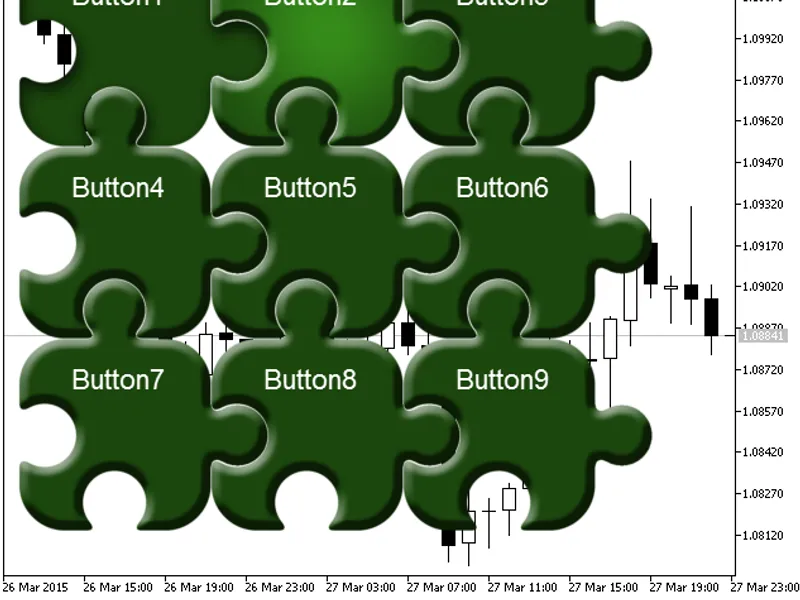
The Working with Free-Form Buttons is a Library for MetaTrader 5 that this class is designed for creating interactive buttons with various states on a price chart. A demonstration of the cbtn classClass Methods- create(long chart_id, int sub_wnd, string name, int x, int y, int dx, int dy)Create a button with parameters:- Window identifier- Subwindow number- Button name- X coordinate- Y coordinate- Horizontal size- Vertical size- resources(string img_up, string img_up_active, string img_dn, string img_dn_active, string img_up_disable, string img_dn_disable, string img_mask)Define images for different button states:- Normal unpressed button- Button hovered by cursor- Pressed button- Pressed button hovered by cursor- Disabled button- Button outline mask- setusemask(enum_usemask mask, int x, int y)Set the mask by the color of the specified pixel; the mask is formed from the standard unpressed button image.
Usage
This tool is typically used for enhancing chart analysis and decision making.
Platform
This Library works exclusively on MetaTrader 5 (both build 600+ and newer versions).
Setup
Place the downloaded file in MQL5/Libraries folder via File ? Open Data Folder in MetaTrader 5.
How to Install and Use Working with Free-Form Buttons
1. Storage: Place library files in the MQL/Libraries directory to ensure they are accessible to your projects.
2. Implementation: Include the library in your code using the #import directive, ensuring you match the exact function names and parameters.
3. Compilation: Ensure the library is present in the directory before you compile your main EA or script, as the compiler links them during this phase.
4. Management: Keep libraries organized in sub-folders if you manage many custom functions to maintain a clean project structure.
Frequently Asked Questions
Q: What is a library file used for? A: Libraries store reusable code modules, allowing you to centralize common logic used by multiple EAs or indicators.
Q: Is a library executable? A: No, libraries are non-executable files containing functions; they must be imported into an EA, indicator, or script to function.
Q: Can I update a library while the platform is running? A: You should compile your EA or script after updating a library to ensure the latest code changes are integrated.
What this tool does
This class is designed for creating interactive buttons with various states on a price chart.
Typical Use Case
This Library excels in automated trading and technical analysis on MetaTrader 5.
Compatible Platform & Setup
This Library works on MetaTrader 5. Place the file in the MQL5/Libraries folder and restart the terminal.
Description & Settings
Related: asq trade frequency controller: optimize trade frequency with precision - another powerful library for MetaTrader 5 traders.
This class is designed for creating interactive buttons with various states on a price chart.Also recommended: clatency monitor - inter-tick latency tracker with atr volatility gate and global variable ipc for mt5 eas - similar library with strong performance on MetaTrader 5.
A demonstration of the cbtn class
Class Methods
- create(long chart_id, int sub_wnd, string name, int x, int y, int dx, int dy)
Create a button with parameters:
- Window identifier
- Subwindow number
- Button name
- X coordinate
- Y coordinate
- Horizontal size
- Vertical size
- resources(string img_up, string img_up_active, string img_dn, string img_dn_active, string img_up_disable, string img_dn_disable, string img_mask)
Define images for different button states:
- Normal unpressed button
- Button hovered by cursor
- Pressed button
- Pressed button hovered by cursor
- Disabled button
- Button outline mask
- setusemask(enum_usemask mask, int x, int y)
Set the mask by the color of the specified pixel; the mask is formed from the standard unpressed button image.
- Used mask type
- X coordinate
- Y coordinate
- setusemask(enum_usemask mask, uint acolor)
Set the mask by color; the mask is formed from the normal unpressed button image.
- Used mask type
- Color
- setcorner(enum_base_corner corner)
Set the corner of the chart to which the button is anchored
- setanchor(enum_anchor_point anchor)
Set the anchor type
- setx(int x)
Set the x coordinate
- sety(int y)
Set the y coordinate
- setxy(int x, int y)
Single method for setting x and y coordinates
- on(bool state)
Set the button status (true for pressed, false for unpressed)
- enable(bool state)
Enable/disable the button
- paint(void)
Draw the button
- event(int id, long lparam, double dparam, string sparam)
Pass events to the button; all parameters are duplicated from the onchartevent function
- getx(void)
Get the x coordinate
- gety(void)
Get the y coordinate
- getenable(void)
Get the enabled/disabled status
- geton(void)
Get the pressed/unpressed status
- getcorner(void)
Get the corner of the chart to which the button is anchored
- getanchor(void)
Get the anchor type
- addtext(int x, int y, string font_name, int font_size, color text_color, string text)
Add text to the button:
- X coordinate
- Y coordinate
- Font name
- Font size
- Text color
- Text
- text(string text)
Update the button text (doesn't work without addtext(...) call)
Creating a Button
By default, a button has the following parameters:
- Unpressed
- Enabled
- Anchored to the upper left corner of the chart
- Anchored by the upper left corner of the button
Setting the Button Mask
By default, the button is created from the normal unpressed button image. Transparent pixels serve as a mask.
- usemask(mask_standalone_resource) - The mask uses an image specified in resources(). If the image is not set, the entire button area (rectangle) will be used as the working area.
- usemask(mask_pixel, x, y) - The mask uses the color of the specified pixel. If the pixel color doesn't match, it becomes the mask. If coordinates are not set, use [0,0].
- usemask(mask_color, color) - The specified color is used for the mask. If the pixel color doesn't match, it becomes the mask. The color should be in ARGB format.
You may also like: code library for recording balance and equity charts with optimization criteria - excellent alternative for library users on MetaTrader 5.
Source Code
#property copyright "robotfx"
#property link "https://robotfx.org"
#property version   "1.01"
#resource "img\\200_1.bmp"
#resource "img\\200_2.bmp"
#resource "img\\200_3.bmp"
#resource "img\\200_4.bmp"
#resource "img\\200_5.bmp"
#resource "img\\200_6.bmp"
#include "class.mqh"
.......
⚠ Limitations & Risk Warning
- This tool is provided for educational and testing purposes only.
- Past performance does not guarantee future results.
- Trading involves substantial risk of loss. Use on a demo account first.
- Results may vary depending on market conditions, broker, and settings.
- We recommend thorough backtesting and forward testing before using with real funds.