


non lag ma with at r bands and control panel
Info
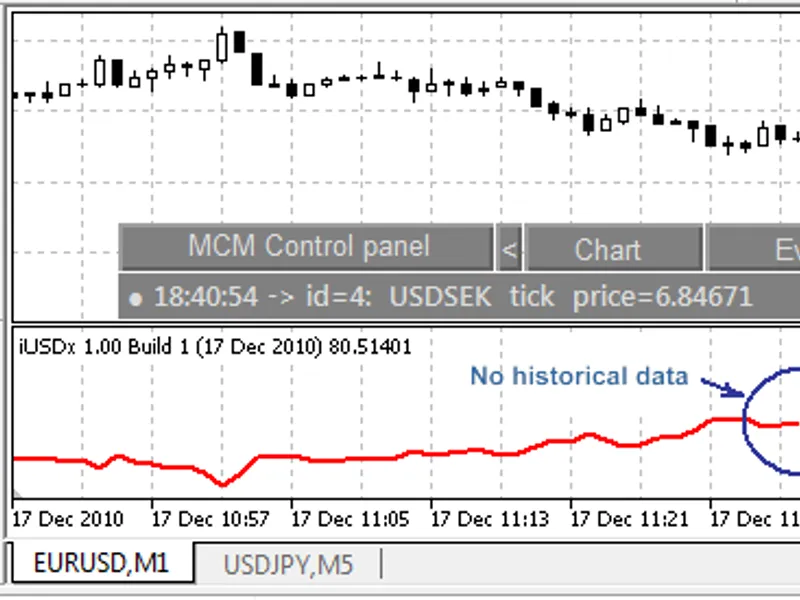
The non lag ma with at r bands and control panel is a Indicator for MetaTrader 5 that the control dashboard has features as shown:click "trend bar" to turn the indicator on or off. drag and drop "non-lag-ma" to reposition the information display.
Usage
This tool is typically used for enhancing chart analysis and decision making.
Platform
This Indicator works exclusively on MetaTrader 5 (both build 600+ and newer versions).
Setup
Place the downloaded file in MQL5/Indicators folder via File ? Open Data Folder in MetaTrader 5.
How to Install and Use non lag ma with at r bands and control panel
1. Installation: Place your file in the MQL/Indicators folder via "Open Data Folder" and restart your terminal.
2. Loading: Find the indicator in the Navigator, drag it onto your chart, and configure the input parameters in the popup window.
3. Customization: Press Ctrl+I to open the indicator list, select your tool, and click "Properties" to change colors, levels, or visual styles.
4. Updating: Replace the old file in the Indicators folder with the new version and restart the platform to apply changes.
Frequently Asked Questions
Q: Why is my indicator not showing? A: Verify the file is in the MQL/Indicators folder, or try right-clicking the "Indicators" tree in the Navigator and clicking "Refresh."
Q: Do custom indicators slow down the platform? A: Too many complex indicators can impact performance; remove unused ones via the "Indicator List" (Ctrl+I).
Q: Can I use MT4 indicators on MT5? A: No, MQL4 and MQL5 are distinct languages; ensure the indicator is compiled specifically for your platform version.
What this tool does
the control dashboard has features as shown:click "trend bar" to turn the indicator on or off.
Typical Use Case
This Indicator excels in automated trading and technical analysis on MetaTrader 5.
Compatible Platform & Setup
This Indicator works on MetaTrader 5. Place the file in the MQL5/Indicators folder and restart the terminal.
Description & Settings
Related: SMC Order Block Detector with Alert for MT5 - another powerful indicator for MetaTrader 5 traders.
the control dashboard has features as shown:
Also recommended: Bands Stoch RSI Extreme Reversal Signals - similar indicator with strong performance on MetaTrader 5.
click "trend bar" to turn the indicator on or off.
drag and drop "non-lag-ma" to reposition the information display.
clicking "top band" will display the 'alfa' array and weight variable of the nonlagma. this nothing but a curiosity display.
clicking anyplace on the chart selects the bar at that chart time to have its indicator values displayed.
an option for defining the indicator buffers (and plots) is to separate the data from the code and feed the data for each buffer to a single code block. along with the data arrays, an enum is defined to access the arrays with a human readable index to the proper array entry.
this data is then provided by a for loop that accesses the arrays and provides the data to the index setting functions - each of which only have to be entered once:
likewise, a structure is used to define an array of buffers that can be accessed using the same "indicatorbufferidx" enum values throughout the program:
like this: indi_array[k_atr_up_idx].m_indi_buff[shift];
two classes are defined and used:
class alfaclass performs all the calculations for the nonlagma values, with the alfa array values and weight value calculated only when the constructor is run. making multiple alfaclass instances with differend period's passed to the constructor would readily support an indicator with multiple moving averages displayed.
class informationdisplaypanel implements all of the functions needed to display the information panel as well as the information panel's interactions with onchartevent processing. it also uses an enumeration to access the data for the panel objects with human readable text in the code.the onchartevent function processes three different events,
chartevent_click to select a time (chart bar) for indicator data display.
chartevent_object_click to detect object clicks and enable turning the indicator on and off.
chartevent_object_drag to enable moving the information panel.
oncalculate includes 6 function calls, each of which returns false if there is a failure in its processing and terminates the oncalcualte function by returning the number of bars that have been previously successfully processed (the value in the static integer last_prev_calculated):
setcalcuatelimits sets the oldest bar that the indicator should process (starting_bar), as well as setting the number of bars to get data from the terminal from (in to_copy). i moved the call for setting the terminal data handles function (handlesset) from the usual oninit location, to be called from inside of setcalculatelimits on it's first run to implement automatic re-tries if there were to be an error getting the handles.
terminalcalculationsarecomplete checks if the terminal has finished calcualting ima and iatr data. on startup, this function almost always returns an error, and the terminal automatically re-runs oncalculate with a success on the 2nd try. check the experts tab on the terminal for indicator error logs like this:
"terminalcalculationsarecomplete: not all data of teh ma_handle is calculated (-1 bars calculated out of 66109). error: 4806, requested data not found, 1 times."
performbuffercopies retrieves terminal data ( moving average and atr) for the indicator to use.
the moving average from the terminal is a single bar moving average - its only purpose is to get the enum_applied_price value for each bar, price_close by default. the actual moving average is calculated by the indicator (default is 30 bars).
runtheindicator performs the indicator calculations and subsequent display. runtheindicator is also called from the onchartevent function when the indicator is turned off and back on to re-display the indicator.
showbarstatistics - finally, the indicator's information panel is displayed.i have an mql4 'twin' to this program that can be used to do a side-by-side comparison of the code blocks and functions that i'd be happy to provide to any one curious to see it.
You may also like: SAX Forecaster: Predictive Market Analysis with Symbolic Strings - excellent alternative for indicator users on MetaTrader 5.
Source Code
/.......
⚠ Limitations & Risk Warning
- This tool is provided for educational and testing purposes only.
- Past performance does not guarantee future results.
- Trading involves substantial risk of loss. Use on a demo account first.
- Results may vary depending on market conditions, broker, and settings.
- We recommend thorough backtesting and forward testing before using with real funds.