




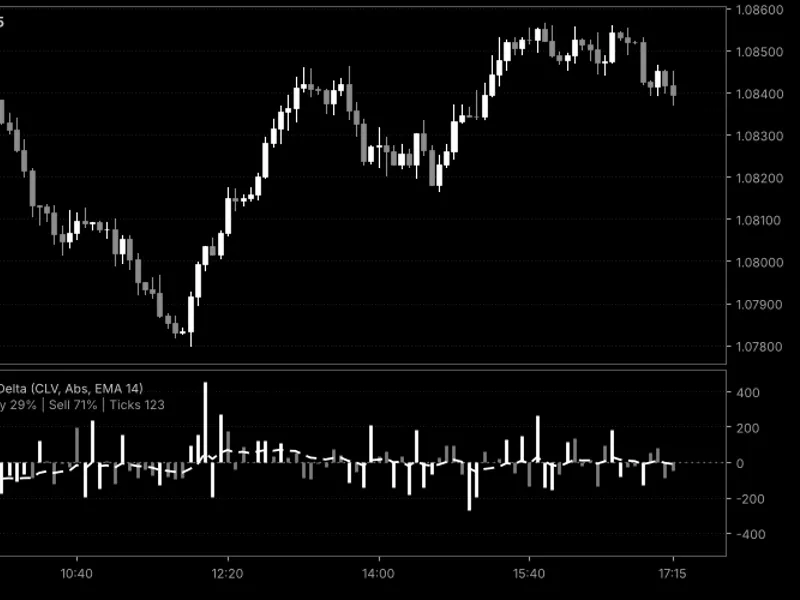
Import Tick Data CSV to Custom Symbol for Realistic Backtesting
Info
The Import Tick Data CSV to Custom Symbol for Realistic Backtesting is a Script for MetaTrader 5 that import your historical tick data from a csv file into a custom symbol for advanced strategy tester simulations using 'every tick based on real ticks'. This utility allows you to extend your backtesting capabilities beyond the limited tick data provided by most brokers.
Usage
This tool is typically used for enhancing chart analysis and decision making.
Platform
This Script works exclusively on MetaTrader 5 (both build 600+ and newer versions).
Setup
Place the downloaded file in MQL5/Scripts folder via File ? Open Data Folder in MetaTrader 5.
How to Install and Use Import Tick Data CSV to Custom Symbol for Realistic Backtesting
1. Installation: Move your script file into the MQL/Scripts directory and restart the platform.
2. Execution: Drag the script onto a chart; it will perform a one-time action, such as closing all open orders or clearing chart objects.
3. Editing: Use MetaEditor (F4) to modify code, click "Compile," and verify no errors appear in the terminal before running.
4. Removing: Scripts stop automatically, but you can remove them manually by right-clicking the chart and choosing "Remove Script."
Frequently Asked Questions
Q: How are scripts different from EAs? A: Scripts execute a single action and then stop; EAs monitor the market and trade continuously.
Q: Can I assign a hotkey to a script? A: Yes, right-click the script in the Navigator, select "Set Hotkey," and define your preferred keyboard shortcut.
Q: Why did my script stop? A: Scripts are designed to stop immediately after finishing their programmed command; this is normal behavior.
What this tool does
Import your historical tick data from a CSV file into a custom symbol for advanced Strategy Tester simulations using 'Every tick based on real ticks'.
Typical Use Case
This Script excels in automated trading and technical analysis on MetaTrader 5.
Compatible Platform & Setup
This Script works on MetaTrader 5. Place the file in the MQL5/Scripts folder and restart the terminal.
Description & Settings
Related: MetaTrader Backtest Data Validation: Broker Bar and Tick History Check - another powerful script for MetaTrader 5 traders.
Import your historical tick data from a CSV file into a custom symbol for advanced Strategy Tester simulations using 'Every tick based on real ticks'. This utility allows you to extend your backtesting capabilities beyond the limited tick data provided by most brokers.Also recommended: Tick Depth Probe: Assess Your Broker's Historical Tick Data Accuracy - similar script with strong performance on MetaTrader 5.
This script does not execute trades or modify existing broker symbols.
Functionality:
- Creates a new custom symbol based on a selected broker symbol's contract specifications, or updates an existing custom symbol.
- Automatically detects time, bid, and ask columns by their headers.
- Supports common delimiters: comma, semicolon, and tab.
- Parses various date and time formats including epoch seconds/milliseconds, YYYY-MM-DD, YYYY.MM.DD, DD.MM.YYYY, DD/MM/YYYY, and YYYYMMDD, with or without milliseconds. Date and time can be in separate or combined columns.
- Adjusts Coordinated Universal Time (UTC) to your broker's server time (e.g., UTC+2, UTC+3 during US daylight saving time) or applies a fixed hourly shift.
- Writes data in full-day increments. Partial first and last days are handled based on available tick data.
- Allows sequential import of monthly or yearly files, ensuring continuity without data gaps.
- Reports counts of unreadable lines, out-of-order ticks, and invalid ticks (ask < bid).
Usage Instructions:
1. Place your tick data CSV file in the MQL5\Files directory of your MetaTrader terminal (accessible via File - Open Data Folder).
2. Open a chart for the desired broker symbol.
3. Drag and drop this script onto the chart and specify your CSV file name in the input parameters.
4. Monitor the Experts log for a 'DONE' message upon successful completion. Any 'ERROR' messages indicate issues encountered during the import process.
5. Select the newly created custom symbol in the Strategy Tester and choose 'Every tick based on real ticks' for testing.
Example:
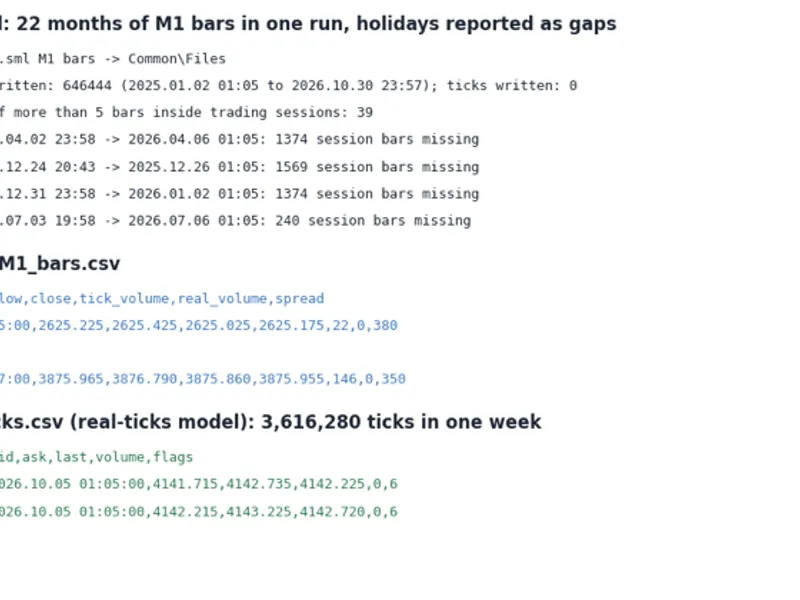
The included image demonstrates the import of four days of Gold (XAUUSD) data, resulting in 590,461 ticks and 5,460 one-minute bars, completed in just six seconds.
Input Parameters:
InpFile: The name of your tick data CSV file located in the MQL5\Files folder. The first line of the CSV must contain column headers.
InpSymbol: The name for the custom symbol to be created or updated. If left blank, the script will generate a name by appending '_CSV' to the origin symbol's name (e.g., EURUSD_CSV).
InpOrigin: The broker symbol from which to copy contract specifications. If left blank, the script will use the symbol of the currently active chart.
InpNYClose: Boolean value (true/false) to indicate whether to adjust UTC times to server time using the current US Daylight Saving Time rules (default is true).
InpFixedShift: An integer value representing a fixed hourly offset to apply to times when InpNYClose is set to false. Set to 0 if the times in your CSV are already in server time (common for tick exports from MetaTrader 5).
Important Notes:
- Time Zone Check: The script's log displays your broker's current UTC offset alongside the offset it uses. Ensure your PC clock is accurate for this comparison. If discrepancies exist, manually set the offset using InpFixedShift. The DST rule applied is based on regulations effective since 2007.
- Date Format Interpretation: For dates like 03.04.2026 or 03/04/2026, the script interprets the day first, then the month.
- Forex Symbol Naming Convention: For Forex symbols, the custom symbol name must start with the same first six characters as the origin symbol (e.g., EURUSD_CSV). This is a MetaTrader requirement for currency pair identification. The script will reject names that do not comply.
- Price Precision: Tick prices are rounded to match the number of digits defined in the broker symbol's contract specifications.
- Backtest Start Offset: The Strategy Tester requires historical data preceding the first day of your test. It is advisable to import slightly more data than your intended testing period to ensure the tester initializes correctly.
- Data Verification: Tick data and spreads from external sources may differ from your broker's live data. Always verify your backtest results using your broker's own tick data for the relevant periods, if available.
- Additional Log File: A detailed import result is saved to ImportTicksCSV_result.txt in the MQL5\Files directory.
- Tick Data Depth: To ascertain the extent of historical tick data available from your broker, consider using the 'Tick Depth Probe' utility.
For questions or suggestions, please use the comments section.
You may also like: Solfeo: Market as a Musical Score (Candlesticks to MIDI) - excellent alternative for script users on MetaTrader 5.
Source Code
#property copyright "RobotFX"
#property link "https://robotfx.org"
#property version     "1.10"
#property description "This code is educational. Feel free to use, modify and upgrade as you wish. Visit ROBOTFX.ORG for professional trading tools"
#property script_show_inputs
input string InpFile       = "ticks.csv";
input string InpSymbol     = "";
input string InpOrigin     = "";
input bool   InpNYClose    = true;
input int    InpFixedShift = 0;
.......
⚠ Limitations & Risk Warning
- This tool is provided for educational and testing purposes only.
- Past performance does not guarantee future results.
- Trading involves substantial risk of loss. Use on a demo account first.
- Results may vary depending on market conditions, broker, and settings.
- We recommend thorough backtesting and forward testing before using with real funds.