




Tick Depth Probe: Assess Your Broker's Historical Tick Data Accuracy
Info
The Tick Depth Probe: Assess Your Broker's Historical Tick Data Accuracy is a Script for MetaTrader 5 that a backtest using "every tick based on real ticks" is only as reliable as the historical tick data your broker provides. This script queries the broker's server to retrieve real ticks within several short sample time windows, ranging from two weeks ago back to approximately four years ago.
Usage
This tool is typically used for enhancing chart analysis and decision making.
Platform
This Script works exclusively on MetaTrader 5 (both build 600+ and newer versions).
Setup
Place the downloaded file in MQL5/Scripts folder via File ? Open Data Folder in MetaTrader 5.
How to Install and Use Tick Depth Probe: Assess Your Broker's Historical Tick Data Accuracy
1. Installation: Move your script file into the MQL/Scripts directory and restart the platform.
2. Execution: Drag the script onto a chart; it will perform a one-time action, such as closing all open orders or clearing chart objects.
3. Editing: Use MetaEditor (F4) to modify code, click "Compile," and verify no errors appear in the terminal before running.
4. Removing: Scripts stop automatically, but you can remove them manually by right-clicking the chart and choosing "Remove Script."
Frequently Asked Questions
Q: How are scripts different from EAs? A: Scripts execute a single action and then stop; EAs monitor the market and trade continuously.
Q: Can I assign a hotkey to a script? A: Yes, right-click the script in the Navigator, select "Set Hotkey," and define your preferred keyboard shortcut.
Q: Why did my script stop? A: Scripts are designed to stop immediately after finishing their programmed command; this is normal behavior.
What this tool does
A backtest using "Every tick based on real ticks" is only as reliable as the historical tick data your broker provides.
Typical Use Case
This Script excels in automated trading and technical analysis on MetaTrader 5.
Compatible Platform & Setup
This Script works on MetaTrader 5. Place the file in the MQL5/Scripts folder and restart the terminal.
Description & Settings
Related: History Depth Check - how far back your EA can read on each timeframe - another powerful script for MetaTrader 5 traders.
A backtest using "Every tick based on real ticks" is only as reliable as the historical tick data your broker provides.Also recommended: MetaTrader Backtest Data Validation: Broker Bar and Tick History Check - similar script with strong performance on MetaTrader 5.
This script queries the broker's server to retrieve real ticks within several short sample time windows, ranging from two weeks ago back to approximately four years ago. It then reports the oldest tick data it successfully found.
The script does not place any orders or alter any terminal settings. To test the tick history for a specific instrument, run the script on that symbol's chart, as tick history is maintained on a per-symbol basis.
How It Works
The script tests time windows starting from two weeks ago, and then successively at approximately 1, 3, 6, 12, 18, 24, 30, 36, 42, and 48 months prior. Each window requests only a few days' worth of data, ensuring the script does not require access to the entire historical data set.
The initial request for a specific time window prompts the terminal to download the data. Consequently, an early response might indicate "no ticks found" even if the broker possesses the data. The script will re-request data for each window until ticks are retrieved or a predefined time limit is reached.
The most recent time window serves as a control. If this control window is also empty, the script will indicate that the results are inconclusive rather than assigning a specific date.
The script terminates after a configurable number of consecutive empty windows. If ticks are subsequently found after an empty window, or if a request fails, this will be noted in the results.
How to Interpret the Results
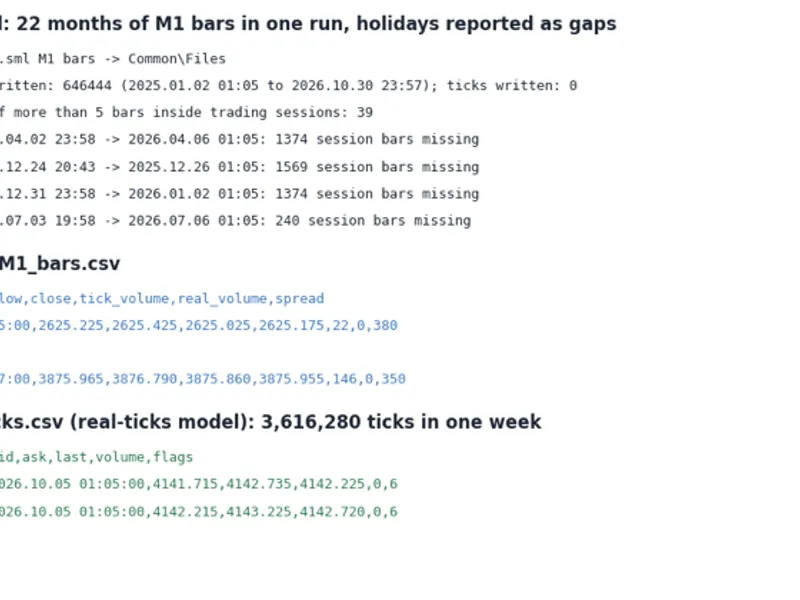
Each line of the output represents a tested time window, displaying its start date, the total number of ticks found within that window, and the average number of ticks per day for that period. In cases where the oldest tick data falls within the last tested window, that window's average tick count may appear lower because the history begins mid-window.
The line indicating the "Oldest tick found" is the crucial piece of information for setting your backtest start date. You should set your backtest start date to be on or after this reported date. The example output shows a test conducted on Gold (XAUUSD) on a broker's demo account, where tick data availability commenced approximately three months prior to the test.
Inputs
InpSymbol: Specifies the symbol to check. If left blank, the script will use the symbol of the current chart.
InpDays: Defines the length of each sample time window in days. Accepts values from 1 to 7 (default is 4).
InpWaitSec: Sets the maximum waiting time in seconds for each window's data retrieval (default is 60). Increase this value if you have a slow internet connection or are testing a symbol with a very high tick volume.
InpStopEmpty: Configures the number of consecutive empty windows after which the script should stop (default is 2). Set to 0 to test all available windows.
InpOnChart: A boolean input to display the results directly on the chart (default is true).
The script also logs the results to the Experts tab in the terminal and saves them to a text file located in the MQL5\Files directory. The filename will be prefixed with "TickDepthProbe_" followed by the symbol name.
Performance Notes
For instance, testing Gold (XAUUSD) with approximately half a million ticks per day, an initial run took about five minutes, while subsequent runs completed in approximately two minutes.
Important Considerations
The tested windows are merely samples. The presence of ticks within a specific window does not guarantee the existence of continuous tick data for every minute between consecutive windows. The actual oldest tick might lie within a gap between an empty window and the next one that contains data.
An "empty" response could also be due to a slow data download. To ensure reliability, consider running the script a second time, potentially with an increased wait time (`InpWaitSec`), before making definitive conclusions.
For any questions or suggestions, please post in the comments section.
You may also like: Import Tick Data CSV to Custom Symbol for Realistic Backtesting - excellent alternative for script users on MetaTrader 5.
Source Code
#property copyright "RobotFX"
#property link "https://robotfx.org"
#property version     "1.10"
#property description "This code is educational. Feel free to use, modify and upgrade as you wish. Visit ROBOTFX.ORG for professional trading tools"
#property script_show_inputs
input string InpSymbol    = "";
input int    InpDays      = 4;
input int    InpWaitSec   = 60;
input int    InpStopEmpty = 2;
input bool   InpOnChart   = true;
.......
⚠ Limitations & Risk Warning
- This tool is provided for educational and testing purposes only.
- Past performance does not guarantee future results.
- Trading involves substantial risk of loss. Use on a demo account first.
- Results may vary depending on market conditions, broker, and settings.
- We recommend thorough backtesting and forward testing before using with real funds.