
Tick Scalper Helper: Tick Chart and One-Click Trading Panel for MT5
Info
The Tick Scalper Helper: Tick Chart and One-Click Trading Panel for MT5 is a Expert Advisor for MetaTrader 5 that tick scalper helper is a manual trading utility designed for traders who operate on very short timeframes and need to monitor every price fluctuation. This tool replaces the standard time-based chart view with a compact tick chart and integrates a panel for rapid order execution.
Usage
This tool is typically used for scalping on lower timeframes (M1-M15).
Platform
This Expert Advisor works exclusively on MetaTrader 5 (both build 600+ and newer versions).
Setup
Place the downloaded file in MQL5/Experts folder via File ? Open Data Folder in MetaTrader 5.
How to Install and Use Tick Scalper Helper: Tick Chart and One-Click Trading Panel for MT5
1. Installation: Open the "File" menu, select "Open Data Folder," navigate to MQL/Experts, paste your file, and restart the terminal.
2. Activation: Drag the EA from the Navigator onto a chart, ensure "Allow live trading" is checked in the Common tab, and verify the AutoTrading button is green.
3. Optimization: Right-click your chart, choose "Expert List," click "Properties" to adjust inputs, and save your preferred setup as a set file for future use.
4. Maintenance: Regularly check the "Experts" tab in the terminal window to monitor trade logs and potential execution errors.
Frequently Asked Questions
Q: Why is my EA not opening trades? A: Check the "AutoTrading" button, ensure "Allow live trading" is enabled, and verify your broker allows automated trading on your account type.
Q: Can I run multiple EAs on one chart? A: No, each chart can only host one active EA; however, you can open multiple charts for different currency pairs to run several EAs.
Q: What does the "smiley face" icon mean? A: A smiley face in the top-right corner of the chart indicates the EA is successfully running; a frowny face means it is disabled.
What this tool does
Tick Scalper Helper is a manual trading utility designed for traders who operate on very short timeframes and need to monitor every price fluctuation.
Typical Use Case
This Expert Advisor excels in automated trading and technical analysis on MetaTrader 5.
Compatible Platform & Setup
This Expert Advisor works on MetaTrader 5. Place the file in the MQL5/Experts folder and restart the terminal.
Description & Settings
Related: Supertrend Scalper with Breakeven Win Rate Panel - another powerful expert for MetaTrader 5 traders.
Tick Scalper Helper is a manual trading utility designed for traders who operate on very short timeframes and need to monitor every price fluctuation.Also recommended: EMA Cross Scalper for XAUUSD (M15) with WIB Session Filter - similar expert with strong performance on MetaTrader 5.
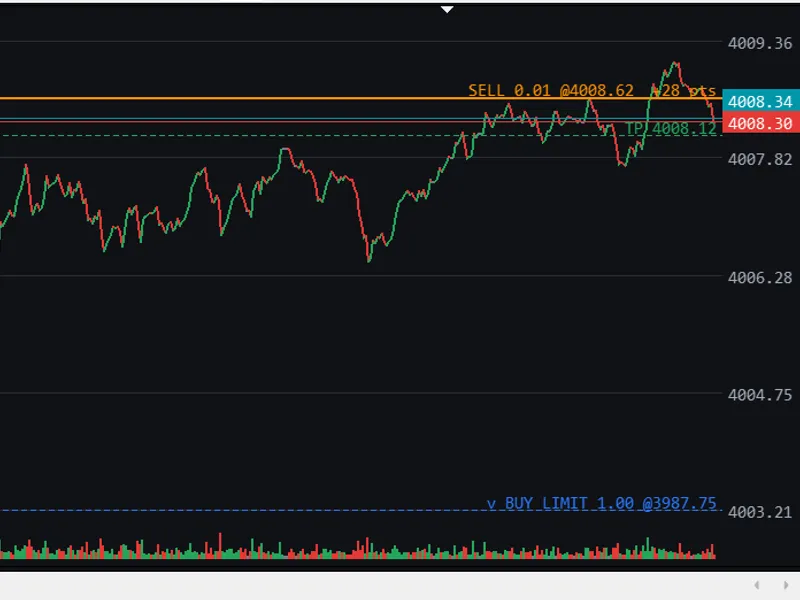
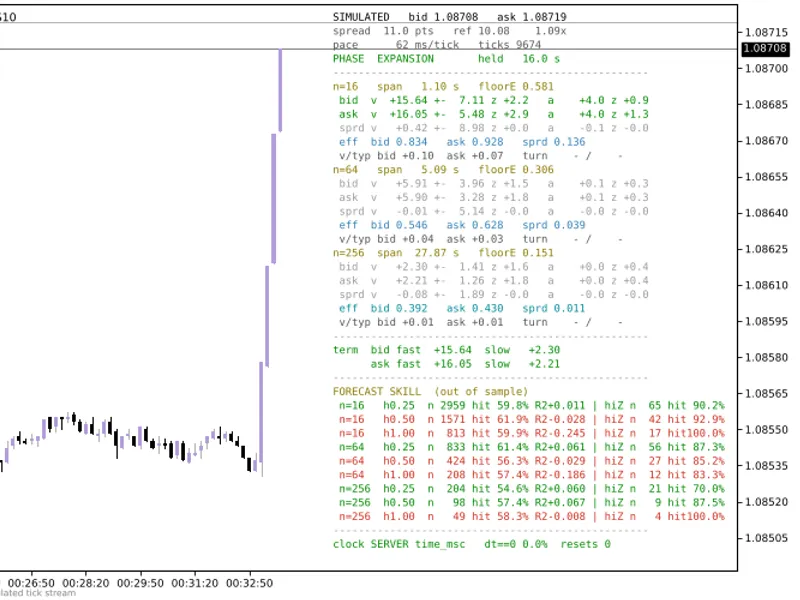
This tool replaces the standard time-based chart view with a compact tick chart and integrates a panel for rapid order execution. Each tick is represented as a bar, allowing maximum data to be displayed on the screen. Upward ticks are shown in green, downward ticks in red, and unchanged ticks in grey.
A strip at the bottom visually represents each tick with a colored mark, where taller marks indicate larger price movements.
Users can adjust the tick grouping using the '+' and '-' buttons, which control the number of ticks per bar (1, 2, 4, 8, etc.).
An optional time scale feature allows for a fixed number of pixels per second, providing an alternative to the compact layout.
The utility includes both light and dark modes, with customizable colors.
Live BID and ASK lines with price tags are updated in real-time with every tick.
Vertical zoom functionality is available by dragging the price axis, and the chart can be panned accordingly. A double-click on the axis or pressing 'Y Auto' resets the view to automatically fit the visible ticks.
Trading Panel
The trading panel features BUY and SELL buttons along with a lot size field.
Optional Take Profit and Stop Loss levels can be set in points. These are disabled by default. If the specified distance is less than the broker's minimum requirement (stop level plus spread), it will be adjusted to meet that minimum.
Functionality to Close Buy, Close Sell, Close Profit (only profitable positions), and Close All positions for the current chart symbol is provided.
Orders are submitted using pre-built requests to minimize processing time on the terminal side. Actual execution speed depends on the broker, connection, and server.
Each order request is validated. If a request fails or is rejected by the server, an on-chart message and an entry in the Experts log will indicate the reason.
Open positions, pending orders, Stop Loss, and Take Profit levels are visualized on the chart, displaying the side, volume, and current distance in points.
Pending Orders at Clicked Price
Action
Result
Ctrl + left-click on the chart
Places a pending BUY order at the price under the cursor (automatically determined as limit or stop).
Shift + left-click on the chart
Places a pending SELL order at the price under the cursor (automatically determined as limit or stop).
Holding a key while moving the mouse
Displays crosshair previews of the price and order type.
Price within Broker's Stops Level
The order is not sent, and a message is displayed.
Strategy Tester and Backtesting
This product can be tested in the MetaTrader 5 Strategy Tester through various modes:
Tester Mode
Panel and Tick Chart
Demonstration Rule
Typical Use
Visual Mode
Fully functional. Buttons can be clicked during the test.
Enabled by default (input InpBtAuto); can be disabled for manual trading only.
Allows practicing order handling on historical ticks at adjustable speeds.
Non-Visual Mode
Not displayed (results in faster testing).
Enabled by default (input InpBtAuto).
Enables unattended testing of order handling.
Optimization
Not displayed.
Enabled by default. Uses a custom criterion from OnTester(): net profit relative to equity drawdown.
Facilitates comparison of input sets for the demonstration rule.
Live or Demo Chart
Fully functional.
Never active.
Restricted to manual trading only.
The demonstration rule identifies a specified number of consecutive ticks in one direction, opens a position with a fixed Stop Loss and Take Profit, and closes it based on SL, TP, or a maximum holding time. It performs checks for symbol trade mode, volume, and free margin before each order. This rule is intended solely for testing and demonstration purposes and does not constitute a trading recommendation. A session line on the chart illustrates closed trades, the percentage of winning trades, and the net result since the start of the test. For the most accurate results, use the "Every tick based on real ticks" model. Tester outcomes are influenced by tick quality, spreads, commissions, execution delays, and broker conditions, and do not guarantee future trading performance.
Input Parameters
Group
Parameter
Default
Description
Trading
InpLots
0.01
Default lot size.
Trading
InpDeviation
30
Maximum slippage allowed in points.
Trading
InpMagic
0
Magic number. The demonstration rule uses this value plus 1.
Trading
InpTPOn
false
Enables Take Profit at the start.
Trading
InpTPPoints
50
Take Profit distance in points.
Trading
InpSLOn
false
Enables Stop Loss at the start.
Trading
InpSLPoints
50
Stop Loss distance in points.
Trading
InpPendingClick
true
Enables pending orders placement via Ctrl/Shift + click.
Tick chart
InpTicksPerBar
1
Initial number of ticks per bar.
Tick chart
InpMaxTicksPerBar
4096
Maximum ticks per bar adjustable with the '+' button.
Tick chart
InpBarWidth
2
Width of each tick/bar in pixels.
Tick chart
InpLineWidth
2
Thickness of lines in pixels.
Tick chart
InpTimeMode
false
Enables time-scaled horizontal axis at the start.
Tick chart
InpPxPerSecond
10.0
Time mode: pixels per second.
Tick chart
InpPadPercent
5.0
Vertical padding for automatic zoom, in percent.
Tick chart
InpSkipUnchanged
true
Ignores ticks where the BID price has not changed.
Tick chart
InpPreloadTicks
10000
Number of historical ticks loaded at the start for live charts.
Display
InpDarkMode
true
Enables dark mode at the start.
Display
InpShowBidAsk
true
Displays BID and ASK lines.
Display
InpShowLevels
true
Displays positions, pending orders, SL, and TP levels.
Display
InpColUp / InpColDown
green / red
Colors for up and down ticks.
Display
InpColAsk
teal
Color for the ASK line.
Display
InpColBuyLevel / InpColSellLevel
blue / orange
Colors for buy and sell levels.
Display
InpRenderMs
15
Chart refresh interval in milliseconds.
Backtest
InpBtAuto
true
Runs the demonstration rule in the Strategy Tester (never on live charts).
Backtest
InpBtTicks
4
Entry condition: consecutive ticks in one direction.
Backtest
InpBtTP
40
Take Profit distance in points.
Backtest
InpBtSL
60
Stop Loss distance in points.
Backtest
InpBtMaxSpread
0
Maximum spread for entry in points (0 means disabled).
Backtest
InpBtMaxHoldSec
60
Maximum position holding time in seconds (0 means disabled).
Backtest
InpBtCooldownSec
10
Cooldown period in seconds after each entry.
How to Start
Attach the product to the chart of your trading symbol.
Enable Algo Trading in the terminal and on the product's Common tab.
Set the desired lot size in the panel and use the trading buttons.
Hover over the "Info" text in the panel to view a list of available mouse actions.
Requirements and Notes
Requires MetaTrader 5. Compatible with hedging or netting accounts.
Operates exclusively on the symbol of the attached chart. Position and order management are specific to that symbol.
The product utilizes the chart area for its own display elements. Original chart settings (type, grid, scales, colors) are restored upon removal of the product.
Risk Warning
Trading leveraged products carries a high risk of loss. This product serves as a tool for order handling and chart display and does not make trading decisions on live or demo accounts, nor does it guarantee or imply profits. It is recommended to test thoroughly on a demo account first.
Support
For support, please use the comments section on the product page or send MQL5 private messages. Kindly include the product version (displayed at the top of the chart), your terminal build number, and your broker's symbol name.
Version History
Version
Changes
1.7
Positions with SL/TP within the broker's freeze level are not closed until price moves away. Failed demo closes are retried at most once per second.
1.6
Strategy Tester support, demonstration rule for unattended tests, session statistics, stops-level and margin checks.
1.5
Hover help ("Info") replaces on-screen explanations.
1.4
Draggable vertical zoom, pending orders at clicked price, comprehensive input list.
1.3
Vertical zoom fits only visible ticks.
1.2
Live BID and ASK lines.
1.1
Order result checking, compact ticks, time scale, trade levels displayed on the chart.
1.0
First release.
You may also like: Newtonian Mechanics: Bid/Ask Tick Kinematics with Error Bars - excellent alternative for expert users on MetaTrader 5.
Source Code
#property copyright "RobotFX"
#property version   "1.70"
#property description "This code is educational. Feel free to use, modify and upgrade as you wish. Visit ROBOTFX.ORG for professional trading tools"
#include <Canvas\Canvas.mqh>
input group "=== Trading ==="
input double InpLots          = 0.01;
input int    InpDeviation     = 30;
input ulong  InpMagic         = 0;
input bool   InpTPOn          = false;
input int    InpTPPoints      = 50;
.......
⚠ Limitations & Risk Warning
- This tool is provided for educational and testing purposes only.
- Past performance does not guarantee future results.
- Trading involves substantial risk of loss. Use on a demo account first.
- Results may vary depending on market conditions, broker, and settings.
- We recommend thorough backtesting and forward testing before using with real funds.