
Strategy Tester History Export: Bars and Ticks
Info
The Strategy Tester History Export: Bars and Ticks is a Expert Advisor for MetaTrader 5 that exports price history from the strategy tester to csv files, including closed bars for any timeframe and optionally every tick. Why export from the Strategy Tester.
Usage
This tool is typically used for automated trading on major forex pairs and gold.
Platform
This Expert Advisor works exclusively on MetaTrader 5 (both build 600+ and newer versions).
Setup
Place the downloaded file in MQL5/Experts folder via File ? Open Data Folder in MetaTrader 5.
How to Install and Use Strategy Tester History Export: Bars and Ticks
1. Installation: Open the "File" menu, select "Open Data Folder," navigate to MQL/Experts, paste your file, and restart the terminal.
2. Activation: Drag the EA from the Navigator onto a chart, ensure "Allow live trading" is checked in the Common tab, and verify the AutoTrading button is green.
3. Optimization: Right-click your chart, choose "Expert List," click "Properties" to adjust inputs, and save your preferred setup as a set file for future use.
4. Maintenance: Regularly check the "Experts" tab in the terminal window to monitor trade logs and potential execution errors.
Frequently Asked Questions
Q: Why is my EA not opening trades? A: Check the "AutoTrading" button, ensure "Allow live trading" is enabled, and verify your broker allows automated trading on your account type.
Q: Can I run multiple EAs on one chart? A: No, each chart can only host one active EA; however, you can open multiple charts for different currency pairs to run several EAs.
Q: What does the "smiley face" icon mean? A: A smiley face in the top-right corner of the chart indicates the EA is successfully running; a frowny face means it is disabled.
What this tool does
Exports price history from the Strategy Tester to CSV files, including closed bars for any timeframe and optionally every tick.
Typical Use Case
This Expert Advisor excels in automated trading and technical analysis on MetaTrader 5.
Compatible Platform & Setup
This Expert Advisor works on MetaTrader 5. Place the file in the MQL5/Experts folder and restart the terminal.
Description & Settings
Related: NY Open Candle Strategy: Fundamentals - another powerful expert for MetaTrader 5 traders.
Exports price history from the Strategy Tester to CSV files, including closed bars for any timeframe and optionally every tick.Also recommended: EMA Trend Cross Strategy for XAUUSD M30 - similar expert with strong performance on MetaTrader 5.
Why export from the Strategy Tester?
Unlike a standard chart which is limited by the 'Max bars in chart' setting (defaulting to 100,000 bars, approximately three months of M1 data), the Strategy Tester has no such limitation. This allows for the export of years of M1 bars or actual tick data over a specific period in a single run.
How to Use
In the Strategy Tester, select the HistoryExportTester expert advisor, specify the symbol, and define the desired date range. The timeframe used for the test itself is irrelevant, as the exported timeframe is determined by an input parameter.
For exporting bars only, any testing model is suitable. The '1 minute OHLC' model is the fastest. For exporting tick data, it is recommended to use the 'Every tick based on real ticks' model. Other models will export the tester's internally generated ticks.
After running the test, the data files will be written to the Terminal\Common\Files folder. If the 'Write to the common folder' option is disabled, files will be written to the tester agent's MQL5\Files folder.
Exported Files
<symbol>_<timeframe>_bars.csv:
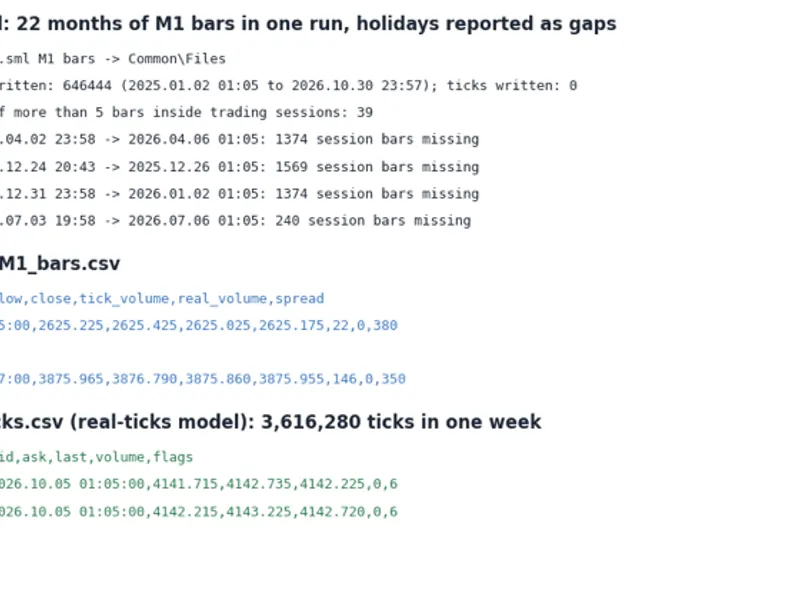
This file contains time, open, high, low, close, tick_volume, real_volume, and spread for closed bars. The bar that is still forming at the end of the test period is excluded.
<symbol>_ticks.csv:
This file contains time_msc, time, bid, ask, last, volume, and flags for each tick.
Gap Reporting
At the conclusion of the test, the journal will provide a report detailing the number of gaps exceeding a specified length (in bars) that occurred within the symbol's trading sessions. It also lists the ten largest gaps. Gaps do not include weekends or standard daily trading breaks. Market holidays are specifically reported as they might otherwise be assumed to be trading periods based on the session schedule.
Example
For XAUUSD on a demo account, an export from January 2026 to October 2026 could yield 646,444 M1 bars in one run. The report might show 39 gaps, all attributed to holidays such as Good Friday, Christmas, New Year, and early closures on US holidays. An export of one week of real ticks generated approximately 3.6 million ticks, resulting in a CSV file of about 240 MB. Therefore, it is advisable to export tick data over shorter date ranges.
Inputs
Bars to export:
Specifies the timeframe for bar data export (default is M1).
Also export every tick:
A boolean option to include tick data in the export (default is false).
File name prefix:
Allows customization of the file name prefix (default is the symbol name).
Write to the common folder:
A boolean option to determine where files are saved (default is true, saving to the common files folder).
Report gaps longer than this many bars:
Sets the minimum number of bars for a gap to be reported (default is 5).
Note: This Expert Advisor is designed solely for data export. It does not place, modify, or close any trading orders.
You may also like: Strategy Tester Report Parser for Deals and Trades - excellent alternative for expert users on MetaTrader 5.
Source Code
#property copyright "RobotFX"
#property version   "1.00"
#property description "This code is educational. Feel free to use, modify and upgrade as you wish. Visit ROBOTFX.ORG for professional trading tools"
input ENUM_TIMEFRAMES InpTimeframe   = PERIOD_M1;
input bool            InpExportTicks = false;
input string          InpPrefix      = "";
input bool            InpCommonDir   = true;
input int             InpGapBars     = 5;
#define TOP_GAPS 10
int      g_bars  = INVALID_HANDLE;
.......
⚠ Limitations & Risk Warning
- This tool is provided for educational and testing purposes only.
- Past performance does not guarantee future results.
- Trading involves substantial risk of loss. Use on a demo account first.
- Results may vary depending on market conditions, broker, and settings.
- We recommend thorough backtesting and forward testing before using with real funds.