





Broker Specification Inspector: Understand Trading Limits
Info
The Broker Specification Inspector: Understand Trading Limits is a Script for MetaTrader 5 that every trader who automates eventually encounters error 130, "invalid stops", or an order that simply never appears. The usual reaction is to blame the Expert Advisor (EA).
Usage
This tool is typically used for enhancing chart analysis and decision making.
Platform
This Script works exclusively on MetaTrader 5 (both build 600+ and newer versions).
Setup
Place the downloaded file in MQL5/Scripts folder via File ? Open Data Folder in MetaTrader 5.
How to Install and Use Broker Specification Inspector: Understand Trading Limits
1. Installation: Move your script file into the MQL/Scripts directory and restart the platform.
2. Execution: Drag the script onto a chart; it will perform a one-time action, such as closing all open orders or clearing chart objects.
3. Editing: Use MetaEditor (F4) to modify code, click "Compile," and verify no errors appear in the terminal before running.
4. Removing: Scripts stop automatically, but you can remove them manually by right-clicking the chart and choosing "Remove Script."
Frequently Asked Questions
Q: How are scripts different from EAs? A: Scripts execute a single action and then stop; EAs monitor the market and trade continuously.
Q: Can I assign a hotkey to a script? A: Yes, right-click the script in the Navigator, select "Set Hotkey," and define your preferred keyboard shortcut.
Q: Why did my script stop? A: Scripts are designed to stop immediately after finishing their programmed command; this is normal behavior.
What this tool does
Every trader who automates eventually encounters error 130, "Invalid stops", or an order that simply never appears.
Typical Use Case
This Script excels in automated trading and technical analysis on MetaTrader 5.
Compatible Platform & Setup
This Script works on MetaTrader 5. Place the file in the MQL5/Scripts folder and restart the terminal.
Description & Settings
Related: Export Symbol Specifications to CSV (Volume Step, Fill Mode, Stops Level) - another powerful script for MetaTrader 5 traders.
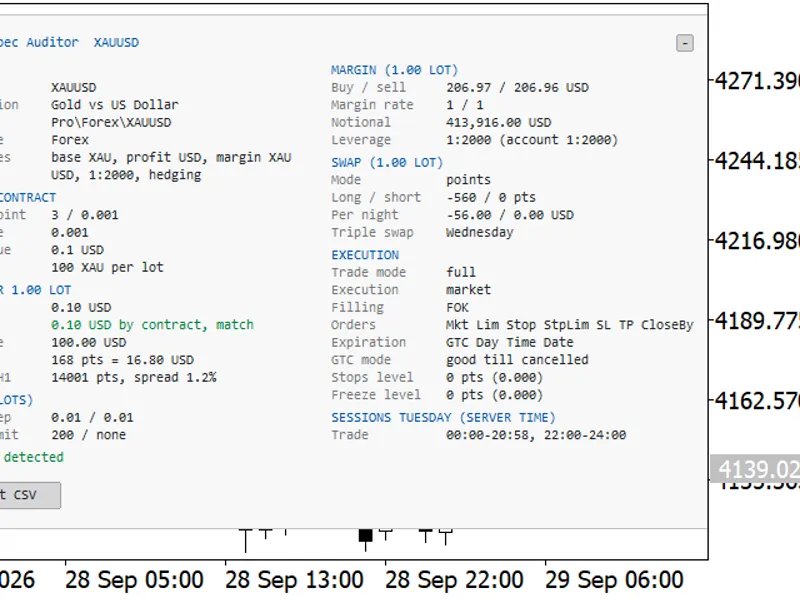
Every trader who automates eventually encounters error 130, "Invalid stops", or an order that simply never appears. The usual reaction is to blame the Expert Advisor (EA). Most of the time, the EA is functioning correctly, and the server is enforcing contract limits that are not visible in the terminal window. These limits include the stops level, the freeze level, or a minimum lot step that your position sizing does not respect. These restrictions vary per symbol and per broker, and they can change without prior notice. This script displays these specifications.Also recommended: Broker Basket Preflight: Read-Only Diagnostics for Multi-Symbol Broker Configurations - similar script with strong performance on MetaTrader 5.
To use the script, load it onto any chart. It reads specifications only; it does not open, modify, or close any trades, and algorithmic trading does not need to be enabled. You can provide a comma-separated list of symbols as input, or leave the input empty, and the script will process the symbols selected in your Market Watch window.
WHAT IT PRINTS
For each symbol, the script outputs the following information: digits, point size, tick size and value, contract size, minimum lot size, step lot size, maximum lot size, spread and whether it floats, execution mode, swap rates for long and short positions, and the margin required for one minimum lot, measured against your current free margin. It then provides details that answer the common questions about stop levels:
For example:
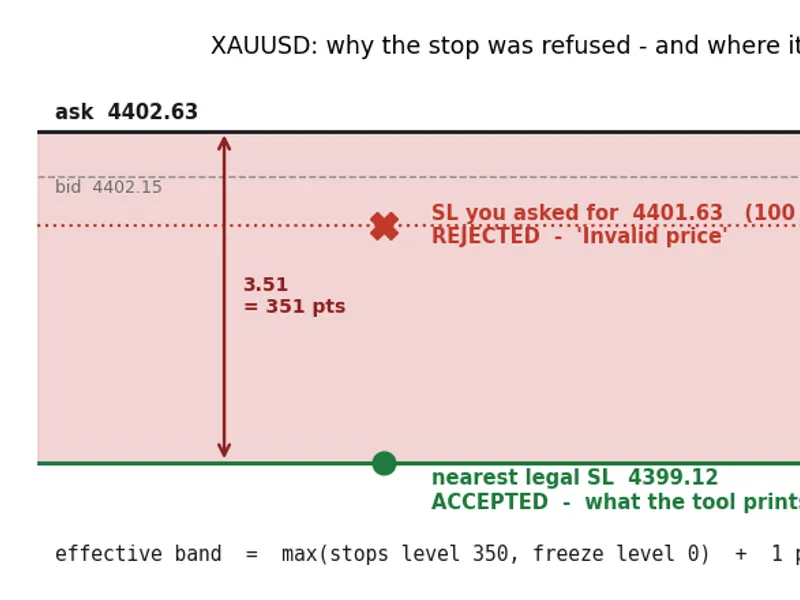
--- XAUUSD (bid 4402.15 / ask 4402.63) --------------------- stops level 350 pts | freeze level 0 pts | EFFECTIVE band 351 pts VERDICT: a stop/pending placed 100 pts from price would be REJECTED as 'Invalid price' (band is 351 pts) buy at ask 4402.63: you asked SL 4401.63 -> nearest legal SL 4399.12 (moved out)
The final line of the output is particularly useful. It not only indicates that a 100-point stop is invalid for the current symbol but also specifies the exact level the server would accept.
THE RULE
Two distinct limits can cause a stop order to be rejected. Tools that check only one of these limits may provide incorrect results on a significant portion of brokers.
double MinStopDistance(string sym)
{
long stops = SymbolInfoInteger(sym, SYMBOL_TRADE_STOPS_LEVEL);
long freeze = SymbolInfoInteger(sym, SYMBOL_TRADE_FREEZE_LEVEL);
long band = (stops > freeze ? stops : freeze) + 1;
return band * SymbolInfoDouble(sym, SYMBOL_POINT);
}
This function encapsulates three crucial decisions within a few lines of code.
The band is determined by the LARGER of the two limits (stops level and freeze level). This approach is necessary because some servers leave the freeze level at zero and enforce the stops level, while others do the opposite. By selecting the larger value, the script accommodates both scenarios without needing to know the specific server configuration.
An additional point is added because many servers reject a level that is precisely on the edge of the band. The documented rule states "closer than," but the implemented rule is often "closer than or equal to." Adding one point incurs no cost and ensures compliance.
The result is returned in PRICE units, not points. This is essential for constructing the actual stop level and eliminates confusion between points and pips, which can lead to a tenfold error on 5-digit symbols.
USE IT IN YOUR OWN EA
The second function is particularly valuable for integration into your own EAs. It accepts the desired stop level and returns the nearest valid level that the server will accept, positioned on the correct side of the price:
double LegalStopLoss(string sym, bool isBuy, double price, double wanted)
{
double dist = MinStopDistance(sym);
int digits = (int)SymbolInfoInteger(sym, SYMBOL_DIGITS);
double sl = wanted;
if(isBuy) { if(price - sl < dist) sl = price - dist; }
else { if(sl - price < dist) sl = price + dist; }
return NormalizeDouble(sl, digits);
}
If a stop level is already valid, this function returns it unchanged, making it safe to process all stop orders through it. Integrating this into your existing calculations requires only one additional line of code:
double sl = LegalStopLoss(_Symbol, true, ask, ask - atr * 1.5);
This adjustment is most critical in conditions of high volatility relative to the band. An ATR stop that is acceptable on EURUSD might fall within the band on gold or an index during a quiet session. This can lead to unexpected rejections, even if the same code worked correctly previously.
NOTES ON READING THE OUTPUT
A wide band does not necessarily indicate a broker being difficult. It often reflects the symbol's pricing and hedging mechanisms and is the reason a scalping EA that functions on one server may fail on another without any code modifications.
Compare specifications before migrating. CSV export is enabled by default and saves a file named BrokerSpecs.csv in the MQL5\Files directory. This file contains one row per symbol, including the band, minimum stop distance, and nearest legal level. Run the script on two different brokers, place the resulting files side-by-side, and the differences that might have caused a week of debugging will be apparent within a minute.
Check margin requirements before scaling up. The margin column displays the margin for one minimum lot. If this value is close to your free margin, your position sizing has an unmeasured ceiling.
Symbols must be present in your Market Watch window and must have received at least one tick. If a symbol shows no tick data, open its chart once and re-run the script.
This tool was last updated in 2026.
You may also like: Accurate Gold Trading: Identifying Broker Symbols and Sizing Positions - excellent alternative for script users on MetaTrader 5.
Source Code
#property copyright "RobotFX"
#property version   "1.10"
#property script_show_inputs
input string InpSymbols            = "";
input double InpTestDistancePoints = 100;
input int    InpMaxSymbols         = 20;
input bool   InpExportCSV          = true;
double MinStopDistance(const string sym)
  {
   long stops  = SymbolInfoInteger(sym, SYMBOL_TRADE_STOPS_LEVEL);
.......
⚠ Limitations & Risk Warning
- This tool is provided for educational and testing purposes only.
- Past performance does not guarantee future results.
- Trading involves substantial risk of loss. Use on a demo account first.
- Results may vary depending on market conditions, broker, and settings.
- We recommend thorough backtesting and forward testing before using with real funds.