



Accurate Broker GMT Offset and Daylight Saving Time Rules from Price History
Info
The Accurate Broker GMT Offset and Daylight Saving Time Rules from Price History is a Expert Advisor for MetaTrader 5 that an expert advisor that needs to trade during new york hours requires the correct offset between the broker's server time and utc. Some brokers maintain a consistent UTC offset year-round, while many adjust their offset seasonally, often using GMT+2 in winter and GMT+3 in summer, following either the US or European daylight saving time (DST) calendars.
Usage
This tool is typically used for automated trading on major forex pairs and gold.
Platform
This Expert Advisor works exclusively on MetaTrader 5 (both build 600+ and newer versions).
Setup
Place the downloaded file in MQL5/Experts folder via File ? Open Data Folder in MetaTrader 5.
How to Install and Use Accurate Broker GMT Offset and Daylight Saving Time Rules from Price History
1. Installation: Open the "File" menu, select "Open Data Folder," navigate to MQL/Experts, paste your file, and restart the terminal.
2. Activation: Drag the EA from the Navigator onto a chart, ensure "Allow live trading" is checked in the Common tab, and verify the AutoTrading button is green.
3. Optimization: Right-click your chart, choose "Expert List," click "Properties" to adjust inputs, and save your preferred setup as a set file for future use.
4. Maintenance: Regularly check the "Experts" tab in the terminal window to monitor trade logs and potential execution errors.
Frequently Asked Questions
Q: Why is my EA not opening trades? A: Check the "AutoTrading" button, ensure "Allow live trading" is enabled, and verify your broker allows automated trading on your account type.
Q: Can I run multiple EAs on one chart? A: No, each chart can only host one active EA; however, you can open multiple charts for different currency pairs to run several EAs.
Q: What does the "smiley face" icon mean? A: A smiley face in the top-right corner of the chart indicates the EA is successfully running; a frowny face means it is disabled.
What this tool does
An Expert Advisor that needs to trade during New York hours requires the correct offset between the broker's server time and UTC.
Typical Use Case
This Expert Advisor excels in automated trading and technical analysis on MetaTrader 5.
Compatible Platform & Setup
This Expert Advisor works on MetaTrader 5. Place the file in the MQL5/Experts folder and restart the terminal.
Description & Settings
Related: USDX Trader EA: Trade the US Dollar Index with Any Broker - another powerful expert for MetaTrader 5 traders.
An Expert Advisor that needs to trade during New York hours requires the correct offset between the broker's server time and UTC. Some brokers maintain a consistent UTC offset year-round, while many adjust their offset seasonally, often using GMT+2 in winter and GMT+3 in summer, following either the US or European daylight saving time (DST) calendars. On a broker with a GMT+2/+3 offset that adheres to the European DST schedule, a fixed 7-hour difference to New York time is accurate for most of the year. However, this difference can be off by one hour for approximately two to three weeks in spring and one week in autumn due to staggered DST transitions between the US and Europe.Also recommended: Broker Clock Auditor: Accurately Track Server Time and Daylight Saving Shifts - similar expert with strong performance on MetaTrader 5.
The difference between the broker's server time and GMT can be observed on a live chart using the expression: TimeTradeServer() - TimeGMT(). However, this calculation is dependent on the computer's local clock and time zone settings. In the Strategy Tester, this value is always zero because TimeGMT() replicates the simulated server time.
The BrokerClock.mqh library overcomes this by reading the offset directly from the price history. For CME index futures, and generally for most FX symbols and index CFDs that mirror them, trading typically concludes at 17:00 New York time. The last H1 bar preceding each weekend therefore ends at a precisely known UTC instant. By comparing the close time of this bar with the known UTC instant, the broker's offset for that specific week can be determined. The library evaluates each potential base offset against three DST rules: a fixed offset, an offset adjusted by one hour during US DST, and an offset adjusted by one hour during European DST. This evaluation is performed against up to 60 weekends of historical data. The DST rule that accurately explains the majority of the most recent 8 weekends is selected as the primary rule, with all historical weekends used to resolve any ties.
Function
What it returns
HistoryClockOffset(srv)
Returns the broker's current GMT offset, determined from the H1 price history of the chart's symbol. The variable g_histRule stores the detected DST rule. Returns OFFSET_UNKNOWN until sufficient historical data is available for analysis.
LiveClockOffset()
Returns the offset of the MetaTrader terminal's local system time. This can be used for a live cross-check; an incorrect computer clock setting will result in a noticeable difference.
NewYorkOffset(utc)
, EUSummer(utc)
, LondonOffset(utc)
, SydneyOffset(utc)
These functions calculate and return the DST rules based on the calendar, without requiring any external data sources.
ServerToNY(srv, offset)
, NYClockToServer(srv, h, m, offset)
, InNYWindow(srv, offset, ...)
These functions handle conversions between server time and New York time, crucial for defining trading windows and order expiration times.
A basic implementation example within an Expert Advisor, requiring hourly refresh due to the extensive history data processing:
#include <BrokerClock.mqh>
int g_offset = OFFSET_UNKNOWN;
datetime g_offsetAt = 0;
int BrokerOffset()
{
datetime srv = TimeCurrent();
if(g_offsetAt > 0 && srv - g_offsetAt < (g_offset == OFFSET_UNKNOWN ? 60 : 3600))
return g_offset;
int hist = HistoryClockOffset(srv);
int live = MQLInfoInteger(MQL_TESTER) ? OFFSET_UNKNOWN : LiveClockOffset();
g_offset = (hist != OFFSET_UNKNOWN) ? hist : live;
g_offsetAt = srv;
return g_offset;
}
void OnTick()
{
int off = BrokerOffset();
if(off == OFFSET_UNKNOWN || !InNYWindow(TimeCurrent(), off, 9, 30, 15, 30))
return; // No offset determined yet, or outside the 09:30-15:30 New York trading window
// ... entry logic
}
The ClockTest.mq5 script evaluates the library's performance within the Strategy Tester. It logs the New York, London, and Sydney time offsets for every hour of the period from 2026 to 2027 into the file clock_tz.csv, located in the common Files folder. It also converts 09:30 New York time to server time and back for each day across three fixed offsets (GMT+0, GMT+2, and GMT+3), and reports the detected clock rule weekly. The script includes an input parameter InpWriteCsv to control CSV file generation. This script does not perform any trading operations.
The ClockSymbols.mq5 script generates test symbols. It copies M1 bars from a symbol provided by a broker operating on UTC and creates three custom symbols with identical price data but using different clock rules: one UTC clock, one US-rule GMT+2/+3 clock, and one EU-rule GMT+2/+3 clock. This setup allows for testing the detection mechanism against all three clock types. Input parameters include InpSource (the source symbol; if empty, the chart symbol is used), InpFrom and InpTo (defining the historical period, which should encompass a DST change), and InpPrefix (a prefix for the names of the newly created symbols). Ensure the terminal is closed normally after running this script to guarantee the new symbols are saved correctly.
Verification.
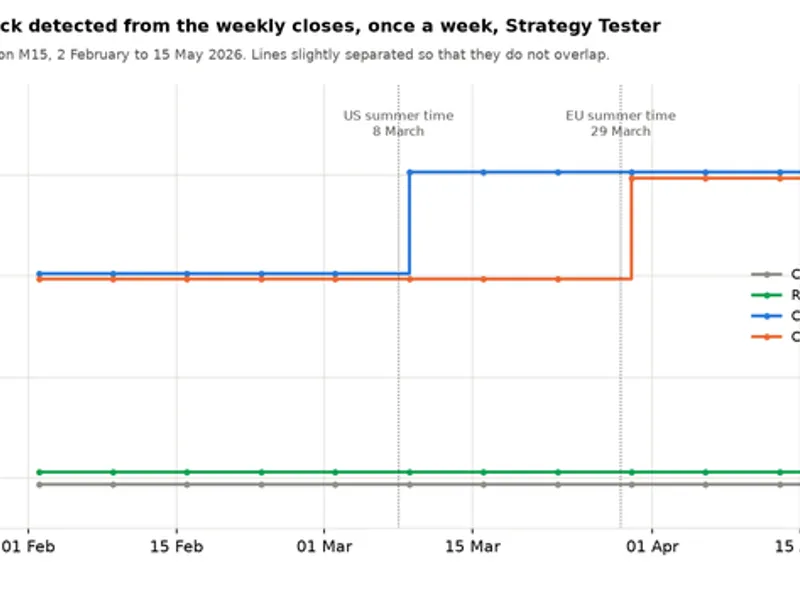
The daylight-saving time functions have been verified against the IANA time zone database, showing perfect accuracy across all 35,064 hours from 2026 to 2027. Round-trip time conversions from New York to server time and back resulted in zero errors in 4,383 test cases. In the Strategy Tester, the detection accurately identified the correct clock rule on custom symbols simulating three different server clock configurations, switching precisely during the week of each DST transition.
Clock detected each week in the Strategy Tester on three server clocks, February to May 2026
Limitations.
The historical detection method requires weekends that span a DST change to differentiate between DST rules. Consequently, symbols with only a limited history may initially show an offset error of up to one hour until more data becomes available. For backtests using such symbols, it is advisable to manually set the offset. A weekend immediately following an early market close can result in one inaccurate weekly data point, which is typically absorbed by the majority vote mechanism. Symbols that cease trading at a different hour (e.g., stock CFDs, some cash indices) or continue trading through the weekend (e.g., cryptocurrencies) cannot be directly used for detection. In such cases, run the detection on a major FX pair or the broker's index chart instead (which uses the _Symbol variable by default), or consider modifying the CopyRates function to accept a symbol parameter.
You may also like: Session Reality Auditor: Verifying Broker Session Data Against Historical Price Activity - excellent alternative for expert users on MetaTrader 5.
Source Code
#property copyright "RobotFX"
#property version   "1.00"
#property script_show_inputs
#include <BrokerClock.mqh>
input string   InpSource = "";
input datetime InpFrom   = D'2025.09.15 00:00';
input datetime InpTo     = D'2026.05.16 00:00';
input string   InpPrefix = "CLOCK";
int TargetOffset(int rule, datetime utc)
{
.......
⚠ Limitations & Risk Warning
- This tool is provided for educational and testing purposes only.
- Past performance does not guarantee future results.
- Trading involves substantial risk of loss. Use on a demo account first.
- Results may vary depending on market conditions, broker, and settings.
- We recommend thorough backtesting and forward testing before using with real funds.