




Broker Clock Auditor: Accurately Track Server Time and Daylight Saving Shifts
Info
The Broker Clock Auditor: Accurately Track Server Time and Daylight Saving Shifts is a Expert Advisor for MetaTrader 5 that the broker clock auditor is designed to resolve discrepancies in expert advisor session filters caused by differing server times. Unlike tools relying on manual updates or forum posts, this utility analyzes price history to determine the precise server time and its offset from UTC.
Usage
This tool is typically used for automated trading on major forex pairs and gold.
Platform
This Expert Advisor works exclusively on MetaTrader 5 (both build 600+ and newer versions).
Setup
Place the downloaded file in MQL5/Experts folder via File ? Open Data Folder in MetaTrader 5.
How to Install and Use Broker Clock Auditor: Accurately Track Server Time and Daylight Saving Shifts
1. Installation: Open the "File" menu, select "Open Data Folder," navigate to MQL/Experts, paste your file, and restart the terminal.
2. Activation: Drag the EA from the Navigator onto a chart, ensure "Allow live trading" is checked in the Common tab, and verify the AutoTrading button is green.
3. Optimization: Right-click your chart, choose "Expert List," click "Properties" to adjust inputs, and save your preferred setup as a set file for future use.
4. Maintenance: Regularly check the "Experts" tab in the terminal window to monitor trade logs and potential execution errors.
Frequently Asked Questions
Q: Why is my EA not opening trades? A: Check the "AutoTrading" button, ensure "Allow live trading" is enabled, and verify your broker allows automated trading on your account type.
Q: Can I run multiple EAs on one chart? A: No, each chart can only host one active EA; however, you can open multiple charts for different currency pairs to run several EAs.
Q: What does the "smiley face" icon mean? A: A smiley face in the top-right corner of the chart indicates the EA is successfully running; a frowny face means it is disabled.
What this tool does
The Broker Clock Auditor is designed to resolve discrepancies in Expert Advisor session filters caused by differing server times.
Typical Use Case
This Expert Advisor excels in automated trading and technical analysis on MetaTrader 5.
Compatible Platform & Setup
This Expert Advisor works on MetaTrader 5. Place the file in the MQL5/Experts folder and restart the terminal.
Description & Settings
Related: Accurate Broker GMT Offset and Daylight Saving Time Rules from Price History - another powerful expert for MetaTrader 5 traders.
The Broker Clock Auditor is designed to resolve discrepancies in Expert Advisor session filters caused by differing server times. Unlike tools relying on manual updates or forum posts, this utility analyzes price history to determine the precise server time and its offset from UTC.Also recommended: USDX Trader EA: Trade the US Dollar Index with Any Broker - similar expert with strong performance on MetaTrader 5.
It reads the server's clock by examining the exact time of weekly closes, which consistently occur at 17:00 New York time for forex and CME markets. By comparing these historical closes with their corresponding UTC instants, the tool calculates the server's offset over the past 60 weeks. This historical data allows it to detect clock changes, including shifts due to daylight saving time (DST) in the US and Europe, and identify when these changes occurred.
The tool then forecasts the server times for the opening of London, New York, Tokyo, and Sydney sessions for the upcoming weeks, based on the determined server clock and DST calendar.
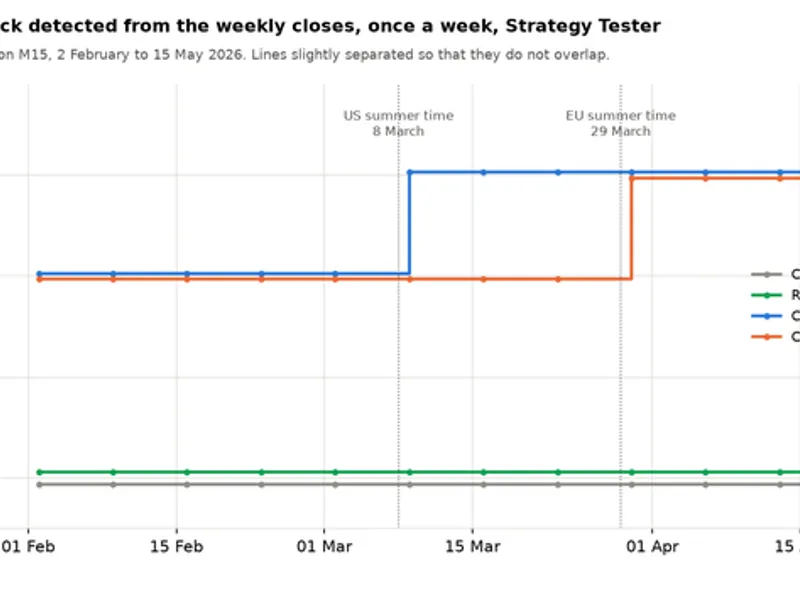
The problem arises because session filters in Expert Advisors are based on the broker's server time, which can vary significantly. Server time zones and DST implementations differ, with the US and Europe often changing clocks on different weekends. For instance, in 2026, the US switched on March 8th, while Europe switched on March 29th. This misalignment can cause session filters to be inaccurate for several weeks each year.
Manual methods of tracking server time, like `TimeTradeServer() - TimeGMT()`, rely on the PC's clock and time zone and do not reflect historical server time settings or future changes.
What the tool measures:
- The Anchor: The 17:00 New York close of the interbank forex week and CME week serves as a reference point. The tool identifies pauses in H1 price history of at least `InpMinGapHours` (default 20 hours) and uses the close time of the last bar before the pause, plus one hour, as the anchor time. This is compared to the nearest 17:00 New York instant in UTC, accounting for US DST rules, to determine the server's offset.
- Irregular Closes: Closes with offsets that differ significantly from surrounding closes are flagged and excluded to prevent false readings from feed errors or data gaps.
- Switches: Two consecutive regular closes with different offsets indicate a clock change. The tool dates this change and tests the interval against known US and European DST switch dates, noting the direction of the offset change (up for spring, down for autumn).
- Regime: Based on the detected switches, the tool determines the server's clock behavior: 'fixed' (no switches detected), 'US' (all switches align with US DST), 'EU' (all switches align with European DST), or 'mixed'. A 'fixed' verdict is only considered 'tested' if the observation window contains at least one US and one European switch date.
- Sunday Bars: Counts the number of server Sundays (and Saturdays) with at least one H1 bar, which can affect daily charts in certain time zones.
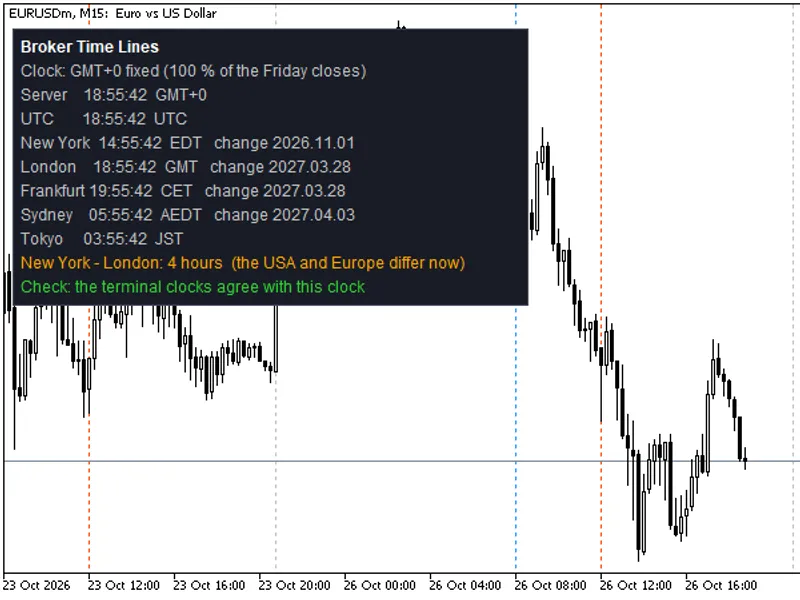
- Live Cross-check: On a live chart, the tool compares the calculated offset from historical data with the current offset derived from `TimeTradeServer() - TimeGMT()`. Discrepancies may indicate issues with the PC's clock or time zone settings.
- Projection: Using the latest detected offset and calendar, the tool projects the server times for London, New York, Tokyo, and Sydney opens for the next `InpProjectWeeks` weeks, listing only the days when these times change.
When using multiple symbols, the most common offset and calendar are considered the final verdict. Symbols that disagree are noted in the journal. For example, stock CFDs closing at 16:00 New York time will have a different offset reading compared to forex majors, and 24/7 crypto symbols cannot be audited for this purpose due to the lack of a defined weekly close.
Example of server clock analysis on three demo servers (October 7, 2026):
Server Name | Symbols | Closes | Current Offset | Calendar | Switches Seen (Date - Offset Change) | Irregular Closes | Sunday Bars
----------------|---------|--------|----------------|----------|-----------------------------------|------------------|-------------
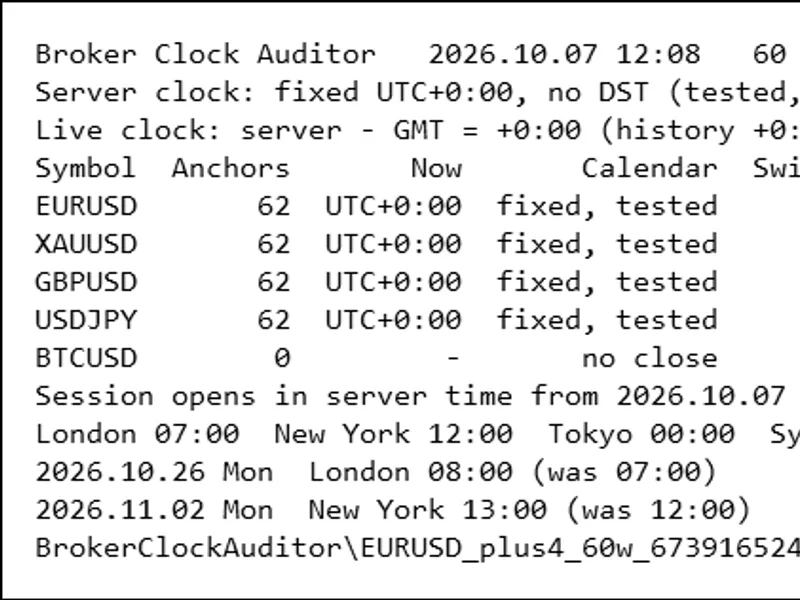
Exness-MT5Trial17 | EURUSD, GBPUSD, USDJPY, XAUUSD | 62 each | UTC+0 | none, tested | — | XAUUSD 4, others 0 | 60
ICMarketsSC-Demo | EURUSD, GBPUSD, USDJPY | 62 each | UTC+3 | US | 2025.11.08 -1h, 2026.03.14 +1h | 0 | 0
MetaQuotes-Demo | EURUSD, GBPUSD, USDJPY, XAUUSD | 62 / 40 / 40 / 62 | UTC+3 | EU on all 4; 3 of 4 agree | 2025.10.31 -1h, 2026.04.04 +1h | EURUSD 1, XAUUSD 4 | 0
The projections show how session opening times will shift in the coming weeks. For instance, on Exness, London's open will change from 07:00 to 08:00 server time in late October 2026. Filters set to fixed times like "London 10:00" may be incorrect for a portion of the year on servers with DST changes.
The live cross-check confirmed the historical analysis on the demo servers, with `TimeTradeServer() - TimeGMT()` matching the determined offsets. The tool skips this check if the terminal is not connected to a server.
Independent Verification:
The report's findings can be independently verified using the provided script, which recomputes all metrics using Python's time zone database, confirming the accuracy of the tool's analysis.
How to use the Broker Clock Auditor:
1. Attach the Expert Advisor to any chart.
2. Configure `InpSymbols`: leave empty for the chart symbol, use `*` for all Market Watch symbols, or provide a comma-separated list.
3. Ensure selected symbols have defined weekend closes (e.g., majors, gold, index futures). Crypto symbols are not suitable.
4. The audit runs once by default or periodically if `InpRefreshMinutes` is set.
5. The results are printed to the Experts journal, displayed on the chart panel, and saved to CSV files.
6. The tool reads historical data only; it has no trading functions.
Reading the Journal:
The journal provides a detailed breakdown for each symbol, including the number of anchors, current offset, detected switches, calendar regime, irregular closes, and Sunday bars. For example:
You may also like: Session Reality Auditor: Verifying Broker Session Data Against Historical Price Activity - excellent alternative for expert users on MetaTrader 5.
Source Code
#property copyright "RobotFX"
#property link "https://robotfx.org"
#property version     "1.00"
#property description "This code is educational. Feel free to use, modify and upgrade as you wish. Visit ROBOTFX.ORG for professional trading tools"
#define BCA_NAME          "BrokerClockAuditor"
#define BCA_TITLE         "Broker Clock Auditor"
#define BCA_FOLDER        "BrokerClockAuditor"
#define BCA_MAX_SYMBOLS   128
#define BCA_RETRIES       20
#define BCA_RETRY_MS      500
.......
⚠ Limitations & Risk Warning
- This tool is provided for educational and testing purposes only.
- Past performance does not guarantee future results.
- Trading involves substantial risk of loss. Use on a demo account first.
- Results may vary depending on market conditions, broker, and settings.
- We recommend thorough backtesting and forward testing before using with real funds.