







Accurate Broker Time Zones and Session Lines for MT4/MT5
Info
The Accurate Broker Time Zones and Session Lines for MT4/MT5 is a Indicator for MetaTrader 5 that starting an ea at "08:00 new york" might seem straightforward, but it's complicated in metatrader. The broker's server clock doesn't represent a real time zone.
Usage
This tool is typically used for enhancing chart analysis and decision making.
Platform
This Indicator works exclusively on MetaTrader 5 (both build 600+ and newer versions).
Setup
Place the downloaded file in MQL5/Indicators folder via File ? Open Data Folder in MetaTrader 5.
How to Install and Use Accurate Broker Time Zones and Session Lines for MT4/MT5
1. Installation: Place your file in the MQL/Indicators folder via "Open Data Folder" and restart your terminal.
2. Loading: Find the indicator in the Navigator, drag it onto your chart, and configure the input parameters in the popup window.
3. Customization: Press Ctrl+I to open the indicator list, select your tool, and click "Properties" to change colors, levels, or visual styles.
4. Updating: Replace the old file in the Indicators folder with the new version and restart the platform to apply changes.
Frequently Asked Questions
Q: Why is my indicator not showing? A: Verify the file is in the MQL/Indicators folder, or try right-clicking the "Indicators" tree in the Navigator and clicking "Refresh."
Q: Do custom indicators slow down the platform? A: Too many complex indicators can impact performance; remove unused ones via the "Indicator List" (Ctrl+I).
Q: Can I use MT4 indicators on MT5? A: No, MQL4 and MQL5 are distinct languages; ensure the indicator is compiled specifically for your platform version.
What this tool does
Starting an EA at "08:00 New York" might seem straightforward, but it's complicated in MetaTrader.
Typical Use Case
This Indicator excels in automated trading and technical analysis on MetaTrader 5.
Compatible Platform & Setup
This Indicator works on MetaTrader 5. Place the file in the MQL5/Indicators folder and restart the terminal.
Description & Settings
Related: Broker Contract Change Watch MT5 - another powerful indicator for MetaTrader 5 traders.
Starting an EA at "08:00 New York" might seem straightforward, but it's complicated in MetaTrader. The broker's server clock doesn't represent a real time zone. Additionally, the US and Europe observe daylight saving time changes on different dates each spring and autumn, leading to periods where New York and London are 4 hours apart instead of the usual 5. The Strategy Tester's TimeGMT() function behaves identically to TimeLocal(), returning the server time. On a live chart, TimeGMT() accuracy depends on your PC's time zone settings. This package provides a robust solution using standard date rules, eliminating the need for web requests or DLLs.Also recommended: Broker Information Panel for MT5 - similar indicator with strong performance on MetaTrader 5.
Included Files
BrokerTime.mqh - This is the CBrokerTime class. Place it in your MQL5\Include folder or alongside your EA file.
BrokerTimeLines.mq5 - This is an indicator that displays session lines for each day and includes a clock panel. Ensure both files are in the same directory for the indicator to compile correctly.
Class Capabilities
Supported Time Zones: UTC, New York, London, Frankfurt (Central Europe), Sydney (NSW), Tokyo, the broker's server time, and one customizable fixed offset zone.
Daylight Saving Time Rules: The class implements current DST rules: US observes DST from the second Sunday in March at 07:00 UTC to the first Sunday in November at 06:00 UTC (since 2007; from 1987 to 2006, it was the first Sunday in April to the last Sunday in October). The EU and UK switch from the last Sunday in March to the last Sunday in October at 01:00 UTC. Sydney observes DST from the first Sunday in October to the first Sunday in April (since 2008). Tokyo operates on UTC+9 year-round.
Broker Clock Settings: The broker's clock can be configured to follow US DST dates (e.g., 17:00 New York aligns with 00:00 server time), EU DST dates, or a fixed GMT offset (e.g., GMT+0).
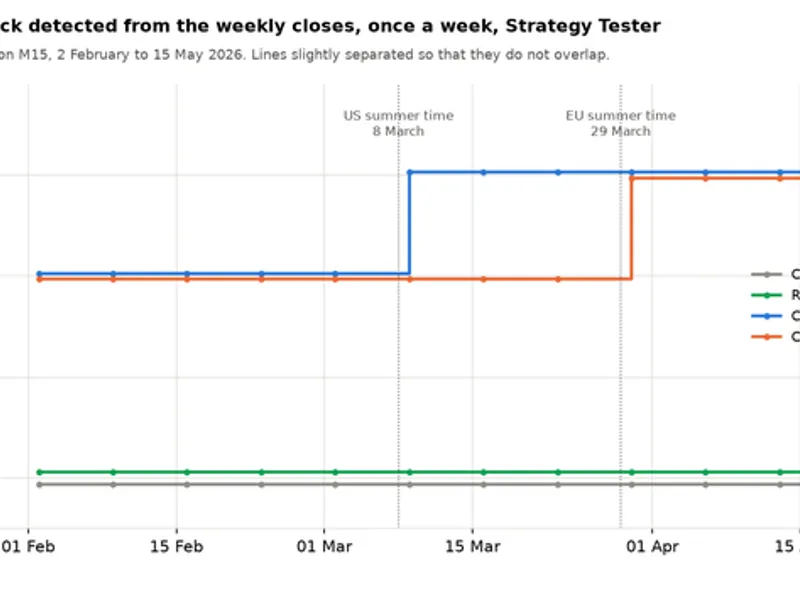
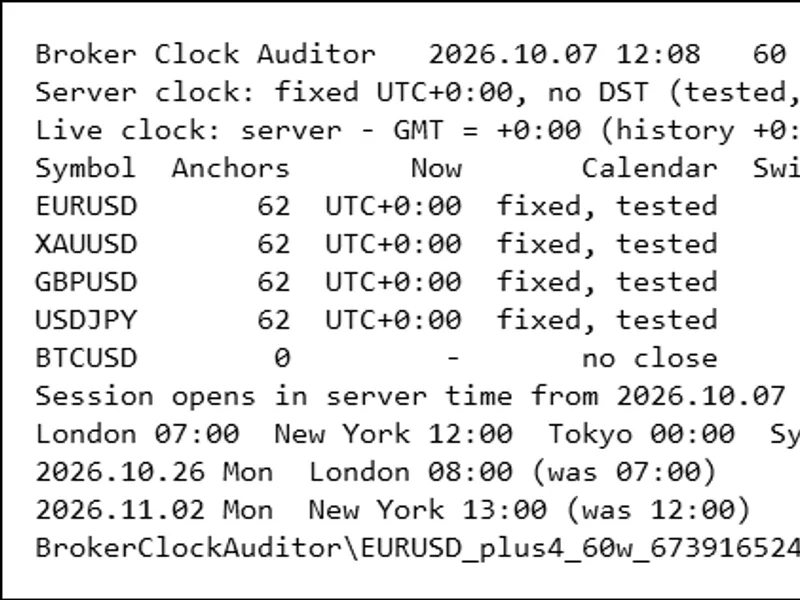
Automatic Broker Clock Detection: The DetectFromHistory(symbol) function analyzes up to 40 Friday closing prices from H1 charts. For forex, this typically corresponds to 17:00 New York time. The function requires at least 4 weekends of data. It identifies the clock setting that best matches these historical closes, considering US DST dates, EU DST dates, or a fixed hourly offset from GMT-12 to GMT+14. The Confidence() function indicates how many historical closes matched the detected setting. This detection method is effective even in the Strategy Tester, where standard terminal clocks are unreliable. You can also manually set the broker clock using SetServer(BT_SERVER_US / BT_SERVER_EU / BT_SERVER_FIXED, offset).
Usage within an Expert Advisor (EA)
#include
Additional Functions: UtcToZone(), ZoneToUtc(), ServerToUtc(), UtcToServer(), Convert(from, to, time), OffsetAt(), NextChange(zone, utc) (determines the next clock change), Abbreviation() (returns time zone abbreviations like EST, EDT, GMT, BST, CET, CEST, AEDT, AEST, JST), ZoneName(), LiveOffsetSeconds() (available only in live trading, provides server time minus GMT as reported by the terminal, useful for cross-checking).
Handling Ambiguous Times: If a local time does not exist (e.g., the hour skipped during spring DST transition), the winter offset is used. If a local time occurs twice (during autumn DST transition), the first occurrence is used, consistent with Python's zoneinfo 'fold=0' behavior.
The Indicator
This indicator draws three lines, each representing a specific zone, hour, minute, text label, and color. By default, these are set to London 08:00, New York 08:00, and New York 17:00 (representing the typical forex trading day close).
The indicator displays lines for the past 20 days by default. Lines are not drawn on Saturdays and Sundays within the target zone's time.
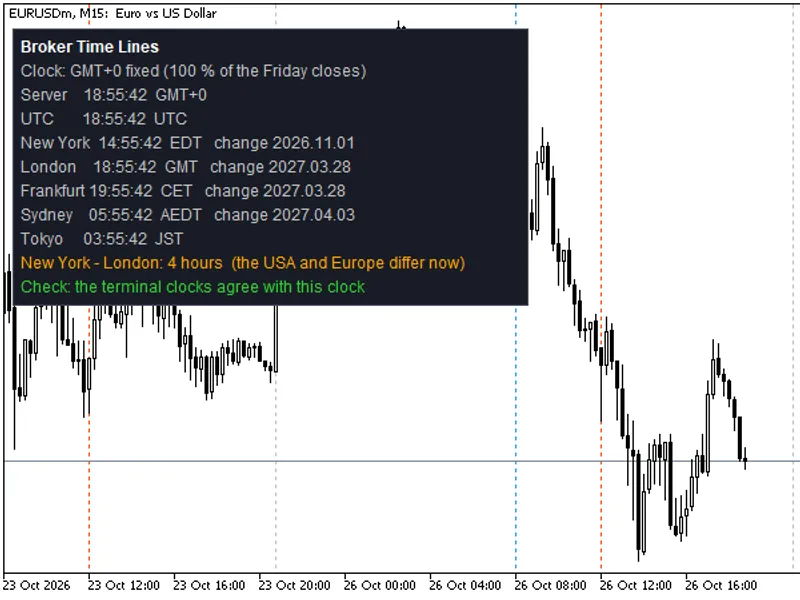
The indicator panel displays: the detected broker clock and the number of Friday closes that confirmed it, the server time, UTC, New York, London, Frankfurt, Sydney, and Tokyo times. It also shows the abbreviation for each zone and the date of the next DST change. During a DST gap week, it will indicate "New York - London: 4 hours" and provide a live comparison against the terminal's reported clock times.
Each line is plotted according to the DST rules applicable on its specific date. This ensures that lines drawn last month remain accurate even after a DST transition.
The indicator functions exclusively on a chart and does not operate in the non-visual tester. It is designed solely for display purposes and will not execute trades.
Testing and Validation
The accuracy of this package has been verified through 234,119 comparisons against Python's zoneinfo library, which utilizes the IANA time zone database. These tests covered conversions between UTC and various zones (including offsets, DST flags, and next change dates), zone to UTC conversions (handling skipped and repeated hours), and server clock to UTC conversions and back. Tests were performed around every DST transition for all included zones and at random times. The results showed zero discrepancies. The tested date range includes New York from 1987, London and Frankfurt from 1996, Sydney from 2008 (older Sydney dates are approximated), and Tokyo from its inception.
During a live test on October 25, 2026, the indicator drew 42 lines on an EURUSD H1 chart during the European clock change. Each line correctly marked 08:00, 08:00, and 17:00 for its respective zone on a weekday, showing zero differences compared to zoneinfo.
A live test on a broker's demo server (reporting GMT+0 fixed) yielded a 100% match for Friday closes. The displayed times correctly reflected New York at 14:55 EDT, London at GMT, Sydney at AEDT. The next DST changes were accurately reported as November 1, 2026, March 28, 2027, and April 3, 2027. The "New York - London: 4 hours" indicator was active, consistent with October 26, 2026. The cross-check against terminal clocks also agreed.
The indicator was successfully loaded and operated without errors on EURUSD H1, XAUUSD D1, GBPUSD M30, and EURUSD M1 charts within the Strategy Tester.
Important Considerations
The DST rules implemented are based on current legislation. The US, EU, and Australia may update these rules in the future. The core DST logic resides in six small functions at the top of the CBrokerTime class (UsOn, UsOff, EuOn, EuOff, AuEnd, AuStart), making updates straightforward.
The accuracy of the
You may also like: Relative Broker Vigor Index (RBVI) Histogram Indicator - excellent alternative for indicator users on MetaTrader 5.
Source Code
#property copyright "RobotFX"
#property version   "1.00"
#property description "This code is educational. Feel free to use, modify and upgrade as you wish. Visit ROBOTFX.ORG for professional trading tools"
#property indicator_chart_window
#property indicator_buffers 1
#property indicator_plots   0
#include "BrokerTime.mqh"
enum ENUM_CLOCK
  {
   CLOCK_AUTO  = 0,
.......
⚠ Limitations & Risk Warning
- This tool is provided for educational and testing purposes only.
- Past performance does not guarantee future results.
- Trading involves substantial risk of loss. Use on a demo account first.
- Results may vary depending on market conditions, broker, and settings.
- We recommend thorough backtesting and forward testing before using with real funds.