




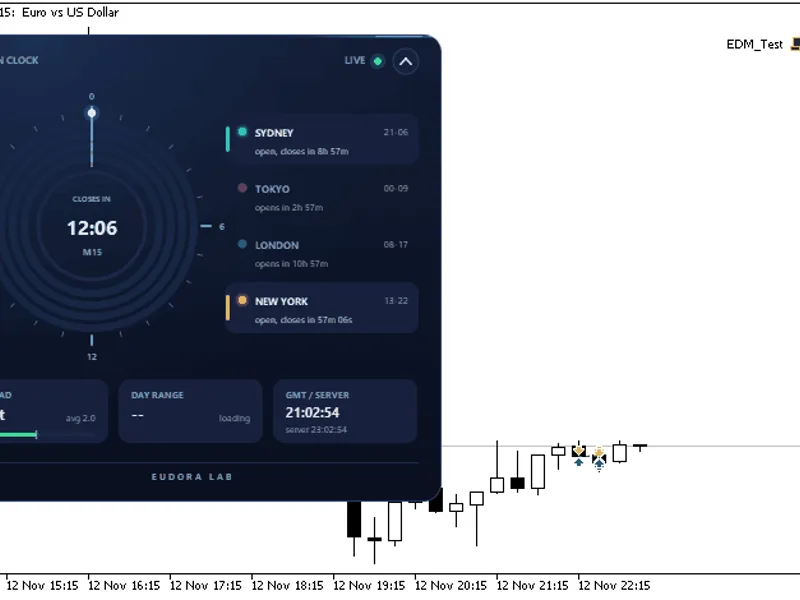
ICT Session Boxes: Four GMT Windows with Automatic Broker Offset and High/Low Lines
Info
The ICT Session Boxes: Four GMT Windows with Automatic Broker Offset and High/Low Lines is a Indicator for MetaTrader 5 that ict session boxes provide visual delineation of key trading sessions directly on your metatrader chart. The indicator automatically adjusts for your broker's specific GMT offset, ensuring accurate session timing.
Usage
This tool is typically used for enhancing chart analysis and decision making.
Platform
This Indicator works exclusively on MetaTrader 5 (both build 600+ and newer versions).
Setup
Place the downloaded file in MQL5/Indicators folder via File ? Open Data Folder in MetaTrader 5.
How to Install and Use ICT Session Boxes: Four GMT Windows with Automatic Broker Offset and High/Low Lines
1. Installation: Place your file in the MQL/Indicators folder via "Open Data Folder" and restart your terminal.
2. Loading: Find the indicator in the Navigator, drag it onto your chart, and configure the input parameters in the popup window.
3. Customization: Press Ctrl+I to open the indicator list, select your tool, and click "Properties" to change colors, levels, or visual styles.
4. Updating: Replace the old file in the Indicators folder with the new version and restart the platform to apply changes.
Frequently Asked Questions
Q: Why is my indicator not showing? A: Verify the file is in the MQL/Indicators folder, or try right-clicking the "Indicators" tree in the Navigator and clicking "Refresh."
Q: Do custom indicators slow down the platform? A: Too many complex indicators can impact performance; remove unused ones via the "Indicator List" (Ctrl+I).
Q: Can I use MT4 indicators on MT5? A: No, MQL4 and MQL5 are distinct languages; ensure the indicator is compiled specifically for your platform version.
What this tool does
ICT Session Boxes provide visual delineation of key trading sessions directly on your MetaTrader chart.
Typical Use Case
This Indicator excels in automated trading and technical analysis on MetaTrader 5.
Compatible Platform & Setup
This Indicator works on MetaTrader 5. Place the file in the MQL5/Indicators folder and restart the terminal.
Description & Settings
Related: Session Range Boxes with Asia Breakout Alert for MT4/MT5 - another powerful indicator for MetaTrader 5 traders.
ICT Session Boxes provide visual delineation of key trading sessions directly on your MetaTrader chart. The indicator automatically adjusts for your broker's specific GMT offset, ensuring accurate session timing. It also displays high and low price levels within each session.Also recommended: Session VWAP with Standard Deviation Bands - similar indicator with strong performance on MetaTrader 5.
Core Functionality
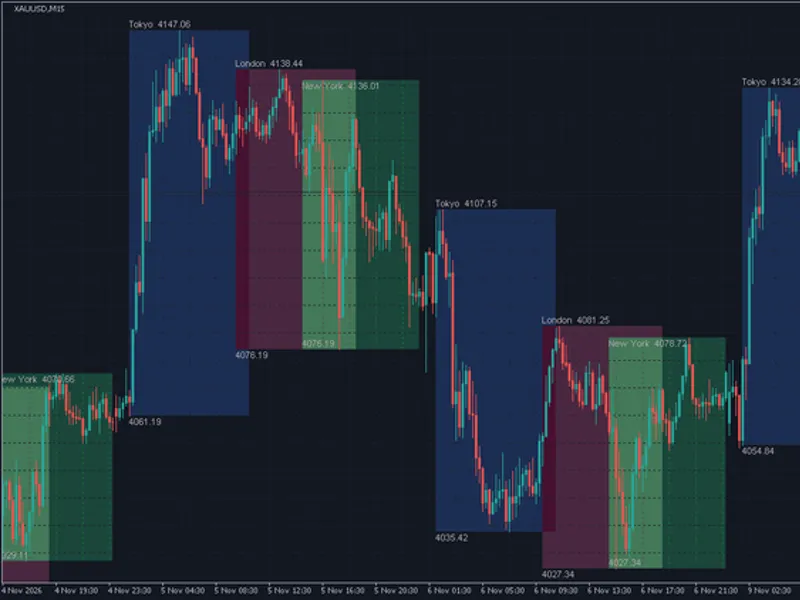
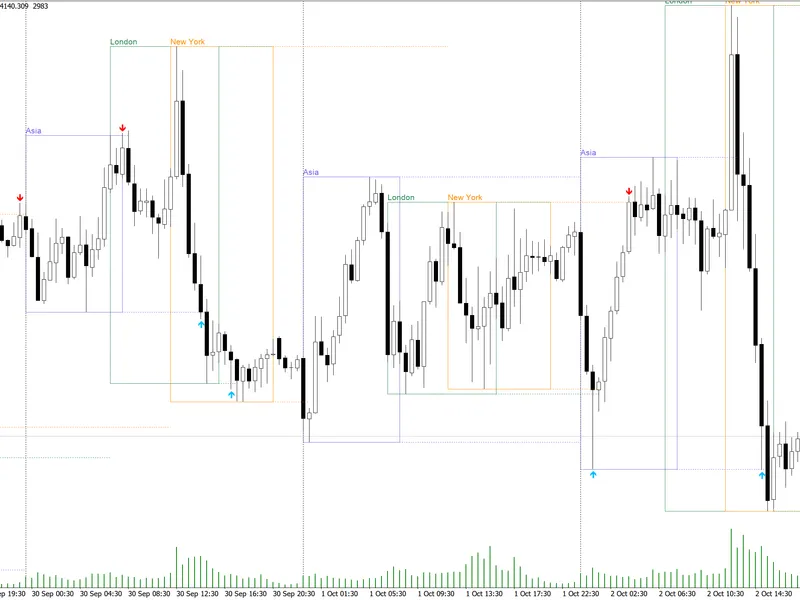
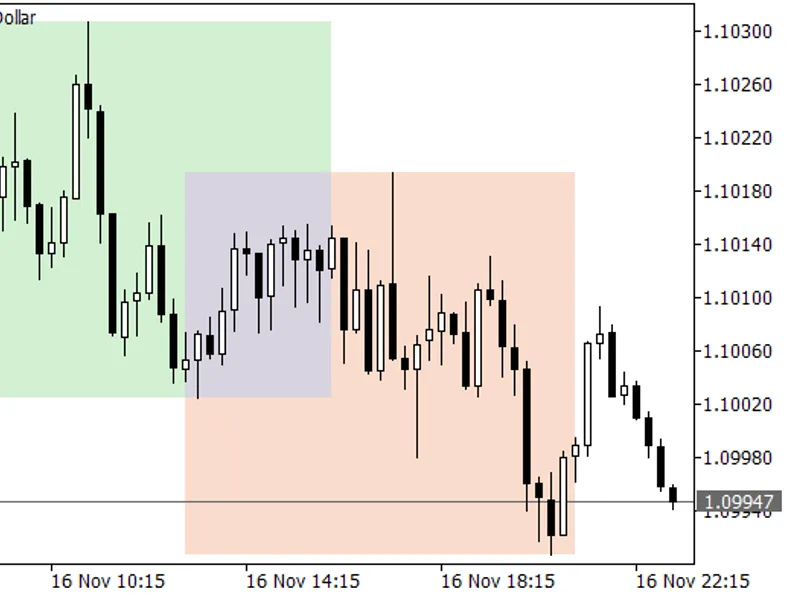
The indicator draws boxes representing defined trading sessions and killzones. These are specified in GMT but are accurately converted to your broker's server time. The default sessions include the Asian Range, London Open Killzone, New York Open Killzone, and London Close.
Customization Options
Boxes can be drawn as outlines or filled, with the fill option placing the box behind price action. Each session box can optionally display dashed high and low lines, configurable independently. Session names and their corresponding pip or price ranges are displayed above the box when space permits, using a small font size.
The range is presented in pips for FX quotes and in the symbol's native price format for other instruments.
Operational Details
The indicator features automatic detection of the broker's GMT offset by comparing the terminal's server time with the GMT clock. This offset is rounded to the nearest hour and clamped between -14 and +14. A manual offset can be used if auto-detection is disabled or when clock synchronization issues occur. The Strategy Tester always utilizes the manual offset setting.
Session windows are calculated by adding the specified GMT hours and minutes to midnight of the current day on the server clock. Windows that do not end after they begin are advanced by one day. Upcoming windows are processed in sequence.
The start of a session box aligns with the opening bar of the session time. If no bar opens exactly at the start time, the box encompasses the bar during which the session begins.
The end of a session box is determined by the last bar that opens *before* the session's scheduled end time. A bar opening precisely at the end time is excluded, as it falls entirely after the session's duration.
High and low lines represent the highest high and lowest low price within the bars of the defined session. If a session window contains no trading data (e.g., weekends, holidays, or dates prior to historical data availability), no box or lines are drawn for that period. A session that is currently active will display its high and low up to the current bar, with the box extending to the scheduled end time.
Recalculation occurs on each new bar. For bars currently forming, recalculation is optimized to occur every five seconds of server time, preventing excessive load while still updating intrabar highs and lows promptly.
Key Input Parameters
Days to Display: Sets the number of past days for which session boxes will be drawn (default is five).
Auto Detect Broker GMT Offset: Enables or disables automatic detection of the GMT offset (default is on).
Manual GMT Offset: Specifies the GMT offset in hours when auto-detection is off or fails (default is two).
Show Session Range in Pips: Toggles the display of session names and range labels for all sessions (default is on).
Session Configurations: Individual settings for Asian Range, London Open Killzone, New York Open Killzone, and London Close. Each session allows enabling/disabling, setting start and end hours/minutes, border color, fill color, and enabling/disabling high and low lines with their respective colors.
Installation and Usage
To install, copy the provided .mq5 file into the MQL5/Indicators directory within your MetaTrader terminal's data folder. Open the file in MetaEditor and compile it. Afterward, attach the indicator to any chart. A confirmation message will appear in the Experts tab detailing the symbol's specifications and the selected unit (pips or price).
The default GMT times for the sessions are: Asian Range (00:00-08:00), London Open Killzone (06:00-09:00), New York Open Killzone (11:00-14:00), and London Close (15:00-17:00).
Limitations
The GMT offset is determined once during initialization (OnInit). Subsequent broker time changes, such as daylight saving adjustments, may require the indicator to be reloaded to maintain accuracy.
The display of session names and ranges depends on sufficient chart space. On lower timeframes like H1 and H4, the default session durations might not provide enough room for labels, and consequently, no labels will be drawn. High and low lines on these timeframes may also appear less precise due to the limited number of bars within the session.
Removing the indicator will delete all associated graphical objects starting with 'chimaster_'. If another indicator from the same family is used, its objects may also be removed.
The indicator defaults to displaying ranges in price for non-FX symbols or FX symbols with non-standard digit counts. It will display a bare number if no profit currency is available.
Visual Example
The indicator displays outline boxes over the price candles. When chart space allows, the session name and range are shown within the box.
You may also like: Session Clock: Real-Time Trading Session Awareness - excellent alternative for indicator users on MetaTrader 5.
Source Code
#property copyright "RobotFX"
#property link "https://robotfx.org"
#property version     "1.04"
#property description "This code is educational. Feel free to use, modify and upgrade as you wish. Visit ROBOTFX.ORG for professional trading tools"
#property indicator_chart_window
#property indicator_plots 0
#define BRAND_PREFIX       "chimaster_"
struct SLabelUnit
{
   bool              isPips;
.......
⚠ Limitations & Risk Warning
- This tool is provided for educational and testing purposes only.
- Past performance does not guarantee future results.
- Trading involves substantial risk of loss. Use on a demo account first.
- Results may vary depending on market conditions, broker, and settings.
- We recommend thorough backtesting and forward testing before using with real funds.