
Equity Drawdown Monitor: Real-Time Account Performance Tracker
Info
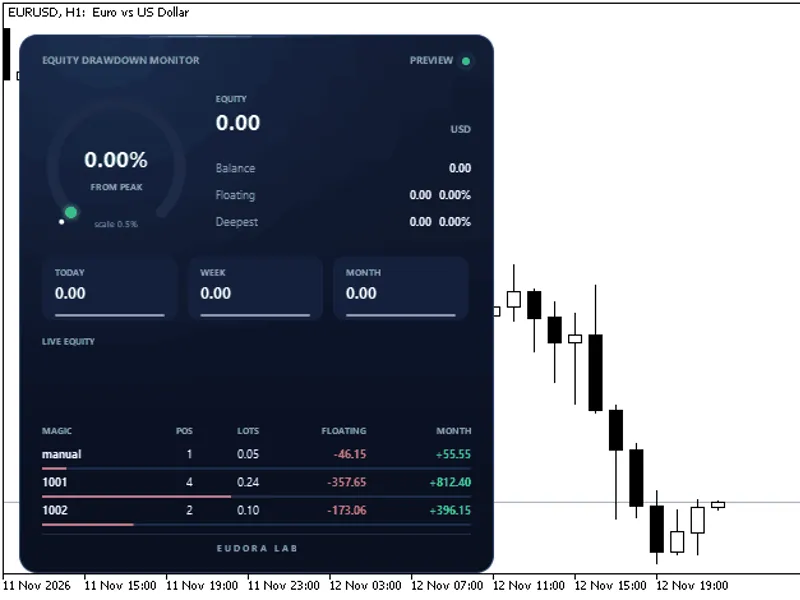
The Equity Drawdown Monitor: Real-Time Account Performance Tracker is a Indicator for MetaTrader 5 that most panels display the balance, but this innovative tool reveals the current state of your account: the equity's distance from its peak, its lowest point, today's closed result, this week's and this month's performance, and the responsible expert advisor. Panel PreviewThe panel operates on a canvas, featuring antialiased shapes and seamless transitions.
Usage
This tool is typically used for enhancing chart analysis and decision making.
Platform
This Indicator works exclusively on MetaTrader 5 (both build 600+ and newer versions).
Setup
Place the downloaded file in MQL5/Indicators folder via File ? Open Data Folder in MetaTrader 5.
How to Install and Use Equity Drawdown Monitor: Real-Time Account Performance Tracker
1. Installation: Place your file in the MQL/Indicators folder via "Open Data Folder" and restart your terminal.
2. Loading: Find the indicator in the Navigator, drag it onto your chart, and configure the input parameters in the popup window.
3. Customization: Press Ctrl+I to open the indicator list, select your tool, and click "Properties" to change colors, levels, or visual styles.
4. Updating: Replace the old file in the Indicators folder with the new version and restart the platform to apply changes.
Frequently Asked Questions
Q: Why is my indicator not showing? A: Verify the file is in the MQL/Indicators folder, or try right-clicking the "Indicators" tree in the Navigator and clicking "Refresh."
Q: Do custom indicators slow down the platform? A: Too many complex indicators can impact performance; remove unused ones via the "Indicator List" (Ctrl+I).
Q: Can I use MT4 indicators on MT5? A: No, MQL4 and MQL5 are distinct languages; ensure the indicator is compiled specifically for your platform version.
What this tool does
Most panels display the balance, but this innovative tool reveals the current state of your account: the equity's distance from its peak, its lowest point, today's closed result, this week's and this month's performance, and the responsible Expert Advisor.
Typical Use Case
This Indicator excels in automated trading and technical analysis on MetaTrader 5.
Compatible Platform & Setup
This Indicator works on MetaTrader 5. Place the file in the MQL5/Indicators folder and restart the terminal.
Description & Settings
Related: Account Information Panel with Daily P/L and Equity Drawdown - another powerful indicator for MetaTrader 5 traders.
Most panels display the balance, but this innovative tool reveals the current state of your account: the equity's distance from its peak, its lowest point, today's closed result, this week's and this month's performance, and the responsible Expert Advisor.Also recommended: Equity and Drawdown Monitor Panel - similar indicator with strong performance on MetaTrader 5.
Panel Preview
The panel operates on a canvas, featuring antialiased shapes and seamless transitions. The gauge swiftly adjusts to its value, while figures dynamically update with account movements, and the equity line refreshes every second. This indicator is read-only, extracting account data and rendering the panel within the terminal. The code is streamlined into a single file, utilizing only the standard Canvas library.
Panel Details
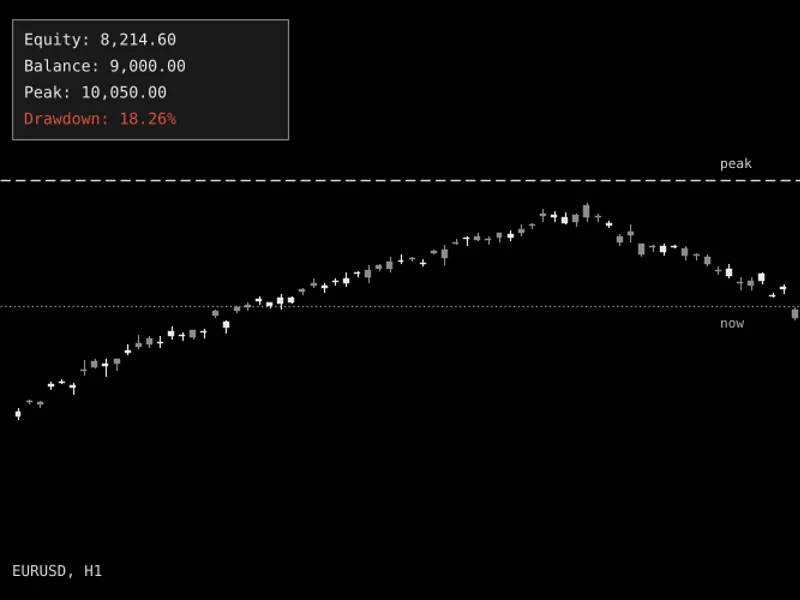
- Gauge: Visualizes the drawdown from the equity peak as a percentage, transitioning from green to amber to red. A small white dot indicates the deepest drawdown recorded.
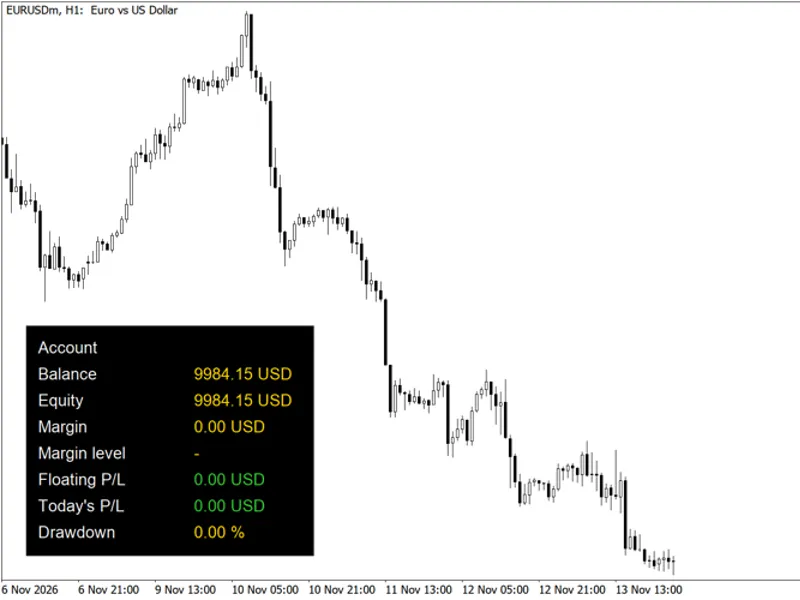
- Account: Displays equity, balance, floating result (in monetary value and as a percentage of the balance), and the maximum drawdown from the peak.
- Closed Result: Presents today's, this week's (from Monday), and this month's closed results, inclusive of swap, commission, and fee.
- Live Equity: Tracks the equity over the last two and a half minutes, updating once per second.
- Magic Number Table: Lists open positions, total lots, floating result, and closed result of the month for each magic number. Manual trades are labeled as 'manual', and a bar beneath each line represents its relative weight.
Peak Functionality
The peak is initialized from the equity when the indicator is first attached, updating with each new equity high. It resides in the global variables of the terminal, ensuring persistence across restarts and timeframe changes. Deposits and withdrawals are accounted for by adjusting the peak, maintaining the accuracy of the drawdown figure.
Inputs
- Position: Specify the panel's position on the chart in pixels from the left and top edges.
- Size: Adjust the panel size as a percentage, adapting to the screen's DPI.
- Magic Number Table Lines: Define the number of magic numbers displayed (default is 6).
- Accent Color: Select the panel's accent color.
- Gauge Scale: Set the gauge's full scale in percentage; 0 allows the gauge to choose a round scale above the deepest drawdown.
- Drawdown Alert: Set the drawdown percentage at which an alert is triggered; 0 disables the alert.
- Peak Reset: A one-time option to restart the peak from the current equity, then revert to false.
- Preview Mode: Demonstrate the panel with sample data before the first trade.
This panel is compatible with various symbols, timeframes, hedging, and netting accounts.
You may also like: Prop Firm Live Daily Breach Line: Accurate Drawdown Monitoring - excellent alternative for indicator users on MetaTrader 5.
Source Code
#property copyright "RobotFX"
#property link "https://robotfx.org"
#property version   "1.01"
#property description "This code is educational. Feel free to use, modify and upgrade as you wish. Visit ROBOTFX.ORG for professional trading tools"
#property indicator_chart_window
#property indicator_plots 0
#include <Canvas\Canvas.mqh>
input group "Panel"
input int    InpX          = 12;
input int    InpY          = 24;
.......
⚠ Limitations & Risk Warning
- This tool is provided for educational and testing purposes only.
- Past performance does not guarantee future results.
- Trading involves substantial risk of loss. Use on a demo account first.
- Results may vary depending on market conditions, broker, and settings.
- We recommend thorough backtesting and forward testing before using with real funds.