


Prop Firm Equity Guard: Daily and Maximum Drawdown Protection
Info
The Prop Firm Equity Guard: Daily and Maximum Drawdown Protection is a Expert Advisor for MetaTrader 5 that prop firm equity guard safeguards your funded or challenge account against violations of two critical prop firm rules: the daily loss limit and the maximum overall loss. Simply attach this tool to any chart.
Usage
This tool is typically used for automated trading on major forex pairs and gold.
Platform
This Expert Advisor works exclusively on MetaTrader 5 (both build 600+ and newer versions).
Setup
Place the downloaded file in MQL5/Experts folder via File ? Open Data Folder in MetaTrader 5.
How to Install and Use Prop Firm Equity Guard: Daily and Maximum Drawdown Protection
1. Installation: Open the "File" menu, select "Open Data Folder," navigate to MQL/Experts, paste your file, and restart the terminal.
2. Activation: Drag the EA from the Navigator onto a chart, ensure "Allow live trading" is checked in the Common tab, and verify the AutoTrading button is green.
3. Optimization: Right-click your chart, choose "Expert List," click "Properties" to adjust inputs, and save your preferred setup as a set file for future use.
4. Maintenance: Regularly check the "Experts" tab in the terminal window to monitor trade logs and potential execution errors.
Frequently Asked Questions
Q: Why is my EA not opening trades? A: Check the "AutoTrading" button, ensure "Allow live trading" is enabled, and verify your broker allows automated trading on your account type.
Q: Can I run multiple EAs on one chart? A: No, each chart can only host one active EA; however, you can open multiple charts for different currency pairs to run several EAs.
Q: What does the "smiley face" icon mean? A: A smiley face in the top-right corner of the chart indicates the EA is successfully running; a frowny face means it is disabled.
What this tool does
Prop Firm Equity Guard safeguards your funded or challenge account against violations of two critical prop firm rules: the daily loss limit and the maximum overall loss.
Typical Use Case
This Expert Advisor excels in automated trading and technical analysis on MetaTrader 5.
Compatible Platform & Setup
This Expert Advisor works on MetaTrader 5. Place the file in the MQL5/Experts folder and restart the terminal.
Description & Settings
Related: Prop Firm Guardian: Manage Daily Loss, Max Loss, and Profit Target - another powerful expert for MetaTrader 5 traders.
Prop Firm Equity Guard safeguards your funded or challenge account against violations of two critical prop firm rules: the daily loss limit and the maximum overall loss.Also recommended: Prop Risk Guard: Comprehensive Account Protection - similar expert with strong performance on MetaTrader 5.
Simply attach this tool to any chart. It monitors your entire account, regardless of the symbols traded, manual trades, or other Expert Advisors running.
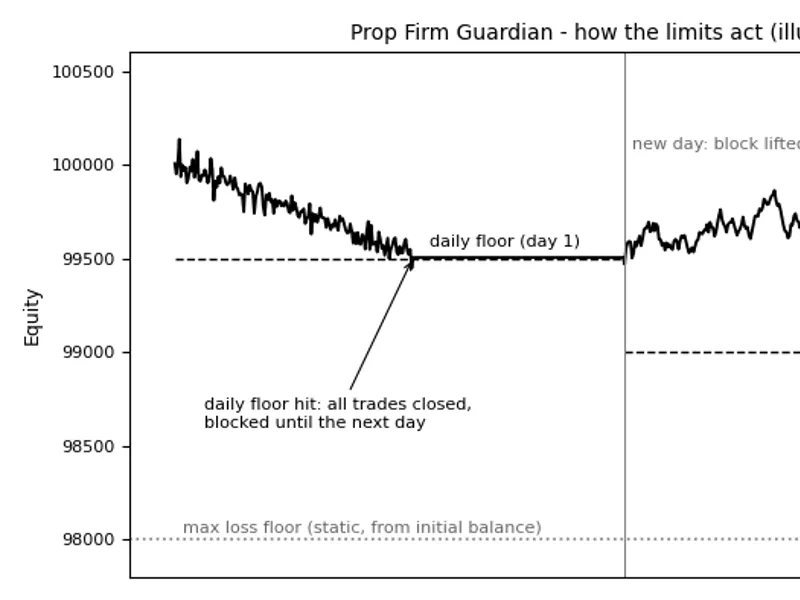
Upon reaching a specified limit, the tool will close all open positions, delete any pending orders, and ensure your account remains flat until the next trading day (for daily limits) or until manually reset (for maximum loss limits).
Limit Calculation:
- Daily Loss Floor: Calculated as day-start value multiplied by (1 - (DailyLoss% - Buffer%) / 100). The day-start value is determined by the higher of your balance or equity at the designated reset hour, aligning with common prop firm practices.
- Maximum Loss Floor: Calculated as the initial balance multiplied by (1 - (MaxLoss% - Buffer%) / 100).
- Optional Profit Target: This feature allows you to set a profit target. When your equity reaches the initial balance plus the target percentage, all trades will be closed.
Inputs:
- InpDailyLossPercent (5.0): Sets the daily loss limit in percent. A value of 0 disables this feature.
- InpMaxLossPercent (10.0): Sets the maximum overall loss limit as a percentage of the initial balance. A value of 0 disables this feature.
- InpInitialBalance (0): Specifies the initial balance of the challenge account. If set to 0, the balance is taken when the EA is first attached.
- InpSafetyBufferPercent (0.5): An optional buffer in percent to absorb potential slippage before the actual limit is reached.
- InpDayResetHour (0): Sets the server hour for the trading day reset.
- InpProfitTargetPercent (0): Sets a profit target in percent. A value of 0 disables this feature.
- InpBlockAfterBreach (true): If true, prevents any new trades from being opened after a limit has been breached.
- InpMagicFilter (-1): Specifies the magic number for trades to be guarded. A value of -1 includes all trades, including manual ones.
- InpSendAlerts (true): Enables alerts and push notifications when limits are breached or when 80% of the daily allowance is used.
- InpResetLocks (false): Clears saved maximum loss or profit target locks upon starting the EA.
State information, including the day start value, locks, and initial balance, is stored in terminal global variables, ensuring persistence through terminal or VPS restarts. Trade closing requests are managed with a throttle of one pass every 2 seconds to comply with server request limits.
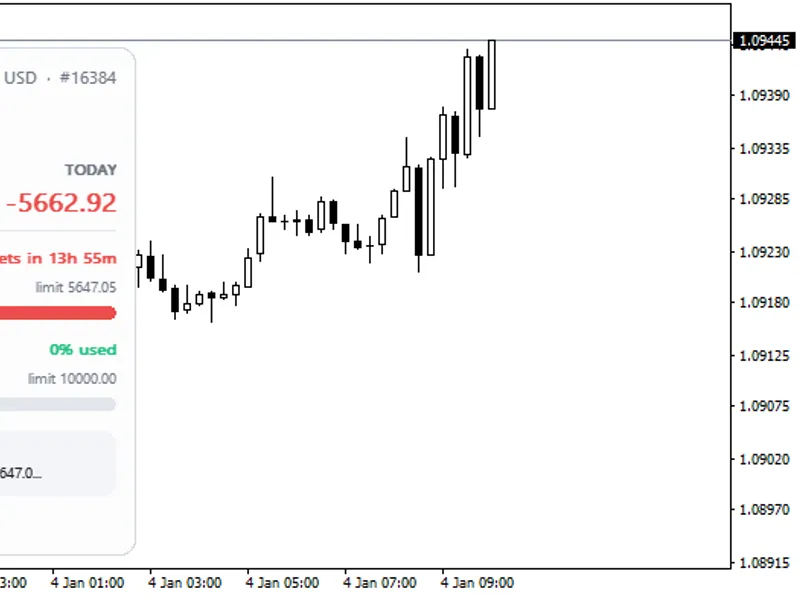
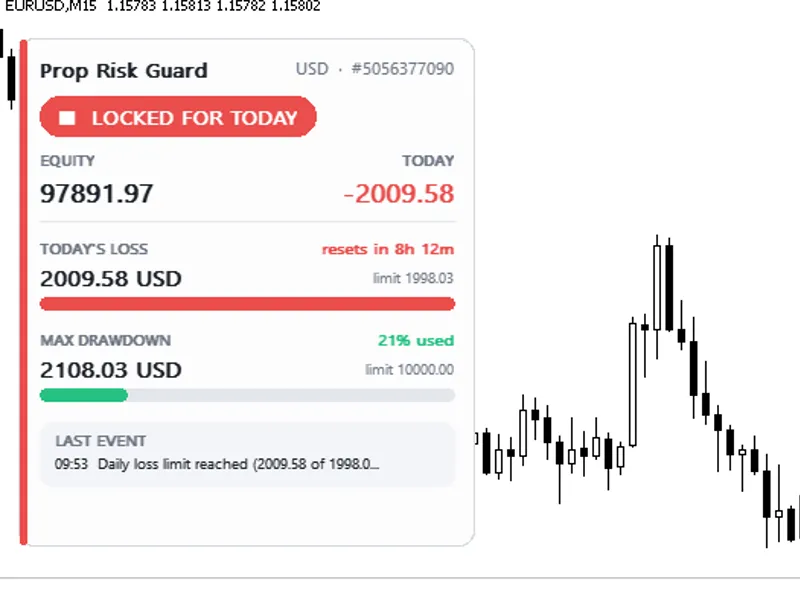
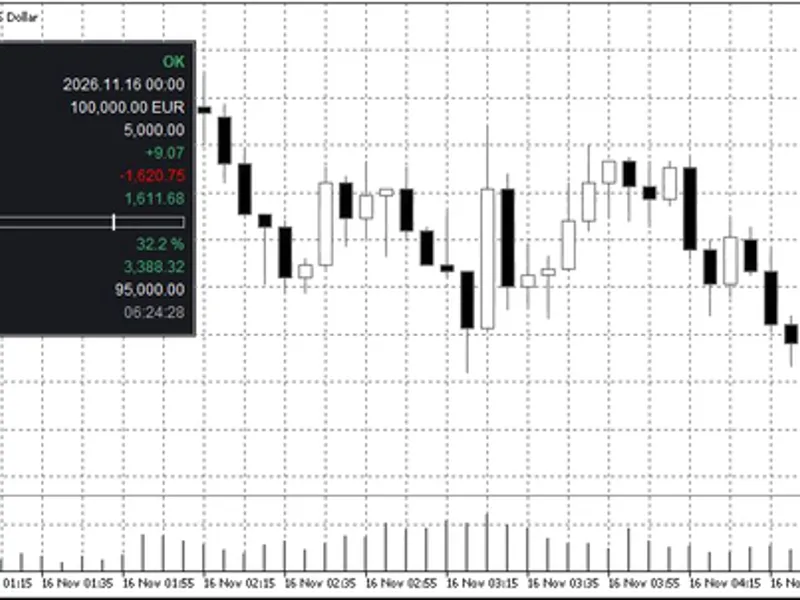
A chart comment displays current equity, the defined loss floors, the percentage of the daily allowance utilized, and the overall status.
This tool is compatible with any symbol and timeframe and works on both hedging and netting accounts. Always verify your prop firm's specific rules and configure the inputs accordingly to ensure compliance. This EA was last updated in 2026.
You may also like: G7 Pro Trade Manager and Prop Firm Equity Protector: 1-Click HUD for Advanced Trading - excellent alternative for expert users on MetaTrader 5.
Source Code
#property copyright "RobotFX"
#property link "https://robotfx.org"
#property version   "1.00"
#property description "This code is educational. Feel free to use, modify and upgrade as you wish. Visit ROBOTFX.ORG for professional trading tools"
#include <Trade/Trade.mqh>
input double InpDailyLossPercent    = 5.0;
input double InpMaxLossPercent      = 10.0;
input double InpInitialBalance      = 0.0;
input double InpSafetyBufferPercent = 0.5;
input int    InpDayResetHour        = 0;
.......
⚠ Limitations & Risk Warning
- This tool is provided for educational and testing purposes only.
- Past performance does not guarantee future results.
- Trading involves substantial risk of loss. Use on a demo account first.
- Results may vary depending on market conditions, broker, and settings.
- We recommend thorough backtesting and forward testing before using with real funds.