
Smart Liquidity Hunter: MT5 Indicator for Confirmed Swing Sweeps
Info
The Smart Liquidity Hunter: MT5 Indicator for Confirmed Swing Sweeps is a Indicator for MetaTrader 5 that smart liquidity hunter v1. 11 is a MetaTrader 5 indicator designed to identify price sweeps around previously confirmed swing highs and lows.
Usage
This tool is typically used for enhancing chart analysis and decision making.
Platform
This Indicator works exclusively on MetaTrader 5 (both build 600+ and newer versions).
Setup
Place the downloaded file in MQL5/Indicators folder via File ? Open Data Folder in MetaTrader 5.
How to Install and Use Smart Liquidity Hunter: MT5 Indicator for Confirmed Swing Sweeps
1. Installation: Place your file in the MQL/Indicators folder via "Open Data Folder" and restart your terminal.
2. Loading: Find the indicator in the Navigator, drag it onto your chart, and configure the input parameters in the popup window.
3. Customization: Press Ctrl+I to open the indicator list, select your tool, and click "Properties" to change colors, levels, or visual styles.
4. Updating: Replace the old file in the Indicators folder with the new version and restart the platform to apply changes.
Frequently Asked Questions
Q: Why is my indicator not showing? A: Verify the file is in the MQL/Indicators folder, or try right-clicking the "Indicators" tree in the Navigator and clicking "Refresh."
Q: Do custom indicators slow down the platform? A: Too many complex indicators can impact performance; remove unused ones via the "Indicator List" (Ctrl+I).
Q: Can I use MT4 indicators on MT5? A: No, MQL4 and MQL5 are distinct languages; ensure the indicator is compiled specifically for your platform version.
What this tool does
Smart Liquidity Hunter v1.
Typical Use Case
This Indicator excels in automated trading and technical analysis on MetaTrader 5.
Compatible Platform & Setup
This Indicator works on MetaTrader 5. Place the file in the MQL5/Indicators folder and restart the terminal.
Description & Settings
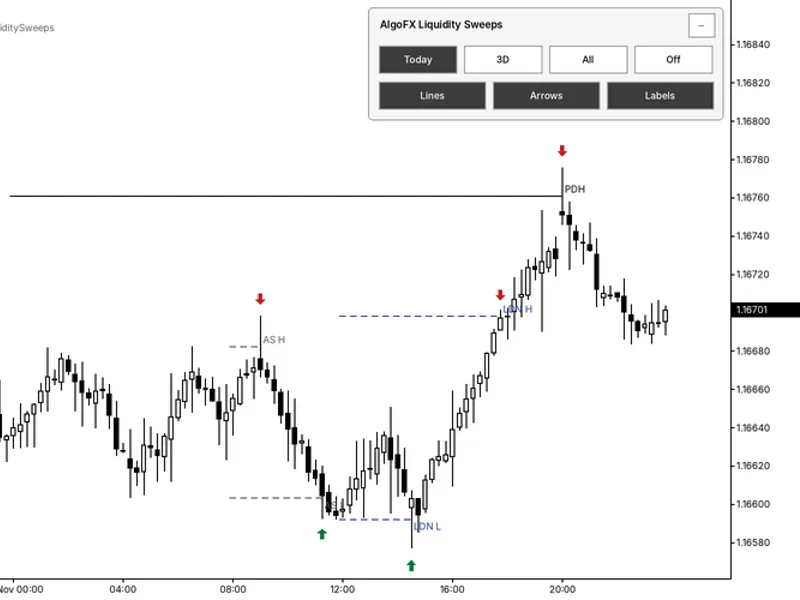
Related: Algo FX Session Liquidity Sweeps Indicator - another powerful indicator for MetaTrader 5 traders.
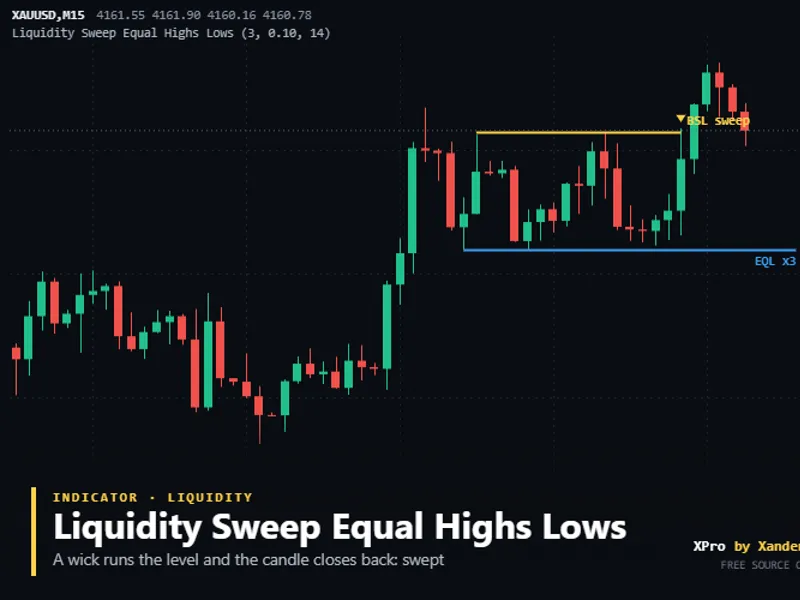
Smart Liquidity Hunter v1.11 is a MetaTrader 5 indicator designed to identify price sweeps around previously confirmed swing highs and lows. It utilizes OHLC prices as a proxy for liquidity. Please note that this indicator does not read actual resting orders or stop-loss locations and does not execute trades.Also recommended: Identifying Liquidity Sweeps: Equal Highs and Lows - similar indicator with strong performance on MetaTrader 5.
Signal Rules
A bullish signal is generated when a closed candle sweeps below an eligible swing low and then closes back above it. Conversely, a bearish signal occurs when a closed candle sweeps above an eligible swing high and then closes back below it.
The sweep penetration must exceed the greater of a fixed points threshold and a volatility threshold. Volatility is calculated as the simple mean of true ranges from the candles preceding the signal candle. The signal must also satisfy the configured wick, closing position, freshness, and optional candle direction filters.
Only swing points confirmed before the signal candle are considered eligible. If a candle qualifies for signals in both bullish and bearish directions, it is skipped. Signals are not displayed on the unfinished candle.
Inputs and Defaults
SwingStrength = 3
: Specifies the number of candles required on each side of a swing point for confirmation.
MaxSwingAge = 100
: Sets the maximum distance in bars from the signal candle to an eligible swing point.
MaxBarsToScan = 1000
: Defines the maximum number of closed historical candles to be calculated.
MinSweepPoints = 12
: Sets the minimum sweep threshold in symbol points.
VolatilityPeriod = 14
: Determines the lookback period for calculating the simple mean of preceding true ranges.
MinSweepVolRatio = 0.10
: Sets the multiplier for the volatility-based sweep threshold using the mean true range.
MinWickPercent = 25.0
: The minimum rejection wick as a percentage of the candle range. For bullish setups, this applies to the lower wick; for bearish setups, it applies to the upper wick.
MinCloseLocationPct = 60.0
: The minimum closing position as a percentage of the candle range. For bullish setups, the close must be within the upper 40% of the range (e.g., at 60%); for bearish setups, it must be within the lower 40%.
RequireFreshLevel = true
: When enabled, this excludes swing levels that have been previously pierced by an intervening candle.
RequireCandleColor = false
: If enabled, requires the candle to close above its open for bullish setups and below its open for bearish setups.
ShowLiquidityLevels = true
: Displays eligible swing high and swing low levels on the chart.
ShowDashboard = true
: Enables the display of the chart information panel.
ArrowPaddingPoints = 8
: Sets the minimum arrow offset from the candle high or low in symbol points.
ArrowOffsetVolRatio = 0.18
: A multiplier of the mean true range used for arrow spacing. The greater of this offset and ArrowPaddingPoints is applied.
DashboardInstanceId = A
: A unique identifier (1-40 characters) for each indicator instance on the same chart.
DashboardTextColor = clrDodgerBlue
: Sets the text color for the dashboard.
AlertPopup = false
: Enables popup alerts for new signals on closed bars.
AlertSound = false
: Enables the playback of alert.wav for new signals on closed bars.
AlertPush = false
: Enables push notifications for new signals; ensure terminal notification settings are configured.
DashboardX = 15
: Sets the horizontal distance of the dashboard from the chart's left edge in pixels.
DashboardY = 30
: Sets the vertical distance of the dashboard from the chart's top edge in pixels.
Chart Examples
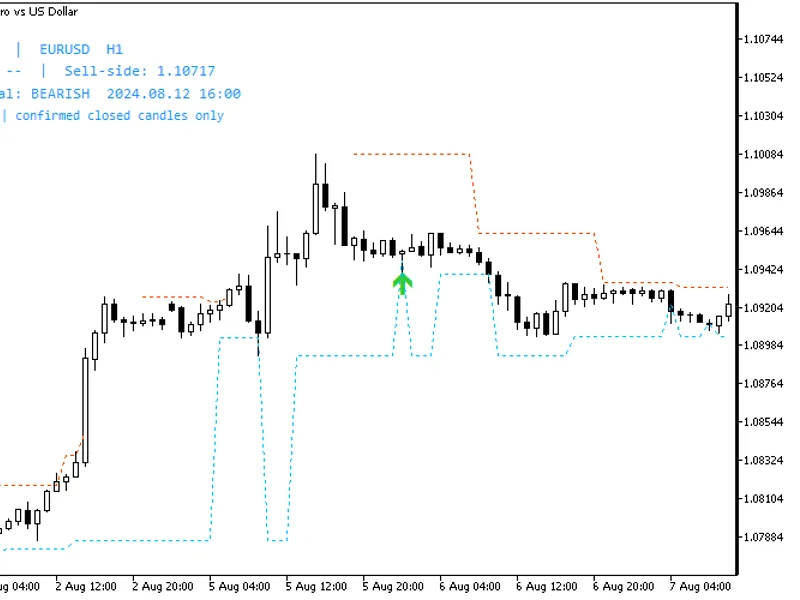
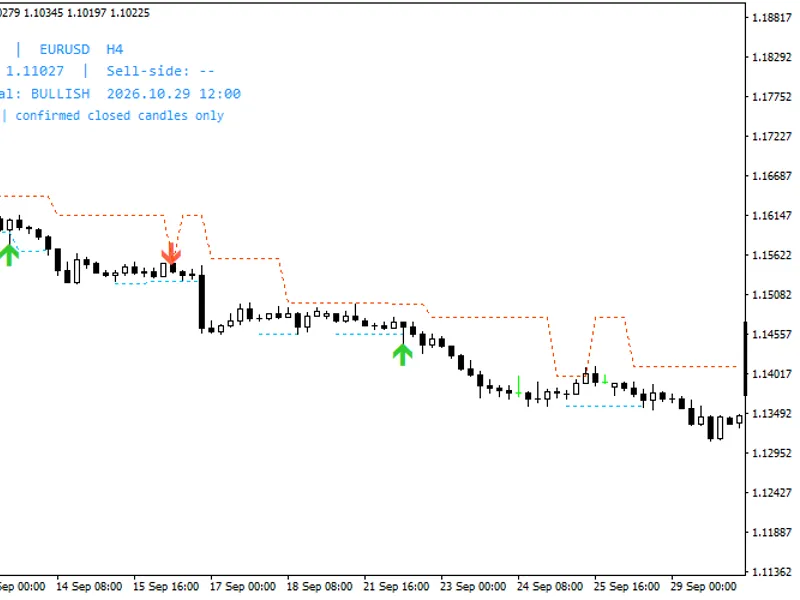
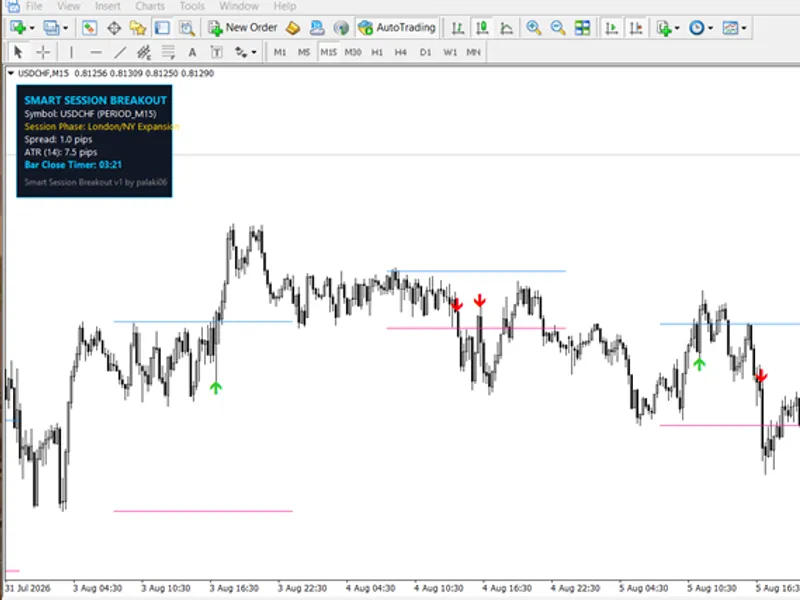
Green arrows indicate bullish sweeps below a qualifying closed candle, while red arrows indicate bearish sweeps above a qualifying closed candle. Dotted lines represent eligible swing high and swing low levels.
The dashboard displays the latest eligible levels and the most recent signal within the scanned history. Therefore, a historical screenshot might show an earlier signal than the timestamp indicated on the dashboard's last signal.
Figure 1. MT5, EURUSD H1: a historical bullish sweep signal.
Figure 2. MT5, EURUSD H1: a historical bearish sweep signal.
Usage Notes
Begin with the default input settings. Swing confirmation relies on subsequent candles, meaning a swing is not considered available immediately after its high or low forms. The historical output is influenced by input parameters, available price history, and the calculation window.
Alerts are disabled by default. Initial indicator attachment, history resets, and catch-up calculations do not trigger historical alerts. For multiple indicator instances, ensure distinct DashboardInstanceId values (e.g., A, B) and adjust DashboardY positions accordingly.
User Guide
For detailed installation steps, comprehensive settings explanations, chart examples, and troubleshooting guidance, please refer to the Smart Liquidity Hunter user guide for MT4 and MT5.
Version 1.11 Update Notes (2026)
Dashboard object names are now stable across profile reloads, preventing duplicate labels. Signal calculation logic remains unchanged. It is important to note that a marked sweep does not guarantee a subsequent reversal.
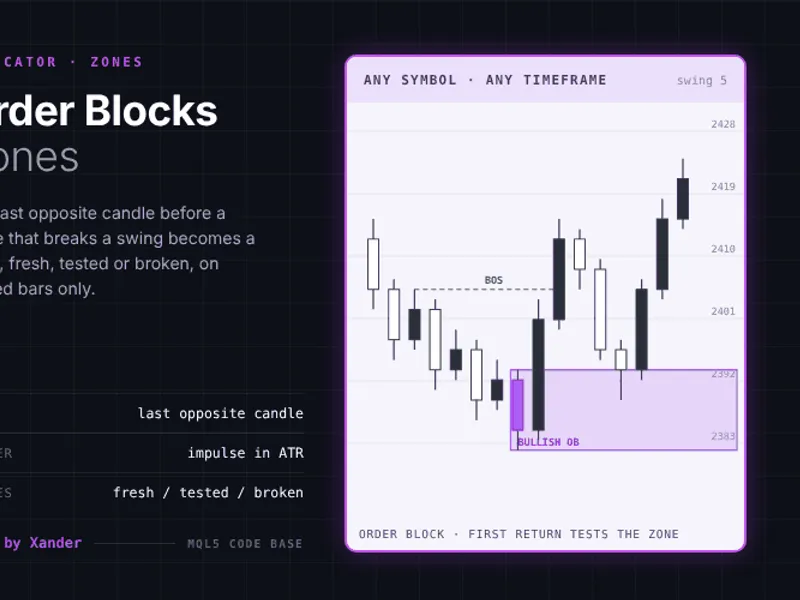
You may also like: Order Block Zones for Smart Money Concepts - excellent alternative for indicator users on MetaTrader 5.
Source Code
#property strict
#property copyright "RobotFX"
#property link "https://robotfx.org"
#property version   "1.11"
#property description "This code is educational. Feel free to use, modify and upgrade as you wish. Visit ROBOTFX.ORG for professional trading tools"
#property indicator_chart_window
#property indicator_buffers 4
#ifdef __MQL5__
#property indicator_plots 4
#property indicator_label1 "Bullish liquidity sweep"
.......
⚠ Limitations & Risk Warning
- This tool is provided for educational and testing purposes only.
- Past performance does not guarantee future results.
- Trading involves substantial risk of loss. Use on a demo account first.
- Results may vary depending on market conditions, broker, and settings.
- We recommend thorough backtesting and forward testing before using with real funds.