
Trade Guard: Reliable Order Execution for MT4/MT5
Info
The Trade Guard: Reliable Order Execution for MT4/MT5 is a Expert Advisor for MetaTrader 5 that tradeguard manages expert advisor (ea) order execution, allowing your strategy to focus solely on trading decisions. It meticulously checks each trading request, normalizes it to broker specifications, executes it with safe retry mechanisms, prevents duplicate orders, avoids interfering with other EAs' positions, and ensures state recovery upon restarts.
Usage
This tool is typically used for automated trading on major forex pairs and gold.
Platform
This Expert Advisor works exclusively on MetaTrader 5 (both build 600+ and newer versions).
Setup
Place the downloaded file in MQL5/Experts folder via File ? Open Data Folder in MetaTrader 5.
How to Install and Use Trade Guard: Reliable Order Execution for MT4/MT5
1. Installation: Open the "File" menu, select "Open Data Folder," navigate to MQL/Experts, paste your file, and restart the terminal.
2. Activation: Drag the EA from the Navigator onto a chart, ensure "Allow live trading" is checked in the Common tab, and verify the AutoTrading button is green.
3. Optimization: Right-click your chart, choose "Expert List," click "Properties" to adjust inputs, and save your preferred setup as a set file for future use.
4. Maintenance: Regularly check the "Experts" tab in the terminal window to monitor trade logs and potential execution errors.
Frequently Asked Questions
Q: Why is my EA not opening trades? A: Check the "AutoTrading" button, ensure "Allow live trading" is enabled, and verify your broker allows automated trading on your account type.
Q: Can I run multiple EAs on one chart? A: No, each chart can only host one active EA; however, you can open multiple charts for different currency pairs to run several EAs.
Q: What does the "smiley face" icon mean? A: A smiley face in the top-right corner of the chart indicates the EA is successfully running; a frowny face means it is disabled.
What this tool does
TradeGuard manages Expert Advisor (EA) order execution, allowing your strategy to focus solely on trading decisions.
Typical Use Case
This Expert Advisor excels in automated trading and technical analysis on MetaTrader 5.
Compatible Platform & Setup
This Expert Advisor works on MetaTrader 5. Place the file in the MQL5/Experts folder and restart the terminal.
Description & Settings
Related: Prop-firm Guard: Daily Loss and Max Drawdown Protection for Challenge Accounts - another powerful expert for MetaTrader 5 traders.
TradeGuard manages Expert Advisor (EA) order execution, allowing your strategy to focus solely on trading decisions.Also recommended: Trade Journal Exporter: Closed Trades to CSV with Position Details - similar expert with strong performance on MetaTrader 5.
It meticulously checks each trading request, normalizes it to broker specifications, executes it with safe retry mechanisms, prevents duplicate orders, avoids interfering with other EAs' positions, and ensures state recovery upon restarts. This is achieved through a single include file, without DLLs, and supported by a comprehensive test suite runnable in the Strategy Tester.
Why Use TradeGuard
Many live EA failures stem not from strategy flaws, but from execution issues. These include sending duplicate orders due to slow responses, stop losses being rejected for being too close, lot sizes not adhering to volume steps, accidental closure of other EAs' positions, or daily loss limits resetting after a VPS restart. TradeGuard addresses all these critical execution aspects in a centralized manner.
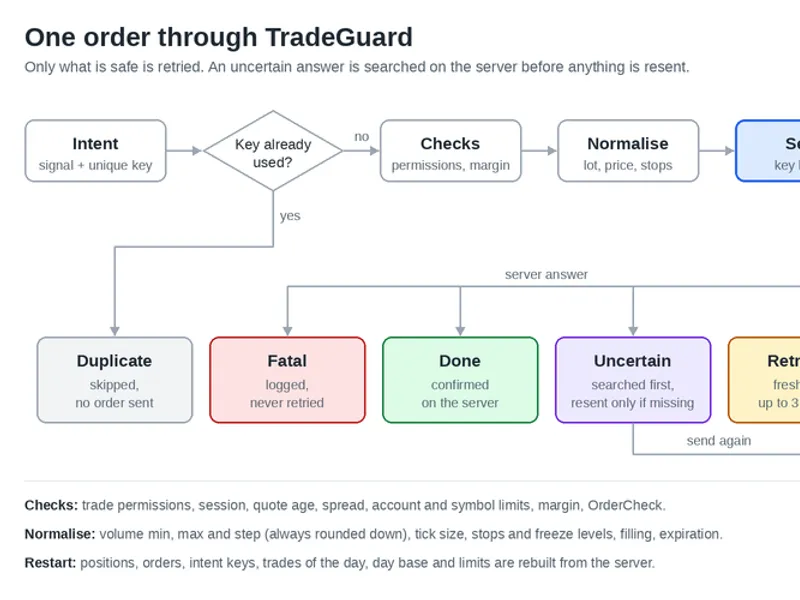
Every order request follows a standardized process. Only responses deemed safe are retried, and uncertain server responses are verified against existing server positions before any resubmission.
Key Features
Pre-trade Checks:
Verifies trading permissions, session status, quote age, spread, account and symbol limits, margin, and custom OrderCheck functions.
Normalization:
Adjusts volume to minimum, maximum, and step requirements (always rounded down). Prices are normalized to tick size. Stops are adjusted to the stops level (potentially widened with recalculated lots, or refused). Handles freeze level, filling mode, and expiration.
Safe Retries:
Classifies every server response. Requotes, price changes, and connection errors are retried with updated pricing. Uncertain responses (timeouts, no response) are checked against server positions before resending. Fatal errors are logged and not retried.
One Order Per Signal:
Each request includes an intent key (e.g., signal bar time and direction). The same key will not initiate a duplicate order, even after a restart. A lock mechanism prevents new orders while an existing one is in flight, until the terminal confirms the new position.
Isolation:
Positions, orders, and history are filtered by symbol and magic number. On netting accounts, it prevents trading a symbol held by an external position.
Restart Recovery:
Upon startup, it reconstructs the state by querying the server for positions, orders, intent keys, trades of the day, the day's base, and limit status. Only information not derivable from the server is stored in terminal global variables.
Risk and Limits Management:
Supports lot sizing based on risk using OrderCalcProfit (handles cross rates, indices, CFDs, stocks). Includes an optional daily loss limit with configurable reset time and an optional equity floor. Both limits remain active after restarts.
Detailed Logging:
Records one line per request, including key, volume, prices, attempt number, server response, and latency.
Quick Start Example
Include <TradeGuard\TradeGuard.mqh>
CTradeGuard tg;
int OnInit()
{
tg.Init(_Symbol, 123456); // Symbol and magic number
tg.RiskPercent(0.5); // Risk per trade, percentage of balance
tg.DailyLossLimit(4.0, 1); // Optional: 4% per day, reset at 01:00 server time
tg.EquityFloor(9000.0); // Optional: Equity floor
return(tg.Recover() ? INIT_SUCCEEDED : INIT_FAILED);
}
void OnTick()
{
tg.OnTick();
if(MySignal() && tg.CanTrade())
tg.Buy(SignalKey(), StopLoss(), TakeProfit()); // Lot sized by risk, normalized, never duplicated
}
void OnTradeTransaction(const MqlTradeTransaction &trans, const MqlTradeRequest &request, const MqlTradeResult &result)
{
tg.OnTradeTransaction(trans, request, result);
}
MySignal, SignalKey, StopLoss, and TakeProfit represent your custom strategy logic. The TradeGuard_Demo.mq5 file provides a complete EA demonstrating these calls.
Main Functions
Function
Description
Init(symbol, magic)
Binds the instance to a specific symbol and magic number.
Recover()
Rebuilds the state from the server. Call at the end of OnInit.
Buy, Sell(key, sl, tp, lots)
Executes market orders. If lots is 0, it sizes the lot based on risk and stop loss.
BuyLimit, SellLimit, BuyStop, SellStop(key, price, sl, tp, expiration, lots)
Places pending orders. If the symbol does not support expiration, TradeGuard automatically deletes the order.
Modify(ticket, sl, tp), ModifyOrder(ticket, price, sl, tp)
Modifies own positions and orders. Requests without changes are not sent.
Close, CloseAll, Delete, DeleteAll
Closes own positions or deletes own pending orders.
CanTrade(), Reason()
Determines if a new entry is currently allowed and provides the reason if not.
LotsForRisk(type, entry, sl)
Calculates the lot size that would result in the configured risk at the specified stop loss.
PositionsCount, OrdersCount, TradesToday, DayBase, DayLoss
Provides counts of own positions, pending orders, trades for the day, the day's base equity, and the day's loss, all derived from server data.
OnTick(), OnTradeTransaction(...)
Must be called from the corresponding handlers in your EA.
Settings
Setting
Default
RiskPercent(percent, ofEquity) or RiskMoney(amount)
1% of balance
MaxLot, CommissionPerLot
Off, 0
Deviation(points), MaxAttempts
10, 3
MaxSpread(points), MaxTickAge(seconds)
Off, 60
StopsPolicy
Widen to broker minimum and recalculate lot, or refuse.
MaxPositions, MaxTradesPerDay
Off
DayResetHour(server hour)
0
DailyLossLimit(value, reset hour, percent, base, trigger)
Off; triggers at 90% of the limit
EquityFloor(equity)
Off
LogLevel, CsvLog(file)
Requests and blocks; no CSV
Verification Methodology
All metrics below were verified using TradeGuardTests.mqh within the Strategy Tester (M5, August to October 2026) on FTMO symbols. To replicate these results, run TradeGuard_Demo in the tester, setting the Verification mode to unit tests or integration run. Results are logged as TGTEST entries in the journal and saved to Common\Files\TG_*.csv. Integration runs with and without simulated restarts must produce identical deal hashes.
Check
Result
Compilation
The library, test suite, and demo EA compile with 0 errors and 0 warnings.
Unit Tests
83 out of 83 tests pass, covering all 42 answer codes, 5,000 unique keys, 6 daily reset scenarios, synthetic specifications with a 30-point stops level and 10-point freeze level, and volume, price, and stop adjustments on EURUSD, USDJPY, XAUUSD, US100.cash, and AAPL.
Lot Calculation by Risk
120 test cases across the 5 symbols plus one with commission: the loss at the stop never exceeds the defined risk and remains within one volume step; the minimum lot size is never enforced incorrectly.
Bad Request Handling
7,186 requests on EURUSD and US100.cash with simulated execution delays, non-standard volumes, stops within the spread, volumes exceeding maximum limits, and pending orders placed at market prices: resulted in 0 server rejections, with 62,048 pre-submission attempts blocked and logged with detailed reasons.
Duplicate Order Prevention
4,876 unique keys were accepted, with no duplicates. 91,172 repetitive requests were successfully blocked.
Restart Resilience
With simulated restarts every 35 minutes (1,756 restarts in total), 4,025 identical deals were executed compared to runs without restarts. The day base calculation matched an independent calculation across 240,553 ticks.
Position Isolation
Another EA concurrently traded the same symbol during all test runs; none of its positions were mistakenly counted, modified, or closed by TradeGuard.
Daily Limit and Floor Performance
A 1% daily loss limit was triggered 37 times, and a 9,850 equity floor was hit once. In both cases, 0 new entries were allowed, and no open positions were managed after the limit was reached, with consistent results regardless of simulated restarts.
Execution Performance
0.2 to 0.8 µs per tick for OnTick and CanTrade checks.
TradeGuard underwent rigorous testing covering nine acceptance criteria. The included test suite allows users to reproduce these results on any broker.
Testing Discoveries
A critical bug was identified and fixed prior to release. On a stock CFD where 1 lot represents 1 share, rounding loss calculations to cents caused 10 out of 24 risk-based lots to exceed the defined risk by a small margin. The loss calculation is now performed using a large reference volume and re-verified with the exact lot size.
Expired pending orders can lose their comment. The server replaces it with
You may also like: Daily Loss Guard: Account Protection for Funded Traders - excellent alternative for expert users on MetaTrader 5.
Source Code
#property copyright "RobotFX"
#property link "https://robotfx.org"
#property version     "1.00"
#property description "This code is educational. Feel free to use, modify and upgrade as you wish. Visit ROBOTFX.ORG for professional trading tools"
#include <TradeGuard\TradeGuard.mqh>
input group "Example signal (placeholder)"
input int         InpFastPeriod      = 10;
input int         InpSlowPeriod      = 30;
input int         InpStopPoints      = 300;
input int         InpTakePoints      = 450;
.......
⚠ Limitations & Risk Warning
- This tool is provided for educational and testing purposes only.
- Past performance does not guarantee future results.
- Trading involves substantial risk of loss. Use on a demo account first.
- Results may vary depending on market conditions, broker, and settings.
- We recommend thorough backtesting and forward testing before using with real funds.