
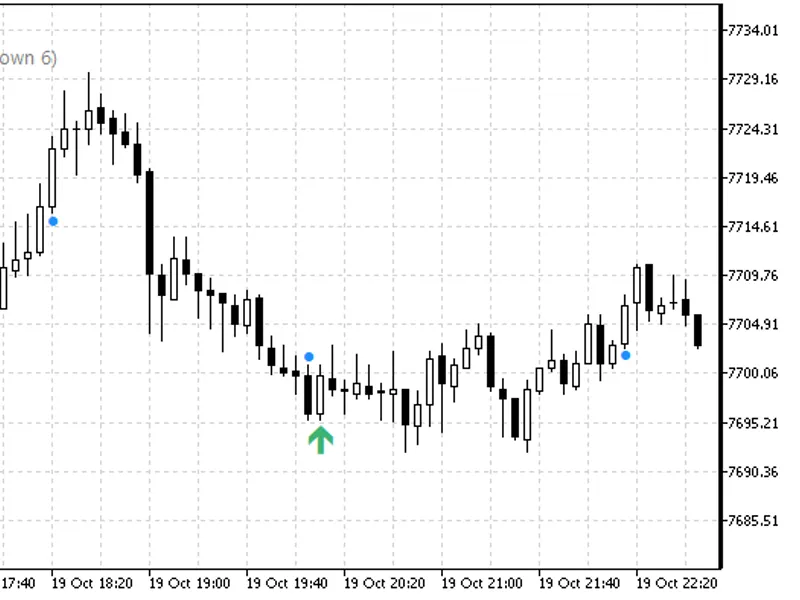
Trade Journal Exporter: Closed Trades to CSV with Position Details
Info
The Trade Journal Exporter: Closed Trades to CSV with Position Details is a Expert Advisor for MetaTrader 5 that what it doesthe terminal's deal history can be difficult to analyze directly. A single trading position might be represented by multiple deal entries, especially if it was closed in parts or involved a netting reversal.
Usage
This tool is typically used for automated trading on major forex pairs and gold.
Platform
This Expert Advisor works exclusively on MetaTrader 5 (both build 600+ and newer versions).
Setup
Place the downloaded file in MQL5/Experts folder via File ? Open Data Folder in MetaTrader 5.
How to Install and Use Trade Journal Exporter: Closed Trades to CSV with Position Details
1. Installation: Open the "File" menu, select "Open Data Folder," navigate to MQL/Experts, paste your file, and restart the terminal.
2. Activation: Drag the EA from the Navigator onto a chart, ensure "Allow live trading" is checked in the Common tab, and verify the AutoTrading button is green.
3. Optimization: Right-click your chart, choose "Expert List," click "Properties" to adjust inputs, and save your preferred setup as a set file for future use.
4. Maintenance: Regularly check the "Experts" tab in the terminal window to monitor trade logs and potential execution errors.
Frequently Asked Questions
Q: Why is my EA not opening trades? A: Check the "AutoTrading" button, ensure "Allow live trading" is enabled, and verify your broker allows automated trading on your account type.
Q: Can I run multiple EAs on one chart? A: No, each chart can only host one active EA; however, you can open multiple charts for different currency pairs to run several EAs.
Q: What does the "smiley face" icon mean? A: A smiley face in the top-right corner of the chart indicates the EA is successfully running; a frowny face means it is disabled.
What this tool does
What it doesThe terminal's deal history can be difficult to analyze directly.
Typical Use Case
This Expert Advisor excels in automated trading and technical analysis on MetaTrader 5.
Compatible Platform & Setup
This Expert Advisor works on MetaTrader 5. Place the file in the MQL5/Experts folder and restart the terminal.
Description & Settings
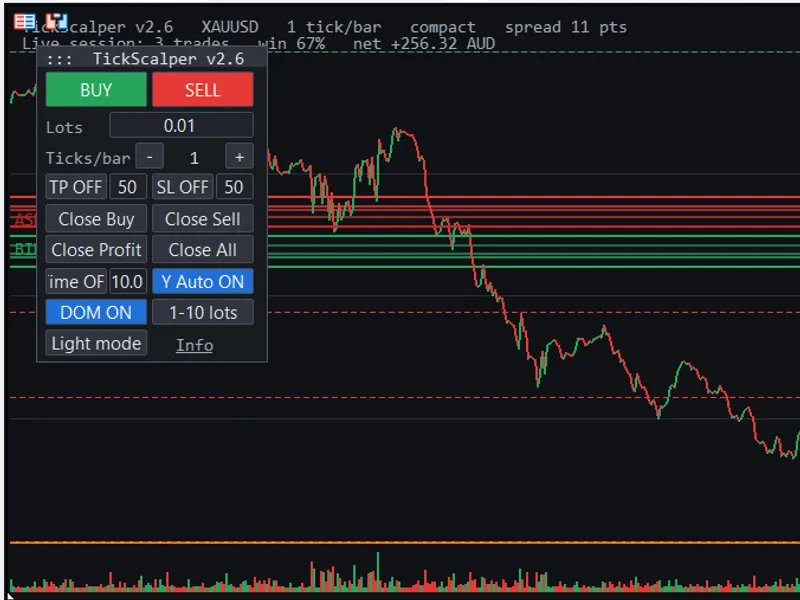
Related: Tick Scalper Pro - tick chart and one-click trading panel for Meta Trader 5 - another powerful expert for MetaTrader 5 traders.
What it doesAlso recommended: Daily Loss Guard: Account Protection for Funded Traders - similar expert with strong performance on MetaTrader 5.
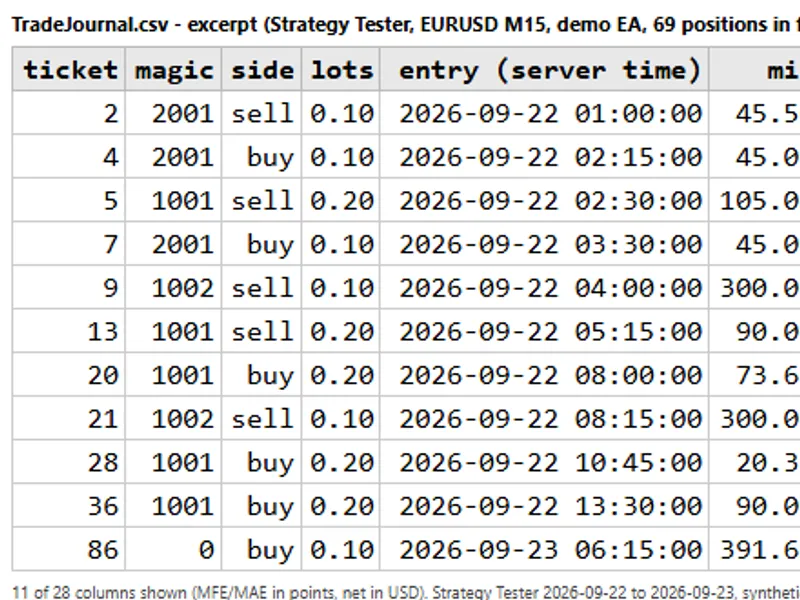
The terminal's deal history can be difficult to analyze directly. A single trading position might be represented by multiple deal entries, especially if it was closed in parts or involved a netting reversal. This tool consolidates these deals into a clear, one-row-per-closed-position format in a CSV file.
Column Descriptions
ticket
The unique identifier for the position.
symbol, magic, comment, side, volume
Details such as the trading symbol, magic number, user comment, trade side (buy/sell), and total volume for the opened position. These are typically taken from the initial opening deal.
entry_time, entry_price
The timestamp and price of the first entry into the position. If the position was scaled in, this reflects a volume-weighted average price.
exit_time, exit_price
The timestamp and price of the last exit from the position. For positions closed in parts, this is the volume-weighted average exit price.
duration_min, duration
The total time the position was held open, usually expressed in minutes and a more general duration format.
sl, tp
The initial Stop Loss and Take Profit levels set when the position was opened. Note that stops or targets added or modified later may not be recorded.
gross_profit, commission, swap, net_profit
The total gross profit, commissions, swaps, and net profit for the entire position, summed across all associated deals. Commissions may include various fees.
risk_money, r_multiple
The amount of money risked (based on the initial Stop Loss) and the net result expressed as a multiple of that risk (R multiple). This is only calculated if an initial Stop Loss was set.
mfe_points, mae_points
Maximum Favorable Excursion (MFE) and Maximum Adverse Excursion (MAE) measured in points. These are calculated based on M1 (1-minute) chart data between the position's entry and exit times.
mfe_money, mae_money
The MFE and MAE values converted into the account's currency, calculated for the specific volume traded in the position.
m1_bars
The number of 1-minute bars used for MFE/MAE calculation.
session, weekday
The trading session (e.g., London, New York) and the day of the week when the position was entered.
close_reason
The reason the position was closed, such as Stop Loss (SL), Take Profit (TP), closed by Expert Advisor (EA), manually closed, or Stop Out.
Why it is useful
This tool provides a structured dataset that is essential for any external trading analysis. It allows for detailed examination of trade performance metrics such as R multiples, average MFE/MAE across different strategies, performance variations by trading session or weekday, and an assessment of how much of a favorable price move was captured.
Understanding MFE and MAE can offer valuable insights into stop-loss and take-profit strategy effectiveness. Analyzing adverse price movement before a win can highlight risk management effectiveness, while analyzing favorable movement left unrealized can identify potential missed profit opportunities.
The 'magic number' column is particularly useful for distinguishing trades executed by different EAs on the same trading account, enabling strategy-specific performance analysis.
Inputs
Period
: Allows selection of the data range. Options include all historical data, a custom date range (From / To, with the To date being inclusive), or a specified number of the most recent days. The period is determined by the exit time of the trades.
Magic numbers
: Filter trades by magic numbers. You can specify individual numbers, ranges (e.g., 2000-2999), or leave it empty for all trades. Use 0 to include manual trades.
Symbols
: Filter trades by currency pairs or symbols. You can use specific symbols (e.g., EURUSD), wildcards (e.g., XAU*), or leave it empty for all symbols.
File name
, Save location
(choose between the terminal's MQL5\Files folder or a common shared folder), Column separator
(e.g., semicolon or comma), Decimal mark
(point or comma; using a decimal comma often requires a semicolon separator), and UTF-8 signature
(useful for ensuring compatibility with spreadsheet programs like Excel, especially with non-English characters in comments).
Calculate MFE / MAE
: An option to disable MFE/MAE calculations for faster export, which can be useful for very large trade histories.
Server time = UTC + N hours
, and the UTC offsets for the start and end times of the London and New York sessions. The Asia session is defined by the remaining hours. Default session times are London 07:00-12:00 UTC and New York 12:00-21:00 UTC. Please note that this feature does not automatically track Daylight Saving Time (DST) changes; manual adjustments to the offsets may be necessary for precise timing.
Re-export every N minutes
: For live charts, this setting allows the file to be automatically refreshed at a specified interval. Set to 0 to export only once when the EA is attached.
How to use it
On a Live or Demo Chart:
Attach this Expert Advisor (EA) to any chart. It will generate the CSV file immediately upon attachment. If a repeat interval is set, the file will be updated automatically. Ensure that any open CSV file is closed in Excel or other spreadsheet software before the next export, as the terminal cannot overwrite an open file. The EA does not require AutoTrading to be enabled.
In the Strategy Tester:
If you wish to export results from your own EA using this tool within the Strategy Tester, you need to integrate the Trade Journal Exporter library into your EA. Add the following lines to your EA's code:
#define TJE_LIBRARY
and
#include "TradeJournalExporter.mq5"
(Ensure both TradeJournalExporter.mq5 and the configuration file are in the same folder). Then, call the export function in your EA's `OnDeinit` function:
TJE_Config c;
c.Defaults();
c.folder = TJE_FOLDER_COMMON;
string path;
TJE_Export(c, path);
When running within the tester, the MQL5\Files folder is specific to the test agent. Therefore, using the common folder (`TJE_FOLDER_COMMON`) is generally more convenient for accessing the exported files.
Notes and limits
MFE and MAE calculations are based on the High and Low values from M1 bars, using Bid prices. The entry and exit bars are included in their entirety, meaning the calculated excursion could be overstated by up to the range of a single M1 bar. These figures are intended as analysis estimates and are not tick-exact. If the terminal is unable to provide the necessary M1 history up to the trade's entry point (e.g., for very long-held positions that extend beyond the terminal's bar history limit), the MFE and MAE columns for that specific trade will remain empty.
Positions that are still open at the time of export are not included in the report. A netting reversal scenario will result in two separate entries: one for the position that was closed and another for the newly opened position (once it is also closed). The commission from the reversing deal is proportionally allocated based on volume to each of the resulting positions.
The EA reads the entire account history to ensure that all trades, even those opened before the specified period, are fully represented. The generated report lists the closed positions in the order they were closed.
Monetary values in the report are denominated in the account's currency and are calculated in accordance with the broker's contract specifications, using the `OrderCalcProfit` function.
The account number, account name, and current balance are not included in the exported data.
This tool is for informational purposes only and does not constitute financial advice. It provides a record of past trading activity.
You may also like: Trade Manager Utility for MetaTrader 5 - excellent alternative for expert users on MetaTrader 5.
Source Code
#property copyright "RobotFX"
#property version   "1.00"
#property description "This code is educational. Feel free to use, modify and upgrade as you wish. Visit ROBOTFX.ORG for professional trading tools"
#include <Generic\HashMap.mqh>
enum ENUM_TJE_RANGE
  {
   TJE_RANGE_ALL  = 0,
   TJE_RANGE_DATES = 1,
   TJE_RANGE_DAYS = 2
  };
.......
⚠ Limitations & Risk Warning
- This tool is provided for educational and testing purposes only.
- Past performance does not guarantee future results.
- Trading involves substantial risk of loss. Use on a demo account first.
- Results may vary depending on market conditions, broker, and settings.
- We recommend thorough backtesting and forward testing before using with real funds.