
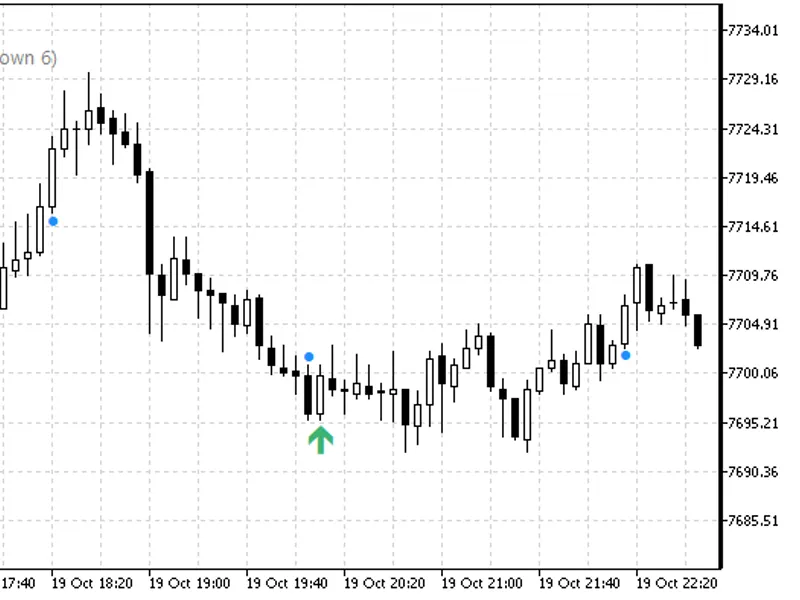
Trade Manager Utility for MetaTrader 5
Info
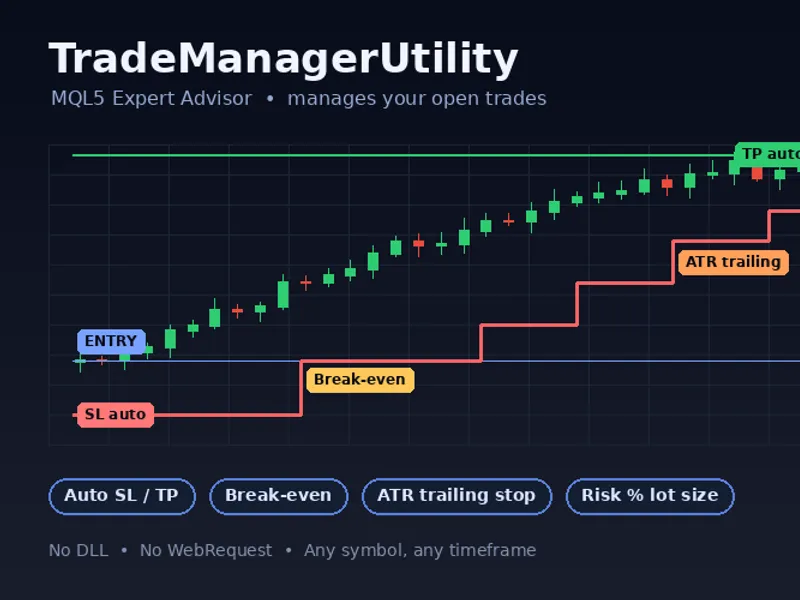
The Trade Manager Utility for MetaTrader 5 is a Expert Advisor for MetaTrader 5 that trade manager utility is a metatrader 5 tool designed to manage existing positions based on timer intervals and incoming ticks. It offers functionalities such as adding initial stop loss and take profit levels, moving stops to break even, trailing stops, and monitoring the number of managed positions.
Usage
This tool is typically used for automated trading on major forex pairs and gold.
Platform
This Expert Advisor works exclusively on MetaTrader 5 (both build 600+ and newer versions).
Setup
Place the downloaded file in MQL5/Experts folder via File ? Open Data Folder in MetaTrader 5.
How to Install and Use Trade Manager Utility for MetaTrader 5
1. Installation: Open the "File" menu, select "Open Data Folder," navigate to MQL/Experts, paste your file, and restart the terminal.
2. Activation: Drag the EA from the Navigator onto a chart, ensure "Allow live trading" is checked in the Common tab, and verify the AutoTrading button is green.
3. Optimization: Right-click your chart, choose "Expert List," click "Properties" to adjust inputs, and save your preferred setup as a set file for future use.
4. Maintenance: Regularly check the "Experts" tab in the terminal window to monitor trade logs and potential execution errors.
Frequently Asked Questions
Q: Why is my EA not opening trades? A: Check the "AutoTrading" button, ensure "Allow live trading" is enabled, and verify your broker allows automated trading on your account type.
Q: Can I run multiple EAs on one chart? A: No, each chart can only host one active EA; however, you can open multiple charts for different currency pairs to run several EAs.
Q: What does the "smiley face" icon mean? A: A smiley face in the top-right corner of the chart indicates the EA is successfully running; a frowny face means it is disabled.
What this tool does
Trade Manager Utility is a MetaTrader 5 tool designed to manage existing positions based on timer intervals and incoming ticks.
Typical Use Case
This Expert Advisor excels in automated trading and technical analysis on MetaTrader 5.
Compatible Platform & Setup
This Expert Advisor works on MetaTrader 5. Place the file in the MQL5/Experts folder and restart the terminal.
Description & Settings
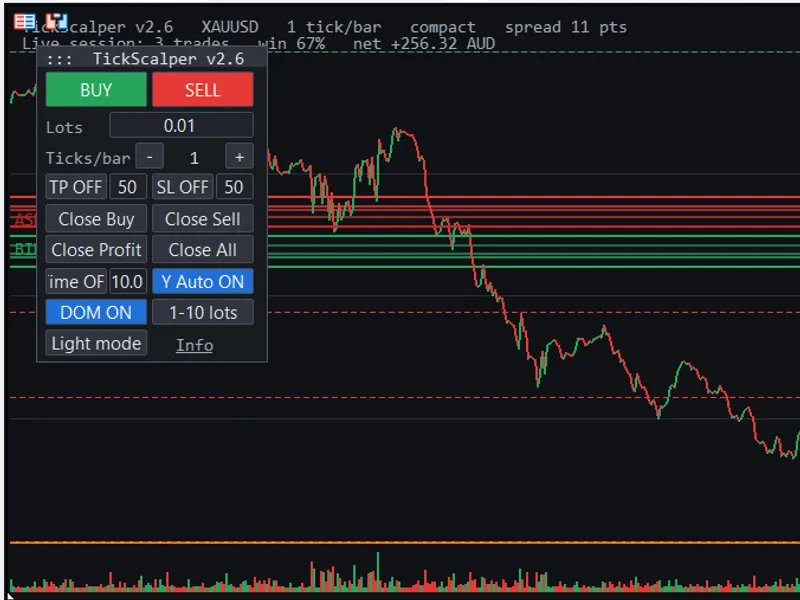
Related: Tick Scalper Pro - tick chart and one-click trading panel for Meta Trader 5 - another powerful expert for MetaTrader 5 traders.
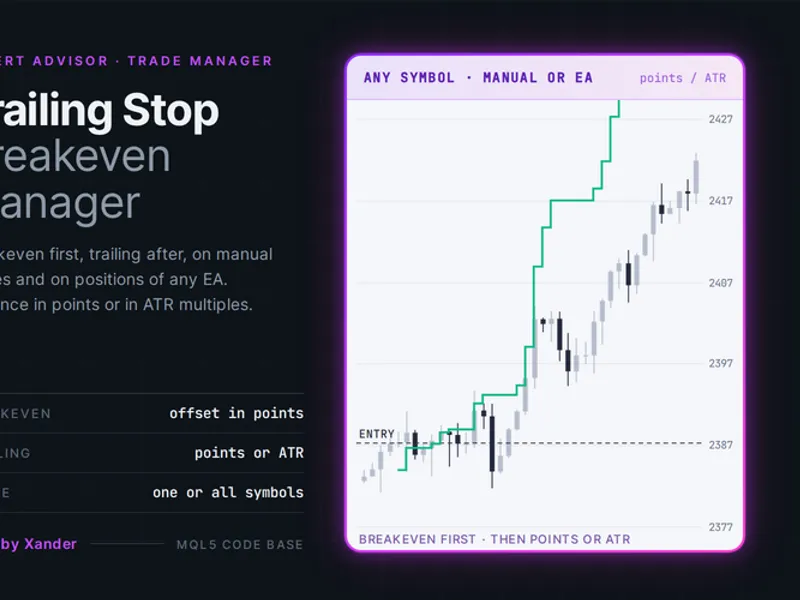
Trade Manager Utility is a MetaTrader 5 tool designed to manage existing positions based on timer intervals and incoming ticks. It offers functionalities such as adding initial stop loss and take profit levels, moving stops to break even, trailing stops, and monitoring the number of managed positions. It also includes options to close positions when a configured count is exceeded and to pause management once a daily account threshold is met. This utility does not open new positions.Also recommended: Trailing Stop Breakeven Manager for MT5 - similar expert with strong performance on MetaTrader 5.
Inputs
Position selection
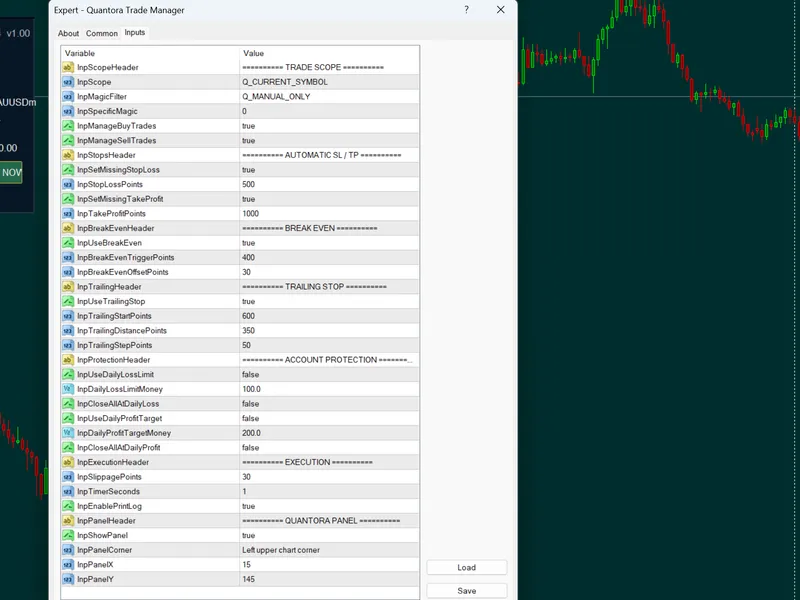
InpMagic: -1. Manages all magic numbers when -1; 0 selects manual positions; a positive value selects that specific magic number.
InpAllSymbols: false. When enabled, manages matching positions across all symbols; otherwise, it only manages positions on the current chart symbol.
InpTimerSeconds: 2. The minimum interval in broker-time seconds between management cycles. The accepted range is 1–3600.
Initial protection
InpInitialSL: true. Adds a stop loss only if the selected position does not already have one.
InpInitialTP: false. Adds a take profit only if the selected position does not already have one.
InpInitialMode: DISTANCE_POINTS. The unit used for both initial stop loss and take profit levels: points or ATR.
InpInitialSLPoints: 500. The initial stop loss distance in points, measured from the entry price.
InpInitialTPPoints: 1000. The initial take profit distance in points, measured from the entry price.
InpInitialSLATR: 2.0. The initial stop loss distance as a multiple of the Average True Range (ATR).
InpInitialTPATR: 4.0. The initial take profit distance as a multiple of ATR.
Break even
InpBreakEven: false. Enables the movement of the stop loss to break even after the position reaches a specified profit.
InpBETriggerPoints: 500. The amount of favorable price movement in points required to trigger the break-even stop.
InpBELockPoints: 10. The number of points to lock beyond the opening price. A value of zero moves the stop to the opening price.
Trailing stop
InpTrailing: false. Enables trailing stop management.
InpTrailingMode: DISTANCE_POINTS. The units used for trailing stop activation, distance, and step: points or ATR.
InpTrailStartPoints: 600. The amount of favorable price movement in points required before the trailing stop begins.
InpTrailDistancePoints: 400. The distance the stop loss is maintained from the current market price in points.
InpTrailStepPoints: 50. The minimum price improvement in points required before the stop loss is updated again.
InpTrailStartATR: 3.0. The amount of favorable price movement required before trailing begins, expressed as an ATR multiple.
InpTrailDistanceATR: 2.0. The distance the stop loss is maintained from the market price, expressed as an ATR multiple.
InpTrailStepATR: 0.25. The minimum stop loss improvement before another update, expressed as an ATR multiple.
ATR and execution
InpATRPeriod: 14. The period for the ATR indicator; the accepted range is 1–10000.
InpATRTimeframe: PERIOD_CURRENT. The timeframe used for ATR calculation, utilizing the most recently completed bar.
InpMaxSpreadPoints: 0. Skips position modifications if the spread exceeds this number of points; 0 disables this filter.
InpMaxQuoteAgeSeconds: 300. The maximum age of quotes in server-time seconds allowed for trade actions.
InpDeviationPoints: 20. The maximum price deviation allowed in points for position-close requests.
Position count
InpMaxTrades: 0. The maximum number of positions the utility will manage; 0 disables this limit.
InpAlertMaxTrades: false. Triggers an alert when the number of managed positions exceeds the configured limit.
InpCloseExcess: false. Closes positions exceeding the limit when enabled.
Daily account protection
InpDayBase: DAY_EQUITY. Determines whether to use account equity or account balance as the daily baseline for comparison.
InpDailyLossPercent: 0. Pauses daily management and attempts to close managed positions at or below this percentage loss; 0 disables this threshold. The maximum is 100.
InpDailyProfitPercent: 0. Pauses daily management and attempts to close managed positions at or above this percentage gain; 0 disables this threshold.
Informational risk calculation
InpShowRiskLot: false. Displays an estimated lot size for the configured side in the chart comment. This is for informational purposes only and does not place an order.
InpRiskSide: ORDER_TYPE_BUY. The side (buy or sell) used for the informational risk estimate.
InpRiskPercent: 1.0. The percentage of account equity used for the informational risk estimate; the maximum is 100.
InpRiskStopPoints: 500. The assumed stop distance in points for the informational risk estimate.
Usage
Compile TradeManagerUtility.mq5 in MetaEditor, enable Algo Trading and EA trading permissions, and attach it to a chart. It is recommended to test on a demo account first. Configure position filters and management rules in the Inputs tab. Distances specified in points are actual points, not pips. ATR modes utilize ATR multiples. Initial levels are anchored to the entry price and are skipped if they are no longer valid against current market and broker limitations. Stop loss updates only move the stop in a more protective direction. The timer and tick events share the configured minimum interval, measured in broker time; no management actions occur while broker time is unavailable. When either daily threshold is enabled, live daily state is stored in terminal global variables, identified by account login, InpMagic, InpAllSymbols, InpDayBase, and the chart symbol (also used in all-symbols mode). The symbol portion of the key is truncated as necessary to ensure the complete key remains under 63 characters. Symbols with a shared prefix may result in key collisions; the broker server is not included in the key. This key format differs from previous versions, so older saved daily state will not be reused. In the Strategy Tester, daily state is retained in memory for the EA instance and is not persisted to terminal global variables.
The risk-lot display estimates the lot size for the configured buy or sell side of the chart symbol using the specified risk percentage and stop distance. It rounds down the volume to the symbol's volume step, caps it at the symbol's maximum lot size, verifies the calculated loss against the risk budget, and checks the estimated margin requirement. A lot size below the minimum required for risk will not be displayed. This estimate excludes commission, other costs, and slippage. Break-even calculations are based on the entry price and are not adjusted for costs.
Limitations
Compilation and MetaTrader CodeBase AutoValidator results have not been verified.
Daily changes are measured against the account-wide equity or balance. Position selection filters only determine which positions this EA manages and closes; it cannot prevent manual trades or other EAs from opening positions, which can impact the account-wide daily metrics.
In netting and exchange accounts, the maximum-trades monitor counts positions, with a limit of one aggregate position per symbol. A symbol's position can comprise multiple deals. The position has a single magic number, preventing the EA from managing individual constituent deals separately by their original magic numbers.
Run only one instance of the utility per overlapping position scope to prevent duplicate management actions.
Inputs for disabled features are not validated. When break-even is enabled, its lock distance must be less than its trigger distance. In a flat, standalone Strategy Tester run, position management functionality is not exercised as the EA does not open positions.
Excess positions are closed starting with the newest based on open time, with ticket number used to break ties. The spread limit filters stop modifications but does not filter risk-triggered or excess-position closes.
The daily baseline is established using the account equity or balance at the EA's first cycle of the server day, not a reconstructed midnight snapshot. After a restart, a valid saved baseline for that day is reused. A zero day marker indicates an interrupted write; the EA will issue a warning and start a fresh baseline with the pause cleared. DAY_BALANCE ignores floating losses.
Daily protection settings remain active until the next broker day. The utility retries closing selected managed positions in each cycle, including newly opened positions that match the criteria. Deposits and withdrawals affect the raw equity or balance metric and are not adjusted out. Unavailable or non-finite daily data will defer ordinary actions, while an active pause will continue its close attempts.
Closing and modifying existing positions are not blocked by a free-margin estimate. Broker restrictions and trade failures can still prevent execution. For a close operation, an existing stop loss or take profit at or within the reported freeze distance will defer the request; a frozen response will also defer it. These cases are retried after 60 seconds and logged once per ticket while its retry record exists. Retry records are removed when the ticket is no longer an open position.
A pre-existing stop loss or take profit within the combined stop/freeze distance plus a one-tick safety buffer can prevent the entire modification for that position.
Trading-session availability checks examine session windows for the current and previous broker weekdays, including windows that extend past midnight. The outcome still depends on the session data provided by the broker.
No historical positions or deals are utilized for reconstructing daily baselines. This EA does not open any positions.
You may also like: Trade Journal Exporter: Closed Trades to CSV with Position Details - excellent alternative for expert users on MetaTrader 5.
Source Code
#property copyright "RobotFX"
#property version   "1.00"
#property description "This code is educational. Feel free to use, modify and upgrade as you wish. Visit ROBOTFX.ORG for professional trading tools"
#include <Trade/Trade.mqh>
#include <Trade/SymbolInfo.mqh>
#include <Trade/PositionInfo.mqh>
enum DistanceMode { DISTANCE_POINTS=0, DISTANCE_ATR=1 };
enum DayBase { DAY_EQUITY=0, DAY_BALANCE=1 };
input group "Position selection"
input long InpMagic=-1;
.......
⚠ Limitations & Risk Warning
- This tool is provided for educational and testing purposes only.
- Past performance does not guarantee future results.
- Trading involves substantial risk of loss. Use on a demo account first.
- Results may vary depending on market conditions, broker, and settings.
- We recommend thorough backtesting and forward testing before using with real funds.