
Session Opening Range Breakout EA
Info
The Session Opening Range Breakout EA is a Expert Advisor for MetaTrader 5 that session opening range breakout ea sessionorb_ea automates a classic opening-range breakout: it watches the first n minutes after a chosen session open, records the high and low printed during that window, and then arms two breakout triggers. A confirmed close beyond either trigger opens a single risk-sized market position for that session, with the stop loss anchored to the opposite side of the range.
Usage
This tool is typically used for breakout trading when price moves beyond key support/resistance levels.
Platform
This Expert Advisor works exclusively on MetaTrader 5 (both build 600+ and newer versions).
Setup
Place the downloaded file in MQL5/Experts folder via File ? Open Data Folder in MetaTrader 5.
How to Install and Use Session Opening Range Breakout EA
1. Installation: Open the "File" menu, select "Open Data Folder," navigate to MQL/Experts, paste your file, and restart the terminal.
2. Activation: Drag the EA from the Navigator onto a chart, ensure "Allow live trading" is checked in the Common tab, and verify the AutoTrading button is green.
3. Optimization: Right-click your chart, choose "Expert List," click "Properties" to adjust inputs, and save your preferred setup as a set file for future use.
4. Maintenance: Regularly check the "Experts" tab in the terminal window to monitor trade logs and potential execution errors.
Frequently Asked Questions
Q: Why is my EA not opening trades? A: Check the "AutoTrading" button, ensure "Allow live trading" is enabled, and verify your broker allows automated trading on your account type.
Q: Can I run multiple EAs on one chart? A: No, each chart can only host one active EA; however, you can open multiple charts for different currency pairs to run several EAs.
Q: What does the "smiley face" icon mean? A: A smiley face in the top-right corner of the chart indicates the EA is successfully running; a frowny face means it is disabled.
What this tool does
Session Opening Range Breakout EA SessionORB_EA automates a classic opening-range breakout: it watches the first N minutes after a chosen session open, records the high and low printed during that window, and then arms two breakout triggers.
Typical Use Case
This Expert Advisor excels in automated trading and technical analysis on MetaTrader 5.
Compatible Platform & Setup
This Expert Advisor works on MetaTrader 5. Place the file in the MQL5/Experts folder and restart the terminal.
Description & Settings
Related: Opening Range Breakout with NR4 / NR7 Contraction Filters (2026 Update) - another powerful expert for MetaTrader 5 traders.
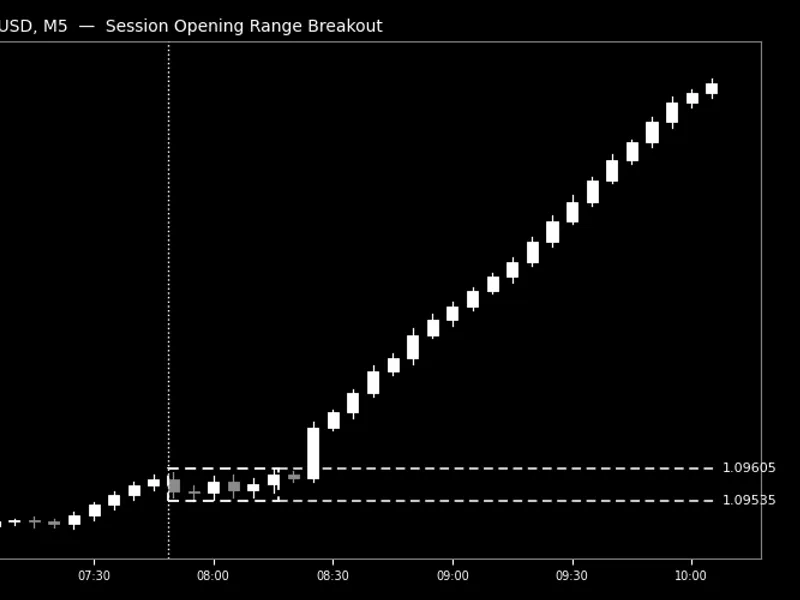
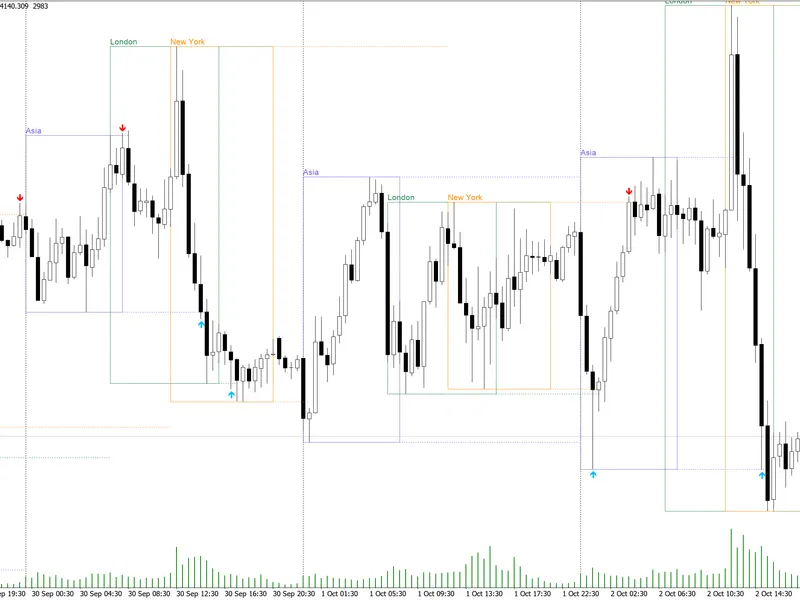
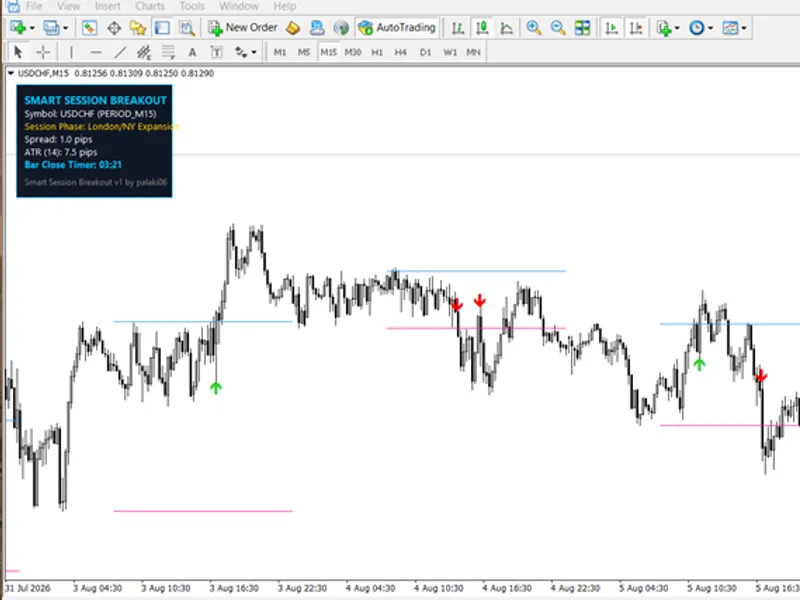
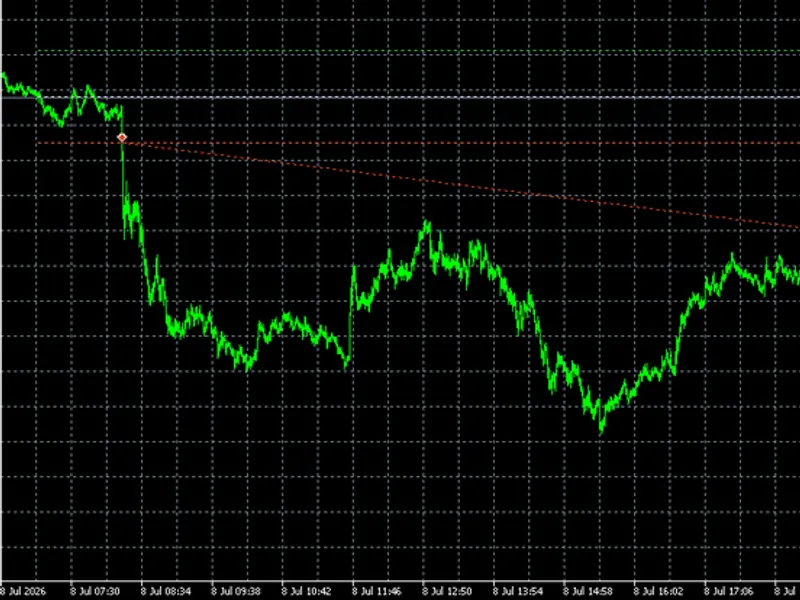
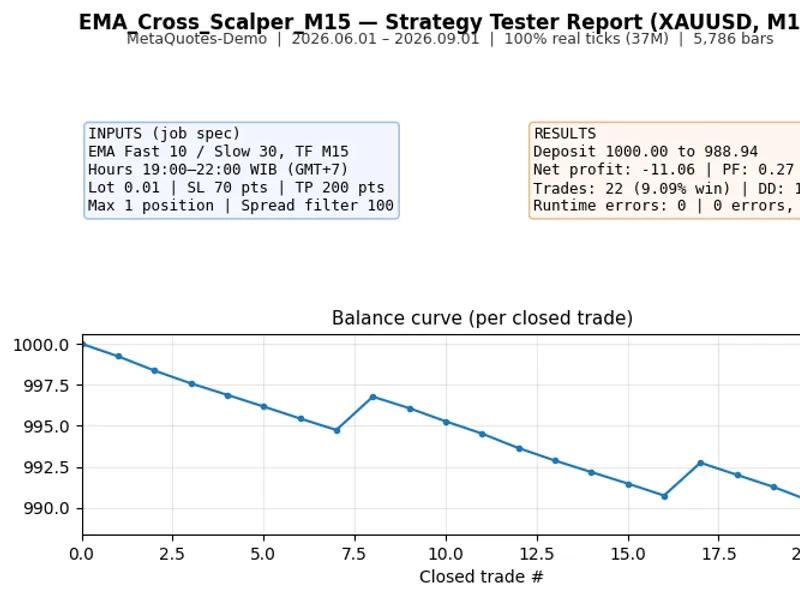
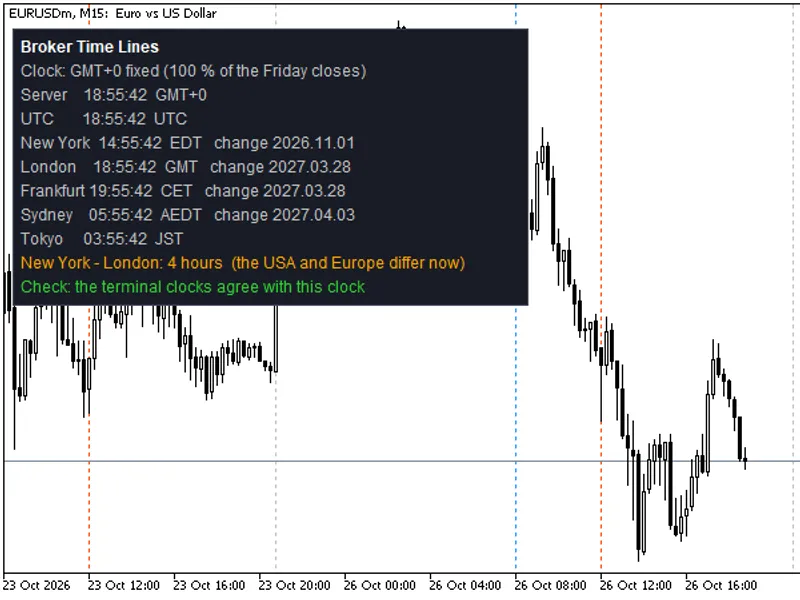
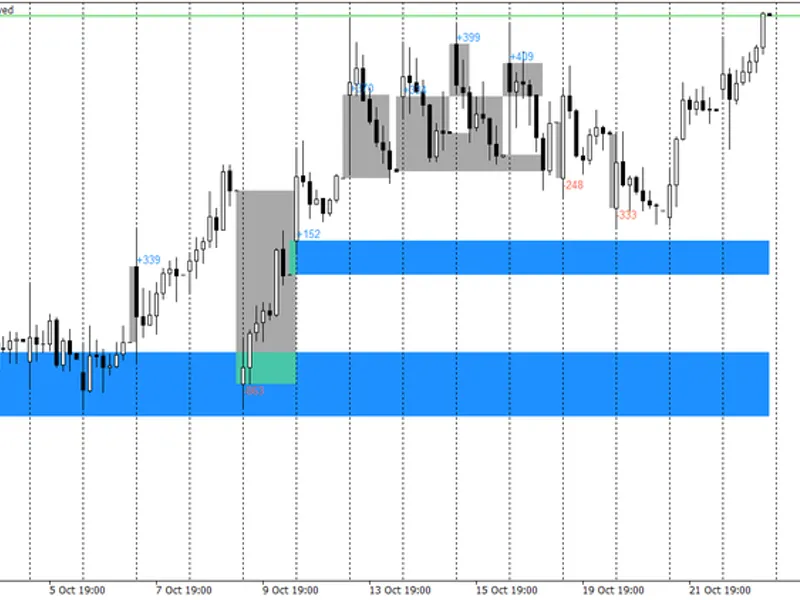
Session Opening Range Breakout EA SessionORB_EA automates a classic opening-range breakout: it watches the first N minutes after a chosen session open, records the high and low printed during that window, and then arms two breakout triggers. A confirmed close beyond either trigger opens a single risk-sized market position for that session, with the stop loss anchored to the opposite side of the range. The idea behind it The opening minutes of a major session (London, New York, or any custom time you define in broker time) frequently set the tone for the rest of the day: overnight order flow gets absorbed, and the resulting range often marks the boundary between rotation and trend. Trading the breakout of that range is a simple, mechanical way to get positioned early in a potential directional move, while the range itself doubles as a natural stop-loss reference. This EA is timeframe-agnostic for breakout confirmation — the range itself is always measured from M1 data for precision, regardless of which chart timeframe the EA is attached to, while the breakout signal is confirmed on the closed bar of the chart's own period. This keeps the range accurate to the minute while letting you control signal sensitivity (M1 for scalping cadence, M15/H1 for fewer, more decisive signals) simply by changing the chart period. How to interpret it - Dashed rectangle — the opening range itself: its top and bottom are the session high and low recorded during the opening window. - Dashed horizontal lines projecting forward — the live breakout trigger levels (range high / range low plus the buffer), extended across the trading window during which entries are still permitted. - Dotted vertical line — marks the exact session start time used to anchor the range. Once a bar closes beyond a trigger line (not merely wicks through it), the EA sends a single market order in that direction, with the stop loss placed just beyond the opposite boundary of the range and the take-profit set as a multiple of that risk distance. No new signals are drawn or traded once the trading window expires or the per-session trade quota is reached; the chart is cleared and rebuilt automatically at the start of the next session. External variables (inputs) - InpSessionStartHour — Hour (broker/server time) the tracked session opens - InpSessionStartMinute — Minute component of the session open time - InpOpeningRangeMinutes — Length of the opening window used to measure the range high/low - InpTradingWindowMinutes — Minutes after the range closes during which a breakout may still be traded - InpMagicNumber — Unique identifier attached to every order this EA places - InpMaxTradesPerSession — Maximum number of breakout trades allowed per session - InpAllowLongTrades — Enables long (buy) breakouts above the range high - InpAllowShortTrades — Enables short (sell) breakouts below the range low - InpBreakoutBufferPoints — Points a close must clear beyond the range boundary to count as a valid breakout - InpRiskPercent — Percentage of account balance risked on each trade - InpStopLossBufferPoints — Extra points added past the opposite range boundary when placing the stop loss - InpRewardToRiskRatio — Take-profit distance expressed as a multiple of the risk (stop) distance - InpUseFixedLot — When true, bypasses risk-based sizing and uses a fixed lot instead - InpFixedLotSize — Lot size used only when InpUseFixedLot is true - InpDrawObjects — Toggles drawing of the range box and trigger lines on the chart - InpRangeBoxColor — Border color of the opening-range rectangle - InpTriggerColor — Color of the forward breakout trigger lines and session-start marker - InpObjectPrefix — Prefix applied to every chart object, used for clean identification and removal Recommended use Works on any symbol with a genuine intraday opening/closing rhythm — forex majors, indices, and metals are the most natural fits; range-bound low-volatility symbols will generate fewer, noisier signals. Attach to any chart timeframe: it only governs how often the breakout condition is re-checked, since the range itself is always measured from M1 data regardless of the chart period. Session times are in broker/server time, not local time — confirm your broker's GMT offset before setting InpSessionStartHour, especially around daylight-saving transitions. On ECN/raw-spread accounts, consider raising InpBreakoutBufferPoints and InpStopLossBufferPoints slightly to filter out spread-driven false breaks around news-heavy opens. Backtest in 'Every tick based on real ticks' mode for realistic fills, since the EA reacts to bar closes and risk-based lot sizing depends on live tick/point values. Ensure your terminal has M1 history available for the symbol; the EA measures the opening range from M1 bars regardless of the chart's own timeframe.Also recommended: EMA Cross Scalper for XAUUSD (M15) with WIB Session Filter - similar expert with strong performance on MetaTrader 5.
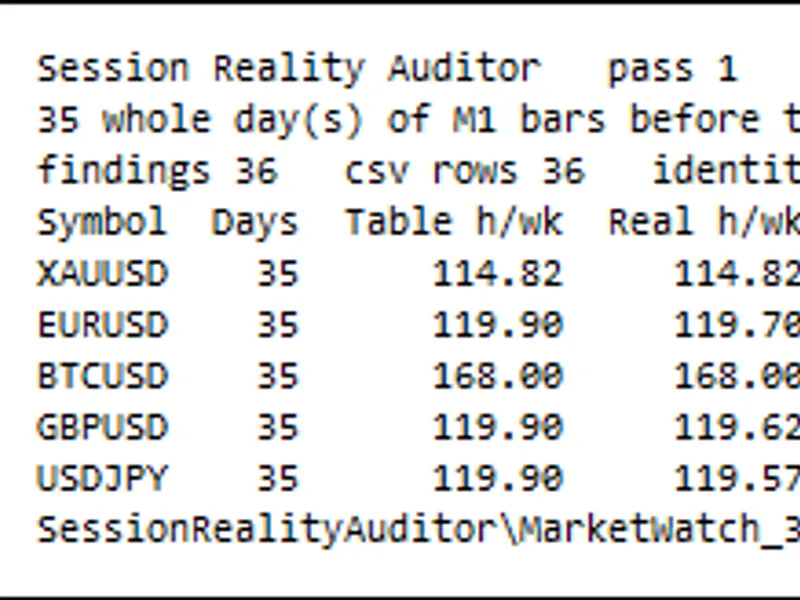
You may also like: Session Reality Auditor: Verifying Broker Session Data Against Historical Price Activity - excellent alternative for expert users on MetaTrader 5.
Source Code
#property copyright "RobotFX"
#property link "https://robotfx.org"
#property version   "1.00"
#property strict
#include <Trade\Trade.mqh>
enum ENUM_ORB_DIRECTION
  {
   ORB_NONE = 0,
   ORB_LONG = 1,
   ORB_SHORT = 2
.......
⚠ Limitations & Risk Warning
- This tool is provided for educational and testing purposes only.
- Past performance does not guarantee future results.
- Trading involves substantial risk of loss. Use on a demo account first.
- Results may vary depending on market conditions, broker, and settings.
- We recommend thorough backtesting and forward testing before using with real funds.