


Session Time Highlighter for MT4/MT5
Info
The Session Time Highlighter for MT4/MT5 is a Indicator for MetaTrader 5 that session time highlighter many session indicators require you to input session hours using your broker’s server time. This can cause issues twice a year with daylight saving changes and whenever you switch to a broker with a different server time.
Usage
This tool is typically used for enhancing chart analysis and decision making.
Platform
This Indicator works exclusively on MetaTrader 5 (both build 600+ and newer versions).
Setup
Place the downloaded file in MQL5/Indicators folder via File ? Open Data Folder in MetaTrader 5.
How to Install and Use Session Time Highlighter for MT4/MT5
1. Installation: Place your file in the MQL/Indicators folder via "Open Data Folder" and restart your terminal.
2. Loading: Find the indicator in the Navigator, drag it onto your chart, and configure the input parameters in the popup window.
3. Customization: Press Ctrl+I to open the indicator list, select your tool, and click "Properties" to change colors, levels, or visual styles.
4. Updating: Replace the old file in the Indicators folder with the new version and restart the platform to apply changes.
Frequently Asked Questions
Q: Why is my indicator not showing? A: Verify the file is in the MQL/Indicators folder, or try right-clicking the "Indicators" tree in the Navigator and clicking "Refresh."
Q: Do custom indicators slow down the platform? A: Too many complex indicators can impact performance; remove unused ones via the "Indicator List" (Ctrl+I).
Q: Can I use MT4 indicators on MT5? A: No, MQL4 and MQL5 are distinct languages; ensure the indicator is compiled specifically for your platform version.
What this tool does
Session Time Highlighter Many session indicators require you to input session hours using your broker’s server time.
Typical Use Case
This Indicator excels in automated trading and technical analysis on MetaTrader 5.
Compatible Platform & Setup
This Indicator works on MetaTrader 5. Place the file in the MQL5/Indicators folder and restart the terminal.
Description & Settings
Related: Session Boxes Asia London New York - another powerful indicator for MetaTrader 5 traders.
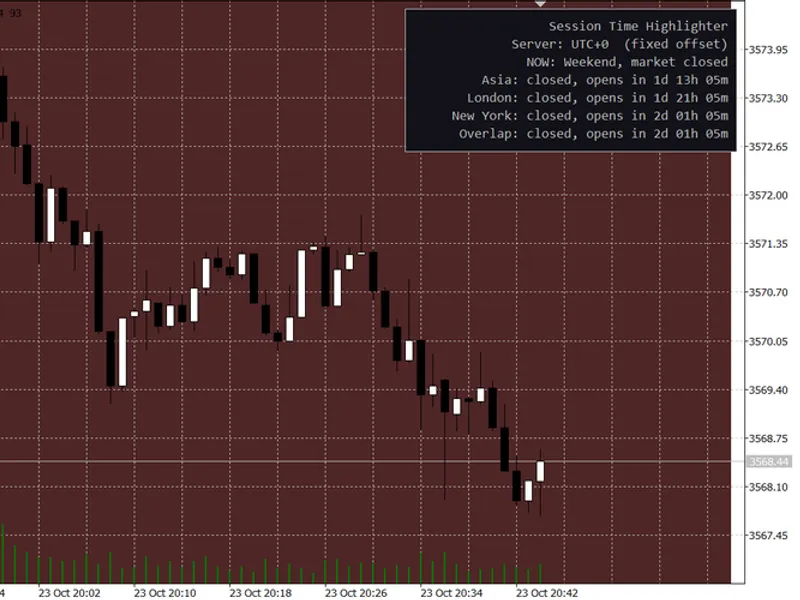
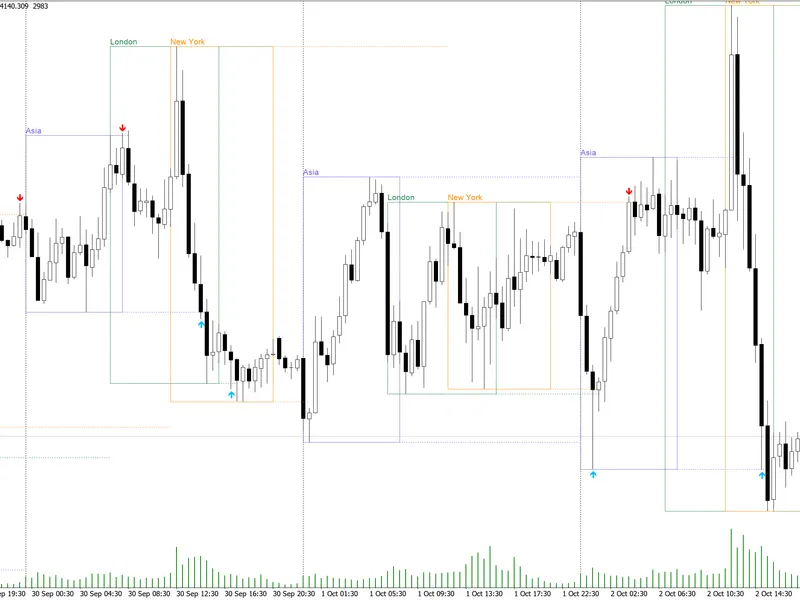
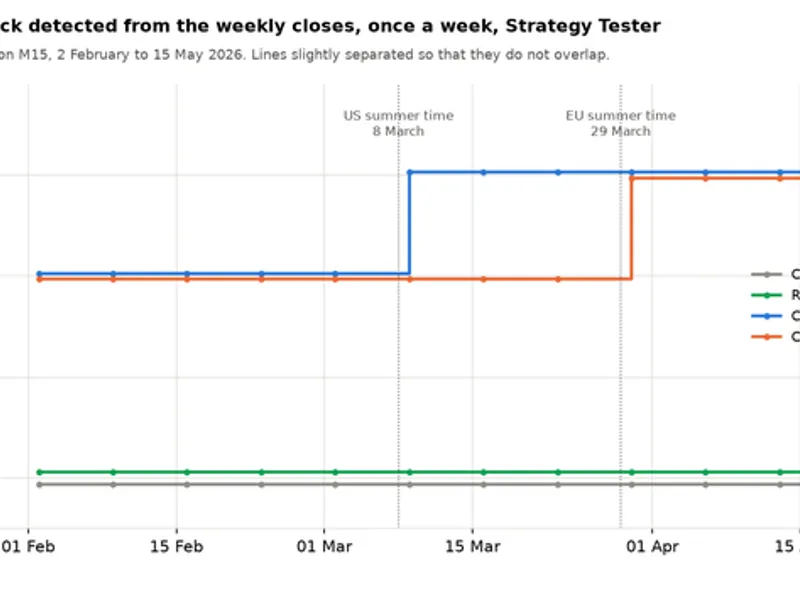
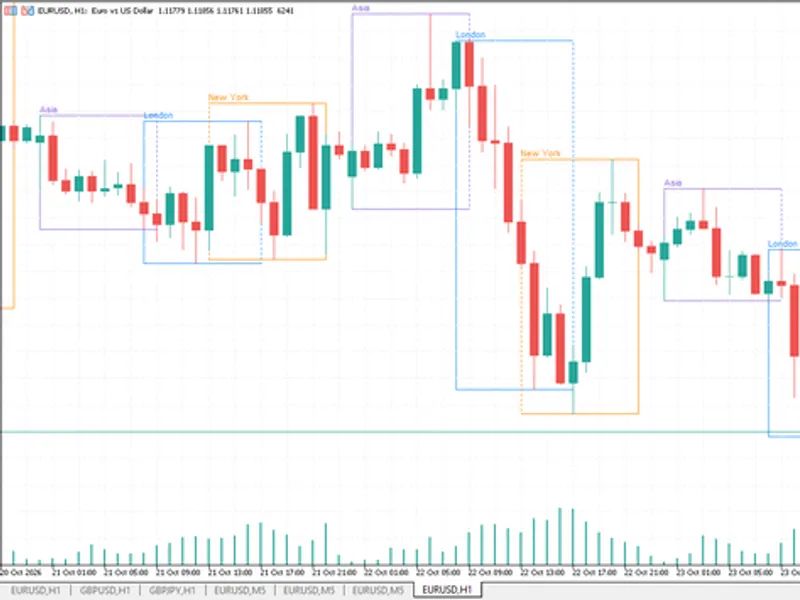
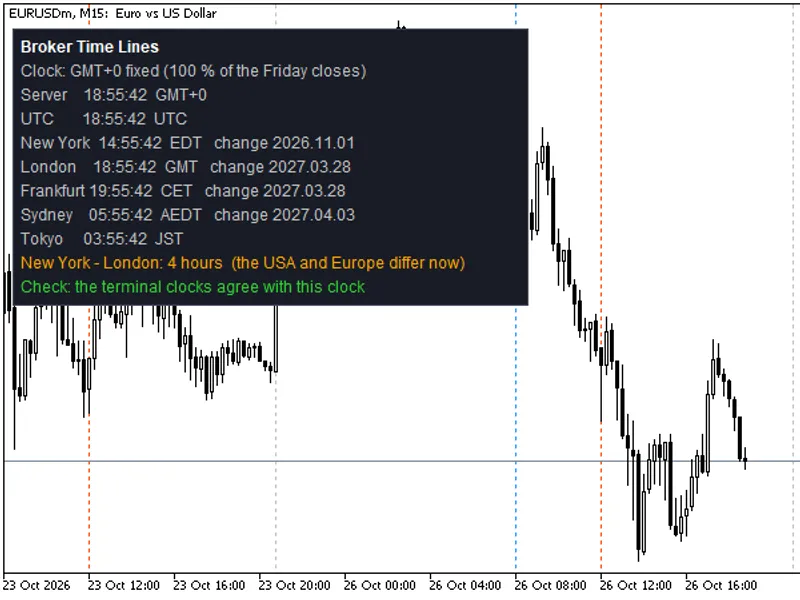
Session Time Highlighter Many session indicators require you to input session hours using your broker’s server time. This can cause issues twice a year with daylight saving changes and whenever you switch to a broker with a different server time. This indicator defines each session using the local time of its respective city: Asia: 09:00 to 18:00 Tokyo time London: 08:00 to 17:00 London time (UK daylight saving applied) New York: 08:00 to 17:00 New York time (US daylight saving applied) Overlap: The period when both London and New York sessions are open. It automatically converts these times to your broker’s server time, accounting for the weeks in March and October/November when UK and US clocks change on different dates. How to Read the Indicator Each session is visually represented as a box, spanning its high and low price range, or as full-height shading. The London/New York overlap is indicated by a dashed outline. A panel in the top right corner displays a real-time status line, such as “London + New York (overlap)”, “Between sessions”, or “Weekend, market closed”. Active sessions are highlighted in green, and each session shows a countdown to its next opening or closing time. Hovering over a session box reveals its exact start and end times in your broker’s server time. Indicator Inputs Server time mode: Options include Auto detect, NY-close broker (UTC+2 winter / UTC+3 summer), or Manual fixed offset. If Manual is selected, you must enter the broker’s offset from UTC in hours. Display settings: Control the number of historical days to display, box style, fill option (on/off), session labels, panel visibility (on/off), text, active session colors, panel colors, and the highest timeframe for drawing boxes (H1 by default). Sessions: Enable or disable individual sessions (Asia, London, New York), set their start and end times in the city’s local time, and choose their colors. The overlap session can also be enabled/disabled and colored. Notes In the Strategy Tester, the terminal does not provide accurate real-time UTC. Therefore, the Auto detect mode defaults to the NY-close model. If your broker uses a different server time, select the Manual mode and input the correct offset. Weekends are automatically skipped. The indicator utilizes chart objects exclusively, contains no buffers, and removes all created objects upon detachment. This indicator is particularly useful for intraday traders focusing on XAUUSD, indices, and major FX pairs, especially when timing entries around the London open, the New York open, and the London/New York overlap. This tool was last updated in 2026.Also recommended: Accurate Broker Time Zones and Session Lines for MT4/MT5 - similar indicator with strong performance on MetaTrader 5.
You may also like: HTF Candles (ICT Power of Three): Higher Timeframe Candles Displayed - excellent alternative for indicator users on MetaTrader 5.
Source Code
#property copyright "RobotFX"
#property link "https://robotfx.org"
#property version     "1.00"
#property description "This code is educational. Feel free to use, modify and upgrade as you wish. Visit ROBOTFX.ORG for professional trading tools"
#property indicator_chart_window
#property indicator_buffers 0
#property indicator_plots   0
enum ENUM_SERVER_MODE
  {
   SRV_AUTO    = 0,
.......
⚠ Limitations & Risk Warning
- This tool is provided for educational and testing purposes only.
- Past performance does not guarantee future results.
- Trading involves substantial risk of loss. Use on a demo account first.
- Results may vary depending on market conditions, broker, and settings.
- We recommend thorough backtesting and forward testing before using with real funds.