
Account Settings Sync: Bidirectional EA Settings Across Charts (2026)
Info
The Account Settings Sync: Bidirectional EA Settings Across Charts (2026) is a Expert Advisor for MetaTrader 5 that account settings sync demo on eurusd,h1 and gbpusd,h4 of the same demo account: the same four values at shared revision 18. OverviewAccount Settings Sync is a small MQL5 library for sharing an EA's own runtime settings between charts of the same account.
Usage
This tool is typically used for automated trading on major forex pairs and gold.
Platform
This Expert Advisor works exclusively on MetaTrader 5 (both build 600+ and newer versions).
Setup
Place the downloaded file in MQL5/Experts folder via File ? Open Data Folder in MetaTrader 5.
How to Install and Use Account Settings Sync: Bidirectional EA Settings Across Charts (2026)
1. Installation: Open the "File" menu, select "Open Data Folder," navigate to MQL/Experts, paste your file, and restart the terminal.
2. Activation: Drag the EA from the Navigator onto a chart, ensure "Allow live trading" is checked in the Common tab, and verify the AutoTrading button is green.
3. Optimization: Right-click your chart, choose "Expert List," click "Properties" to adjust inputs, and save your preferred setup as a set file for future use.
4. Maintenance: Regularly check the "Experts" tab in the terminal window to monitor trade logs and potential execution errors.
Frequently Asked Questions
Q: Why is my EA not opening trades? A: Check the "AutoTrading" button, ensure "Allow live trading" is enabled, and verify your broker allows automated trading on your account type.
Q: Can I run multiple EAs on one chart? A: No, each chart can only host one active EA; however, you can open multiple charts for different currency pairs to run several EAs.
Q: What does the "smiley face" icon mean? A: A smiley face in the top-right corner of the chart indicates the EA is successfully running; a frowny face means it is disabled.
What this tool does
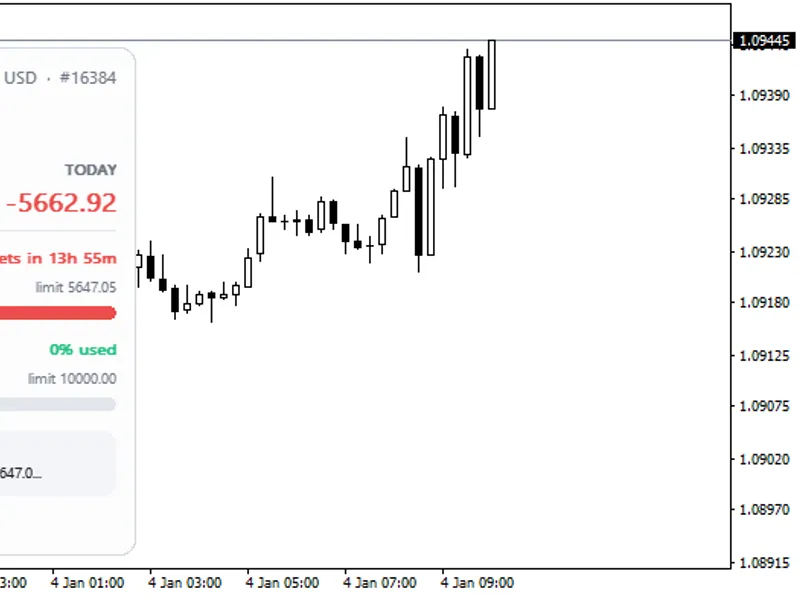
Account Settings Sync Demo on EURUSD,H1 and GBPUSD,H4 of the same demo account: the same four values at shared revision 18.
Typical Use Case
This Expert Advisor excels in automated trading and technical analysis on MetaTrader 5.
Compatible Platform & Setup
This Expert Advisor works on MetaTrader 5. Place the file in the MQL5/Experts folder and restart the terminal.
Description & Settings
Related: Trade Settings: Persisting and Migrating Per-Trade Configurations - another powerful expert for MetaTrader 5 traders.
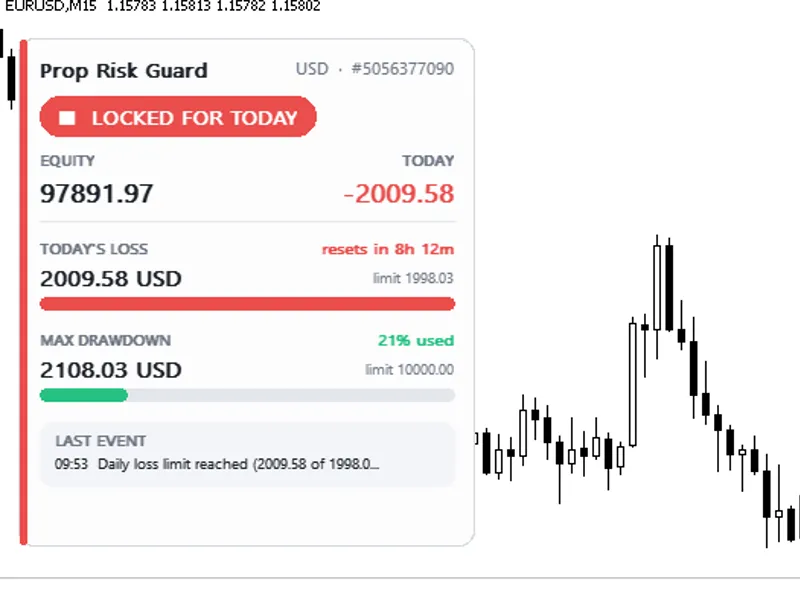
Account Settings Sync Demo on EURUSD,H1 and GBPUSD,H4 of the same demo account: the same four values at shared revision 18.Also recommended: Prop Risk Guard: Comprehensive Account Protection - similar expert with strong performance on MetaTrader 5.
Overview
Account Settings Sync is a small MQL5 library for sharing an EA's own runtime settings between charts of the same account. Changes can originate from either chart. It does not modify MQL5 input variables or the platform's Inputs dialog.
The example has exactly four interactive controls: Risk %, Daily loss limit %, Risk alert ON/OFF and Daily alert ON/OFF. These are sample settings only: the package contains no risk engine, drawdown execution, notification delivery or trading commands.
Synchronization
An independent channel and a hash of the broker server and account login identify the shared record. The symbol is excluded. Each operation obtains an exclusive file-handle lock, retrying briefly while another chart holds it. Publishing rereads the latest record, merges only the field being changed, writes and flushes a temporary file, and replaces the shared record with an incremented revision.
This avoids replacing another chart's different-field change with a stale full snapshot. If both charts change the same field, the last successfully saved value wins. Failed operations return false and report an error; an unsuccessful edit must be retried.
The demo polls every 250 milliseconds, without waiting for ticks. This is a timer setting, not a measured latency guarantee. A remote refresh does not replace active or modified local numeric text. Enter commits the edit; MT5 can also end editing when focus leaves the box.
Installation and use
Extract the MQL5 directory from MQL5.zip into the terminal's Data Folder, preserving its subdirectories. Compile MQL5\Experts\AccountSettingsSync\AccountSettingsSyncDemo.mq5. Its relative include resolves to MQL5\Include\AccountSettingsSync\AccountSettingsSync.mqh. No DLL, credentials, network permissions or external package is required.
Attach the demo to two different-symbol charts of the same demo account, using the same InpChannel on both. The default CodeBaseDemo channel and ASS prefix are independent from the original panel. Do not replace an EA that you need to keep running.
For integration, create one CAccountSettingsSync instance, initialize all four ASSSettings.values entries, and call Init(channel, defaults). Publish(field, value) saves one field. Call Sync(changed) from your timer, check its Boolean result, and obtain the committed snapshot with Snapshot(settings, revision). LastError() supplies an error message. The complete initialization and event-handling example is in the demo.
Save the runtime risk percentage
bool SaveRisk(CAccountSettingsSync &store, double percent)
{
return store.Publish(ASS_RISK_PERCENT,percent);
}
Files
AccountSettingsSync.mqh: synchronization library under MQL5\Include\AccountSettingsSync.
AccountSettingsSyncDemo.mq5: four-control example under MQL5\Experts\AccountSettingsSync.
MQL5.zip: both sources in the intended installation layout.
Storage and limitations
The fixed layout stores two finite percentages from 0 to 100 and two binary switches. The demo accepts up to two decimal places. FILE_COMMON files use ASS.channel.context-hash names, with .bin, .lock and temporary .tmp companions. The lock is held by the open handle, not the mere existence of its filename.
The common folder can be shared by terminal installations in the same Windows environment. Matching server, login and channel can therefore also share settings between those installations; cross-terminal operation has not been tested. Use distinct channels for isolation. There is no remote/VPS synchronization, automatic migration, encryption, schema conversion or power-loss guarantee. Files persist locally; the Global Variable four-week expiry does not apply. Account changes require reinitializing the EA.
Validation status
Tested on one MT5 terminal with a demo account, using EURUSD,H1 and GBPUSD,H4 charts on the same channel. All four controls were changed from each chart and appeared on the other. Two different fields changed from the two charts about 24 ms apart were both kept. Unfinished numeric text on either chart was kept while another program published a different field through the library. Invalid text such as 1.754.4 was rejected without changing the record. Compilation: 0 errors, 0 warnings.
Not tested:
several terminals sharing the common folder, different accounts, VPS, crash or power-loss recovery and heavy contention.
Related approaches
External JSON strategy configuration describes another shared EA configuration approach.
Storing and exchanging parameters covers file-based exchange. This example focuses on two-way chart editing, a locked per-field merge and preserving unfinished local UI text, not copying trades or synchronizing chart appearance. It makes no claim to have invented shared EA settings.
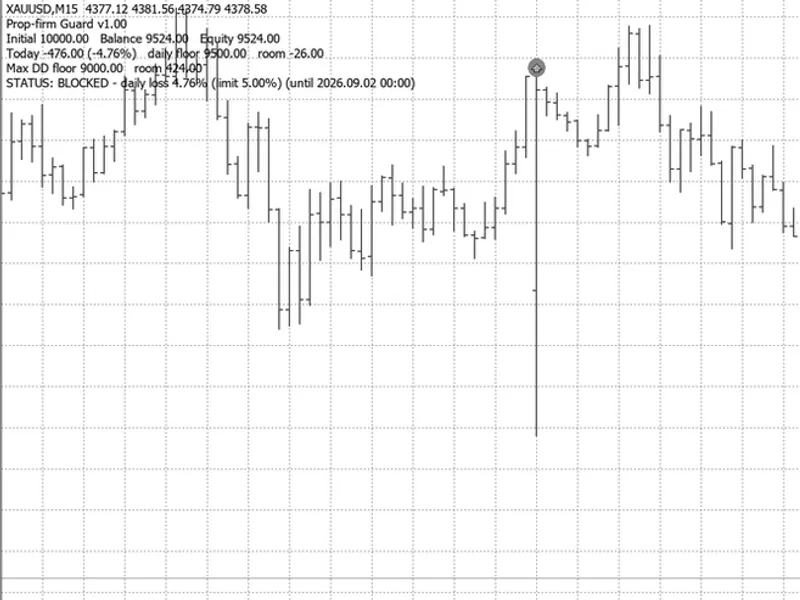
You may also like: Prop-firm Guard: Daily Loss and Max Drawdown Protection for Challenge Accounts - excellent alternative for expert users on MetaTrader 5.
Source Code
#property copyright "RobotFX"
#property version   "1.00"
#property strict
#include "..\..\Include\AccountSettingsSync\AccountSettingsSync.mqh"
input string InpChannel="CodeBaseDemo";
CAccountSettingsSync sync_store;
string               ui_prefix;
string               displayed[2];
int                  active_edit=-1;
string               ui_error="";
.......
⚠ Limitations & Risk Warning
- This tool is provided for educational and testing purposes only.
- Past performance does not guarantee future results.
- Trading involves substantial risk of loss. Use on a demo account first.
- Results may vary depending on market conditions, broker, and settings.
- We recommend thorough backtesting and forward testing before using with real funds.