








Input Resizer: Effortlessly Manage Indicator and EA Settings
Info
The Input Resizer: Effortlessly Manage Indicator and EA Settings is a Expert Advisor for MetaTrader 4 that this tool offers two variants for managing indicator and ea settings: an indicator and an expert advisor (ea). Please choose and use only one variant at a time.
Usage
This tool is typically used for automated trading on major forex pairs and gold.
Platform
This Expert Advisor works exclusively on MetaTrader 4 (both build 600+ and newer versions).
Setup
Place the downloaded file in MQL4/Experts folder via File ? Open Data Folder in MetaTrader 4.
How to Install and Use Input Resizer: Effortlessly Manage Indicator and EA Settings
1. Installation: Open the "File" menu, select "Open Data Folder," navigate to MQL/Experts, paste your file, and restart the terminal.
2. Activation: Drag the EA from the Navigator onto a chart, ensure "Allow live trading" is checked in the Common tab, and verify the AutoTrading button is green.
3. Optimization: Right-click your chart, choose "Expert List," click "Properties" to adjust inputs, and save your preferred setup as a set file for future use.
4. Maintenance: Regularly check the "Experts" tab in the terminal window to monitor trade logs and potential execution errors.
Frequently Asked Questions
Q: Why is my EA not opening trades? A: Check the "AutoTrading" button, ensure "Allow live trading" is enabled, and verify your broker allows automated trading on your account type.
Q: Can I run multiple EAs on one chart? A: No, each chart can only host one active EA; however, you can open multiple charts for different currency pairs to run several EAs.
Q: What does the "smiley face" icon mean? A: A smiley face in the top-right corner of the chart indicates the EA is successfully running; a frowny face means it is disabled.
What this tool does
This tool offers two variants for managing indicator and EA settings: an indicator and an Expert Advisor (EA).
Typical Use Case
This Expert Advisor excels in automated trading and technical analysis on MetaTrader 4.
Compatible Platform & Setup
This Expert Advisor works on MetaTrader 4. Place the file in the MQL4/Experts folder and restart the terminal.
Description & Settings
Related: take profit based on your current profit - another powerful expert for MetaTrader 4 traders.
This tool offers two variants for managing indicator and EA settings: an indicator and an Expert Advisor (EA). Please choose and use only one variant at a time.Also recommended: double ma crossover ea - similar expert with strong performance on MetaTrader 4.
Indicator Variant - inputresizer.mq4:
This indicator relies on incoming ticks. If you choose this variant, you may need to wait for a tick after opening a window for the indicator to detect and manage it. It is recommended to attach this indicator to a chart (pair) that receives frequent ticks, such as EURJPY or GBPJPY.
EA Variant - inputresizerea.mq4:
The EA variant offers a clear advantage as it operates in a loop and does not depend on ticks. By default, it checks for windows every 300 milliseconds, ensuring minimal waiting time. However, if you start your MetaTrader 4 (MT4) terminal when the market is closed, you must enable the weekendmode setting or use a tick generator utility or script.
A minor drawback of the EA variant is that it occupies a chart which cannot be used for another EA. It is advisable to attach the EA to a dedicated chart (timeframe M1-W1, pair irrelevant), minimize this chart, and refrain from using it for other purposes.
Setup:
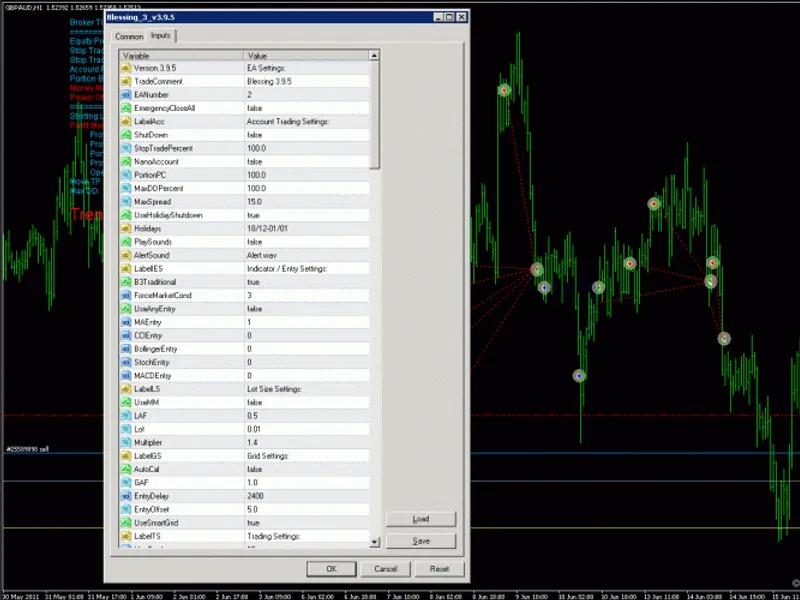
By default, Input Resizer will position and resize every input window upon its initial appearance to specified coordinates (in pixels, relative to the upper-left corner of the screen). Subsequently, if the input window (identified by its EA/indicator name) reappears on any chart or platform, its position and size from the last closure will be applied.
If remembersize is set to false:
All windows will open with initcustom coordinates (if true), maximized if initmaximized is true (initmaximized overrides initcustom), or at the default position and size if both initcustom and initmaximized are false.
If remembersize is set to true:
The aforementioned behavior applies only to the first appearance of a window. After that, coordinates are stored upon each window closure and reapplied the next time the window opens. Stored coordinates will override initcustom and initmaximized settings.
DLLs must be allowed for Input Resizer to function correctly. Failure to do so will result in an alert message.
If you open an input window for an indicator or EA for the first time, it will not resize until you select the input tab.
Coordinates are stored in global variables, which are persistent until deleted. You can delete them at any time by pressing F3 and removing all global variables starting with 'ires'.
This tool was last updated in 2026.
You may also like: nr t r revers: expert tool for metatrader - excellent alternative for expert users on MetaTrader 4.
Source Code
#property copyright "robotfx"
#property link "https://robotfx.org"
#import "user32.dll"
  int getforegroundwindow();
  int findwindowa(string lpclassname, string lpwindowname);
  int findwindowexa(int hwndparent, int hwndchildafter, string lpszclass, string lpszwindow);
  int getwindowrect(int hwnd, int rect[4]);
  int getclientrect(int hwnd, int rect[4]);
  int setwindowlonga(int hwnd,int nindex, int dwnewlong);
  int getwindowlonga(int hwnd,int nindex);
.......
⚠ Limitations & Risk Warning
- This tool is provided for educational and testing purposes only.
- Past performance does not guarantee future results.
- Trading involves substantial risk of loss. Use on a demo account first.
- Results may vary depending on market conditions, broker, and settings.
- We recommend thorough backtesting and forward testing before using with real funds.