
Trade Environment Check: Account Mode, Symbol Rules, and Open Positions Report
Info
The Trade Environment Check: Account Mode, Symbol Rules, and Open Positions Report is a Script for MetaTrader 5 that many issues attributed to expert advisors (eas) are not actual bugs in the ea's code. Common reasons include AutoTrading being disabled, the account's netting mode conflicting with an EA expecting hedging, the broker rejecting the specified filling mode, stop levels being too close to the current price, or the trade volume not adhering to the required step.
Usage
This tool is typically used for enhancing chart analysis and decision making.
Platform
This Script works exclusively on MetaTrader 5 (both build 600+ and newer versions).
Setup
Place the downloaded file in MQL5/Scripts folder via File ? Open Data Folder in MetaTrader 5.
How to Install and Use Trade Environment Check: Account Mode, Symbol Rules, and Open Positions Report
1. Installation: Move your script file into the MQL/Scripts directory and restart the platform.
2. Execution: Drag the script onto a chart; it will perform a one-time action, such as closing all open orders or clearing chart objects.
3. Editing: Use MetaEditor (F4) to modify code, click "Compile," and verify no errors appear in the terminal before running.
4. Removing: Scripts stop automatically, but you can remove them manually by right-clicking the chart and choosing "Remove Script."
Frequently Asked Questions
Q: How are scripts different from EAs? A: Scripts execute a single action and then stop; EAs monitor the market and trade continuously.
Q: Can I assign a hotkey to a script? A: Yes, right-click the script in the Navigator, select "Set Hotkey," and define your preferred keyboard shortcut.
Q: Why did my script stop? A: Scripts are designed to stop immediately after finishing their programmed command; this is normal behavior.
What this tool does
Many issues attributed to Expert Advisors (EAs) are not actual bugs in the EA's code.
Typical Use Case
This Script excels in automated trading and technical analysis on MetaTrader 5.
Compatible Platform & Setup
This Script works on MetaTrader 5. Place the file in the MQL5/Scripts folder and restart the terminal.
Description & Settings
Related: Trade Excursion Report: Analyzing Maximum Adverse and Favorable Excursions - another powerful script for MetaTrader 5 traders.
Many issues attributed to Expert Advisors (EAs) are not actual bugs in the EA's code. Common reasons include AutoTrading being disabled, the account's netting mode conflicting with an EA expecting hedging, the broker rejecting the specified filling mode, stop levels being too close to the current price, or the trade volume not adhering to the required step. TradeEnvCheck is a script designed to consolidate all this information into a single, comprehensive report. This report allows you to verify the trading environment before installing an EA and provides developers with essential details before they begin coding. To use the script, simply run it once on a chart for the symbol you are interested in. It generates a detailed report in the Experts log, displays a concise summary on the chart, and saves the full report to a text file named TradeEnvCheck_Also recommended: Comprehensive Stationarity Testing Suite for MetaTrader - similar script with strong performance on MetaTrader 5.
Report Contents
Account Information
- Server, company, currency, leverage, and account type (demo, contest, real).
- Margin mode: Hedging (allows multiple positions per symbol, each with its own Stop Loss and Take Profit) or Netting (maintains a single net position per symbol, with opposite deals offsetting each other). A brief explanation is provided for each.
- Trading permissions: Verifies that account trading, Expert Advisors, terminal AutoTrading, and the EA program itself are enabled.
- Margin call and stop out levels.
Symbol Information
- Trade mode (full, long only, short only, close only, disabled).
- Execution mode (Market, Instant, Request, Exchange).
- Profit calculation mode.
- Digits, point, tick size, tick value, and contract size.
- Accepted filling modes and the recommended mode for OrderSend, consistent with CTrade::SetTypeFillingBySymbol.
- Allowed order types (market, limit, stop, stop-limit, SL, TP, close-by) and expiration modes.
- Stops level, freeze level, and current spread.
- Volume specifications: minimum, step, maximum, and per-symbol volume limit.
- Swap details: swap mode, long swap, short swap, and the triple-swap day.
- Hedged margin rate (for hedging accounts).
Open Positions on the Symbol
- Number of open positions and pending orders.
- Total long and short volume for the symbol.
- A summary line for each position and order, including ticket, type, volume, open price, Stop Loss, Take Profit, and magic number.
Checklist for Expert Advisors
A list of recommendations and potential issues, marked with [OK], [NOTE], or [WARN], presented in clear language: - For hedging accounts: instructions on managing multiple positions by ticket, as PositionSelect(symbol) only returns one. A warning is issued if multiple positions already exist.
- For netting accounts: confirmation that only one position per symbol is allowed, with Stop Loss and Take Profit applying to the net position.
- Identification of any missing trading permissions.
- The correct filling type to use for sending orders and the error code received for incorrect types (e.g., 10030).
- Requirements for stop placement relative to the price (e.g., 10016) and the function of the freeze level.
- Details on volume rules (e.g., 10014) and volume limits.
- Explanation of how the execution mode affects order pricing and requotes.
- Information on overnight swap charges or earnings.
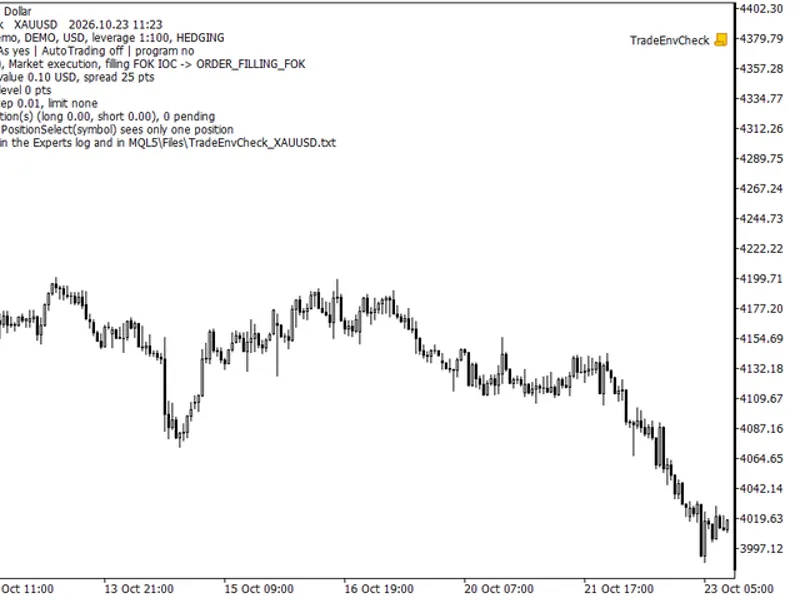
Example Report Excerpt (Demo Hedging Account, XAUUSD):
Margin mode: HEDGING - multiple positions can be open on one symbol, each with its own Stop Loss and Take Profit.
Trading allowed: account yes, Expert Advisors on this account yes, terminal AutoTrading off, this program no.
Filling modes allowed: FOK, IOC -> use ORDER_FILLING_FOK (consistent with CTrade::SetTypeFillingBySymbol).
Stops level: 0 points. Freeze level: 0 points. Current spread: 25 points.
Volume: min 0.01, step 0.01, max 100.00, limit per symbol none.
--- What an Expert Advisor must handle here --- [NOTE] Hedging account: manage positions by ticket (PositionGetTicket / PositionSelectByTicket). PositionSelect("XAUUSD") returns only one position for the symbol.
[WARN] AutoTrading is switched off in the terminal: EAs cannot trade until it is enabled.
[NOTE] Send market orders with ORDER_FILLING_FOK; an unsupported filling type will be rejected with 'Unsupported filling mode' (10030).
[NOTE] Lot sizes must be between 0.01 and 100.00 in steps of 0.01. Normalize volume before sending to avoid the 'Invalid volume' error (10014).
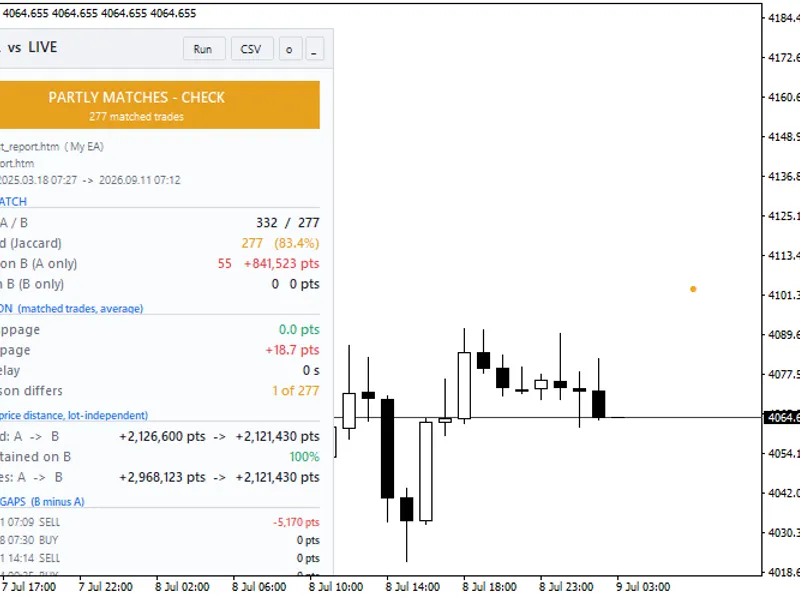
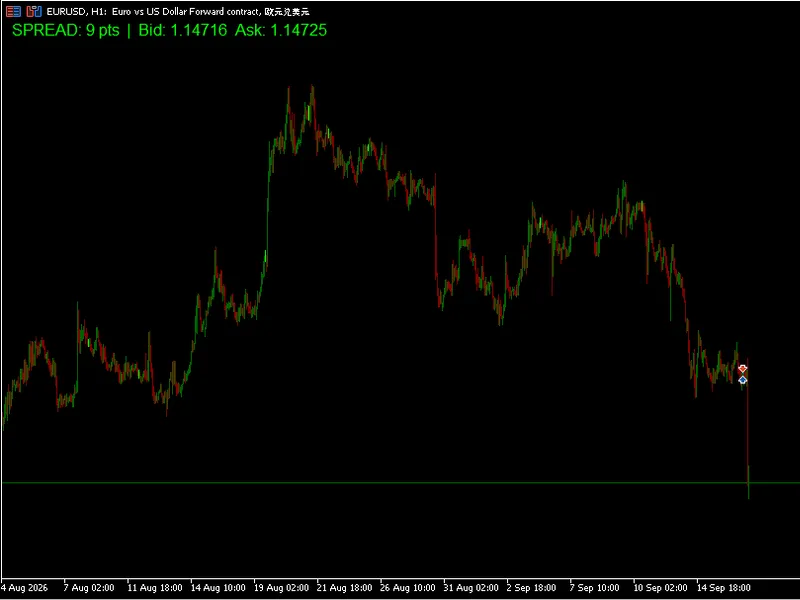
The accompanying screenshot illustrates the on-chart summary generated by the script. The complete report is available in the Experts log and the saved text file.
Input Parameters
- Show the summary on the chart: Controls the display of the summary directly on the chart.
- List open positions and pending orders on this symbol: Includes details of current positions and orders in the report.
- Save the report to MQL5\Files\TradeEnvCheck_<symbol>.txt: Enables saving the full report to a file.
- Hide the account number in the report: Hides the account number for privacy (enabled by default), allowing the file to be shared easily.
Typical Use Cases
- Before ordering a custom EA on the Freelance section, run this script on your trading symbol and attach the generated text file to your order. This provides the developer with crucial information about your account's trading conditions (hedging/netting, filling modes, stop/volume rules). - Before installing an EA on a new broker, run the script and compare the generated checklist against the EA's assumptions to ensure compatibility.
- When an EA reports specific error codes (e.g., 10030, 10016, 10014), run this script and review the corresponding checklist item for guidance.
Compiled with MetaTrader 5 build 6182, 0 errors and 0 warnings.
You may also like: Market Information Script for MetaTrader 5 - excellent alternative for script users on MetaTrader 5.
Source Code
#property copyright "RobotFX"
#property link "https://robotfx.org"
#property version   "1.00"
#property description "This code is educational. Feel free to use, modify and upgrade as you wish. Visit ROBOTFX.ORG for professional trading tools"
#property script_show_inputs
input bool InpShowOnChart   = true;
input bool InpListPositions = true;
input bool InpSaveReport    = true;
input bool InpHideLogin     = true;
struct EnvInfo
.......
⚠ Limitations & Risk Warning
- This tool is provided for educational and testing purposes only.
- Past performance does not guarantee future results.
- Trading involves substantial risk of loss. Use on a demo account first.
- Results may vary depending on market conditions, broker, and settings.
- We recommend thorough backtesting and forward testing before using with real funds.