





Save History to HST File
Info
The Save History to HST File is a Script for MetaTrader 5 that this script allows you to create a binary *. hst file, supported by MetaTrader 4.
Usage
This tool is typically used for enhancing chart analysis and decision making.
Platform
This Script works exclusively on MetaTrader 5 (both build 600+ and newer versions).
Setup
Place the downloaded file in MQL5/Scripts folder via File ? Open Data Folder in MetaTrader 5.
How to Install and Use Save History to HST File
1. Installation: Move your script file into the MQL/Scripts directory and restart the platform.
2. Execution: Drag the script onto a chart; it will perform a one-time action, such as closing all open orders or clearing chart objects.
3. Editing: Use MetaEditor (F4) to modify code, click "Compile," and verify no errors appear in the terminal before running.
4. Removing: Scripts stop automatically, but you can remove them manually by right-clicking the chart and choosing "Remove Script."
Frequently Asked Questions
Q: How are scripts different from EAs? A: Scripts execute a single action and then stop; EAs monitor the market and trade continuously.
Q: Can I assign a hotkey to a script? A: Yes, right-click the script in the Navigator, select "Set Hotkey," and define your preferred keyboard shortcut.
Q: Why did my script stop? A: Scripts are designed to stop immediately after finishing their programmed command; this is normal behavior.
What this tool does
This script allows you to create a binary *.
Typical Use Case
This Script excels in automated trading and technical analysis on MetaTrader 5.
Compatible Platform & Setup
This Script works on MetaTrader 5. Place the file in the MQL5/Scripts folder and restart the terminal.
Description & Settings
Related: Tick Audit: Verify Real Tick History and Backtest Quality - another powerful script for MetaTrader 5 traders.
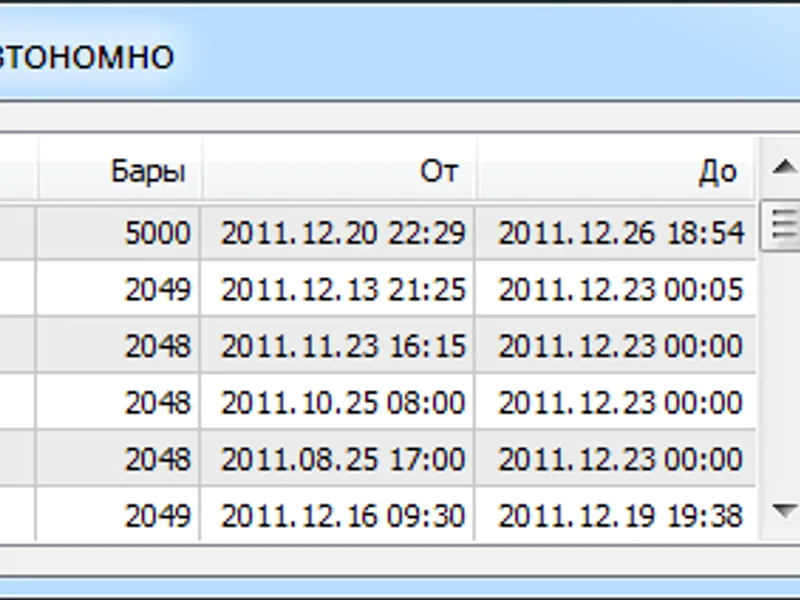
This script allows you to create a binary *.hst file, supported by MetaTrader 4. This file can be imported in MetaTrader 4 as historical data or you can open it as an offline chart.Also recommended: Neural Loss-Pattern Auditor: Analyze Trade History for Behavioral Patterns - similar script with strong performance on MetaTrader 5.
It has only one data_count input parameter, which specifies data count in bars, starting from current.
Initially, this script was designed for checking of the indicators, written in MQL4 and MQL5, because the same data needed for the compare.
To check the indicator values, follow these steps:
- Install indicators.
- Install this script in MetaTrader 5 and launch it.
- If successful, it will print a message with path of the file created, for example.
- Copy this file to MetaTrader 4 client terminal folder: history folder, for example.
- Import file with the history to MetaTrader 4 client terminal as offline, by choosing file - open offline.
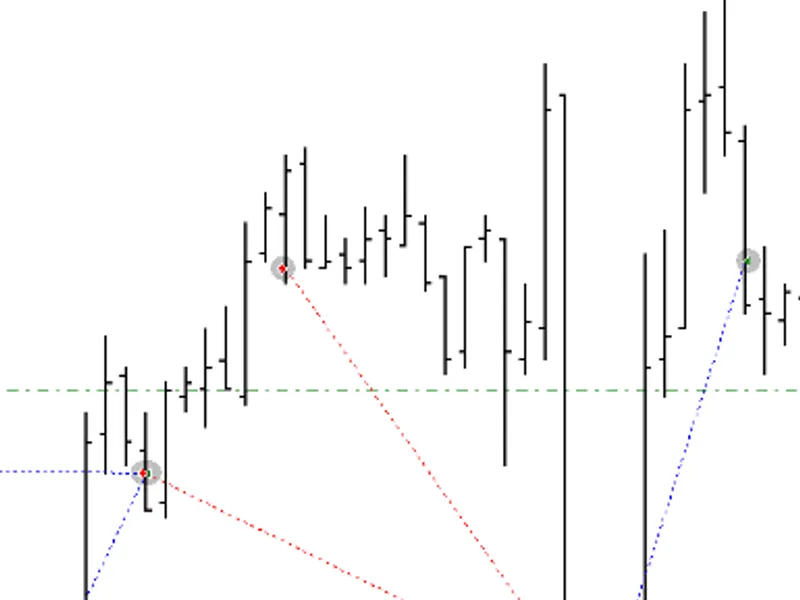
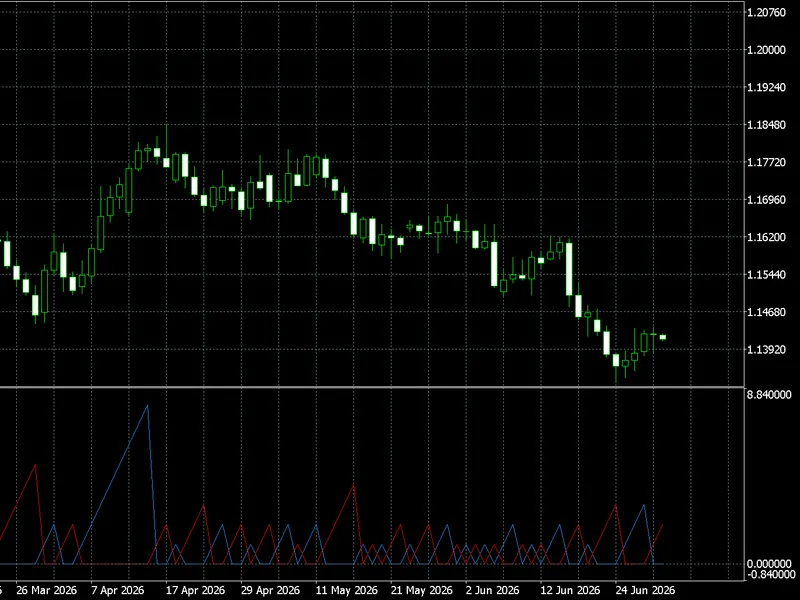
Launch the indicator on the MetaTrader 4 offline chart and launch it in MetaTrader 5, you will see that both of them have the same values.
And at last check them visually.
You may also like: advanced trade history exporter: mae, mfe, and time-based analysis - excellent alternative for script users on MetaTrader 5.
Source Code
#property copyright "robotfx"
#property link "https://robotfx.org"
#property version   "1.00"
#property script_show_inputs
#define offline_header_size 148 // long_value + 64 + 12 + 4 * long_value + 13 * long_value
#define offline_record_size 44  // 5 * double_value + long_value
input uint data_count=5000;//
mqlrates rates[];
void onstart()
  {
.......
⚠ Limitations & Risk Warning
- This tool is provided for educational and testing purposes only.
- Past performance does not guarantee future results.
- Trading involves substantial risk of loss. Use on a demo account first.
- Results may vary depending on market conditions, broker, and settings.
- We recommend thorough backtesting and forward testing before using with real funds.