

Trading Session Ranges: Asian, London, and New York
Info
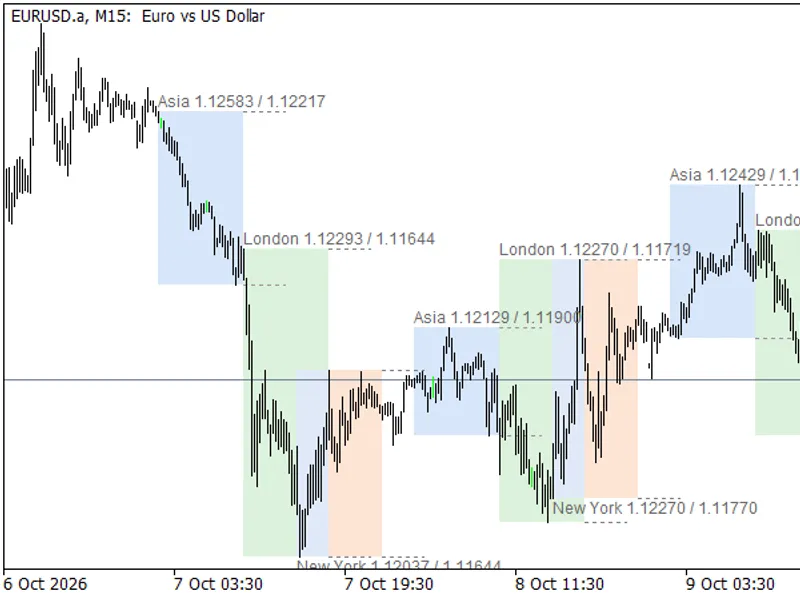
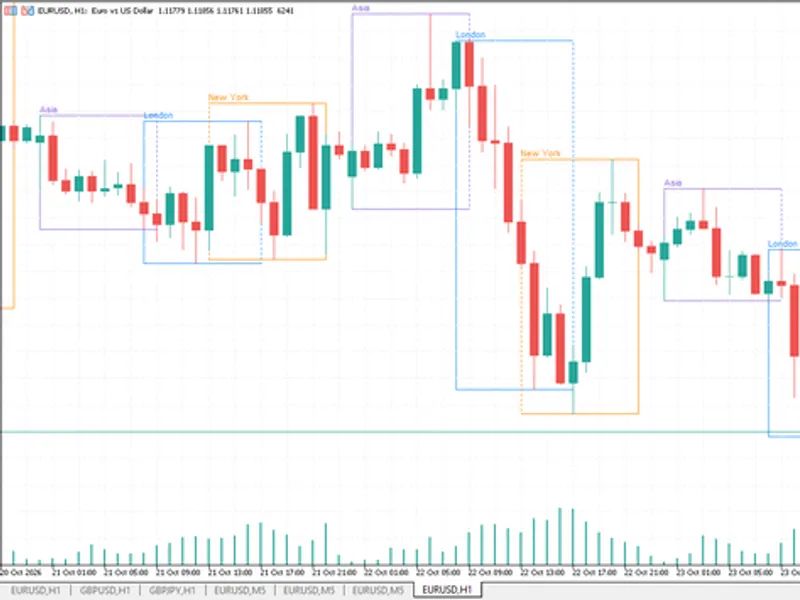
The Trading Session Ranges: Asian, London, and New York is a Indicator for MetaTrader 5 that session high low displays the three primary trading sessions on your chart: asia, london, and new york. Each session is depicted as a colored box, spanning from its start to its end, and encompassing the session's high and low prices.
Usage
This tool is typically used for enhancing chart analysis and decision making.
Platform
This Indicator works exclusively on MetaTrader 5 (both build 600+ and newer versions).
Setup
Place the downloaded file in MQL5/Indicators folder via File ? Open Data Folder in MetaTrader 5.
How to Install and Use Trading Session Ranges: Asian, London, and New York
1. Installation: Place your file in the MQL/Indicators folder via "Open Data Folder" and restart your terminal.
2. Loading: Find the indicator in the Navigator, drag it onto your chart, and configure the input parameters in the popup window.
3. Customization: Press Ctrl+I to open the indicator list, select your tool, and click "Properties" to change colors, levels, or visual styles.
4. Updating: Replace the old file in the Indicators folder with the new version and restart the platform to apply changes.
Frequently Asked Questions
Q: Why is my indicator not showing? A: Verify the file is in the MQL/Indicators folder, or try right-clicking the "Indicators" tree in the Navigator and clicking "Refresh."
Q: Do custom indicators slow down the platform? A: Too many complex indicators can impact performance; remove unused ones via the "Indicator List" (Ctrl+I).
Q: Can I use MT4 indicators on MT5? A: No, MQL4 and MQL5 are distinct languages; ensure the indicator is compiled specifically for your platform version.
What this tool does
Session High Low displays the three primary trading sessions on your chart: Asia, London, and New York.
Typical Use Case
This Indicator excels in automated trading and technical analysis on MetaTrader 5.
Compatible Platform & Setup
This Indicator works on MetaTrader 5. Place the file in the MQL5/Indicators folder and restart the terminal.
Description & Settings
Related: Trading Session Boxes Indicator for MT4/MT5 - another powerful indicator for MetaTrader 5 traders.
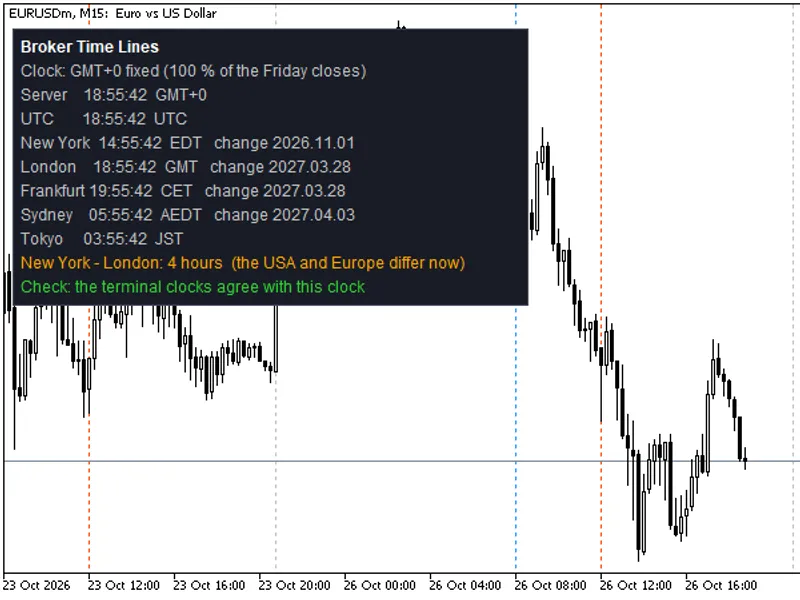
Session High Low displays the three primary trading sessions on your chart: Asia, London, and New York.Also recommended: Accurate Broker Time Zones and Session Lines for MT4/MT5 - similar indicator with strong performance on MetaTrader 5.
Each session is depicted as a colored box, spanning from its start to its end, and encompassing the session's high and low prices.
Once a session concludes, dotted lines extend its high and low for a specified duration, enabling quick identification of breakouts or retests.
Session Range Analysis
The Asian trading range serves as a foundational reference point for London breakout trading strategies.
The high and low points of the London session are frequently revisited or breached during the New York trading period.
The magnitude of each session's range (measured in points and displayed in the tooltip) provides insight into the session's volatility.
Key Features
- Three distinct sessions, each configurable with individual on/off switches, start and end times, and box colors.
- Automatic handling of sessions that span across midnight (e.g., 22:00 - 07:00).
- High and low prices are derived from M5 data, ensuring consistent range representation across M1, M5, M15, M30, and H1 charts.
- Display of session names, highs, and lows via labels. The New York label is positioned below its box to prevent overlap with the London session.
- Hovering over a session box reveals the session's high, low, and range in points.
- The current session's box dynamically updates with new highs or lows as they occur.
- Automatic exclusion of weekends and holidays.
- Option to hide the indicator on timeframes above a specified maximum to maintain chart clarity on higher timeframes.
Input Parameters
InpDays
- Specifies the number of past days for which to draw session ranges (default is 10).
InpMaxTF
- Determines the highest timeframe on which the indicator will be displayed (default is H1). Timeframes above this will hide the indicator.
InpShowLabels
- Controls the visibility of session names and price labels.
InpExtendHours
- Sets the duration, in hours, for which the high and low lines are extended after a session ends. Setting this to 0 disables the extension lines.
InpAsiaOn, InpAsiaStart, InpAsiaEnd, InpAsiaColor
- Configuration settings for the Asian session (enable/disable, start time, end time, and color).
InpLondonOn, InpLondonStart, InpLondonEnd, InpLondonColor
- Configuration settings for the London session (enable/disable, start time, end time, and color).
InpNYOn, InpNYStart, InpNYEnd, InpNYColor
- Configuration settings for the New York session (enable/disable, start time, end time, and color).
Important Note: Session times are based on the broker's server time, which is the time displayed in the Market Watch window.
The default settings (Asia 02:00 - 10:00, London 10:00 - 18:00, New York 15:00 - 23:00) are suitable for brokers operating at GMT+3 during summer.
If your broker uses a different server time, adjust all session times accordingly to match the difference.
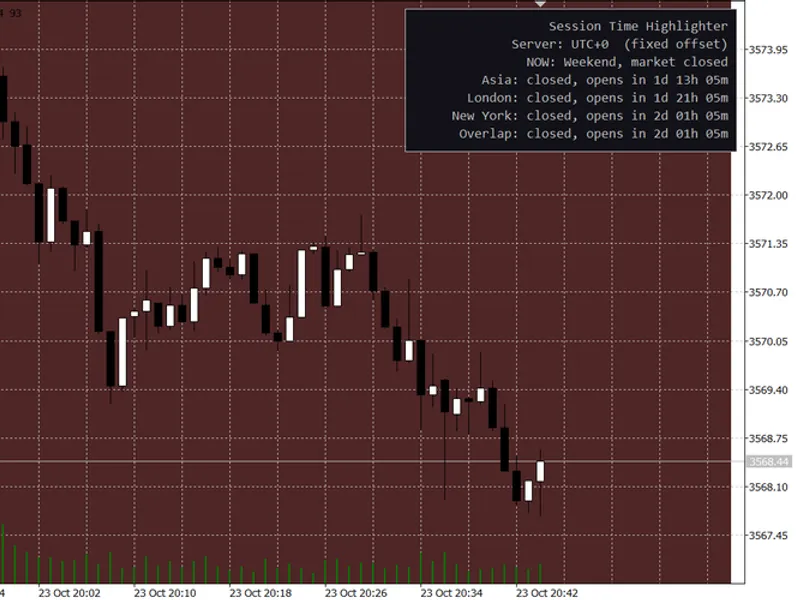
You may also like: Session Time Highlighter for MT4/MT5 - excellent alternative for indicator users on MetaTrader 5.
Source Code
#property copyright "RobotFX"
#property version     "1.00"
#property description "This code is educational. Feel free to use, modify and upgrade as you wish. Visit ROBOTFX.ORG for professional trading tools"
#property indicator_chart_window
#property indicator_plots 0
input int             InpDays        = 10;
input ENUM_TIMEFRAMES InpMaxTF       = PERIOD_H1;
input bool            InpShowLabels  = true;
input int             InpExtendHours = 4;
input group "Asian session (server time)"
.......
⚠ Limitations & Risk Warning
- This tool is provided for educational and testing purposes only.
- Past performance does not guarantee future results.
- Trading involves substantial risk of loss. Use on a demo account first.
- Results may vary depending on market conditions, broker, and settings.
- We recommend thorough backtesting and forward testing before using with real funds.