

time closing period indicator
Info
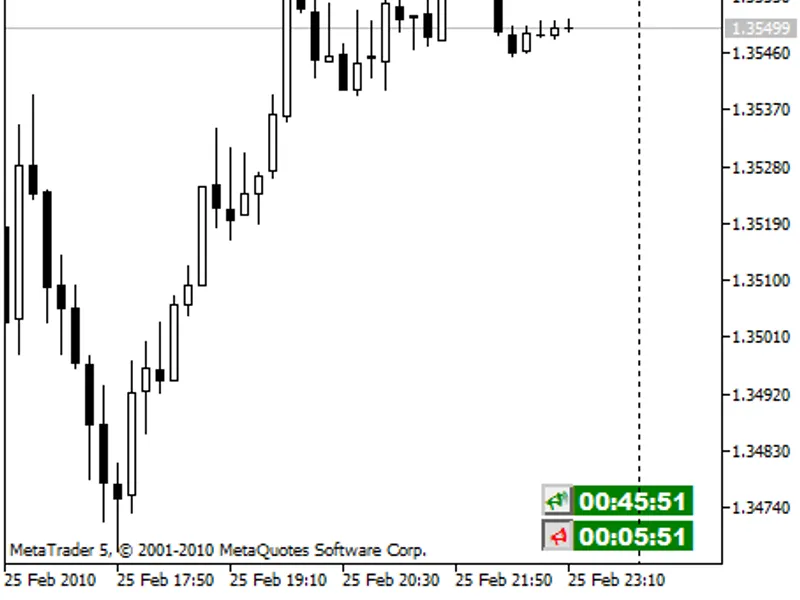
The time closing period indicator is a Indicator for MetaTrader 5 that an updated version of the timeclosingperiod indicator, designed for traders who trade at the opening of new bars. this indicator provides valuable information by plotting the time remaining until the current bar completes.
Usage
This tool is typically used for enhancing chart analysis and decision making.
Platform
This Indicator works exclusively on MetaTrader 5 (both build 600+ and newer versions).
Setup
Place the downloaded file in MQL5/Indicators folder via File ? Open Data Folder in MetaTrader 5.
How to Install and Use time closing period indicator
1. Installation: Place your file in the MQL/Indicators folder via "Open Data Folder" and restart your terminal.
2. Loading: Find the indicator in the Navigator, drag it onto your chart, and configure the input parameters in the popup window.
3. Customization: Press Ctrl+I to open the indicator list, select your tool, and click "Properties" to change colors, levels, or visual styles.
4. Updating: Replace the old file in the Indicators folder with the new version and restart the platform to apply changes.
Frequently Asked Questions
Q: Why is my indicator not showing? A: Verify the file is in the MQL/Indicators folder, or try right-clicking the "Indicators" tree in the Navigator and clicking "Refresh."
Q: Do custom indicators slow down the platform? A: Too many complex indicators can impact performance; remove unused ones via the "Indicator List" (Ctrl+I).
Q: Can I use MT4 indicators on MT5? A: No, MQL4 and MQL5 are distinct languages; ensure the indicator is compiled specifically for your platform version.
What this tool does
an updated version of the timeclosingperiod indicator, designed for traders who trade at the opening of new bars.
Typical Use Case
This Indicator excels in automated trading and technical analysis on MetaTrader 5.
Compatible Platform & Setup
This Indicator works on MetaTrader 5. Place the file in the MQL5/Indicators folder and restart the terminal.
Description & Settings
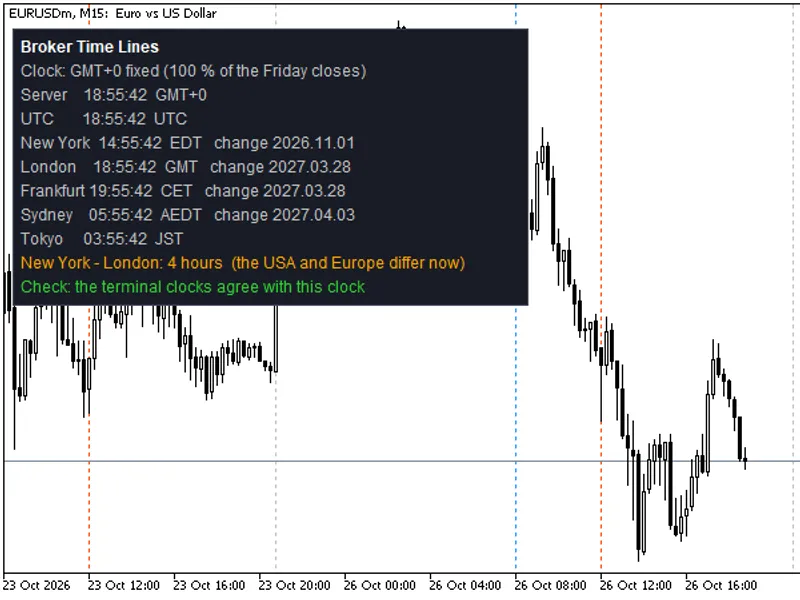
Related: Accurate Broker Time Zones and Session Lines for MT4/MT5 - another powerful indicator for MetaTrader 5 traders.
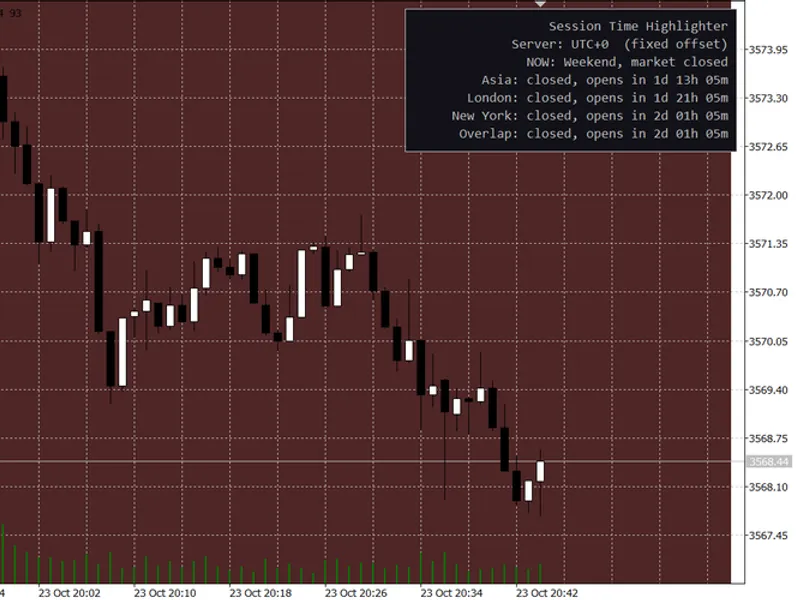
an updated version of the timeclosingperiod indicator, designed for traders who trade at the opening of new bars.Also recommended: Session Time Highlighter for MT4/MT5 - similar indicator with strong performance on MetaTrader 5.
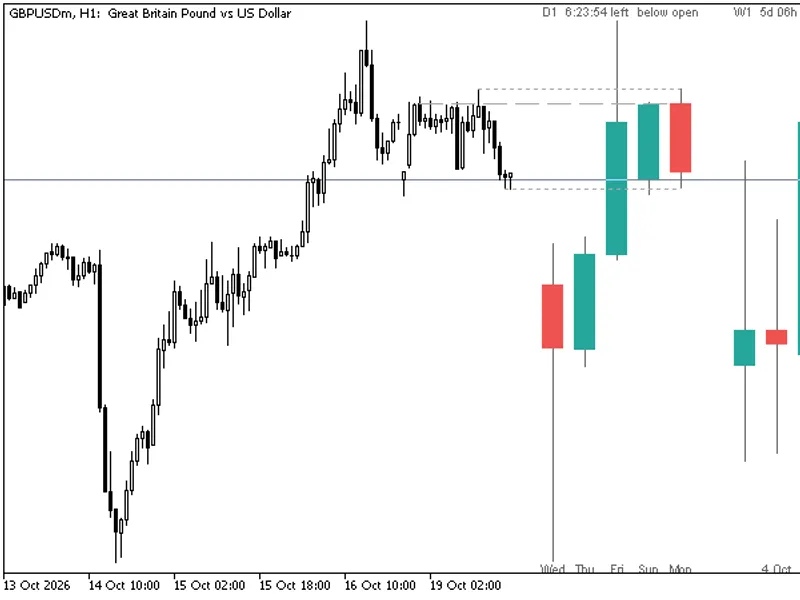
this indicator provides valuable information by plotting the time remaining until the current bar completes. for periods shorter than h1, it also displays the time left until the hourly bar closes.
a key feature is the sound alert, which can be customized and played during the last second before bar completion. this sound signal can be enabled or disabled as per user preference.
the ctimer class has been enhanced with new methods for sound and mouse control, offering improved functionality.
for optimal performance, ensure that both indicator files are placed in the same folder.
You may also like: HTF Candles (ICT Power of Three): Higher Timeframe Candles Displayed - excellent alternative for indicator users on MetaTrader 5.
Source Code
#property copyright "robotfx"
#property link "https://robotfx.org"
#property version   "1.00"
#property indicator_chart_window
#property indicator_plots   1
#property indicator_buffers 1
#include "ctimer.mqh"
#include <chartobjects\chartobjectstxtcontrols.mqh>
input string      inppathfirstsound="alert.wav"; // first signal
input string      inppathsecondsound="news.wav"; // second signal
.......
⚠ Limitations & Risk Warning
- This tool is provided for educational and testing purposes only.
- Past performance does not guarantee future results.
- Trading involves substantial risk of loss. Use on a demo account first.
- Results may vary depending on market conditions, broker, and settings.
- We recommend thorough backtesting and forward testing before using with real funds.