


Session High-Low Indicator for MetaTrader
Info
The Session High-Low Indicator for MetaTrader is a Indicator for MetaTrader 5 that session high-lowthe idea behind itevery trading approach that relies on sessions begins with a manual step: identifying the range of a past session before trading its breakout, reversal, or overlap with the next session. This indicator automates that initial step.
Usage
This tool is typically used for enhancing chart analysis and decision making.
Platform
This Indicator works exclusively on MetaTrader 5 (both build 600+ and newer versions).
Setup
Place the downloaded file in MQL5/Indicators folder via File ? Open Data Folder in MetaTrader 5.
How to Install and Use Session High-Low Indicator for MetaTrader
1. Installation: Place your file in the MQL/Indicators folder via "Open Data Folder" and restart your terminal.
2. Loading: Find the indicator in the Navigator, drag it onto your chart, and configure the input parameters in the popup window.
3. Customization: Press Ctrl+I to open the indicator list, select your tool, and click "Properties" to change colors, levels, or visual styles.
4. Updating: Replace the old file in the Indicators folder with the new version and restart the platform to apply changes.
Frequently Asked Questions
Q: Why is my indicator not showing? A: Verify the file is in the MQL/Indicators folder, or try right-clicking the "Indicators" tree in the Navigator and clicking "Refresh."
Q: Do custom indicators slow down the platform? A: Too many complex indicators can impact performance; remove unused ones via the "Indicator List" (Ctrl+I).
Q: Can I use MT4 indicators on MT5? A: No, MQL4 and MQL5 are distinct languages; ensure the indicator is compiled specifically for your platform version.
What this tool does
Session High-LowThe Idea Behind ItEvery trading approach that relies on sessions begins with a manual step: identifying the range of a past session before trading its breakout, reversal, or overlap with the next session.
Typical Use Case
This Indicator excels in automated trading and technical analysis on MetaTrader 5.
Compatible Platform & Setup
This Indicator works on MetaTrader 5. Place the file in the MQL5/Indicators folder and restart the terminal.
Description & Settings
Related: Session Boxes Asia London New York - another powerful indicator for MetaTrader 5 traders.
Session High-LowThe Idea Behind It
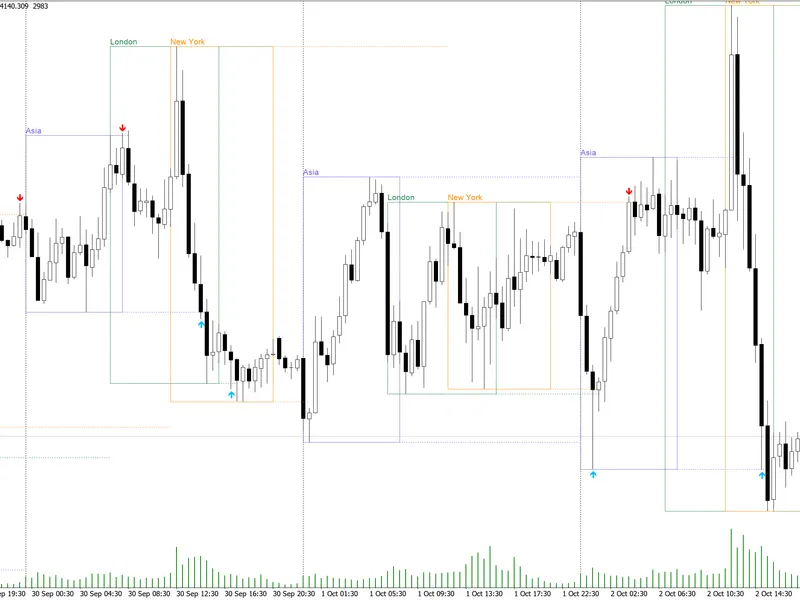
Every trading approach that relies on sessions begins with a manual step: identifying the range of a past session before trading its breakout, reversal, or overlap with the next session. This indicator automates that initial step. It monitors each bar within a user-defined time window, records the highest high and lowest low achieved during that period, and displays these levels on the chart once the session concludes. The current session remains active, updating with every tick until its own defined window ends.
Also recommended: Accurate Broker Time Zones and Session Lines for MT4/MT5 - similar indicator with strong performance on MetaTrader 5.
The indicator is designed to be symbol and timeframe independent. The session window is determined solely by server time (hours/minutes), making the same settings applicable whether you are defining the Asian session range on Gold, the London session range on an FX major pair, or a custom time window for a news event on an index. Lower timeframes (M1-M15) generally provide more precise range boundaries, as the hourly/minute check for session initiation and closure requires sufficient bar resolution to capture these transitions accurately.
How to Interpret It
The Session Window
Defined by InpSessionStartHour:InpSessionStartMinute to InpSessionEndHour:InpSessionEndMinute, using your broker's server time. The indicator automatically handles overnight sessions (e.g., 23:00 to 08:00), so the logic works for both same-day and cross-midnight sessions without needing separate configurations.
Completed Sessions
Once a session's time window has closed, its high and low levels are finalized and remain on the chart as historical reference points. The InpSessionsToShow input determines how many of these past sessions are displayed simultaneously, with older sessions automatically removed to prevent chart clutter.
The Current Session
The most recent, still-open session window is redrawn on every tick, not just at the close of a new bar. This ensures its high and low levels always reflect the most current price action. With InpExtendCurrentSession enabled, the right edge of the current session's visual representation is extended to the present time, rather than stopping at the session's nominal end time, clearly indicating that it is still forming.
Display Mode
You can choose to display the session range as a single rectangle spanning the entire session's high-to-low range (Box mode), or as two separate horizontal lines representing the high and the low independently (Lines mode), depending on which provides better visual clarity on your chart.
External Variables (Inputs)
Input
Default
Purpose
InpSessionStartHour / InpSessionStartMinute
8 / 0
Specifies the start hour and minute for the session window, based on broker/server time.
InpSessionEndHour / InpSessionEndMinute
16 / 0
Specifies the end hour and minute for the session window, based on broker/server time. If the end time is earlier than the start time, the window is considered overnight.
InpSessionsToShow
10
Determines the number of past session ranges to keep visible on the chart before they are automatically aged off.
InpDisplayMode
Box
Selects the display style: Box for a single rectangle, or Lines for separate high and low lines.
InpHighLineColor / InpLowLineColor
Lime / Red
Sets the colors for the high and low lines when Lines mode is active.
InpBoxColor
DodgerBlue
Sets the border color for the rectangle when Box mode is active.
InpLineStyle / InpLineWidth
Dash / 1
Defines the line style and width applied to the session boundaries in either display mode.
InpShowLabels
true
Enables or disables the display of a small price label (e.g., "H: ... L: ...") next to each session.
InpExtendCurrentSession
true
Extends the right edge of the currently active session to the current time, making its ongoing nature visually apparent.
Recommended Usage
This indicator is versatile and can be used on any trading symbol and any timeframe. Its session logic is based purely on time, not on price patterns, making it suitable for marking the Asian session before a London breakout, the London session before New York overlap, or any fixed time window such as around a news release. Always verify your broker's server time against the intended session hours before relying on the default inputs, as server time offsets can differ between brokers and due to daylight saving time adjustments in different time zones.
All chart objects created by this indicator are managed under a single internal name prefix and are completely removed using ObjectsDeleteAll() in OnDeinit() when the indicator is detached from the chart, ensuring no residual objects are left behind.
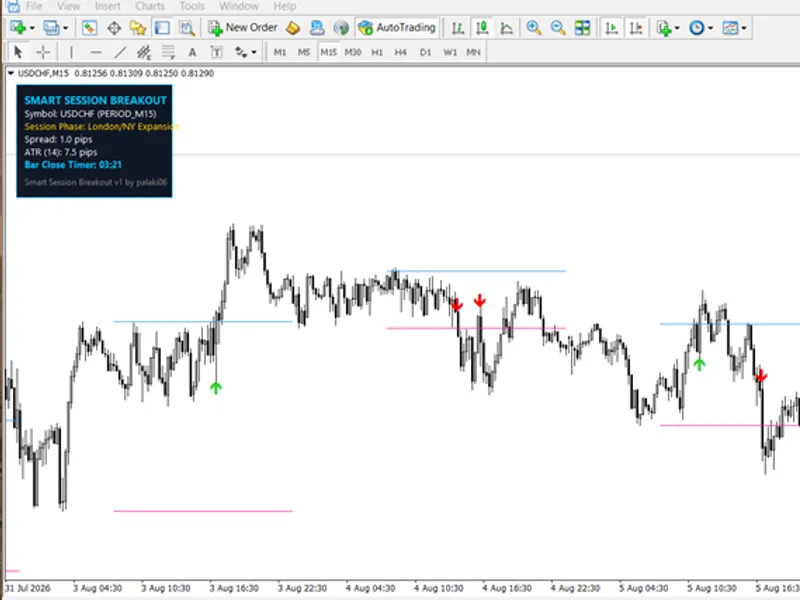
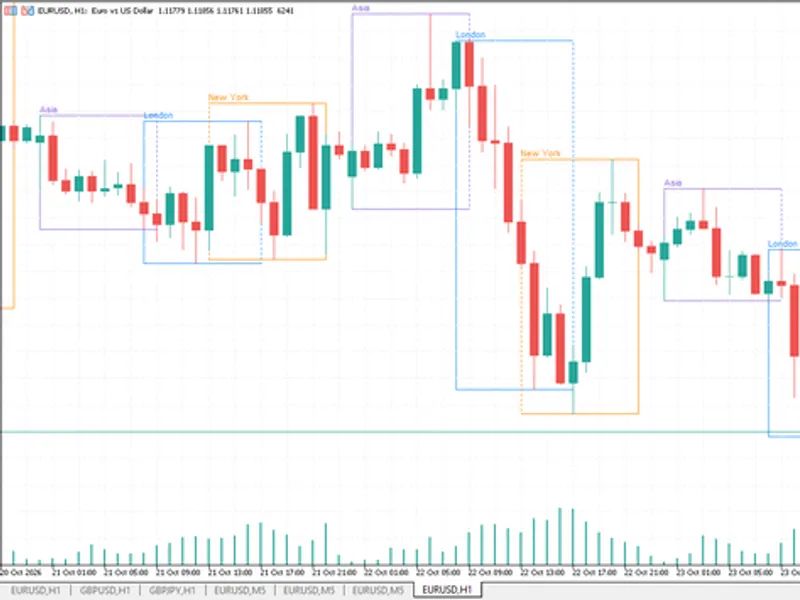
Illustration: Session ranges are displayed as dashed boxes on XAUUSD M15. The current session extends live, showing its active range. This visualization is rendered in black and white, adhering to common guidelines for financial chart displays.
You may also like: Session Time Highlighter for MT4/MT5 - excellent alternative for indicator users on MetaTrader 5.
Source Code
#property copyright "RobotFX"
#property link "https://robotfx.org"
#property version   "1.00"
#property description "This code is educational. Feel free to use, modify and upgrade as you wish. Visit ROBOTFX.ORG for professional trading tools"
#property indicator_chart_window
#property indicator_buffers 0
#property indicator_plots   0
#property strict
enum ENUM_DISPLAY_MODE
  {
.......
⚠ Limitations & Risk Warning
- This tool is provided for educational and testing purposes only.
- Past performance does not guarantee future results.
- Trading involves substantial risk of loss. Use on a demo account first.
- Results may vary depending on market conditions, broker, and settings.
- We recommend thorough backtesting and forward testing before using with real funds.