


Multi Timeframe Trend Dashboard Indicator for MT4/MT5
Info
The Multi Timeframe Trend Dashboard Indicator for MT4/MT5 is a Indicator for MetaTrader 5 that multi-timeframe trend dashboard indicatorthe purpose of this indicator is to provide a clear and immediate overview of the trend direction across multiple timeframes. When trading, it's often necessary to switch between various chart windows to determine if a symbol is trending and in which direction.
Usage
This tool is typically used for trend following strategies across multiple currency pairs.
Platform
This Indicator works exclusively on MetaTrader 5 (both build 600+ and newer versions).
Setup
Place the downloaded file in MQL5/Indicators folder via File ? Open Data Folder in MetaTrader 5.
How to Install and Use Multi Timeframe Trend Dashboard Indicator for MT4/MT5
1. Installation: Place your file in the MQL/Indicators folder via "Open Data Folder" and restart your terminal.
2. Loading: Find the indicator in the Navigator, drag it onto your chart, and configure the input parameters in the popup window.
3. Customization: Press Ctrl+I to open the indicator list, select your tool, and click "Properties" to change colors, levels, or visual styles.
4. Updating: Replace the old file in the Indicators folder with the new version and restart the platform to apply changes.
Frequently Asked Questions
Q: Why is my indicator not showing? A: Verify the file is in the MQL/Indicators folder, or try right-clicking the "Indicators" tree in the Navigator and clicking "Refresh."
Q: Do custom indicators slow down the platform? A: Too many complex indicators can impact performance; remove unused ones via the "Indicator List" (Ctrl+I).
Q: Can I use MT4 indicators on MT5? A: No, MQL4 and MQL5 are distinct languages; ensure the indicator is compiled specifically for your platform version.
What this tool does
Multi-Timeframe Trend Dashboard IndicatorThe purpose of this indicator is to provide a clear and immediate overview of the trend direction across multiple timeframes.
Typical Use Case
This Indicator excels in trend following on MetaTrader 5.
Compatible Platform & Setup
This Indicator works on MetaTrader 5. Place the file in the MQL5/Indicators folder and restart the terminal.
Description & Settings
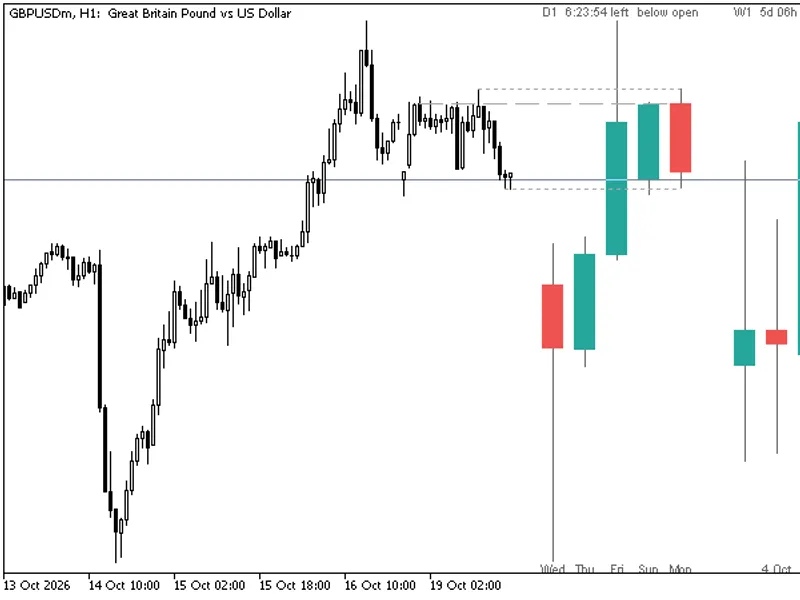
Related: HTF Candles (ICT Power of Three): Higher Timeframe Candles Displayed - another powerful indicator for MetaTrader 5 traders.
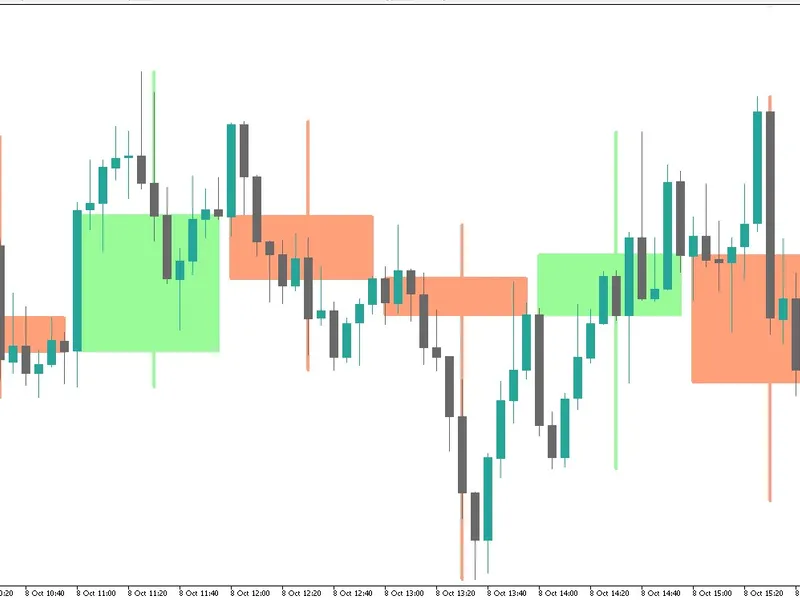
Multi-Timeframe Trend Dashboard IndicatorAlso recommended: Vela Mayor MTF: Higher Timeframe Candle Overlay for MT5 - similar indicator with strong performance on MetaTrader 5.
The purpose of this indicator is to provide a clear and immediate overview of the trend direction across multiple timeframes. When trading, it's often necessary to switch between various chart windows to determine if a symbol is trending and in which direction. This indicator consolidates that information into a single, easy-to-read panel.
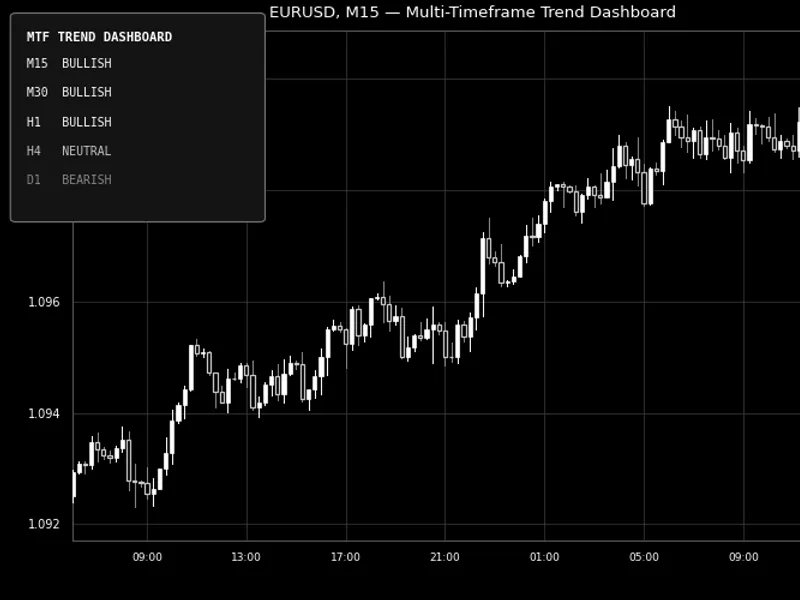
For each enabled timeframe, from M15 up to W1, the indicator calculates a Fast and Slow Moving Average pair. It then displays the trend as a color-coded row: Bullish if the fast average is above the slow average, Bearish if it's below, and Neutral if they are effectively equal.
Each timeframe's trend is calculated independently using the terminal's built-in indicator functions. This ensures that the display for each row accurately reflects what you would see on a chart of that specific timeframe with the same moving average settings. There is no approximation or synthetic data resampling involved.
How to Interpret the Indicator:
BULLISH (default green) - The fast moving average is above the slow moving average on that timeframe.
BEARISH (default red) - The fast moving average is below the slow moving average on that timeframe.
NEUTRAL (default gray) - The two moving averages are very close, or the timeframe's historical data is not yet fully loaded (displayed as "N/A" until loaded).
Row Order
The rows are consistently ordered from the lowest enabled timeframe to the highest (e.g., M15 to W1). This fixed order ensures the panel is always read the same way, regardless of which timeframes are activated.
Optional MA Values
Enabling the "Show MA Values" input will append the exact price values of the fast and slow moving averages to each row, providing the numerical data behind the color indication.
External Variables (Inputs):
Input Name
Default Value
Purpose
InpShowM15 / InpShowM30 / InpShowH1 / InpShowH4 / InpShowD1 / InpShowW1
true / true / true / true / true / false
Toggles which timeframes are displayed as rows in the panel.
InpFastMAPeriod
10
Period for the fast moving average, calculated independently for each enabled timeframe.
InpSlowMAPeriod
30
Period for the slow moving average, calculated independently for each enabled timeframe.
InpMAMethod
Simple
Moving average calculation method (e.g., Simple, Exponential, Smoothed, Linear Weighted) applied to both fast and slow averages.
InpAppliedPrice
Close
The price series used for calculating the moving averages.
InpShowMAValues
false
When enabled, displays the exact fast and slow moving average price values for each row.
InpUpdateOnNewBarOnly
true
If true, the indicator refreshes only when a new bar forms. If false, it refreshes on every tick.
InpPanelCorner
Left Upper
The chart corner where the panel will be anchored.
InpPanelXDistance / InpPanelYDistance
12 / 18
The offset in pixels from the selected corner to the panel.
InpFontSize
9
The font size used for all text within the panel rows.
InpBullColor / InpBearColor / InpNeutralColor
Lime / Red / Silver
The color used for each of the three trend states (Bullish, Bearish, Neutral).
InpPanelTextColor / InpPanelBgColor
White / Dark Gray
The color for the title text and the panel background.
Recommended Usage:
Attach this indicator to any chart for any symbol. The timeframes displayed are independent of the chart's own timeframe because each row fetches its data directly. It is recommended to run only one instance per chart layout, as multiple instances on the same symbol will show identical results.
Moving Average crosses are inherently lagging trend filters. Therefore, interpret "Bullish" or "Bearish" as an indication of the general trend direction for that timeframe, rather than an immediate trading signal. For symbols with limited trading history (e.g., new instruments or brokers with few weeks/months of data), higher timeframe rows might display "N/A" until sufficient data is loaded. This will resolve automatically over time. This indicator only reads price data and does not place, modify, or close orders, making it safe for all account types.
All indicator handles created during initialization are released upon indicator deinitialization, and all chart objects are removed simultaneously. This ensures that detaching the indicator leaves no residual elements on the chart.
Example Illustration: Figure 1 shows the trend dashboard on a EURUSD M15 chart, displaying independent trend evaluations for M15 through D1. The visualization is in black and white, adhering to common platform guidelines.
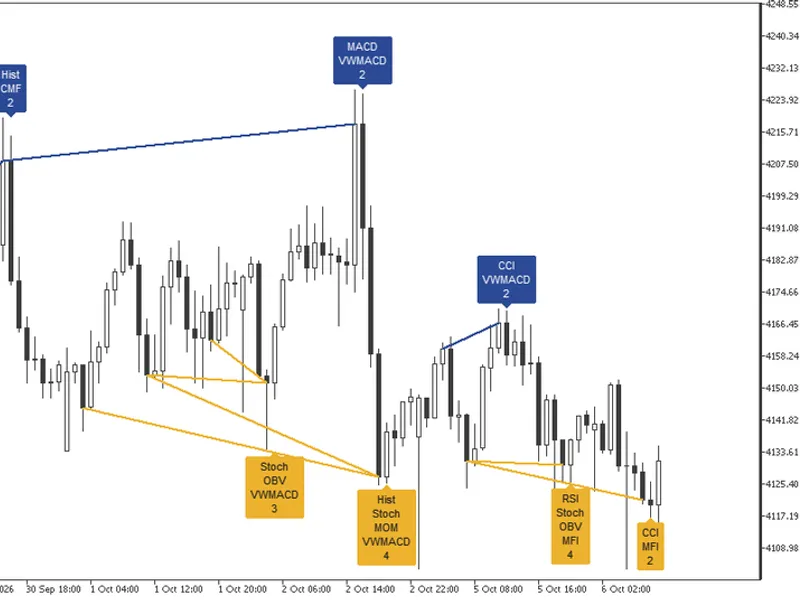
You may also like: Multi-Indicator Divergence Detector for MT4/MT5 - excellent alternative for indicator users on MetaTrader 5.
Source Code
#property copyright "RobotFX"
#property link "https://robotfx.org"
#property version   "1.00"
#property description "This code is educational. Feel free to use, modify and upgrade as you wish. Visit ROBOTFX.ORG for professional trading tools"
#property indicator_chart_window
#property indicator_buffers 0
#property indicator_plots   0
#property strict
input group "=== Timeframes to Display ==="
input bool InpShowM15 = true;
.......
⚠ Limitations & Risk Warning
- This tool is provided for educational and testing purposes only.
- Past performance does not guarantee future results.
- Trading involves substantial risk of loss. Use on a demo account first.
- Results may vary depending on market conditions, broker, and settings.
- We recommend thorough backtesting and forward testing before using with real funds.