
Trade History Logger: Recording Market Context at Entry and Exit
Info
The Trade History Logger: Recording Market Context at Entry and Exit is a Expert Advisor for MetaTrader 5 that exporting deal history is a common task, with many scripts available. However, this Expert Advisor focuses on a critical but often overlooked feature: recording the market's state at the precise moments of position opening and closing.
Usage
This tool is typically used for automated trading on major forex pairs and gold.
Platform
This Expert Advisor works exclusively on MetaTrader 5 (both build 600+ and newer versions).
Setup
Place the downloaded file in MQL5/Experts folder via File ? Open Data Folder in MetaTrader 5.
How to Install and Use Trade History Logger: Recording Market Context at Entry and Exit
1. Installation: Open the "File" menu, select "Open Data Folder," navigate to MQL/Experts, paste your file, and restart the terminal.
2. Activation: Drag the EA from the Navigator onto a chart, ensure "Allow live trading" is checked in the Common tab, and verify the AutoTrading button is green.
3. Optimization: Right-click your chart, choose "Expert List," click "Properties" to adjust inputs, and save your preferred setup as a set file for future use.
4. Maintenance: Regularly check the "Experts" tab in the terminal window to monitor trade logs and potential execution errors.
Frequently Asked Questions
Q: Why is my EA not opening trades? A: Check the "AutoTrading" button, ensure "Allow live trading" is enabled, and verify your broker allows automated trading on your account type.
Q: Can I run multiple EAs on one chart? A: No, each chart can only host one active EA; however, you can open multiple charts for different currency pairs to run several EAs.
Q: What does the "smiley face" icon mean? A: A smiley face in the top-right corner of the chart indicates the EA is successfully running; a frowny face means it is disabled.
What this tool does
Exporting deal history is a common task, with many scripts available.
Typical Use Case
This Expert Advisor excels in automated trading and technical analysis on MetaTrader 5.
Compatible Platform & Setup
This Expert Advisor works on MetaTrader 5. Place the file in the MQL5/Experts folder and restart the terminal.
Description & Settings
Related: Accurate Broker GMT Offset and Daylight Saving Time Rules from Price History - another powerful expert for MetaTrader 5 traders.
Exporting deal history is a common task, with many scripts available. However, this Expert Advisor focuses on a critical but often overlooked feature: recording the market's state at the precise moments of position opening and closing.Also recommended: Partial Close Multi TP Manager for MetaTrader 5 - similar expert with strong performance on MetaTrader 5.
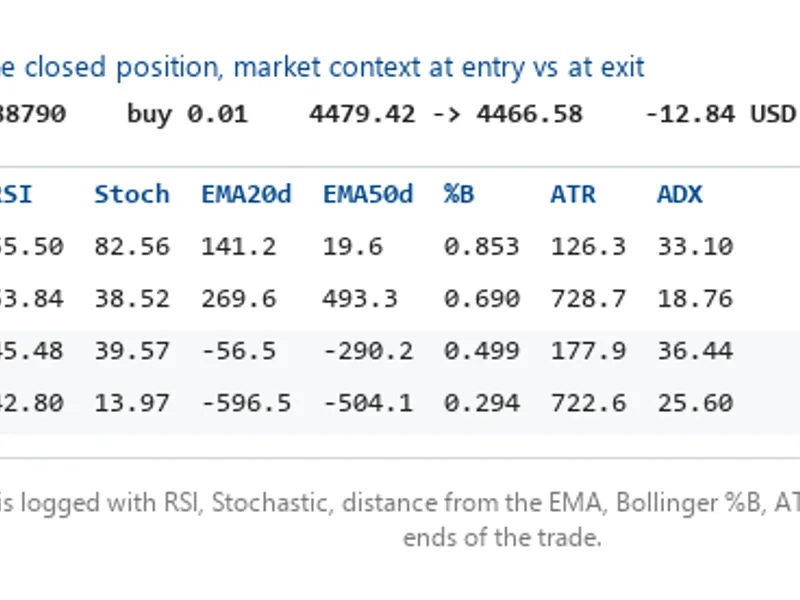
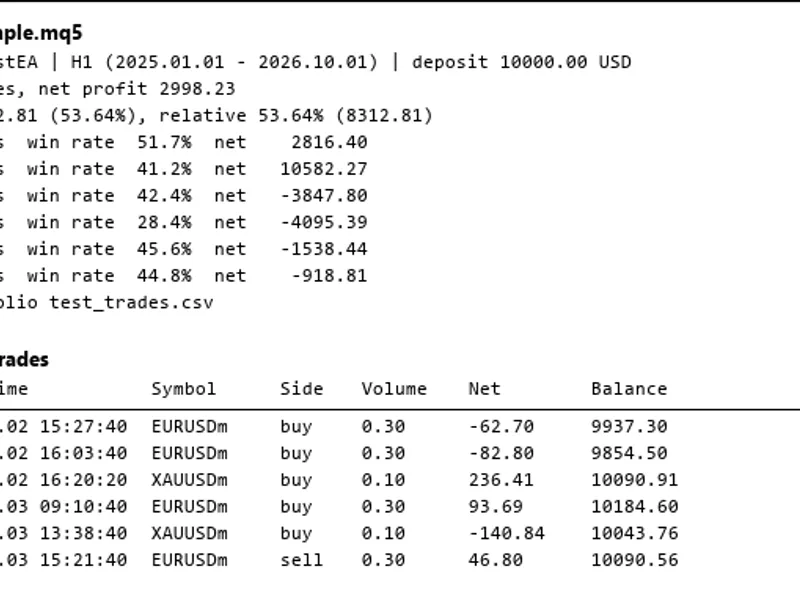
This Expert Advisor logs every closed position to a CSV file. Crucially, it includes technical indicators such as RSI, Stochastic, distance from the EMA20 and EMA50, Bollinger %B, ATR, and ADX. This data is captured on two timeframes, both at the time of entry and at the time of exit.
This comprehensive logging allows you to analyze your trading behavior and identify the underlying rules of a strategy, whether it's your own or one you are evaluating, based purely on the recorded data.
The tool operates strictly in a read-only mode. It will never open, close, or modify any positions.
Handling Data Integrity: Traps and Solutions
The process of deduplicating trade entries has undergone significant refinement. Each failed design is documented within the source code to provide valuable insights into the challenges encountered.
A proposed 'position_id watermark' approach, which aims to skip entries below the highest seen ID, was found to be flawed. Position IDs are assigned based on the order of position opening, not closing. This means a position held open for an extended period, even if closed later, could be incorrectly skipped.
A 'close_time watermark' addresses the ordering issue but introduces a new problem. MQL5 datetime values have a one-second resolution. If multiple positions close within the same second, the first one processed advances the watermark, causing subsequent positions closing in that same second to be missed.
The implemented solution uses a set of logged position IDs. This method makes no assumptions about the order of closing and is rebuilt from the CSV file upon restart, effectively avoiding the pitfalls of the previous approaches.
A separate challenge arises from the `HistorySelectByPosition()` function. Calling this function within a loop that iterates over the same history can corrupt the iteration process. From the second match onwards, the loop may incorrectly index into a single position's deals instead of the entire history window. This manifests as only one position being logged per timer tick. To prevent this, the scan operates in two phases: first, it collects all relevant position IDs, and second, it retrieves the historical data for those IDs.
Avoiding Data Loss: Two Critical Details
Positions can be closed via `DEAL_ENTRY_OUT` or `DEAL_ENTRY_OUT_BY`. The `DEAL_ENTRY_OUT_BY` type, used for closing positions against an opposite position on hedging accounts, requires specific handling. Code that only accounts for `DEAL_ENTRY_OUT` will fail to correctly mark these 'close by' positions as closed.
The magic number must be retrieved from the position's opening deal, not the closing deal. When a position is closed manually, via a mobile device, or using a 'Close By' operation, the closing deal might have a magic number of 0, while the opening deal retains the correct magic number. Filtering by magic number on the closing deal would silently discard these trades.
Inputs
Input Name
Meaning
InpSymbol
Symbol to track. If empty, the EA uses the chart's current symbol.
InpCsvFileName
The name of the output CSV file, which will be saved in the terminal's MQL5\Files directory.
InpCheckIntervalSec
The frequency, in seconds, at which the trade history is scanned.
InpMagicFilter
If set to a non-zero value, only trades with this specific magic number will be logged.
InpExcludeMagics
A comma-separated list of magic numbers to exclude from logging. If empty, all trades are logged.
InpBackfillHours
Number of hours to backfill when creating a NEW file. Set to 0 to start logging from the current time.
Notes on Inputs:
Regarding `InpExcludeMagics`: If you are analyzing an Expert Advisor whose magic numbers are unknown, it is more reliable to list the magic numbers of your own EAs and log everything else. This approach avoids the risk of missing trades if the analyzed EA uses multiple magic numbers.
Regarding `InpBackfillHours`: This setting only applies when a NEW CSV file is created. If the CSV file already exists, the EA will resume logging from the last recorded entry, regardless of this setting. To perform a backfill, you must first remove the EA from the chart, delete the existing CSV file, and then re-attach the EA. Deleting the file while the EA is running may result in the file being recreated without a header on the next write operation.
Clarification on `m1bar_spread_pts` Column
The `m1bar_spread_pts` column derives its data from the spread value recorded in the M1 (1-minute) bar. It represents a per-bar summary and not the exact spread at the moment of trade execution. For instance, on XAUUSD, the live spread might be 20 points across 60 consecutive readings, while the M1 bar's spread field might show a median of 6 points, a difference of approximately 3.3 times. As the instantaneous spread at the time of execution is not recoverable for a closed position, this column remains. However, it should not be used as a measure of execution cost. The actual trading costs are already factored into the profit, swap, and commission values.
You may also like: Strategy Tester Report Parser for Deals and Trades - excellent alternative for expert users on MetaTrader 5.
Source Code
#property copyright "RobotFX"
#property version   "1.00"
#property description "This code is educational. Feel free to use, modify and upgrade as you wish. Visit ROBOTFX.ORG for professional trading tools"
#property strict
input string InpSymbol           = "";
input string InpCsvFileName      = "trade_history.csv";
input int    InpCheckIntervalSec = 60;
input long   InpMagicFilter      = 0;
input string InpExcludeMagics   = "";
input int    InpBackfillHours    = 0;
.......
⚠ Limitations & Risk Warning
- This tool is provided for educational and testing purposes only.
- Past performance does not guarantee future results.
- Trading involves substantial risk of loss. Use on a demo account first.
- Results may vary depending on market conditions, broker, and settings.
- We recommend thorough backtesting and forward testing before using with real funds.