

MT5 Wizard: Trading Signals with Hammer/Hanging Man Patterns and MFI Confirmation
Info
The MT5 Wizard: Trading Signals with Hammer/Hanging Man Patterns and MFI Confirmation is a Expert Advisor for MetaTrader 5 that this tool allows the creation of ready-made expert advisors based on the classes delivered with the client terminal. It enables quick testing of your trading ideas; all you need to do is create your own trading signals class.
Usage
This tool is typically used for automated trading on major forex pairs and gold.
Platform
This Expert Advisor works exclusively on MetaTrader 5 (both build 600+ and newer versions).
Setup
Place the downloaded file in MQL5/Experts folder via File ? Open Data Folder in MetaTrader 5.
How to Install and Use MT5 Wizard: Trading Signals with Hammer/Hanging Man Patterns and MFI Confirmation
1. Installation: Open the "File" menu, select "Open Data Folder," navigate to MQL/Experts, paste your file, and restart the terminal.
2. Activation: Drag the EA from the Navigator onto a chart, ensure "Allow live trading" is checked in the Common tab, and verify the AutoTrading button is green.
3. Optimization: Right-click your chart, choose "Expert List," click "Properties" to adjust inputs, and save your preferred setup as a set file for future use.
4. Maintenance: Regularly check the "Experts" tab in the terminal window to monitor trade logs and potential execution errors.
Frequently Asked Questions
Q: Why is my EA not opening trades? A: Check the "AutoTrading" button, ensure "Allow live trading" is enabled, and verify your broker allows automated trading on your account type.
Q: Can I run multiple EAs on one chart? A: No, each chart can only host one active EA; however, you can open multiple charts for different currency pairs to run several EAs.
Q: What does the "smiley face" icon mean? A: A smiley face in the top-right corner of the chart indicates the EA is successfully running; a frowny face means it is disabled.
What this tool does
This tool allows the creation of ready-made Expert Advisors based on the classes delivered with the client terminal.
Typical Use Case
This Expert Advisor excels in automated trading and technical analysis on MetaTrader 5.
Compatible Platform & Setup
This Expert Advisor works on MetaTrader 5. Place the file in the MQL5/Experts folder and restart the terminal.
Description & Settings
Related: Tick Scalper Helper: Tick Chart and One-Click Trading Panel for MT5 - another powerful expert for MetaTrader 5 traders.
This tool allows the creation of ready-made Expert Advisors based on the classes delivered with the client terminal. It enables quick testing of your trading ideas; all you need to do is create your own trading signals class. The structure of this class and an example can be found in the article. The generic idea is as follows: a trading signals class is derived from a base class. Next, you must override the virtual methods with your own implementations.Also recommended: Basket Pair Closer: Efficiently Close Trading Positions - similar expert with strong performance on MetaTrader 5.
There is a book titled "Trading Strategies" (in Russian) that discusses many trading strategies. We will focus on reversal candlestick patterns, confirmed by MFI and oscillators.
The best approach is to create a separate class, derived from a candlestick pattern class, for checking the formation of candlestick patterns. For confirmation of trade signals generated by candlestick patterns, it is sufficient to write a class derived from CCandlestickPattern and add the necessary features, such as confirmation by oscillators.
Here, we will consider signals based on the "Hammer/Hanging Man" reversal candlestick pattern, confirmed by the MFI indicator. The trade signals module is based on a specific class, and this serves as a simple example of its use for creating trade signals with candlestick patterns.
Hammer and Hanging Man Reversal Candlestick Patterns
Hammer Pattern
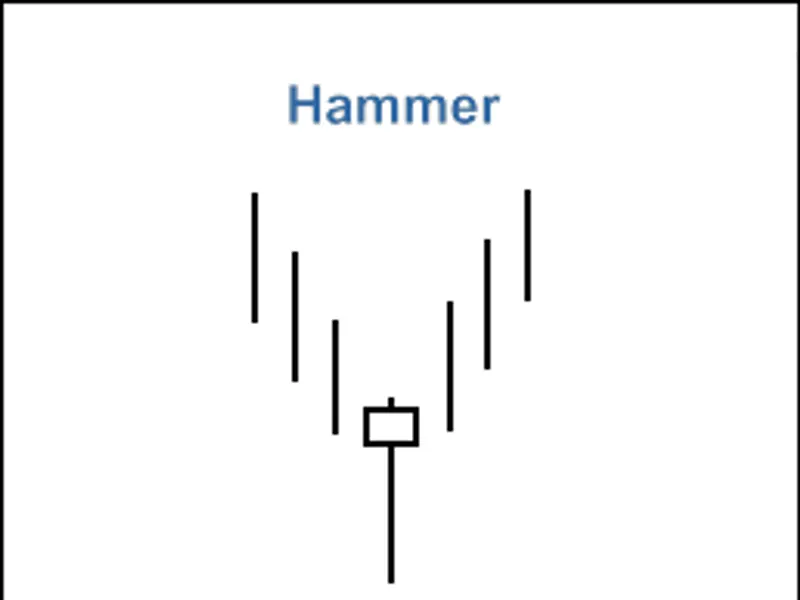
The "Hammer" is a candlestick with a small body and a long lower wick, formed after a downward price movement. The "Hammer" pattern indicates the end of a bearish trend.
The color of the candlestick body is not critical, but a bullish hammer suggests higher bullish potential. The body of the "Hammer" pattern is often formed near the minimum of the previous candle. A longer lower wick and a shorter upper wick increase the potential of the reversal pattern.
Figure 1 illustrates the "Hammer" candlestick pattern.
The recognition of the "Hammer" pattern is implemented in the checkPatternHammer() method of the class. The checkCandlestickPattern() method of the class is used to check for the formation of the "Hammer" candlestick pattern.
Hanging Man Pattern
The "Hanging Man" is a candlestick with a small body and a long lower wick, formed after an upward price movement. The "Hanging Man" pattern indicates the end of a bullish trend.
The color of the candlestick body is not critical, but a bearish candle suggests higher bearish potential. The body of the "Hanging Man" pattern is often formed near the maximum of the previous candle. A longer lower wick and a shorter upper wick increase the potential of the reversal pattern.
Figure 2 illustrates the "Hanging Man" candlestick pattern.
The recognition of the "Hanging Man" pattern is implemented in the checkPatternHangingMan() method of the class. The checkCandlestickPattern() method of the class is used to check for the formation of the "Hanging Man" candlestick pattern.
Trade Signals Confirmed by MFI Indicator
Trading signals to open long or short positions must be confirmed by the MFI indicator. The MFI indicator value must be below 40 for long positions or above 60 for short positions.
The closing of opened positions depends on the MFI indicator values. This can occur in two cases:
If MFI reaches the opposite critical level (70 for a long position and 30 for a short position).
If the reverse signal is not confirmed (when the MFI indicator reaches the following levels: 30 for a long position and 70 for a short position).
Figure 3 shows the "Hammer" pattern confirmed by the MFI indicator.
int ch_hm_mfi::longCondition() - checks conditions to open a long position (returns 80) and close a short position (returns 40).
int ch_hm_mfi::shortCondition() - checks conditions to open a short position (returns 80) and close a long position (returns 40).
Open Long Position / Close Short Position
The formation of a "Hammer" pattern must be confirmed by the MFI indicator: MFI(1) < 40 (the MFI indicator value of the last completed bar must be less than 40).
The short position must be closed if the MFI indicator has crossed upward the critical levels (70 or 30).
Open Short Position / Close Long Position
The formation of a "Hanging Man" pattern must be confirmed by the MFI indicator: MFI(1) > 60 (the MFI indicator value of the last completed bar must be greater than 60).
The long position must be closed if the MFI indicator has crossed upward the critical levels (70 or 30).
Creating an Expert Advisor Using the MQL5 Wizard
The ch_hm_mfi class is not included in the standard library classes. To use it, you must download the ah_hm_mfi.mqh file (see attachments) and save it to the client_terminal_data_folder\mql5\include\expert\signal\mysignals. The same should be done with the acandlepatterns.mqh file. You can use it in the MQL5 Wizard after restarting the MetaEditor.
To create an Expert Advisor, launch the MQL5 Wizard.
Figure 4 shows launching the MQL5 Wizard.
Specify the name of the Expert Advisor.
Figure 5 shows the general properties of the Expert Advisor.
After that, select the trading signal modules to be used.
Figure 6 shows the signal properties of the Expert Advisor.
In this case, we use only one trading signal module.
Adding the "Signals based on Hammer/Hanging Man confirmed by MFI" module of trading signals.
Figure 7 shows adding the signal module.
Figure 8 shows the signal module added.
You can select any trailing properties, but we will use "trailing stop not used".
Figure 9 shows the trailing properties.
Concerning the money management properties, we will use "trading with fixed trade volume".
Figure 10 shows the money management properties.
By pressing the "Finish" button, you will get the code of the generated Expert Advisor, located in expert_ah_hm_mfi.mq5. It will be saved in terminal_data_folder\mql5\experts\.
The default input parameters of the generated Expert Advisor:
Must be replaced to:
The signal_thresholdOpen and signal_thresholdClose input parameters allow specifying threshold levels for opening and closing positions.
In the code of the longCondition() and shortCondition() methods of the trade signals class, we have specified fixed values for the thresholds:
Open position: 80;
Close position: 40.
The Expert Advisor generated by the MQL5 Wizard opens and closes positions using "votes" from the trading signal modules. The vote of the main module (as a container, it consists of all added modules) is also used, but its longCondition() and shortCondition() methods always return 0.
The vote results of the main module are also used in "votes" averaging. In our case, we have the main module plus one trading signal module, so we need to account for this when setting the threshold values. Because of this, the thresholdOpen and thresholdClose must be set as 40 = (0+80)/2 and 20 = (0+40)/2.
The values of signal_stopLevel and signal_takeLevel input parameters are set to 0, which means that positions will only be closed when the closing conditions are met.
History Backtesting Results
Let's consider the backtesting of the Expert Advisor on historical data (EURUSD H1, testing period: 2010.01.01-2011.03.16, periodMFI=47, MA_period=5).
When creating the Expert Advisor, we used a fixed volume (0.1) and the trailing stop algorithm was not used.
Figure 11 shows the testing results of the Expert Advisor based on Hammer/Hanging Man + MFI.
The best set of input parameters can be found using the Strategy Tester of the MetaTrader 5 client terminal.
The code of the Expert Advisor created by the MQL5 Wizard is attached in expert_ah_hm_mfi.mq5.
You may also like: CME Equity Index Futures Holiday Calendar and Trading Halt Automation - excellent alternative for expert users on MetaTrader 5.
Source Code
#property copyright "robotfx"
#property link "https://robotfx.org"
#property version   "1.00"
#include <expert\expert.mqh>
#include <expert\signal\mysignals\ach_hm_mfi.mqh>
#include <expert\trailing\trailingnone.mqh>
#include <expert\money\moneyfixedlot.mqh>
input string expert_title         ="expert_ah_hm_mfi"; // document name
ulong        expert_magicnumber   =31875;              //
bool         expert_everytick     =false;              //
.......
⚠ Limitations & Risk Warning
- This tool is provided for educational and testing purposes only.
- Past performance does not guarantee future results.
- Trading involves substantial risk of loss. Use on a demo account first.
- Results may vary depending on market conditions, broker, and settings.
- We recommend thorough backtesting and forward testing before using with real funds.