
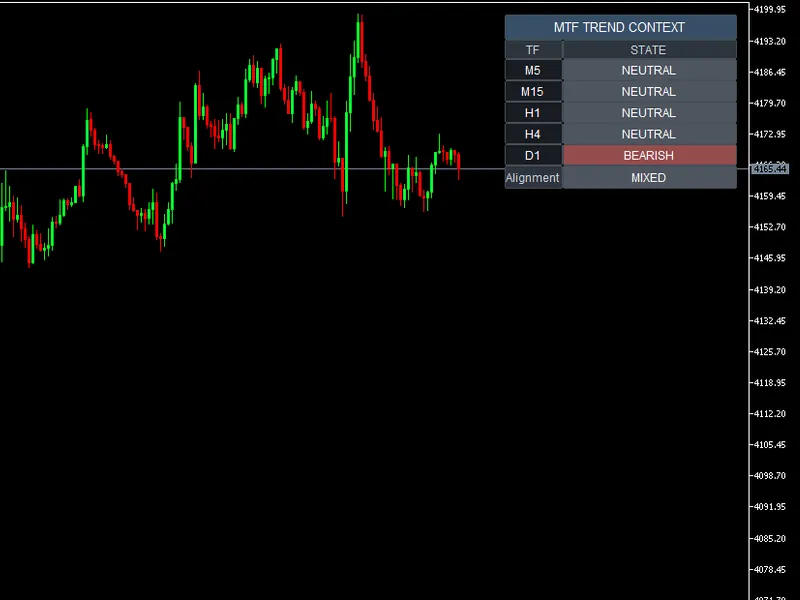
Market Replay Tool for MT5
Info
The Market Replay Tool for MT5 is a Expert Advisor for MetaTrader 5 that market replay tool for mt5how to useinitializationattach the expert advisor (ea) to your desired chart (e. g.
Usage
This tool is typically used for automated trading on major forex pairs and gold.
Platform
This Expert Advisor works exclusively on MetaTrader 5 (both build 600+ and newer versions).
Setup
Place the downloaded file in MQL5/Experts folder via File ? Open Data Folder in MetaTrader 5.
How to Install and Use Market Replay Tool for MT5
1. Installation: Open the "File" menu, select "Open Data Folder," navigate to MQL/Experts, paste your file, and restart the terminal.
2. Activation: Drag the EA from the Navigator onto a chart, ensure "Allow live trading" is checked in the Common tab, and verify the AutoTrading button is green.
3. Optimization: Right-click your chart, choose "Expert List," click "Properties" to adjust inputs, and save your preferred setup as a set file for future use.
4. Maintenance: Regularly check the "Experts" tab in the terminal window to monitor trade logs and potential execution errors.
Frequently Asked Questions
Q: Why is my EA not opening trades? A: Check the "AutoTrading" button, ensure "Allow live trading" is enabled, and verify your broker allows automated trading on your account type.
Q: Can I run multiple EAs on one chart? A: No, each chart can only host one active EA; however, you can open multiple charts for different currency pairs to run several EAs.
Q: What does the "smiley face" icon mean? A: A smiley face in the top-right corner of the chart indicates the EA is successfully running; a frowny face means it is disabled.
What this tool does
Market Replay Tool for MT5How to UseInitializationAttach the Expert Advisor (EA) to your desired chart (e.
Typical Use Case
This Expert Advisor excels in automated trading and technical analysis on MetaTrader 5.
Compatible Platform & Setup
This Expert Advisor works on MetaTrader 5. Place the file in the MQL5/Experts folder and restart the terminal.
Description & Settings
Related: Regime HMM: Identifying Market Regimes with Hidden Markov Models - another powerful expert for MetaTrader 5 traders.
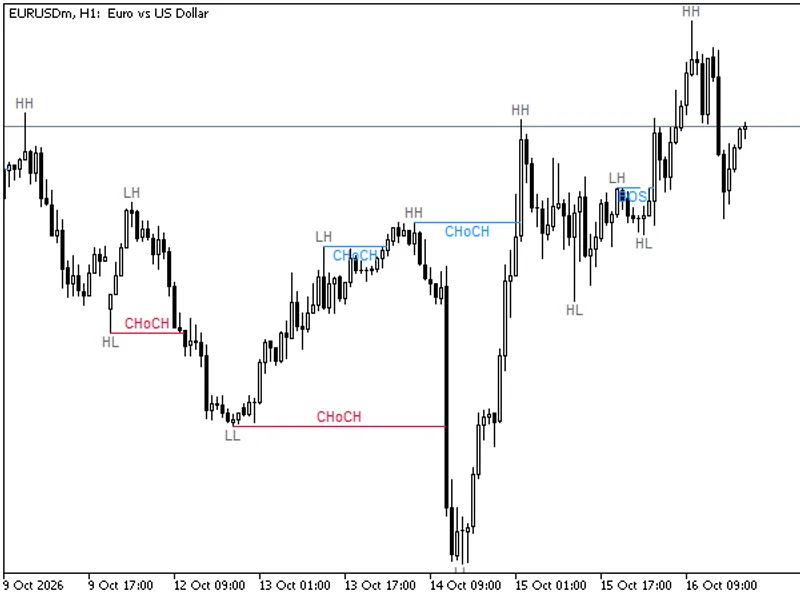
Market Replay Tool for MT5Also recommended: Smart Money Concept Expert Advisor: Market Structure, FVG, and Pullback Trading - similar expert with strong performance on MetaTrader 5.
How to Use
Initialization
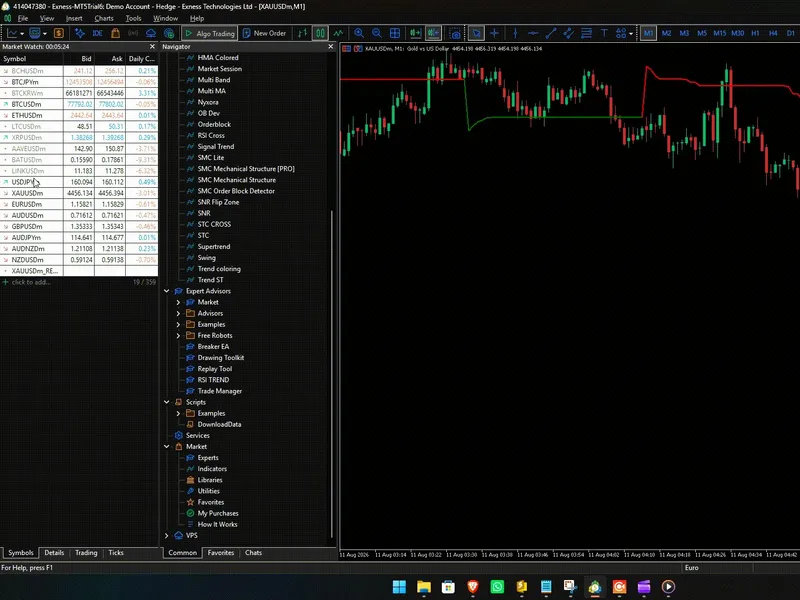
Attach the Expert Advisor (EA) to your desired chart (e.g., BTCUSD). The EA will automatically create and load a custom replay symbol (e.g., BTCUSD _REPLAY ). Open this newly created custom chart.
Starting the Replay
Locate the Replay Panel, typically in the top-left corner of your chart. Click the "SELECT" button. A yellow vertical line will appear on the chart; drag this line to set your desired starting date for the replay. Once the starting date is positioned, click "LOAD DATA", followed by "PLAY" to commence the simulation.
Playback Controls
Adjust the speed of the candle formation using the speed multiplier buttons, which range from 0.5x to 20x. You have the flexibility to pause the replay at any moment. Additionally, use the skip buttons ( +10 , -10 , << , >> ) to rapidly advance or rewind the simulation.
Drawing Trade Setups (Long/Short)
Navigate to the Drawing Toolbar, usually found in the bottom-right area of your chart. Click either the "LONG" or "SHORT" button to begin drawing your trade setup.
Click once on the chart to establish your Entry price.
Move your mouse cursor to define the distance for your Stop Loss.
Click a second time to confirm and finalize the setup. The Take Profit level will be automatically generated.
Dynamic Adjustments:
You can modify your trade setup at any time by dragging the Entry, Stop Loss, or Take Profit lines directly on the chart.
Important Note on Chart Settings
To ensure the replay tool can access and load extensive historical data without any limitations, please review your MetaTrader 5 chart settings. Go to Tools > Options > Charts from the top menu bar. Set the "Max bars in chart" option to "Unlimited" (or a very high number, such as 1,000,000). If this setting is restricted, older historical data may not load properly during your replay session, potentially affecting the accuracy of the simulation.
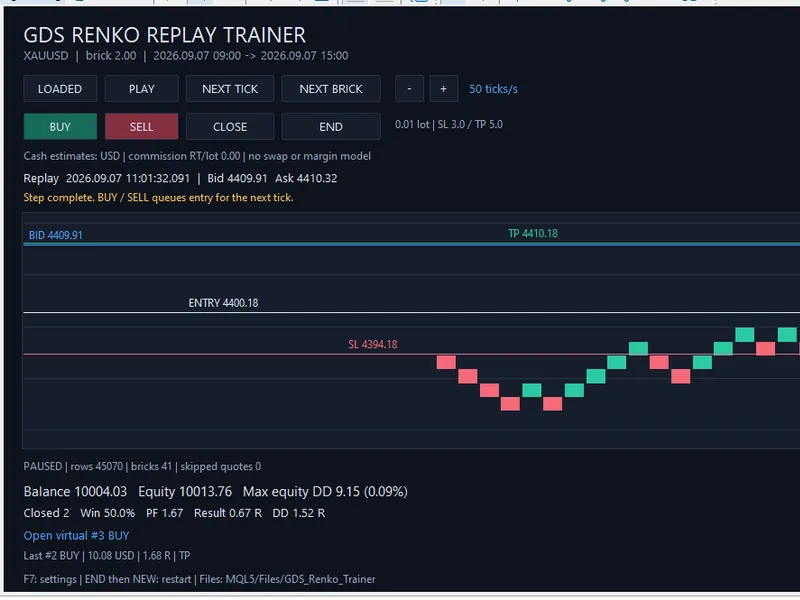
You may also like: GDS Renko Replay Trainer - MT4/MT5 - excellent alternative for expert users on MetaTrader 5.
Source Code
#property copyright "RobotFX"
#property version   "1.00"
#property link "https://robotfx.org"
#property strict
input group "=== REPLAY SETTINGS ==="
input string   InpSourceSymbol       = "XAUUSD";
input datetime InpStartDate          = D'2026.01.01 00:00';
input int      InpBaseTimerMS        = 200;
input int      InpDownloadTimeoutSec = 30;
input int      InpMinVisibleBars     = 50;
.......
⚠ Limitations & Risk Warning
- This tool is provided for educational and testing purposes only.
- Past performance does not guarantee future results.
- Trading involves substantial risk of loss. Use on a demo account first.
- Results may vary depending on market conditions, broker, and settings.
- We recommend thorough backtesting and forward testing before using with real funds.