

Ezo Trade Manager: Break-Even and Trailing Stop for Open Positions
Info
The Ezo Trade Manager: Break-Even and Trailing Stop for Open Positions is a Expert Advisor for MetaTrader 5 that ezo trade manager is a utility expert advisor designed to manage the stop loss levels for open positions, regardless of whether they were opened manually or by another expert advisor. This tool exclusively modifies stop loss levels and does not initiate new trades or close existing ones.
Usage
This tool is typically used for automated trading on major forex pairs and gold.
Platform
This Expert Advisor works exclusively on MetaTrader 5 (both build 600+ and newer versions).
Setup
Place the downloaded file in MQL5/Experts folder via File ? Open Data Folder in MetaTrader 5.
How to Install and Use Ezo Trade Manager: Break-Even and Trailing Stop for Open Positions
1. Installation: Open the "File" menu, select "Open Data Folder," navigate to MQL/Experts, paste your file, and restart the terminal.
2. Activation: Drag the EA from the Navigator onto a chart, ensure "Allow live trading" is checked in the Common tab, and verify the AutoTrading button is green.
3. Optimization: Right-click your chart, choose "Expert List," click "Properties" to adjust inputs, and save your preferred setup as a set file for future use.
4. Maintenance: Regularly check the "Experts" tab in the terminal window to monitor trade logs and potential execution errors.
Frequently Asked Questions
Q: Why is my EA not opening trades? A: Check the "AutoTrading" button, ensure "Allow live trading" is enabled, and verify your broker allows automated trading on your account type.
Q: Can I run multiple EAs on one chart? A: No, each chart can only host one active EA; however, you can open multiple charts for different currency pairs to run several EAs.
Q: What does the "smiley face" icon mean? A: A smiley face in the top-right corner of the chart indicates the EA is successfully running; a frowny face means it is disabled.
What this tool does
Ezo Trade Manager is a utility Expert Advisor designed to manage the stop loss levels for open positions, regardless of whether they were opened manually or by another Expert Advisor.
Typical Use Case
This Expert Advisor excels in automated trading and technical analysis on MetaTrader 5.
Compatible Platform & Setup
This Expert Advisor works on MetaTrader 5. Place the file in the MQL5/Experts folder and restart the terminal.
Description & Settings
Related: Devil Trader AI Lite: Exclusive Gold Strategy for M30 & H1 Timeframes - another powerful expert for MetaTrader 5 traders.
Ezo Trade Manager is a utility Expert Advisor designed to manage the stop loss levels for open positions, regardless of whether they were opened manually or by another Expert Advisor.Also recommended: Seven-Bar Pressure Flip (SBPF) Sell-Only Expert Advisor for MetaTrader 5 - similar expert with strong performance on MetaTrader 5.
This tool exclusively modifies stop loss levels and does not initiate new trades or close existing ones. It only moves the stop loss in a favorable direction for the trader; take profit levels remain unchanged.
Break-Even Feature:
When a position reaches a predefined profit level (specified in points), the stop loss is automatically adjusted to the entry price plus a small locked profit. This ensures that the trade cannot result in a loss, barring any significant gaps or slippage.
Trailing Stop Feature:
After a secondary profit target is met, the stop loss will trail the market price at a fixed distance (in points) or a multiple of the Average True Range (ATR) based on a user-selected timeframe.
A minimum step setting prevents excessive stop loss modifications on every tick, and the stop loss is never moved backward.
Safety and User Interface:
The Expert Advisor respects the broker's stop level and freeze level requirements, preventing rejected modification requests. A compact panel displayed on the chart provides clear information on the current settings, the number of positions being managed, the count of stop loss modifications, and the last executed action.
Configurable Inputs:
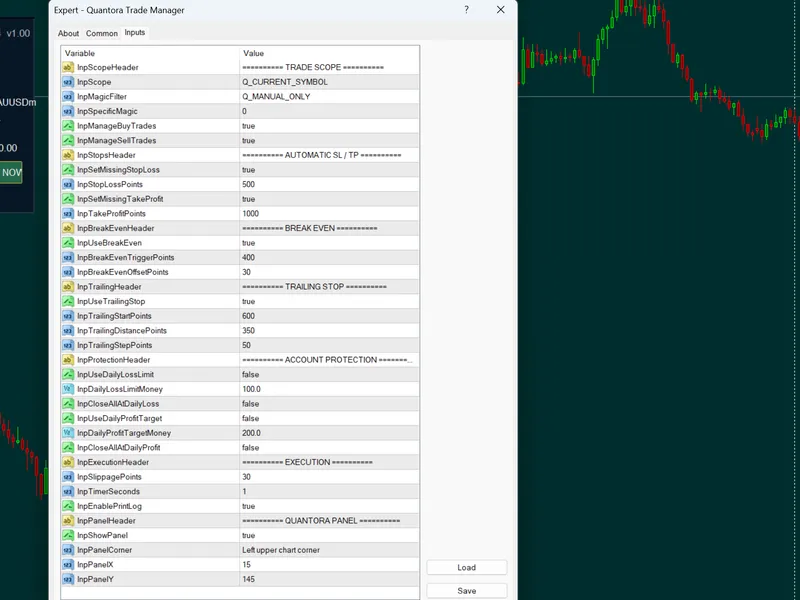
- Symbols to manage: Option to manage only the current chart's symbol or all symbols on the account.
- Magic number: Specify -1 for all positions, 0 for manual trades only, or the specific magic number of an Expert Advisor.
- Break-even trigger and lock: Set the profit level (in points) to activate break-even; set to 0 to disable.
- Trailing stop parameters: Choose between points or ATR mode, set the trailing start level, distance, ATR timeframe, ATR period, ATR multiple, and minimum step.
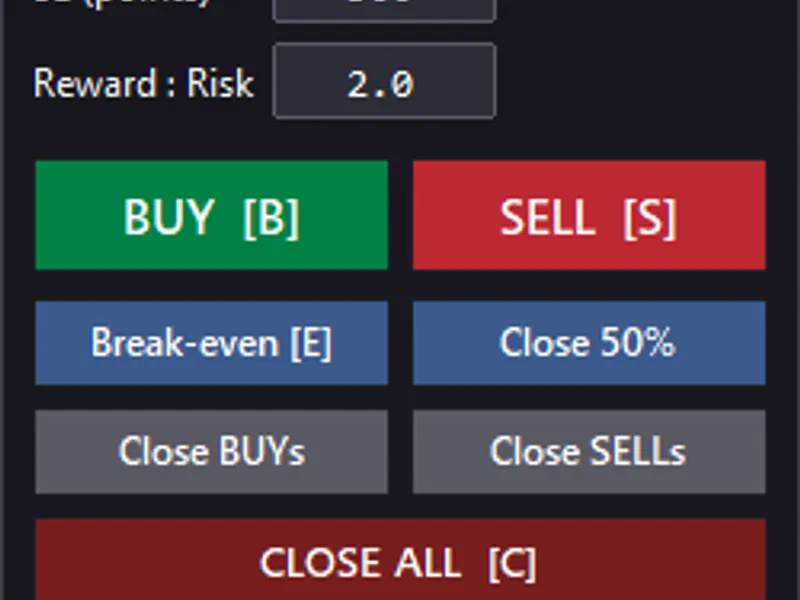
- Panel display: Option to show or hide the management panel and customize its color.
To use Ezo Trade Manager, simply attach it to any chart. If the 'all symbols' option is selected, a single chart instance is sufficient to manage all open trades across the entire account. Note that 'points' are specific to the symbol; for instance, on Gold with two decimal places, 100 points equate to a 1.00 price movement.
You may also like: Close All Trades at Total Profit or Loss Target - excellent alternative for expert users on MetaTrader 5.
Source Code
#property copyright "RobotFX"
#property version   "1.00"
#property description "This code is educational. Feel free to use, modify and upgrade as you wish. Visit ROBOTFX.ORG for professional trading tools"
#include <Trade\Trade.mqh>
enum ENUM_TRAIL_MODE
  {
   TRAIL_POINTS = 0,
   TRAIL_ATR    = 1
  };
enum ENUM_SCOPE
.......
⚠ Limitations & Risk Warning
- This tool is provided for educational and testing purposes only.
- Past performance does not guarantee future results.
- Trading involves substantial risk of loss. Use on a demo account first.
- Results may vary depending on market conditions, broker, and settings.
- We recommend thorough backtesting and forward testing before using with real funds.