


Daily Loss Guard - Protect Your Trading Account
Info
The Daily Loss Guard - Protect Your Trading Account is a Expert Advisor for MetaTrader 5 that daily loss guard closes all trades when your daily loss reaches your specified limit. This utility attaches to any chart and does not open trades itself; it operates alongside your manual trading activities and other Expert Advisors.
Usage
This tool is typically used for automated trading on major forex pairs and gold.
Platform
This Expert Advisor works exclusively on MetaTrader 5 (both build 600+ and newer versions).
Setup
Place the downloaded file in MQL5/Experts folder via File ? Open Data Folder in MetaTrader 5.
How to Install and Use Daily Loss Guard - Protect Your Trading Account
1. Installation: Open the "File" menu, select "Open Data Folder," navigate to MQL/Experts, paste your file, and restart the terminal.
2. Activation: Drag the EA from the Navigator onto a chart, ensure "Allow live trading" is checked in the Common tab, and verify the AutoTrading button is green.
3. Optimization: Right-click your chart, choose "Expert List," click "Properties" to adjust inputs, and save your preferred setup as a set file for future use.
4. Maintenance: Regularly check the "Experts" tab in the terminal window to monitor trade logs and potential execution errors.
Frequently Asked Questions
Q: Why is my EA not opening trades? A: Check the "AutoTrading" button, ensure "Allow live trading" is enabled, and verify your broker allows automated trading on your account type.
Q: Can I run multiple EAs on one chart? A: No, each chart can only host one active EA; however, you can open multiple charts for different currency pairs to run several EAs.
Q: What does the "smiley face" icon mean? A: A smiley face in the top-right corner of the chart indicates the EA is successfully running; a frowny face means it is disabled.
What this tool does
Daily Loss Guard closes all trades when your daily loss reaches your specified limit.
Typical Use Case
This Expert Advisor excels in automated trading and technical analysis on MetaTrader 5.
Compatible Platform & Setup
This Expert Advisor works on MetaTrader 5. Place the file in the MQL5/Experts folder and restart the terminal.
Description & Settings
Related: Prop Guard Lite: Daily and Max Loss Protection for Prop Firm Accounts - another powerful expert for MetaTrader 5 traders.
Daily Loss Guard closes all trades when your daily loss reaches your specified limit. This utility attaches to any chart and does not open trades itself; it operates alongside your manual trading activities and other Expert Advisors.Also recommended: Prop Firm Guard: Daily Loss and Max Drawdown Protection - similar expert with strong performance on MetaTrader 5.
It also functions on a timer, meaning it can be attached to a chart with no current trading activity. Any symbol and timeframe can be used, for example, EURUSD on M15.
How it Works:
The utility monitors today's closed trades and the cumulative change in currently open trades since the start of the trading day. Deposits and withdrawals are not considered trades and therefore do not contribute to the daily loss calculation.
When the total calculated loss reaches your predefined limit, Daily Loss Guard will close all open positions and remove any pending orders. It will continue to close any new trades that may open until the start of the next trading day.
The trading day begins at a server time that you can configure. The initial balance at the start of the day and the status of whether the limit has been hit are stored in the terminal's global variables. This ensures that even if the terminal restarts or the utility is re-attached during the day, the settings are maintained, and a new day commences with a fresh reset automatically.
The User Interface Panel:
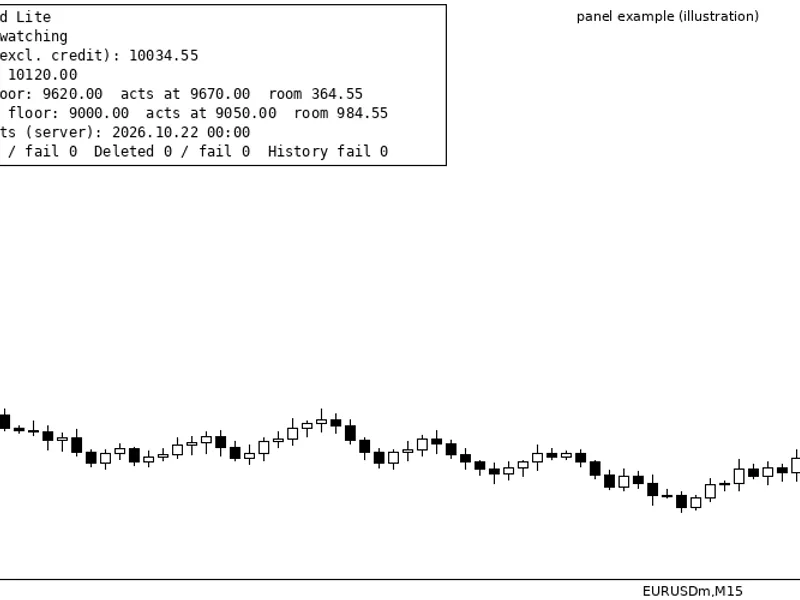
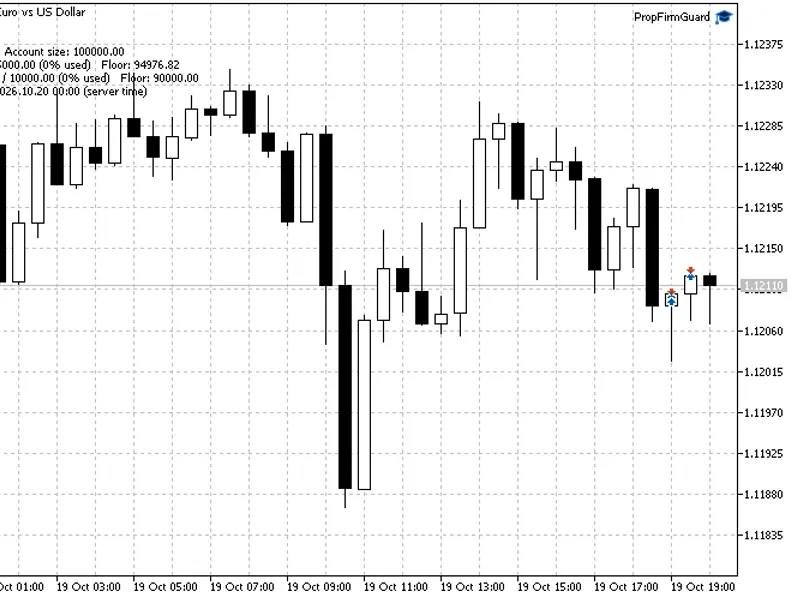
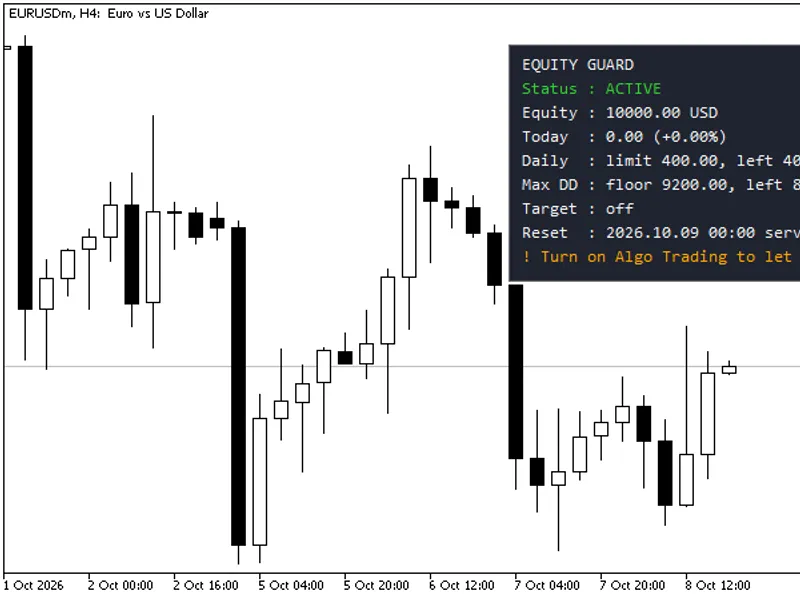
The panel displays the start time of the trading day, the balance at the start of the day, your loss limit in monetary terms, today's net result (separated into closed and open trade values), the percentage of the limit that has been utilized, and the current status: ACTIVE, WARNING (when 75 percent of the limit is in use), or LIMIT HIT, along with the time it occurred. If algorithmic trading is disabled in your terminal, the panel will indicate this, as the guard requires algorithmic trading to be enabled to close trades.
Input Parameters:
Limit Type: You can set the loss limit as a percentage of the day's starting balance or as a fixed amount in your account's currency.
Limit (%): The default value is 2.0.
Limit (Account Currency): The default value is 100.
New Day Starts At (Server Hour, 0-23): The default value is 0.
Close Positions, Delete Pending Orders, Close New Trades Until Next Day: All these options are enabled by default.
Max Slippage (Points): The default value is 20.
Symbols: Leave this field empty to monitor all symbols. Alternatively, you can specify a list of symbols, such as EURUSD,XAUUSD. Magic Number: A value of -1 monitors all trades. A value of 0 monitors manual trades only. You can set a specific magic number if desired.
Alerts: Options include Pop-up Alert, Push Notification, Show Panel, and Panel Position (Panel X and Panel Y).
Important Considerations:
This utility closes trades at the market price. Therefore, during periods of high volatility or rapid news events, the actual loss might slightly exceed the set limit. It is always recommended to use stop losses in conjunction with this tool. Daily Loss Guard does not provide trading signals and does not guarantee profits. This utility is designed for risk management and was updated in 2026.
You may also like: Equity Guard: Daily Loss, Max Drawdown, and Profit Target Protection for MT5 - excellent alternative for expert users on MetaTrader 5.
Source Code
#property version   "1.00"
#property description "This code is educational. Feel free to use, modify and upgrade as you wish. Visit ROBOTFX.ORG for professional trading tools"
#include <DailyLossGuard\DailyLossGuard.mqh>
input group "Limit"
input ENUM_DLG_LIMIT InpLimitType      = DLG_LIMIT_PERCENT;
input double         InpLimitPercent   = 2.0;
input double         InpLimitMoney     = 100.0;
input int            InpResetHour      = 0;
input group "Action when the limit is hit"
input bool           InpClosePositions = true;
.......
⚠ Limitations & Risk Warning
- This tool is provided for educational and testing purposes only.
- Past performance does not guarantee future results.
- Trading involves substantial risk of loss. Use on a demo account first.
- Results may vary depending on market conditions, broker, and settings.
- We recommend thorough backtesting and forward testing before using with real funds.