






Prop Guard Lite: Daily and Max Loss Protection for Prop Firm Accounts
Info
The Prop Guard Lite: Daily and Max Loss Protection for Prop Firm Accounts is a Expert Advisor for MetaTrader 5 that propguard lite is a risk management tool designed for proprietary trading firm accounts (e. g.
Usage
This tool is typically used for automated trading on major forex pairs and gold.
Platform
This Expert Advisor works exclusively on MetaTrader 5 (both build 600+ and newer versions).
Setup
Place the downloaded file in MQL5/Experts folder via File ? Open Data Folder in MetaTrader 5.
How to Install and Use Prop Guard Lite: Daily and Max Loss Protection for Prop Firm Accounts
1. Installation: Open the "File" menu, select "Open Data Folder," navigate to MQL/Experts, paste your file, and restart the terminal.
2. Activation: Drag the EA from the Navigator onto a chart, ensure "Allow live trading" is checked in the Common tab, and verify the AutoTrading button is green.
3. Optimization: Right-click your chart, choose "Expert List," click "Properties" to adjust inputs, and save your preferred setup as a set file for future use.
4. Maintenance: Regularly check the "Experts" tab in the terminal window to monitor trade logs and potential execution errors.
Frequently Asked Questions
Q: Why is my EA not opening trades? A: Check the "AutoTrading" button, ensure "Allow live trading" is enabled, and verify your broker allows automated trading on your account type.
Q: Can I run multiple EAs on one chart? A: No, each chart can only host one active EA; however, you can open multiple charts for different currency pairs to run several EAs.
Q: What does the "smiley face" icon mean? A: A smiley face in the top-right corner of the chart indicates the EA is successfully running; a frowny face means it is disabled.
What this tool does
PropGuard Lite is a risk management tool designed for proprietary trading firm accounts (e.
Typical Use Case
This Expert Advisor excels in automated trading and technical analysis on MetaTrader 5.
Compatible Platform & Setup
This Expert Advisor works on MetaTrader 5. Place the file in the MQL5/Experts folder and restart the terminal.
Description & Settings
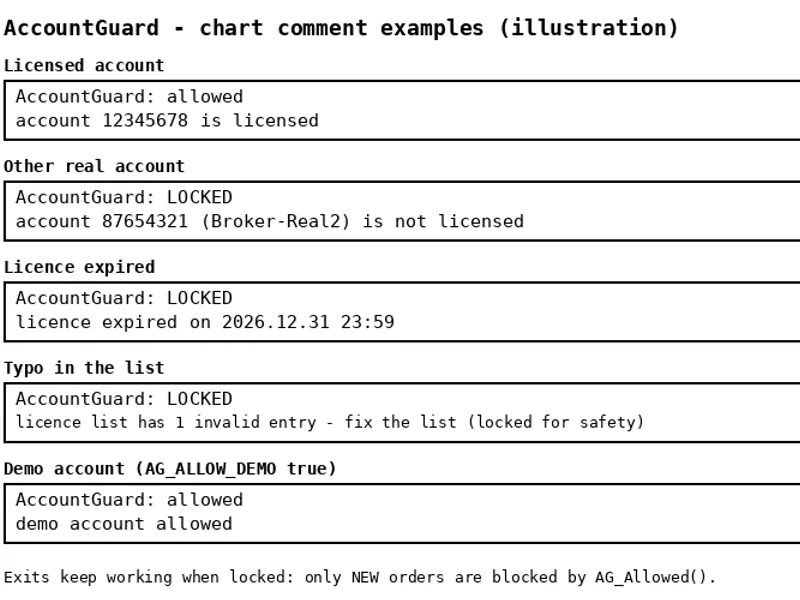
Related: Account Guard: EA Account Locking for MT5 - another powerful expert for MetaTrader 5 traders.
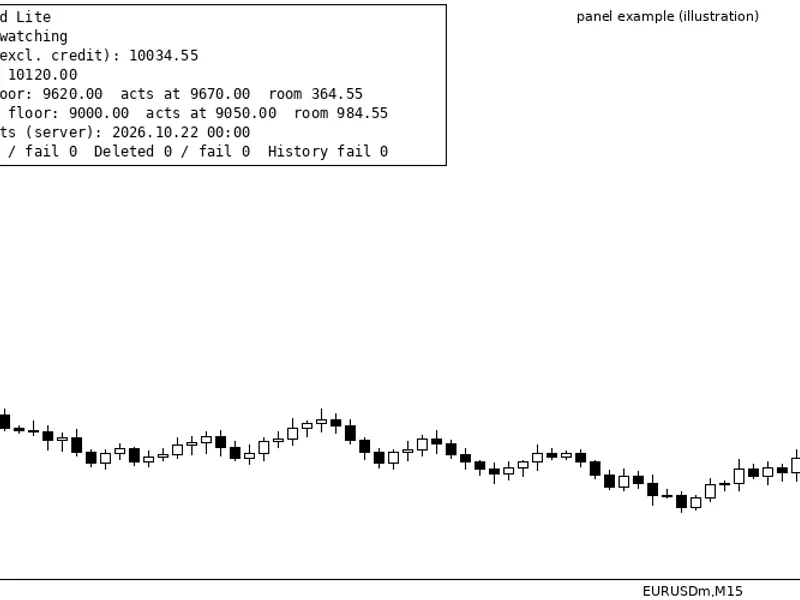
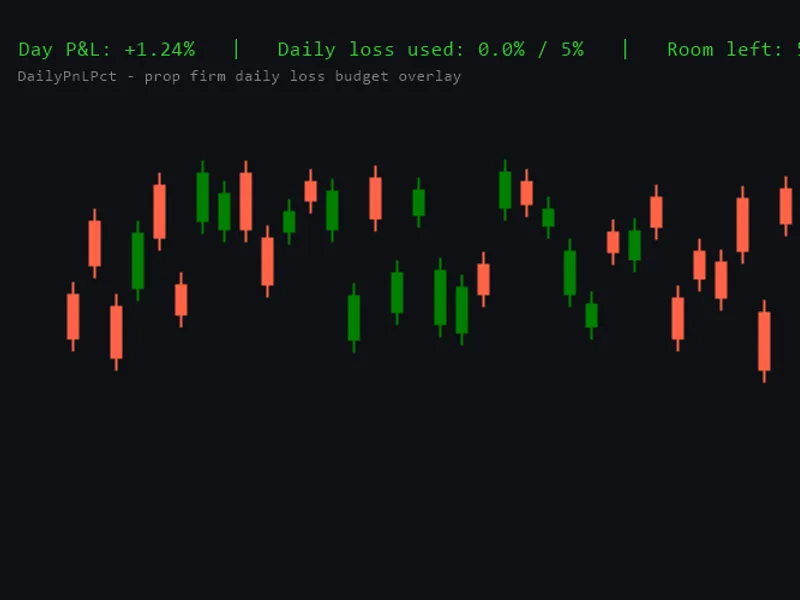
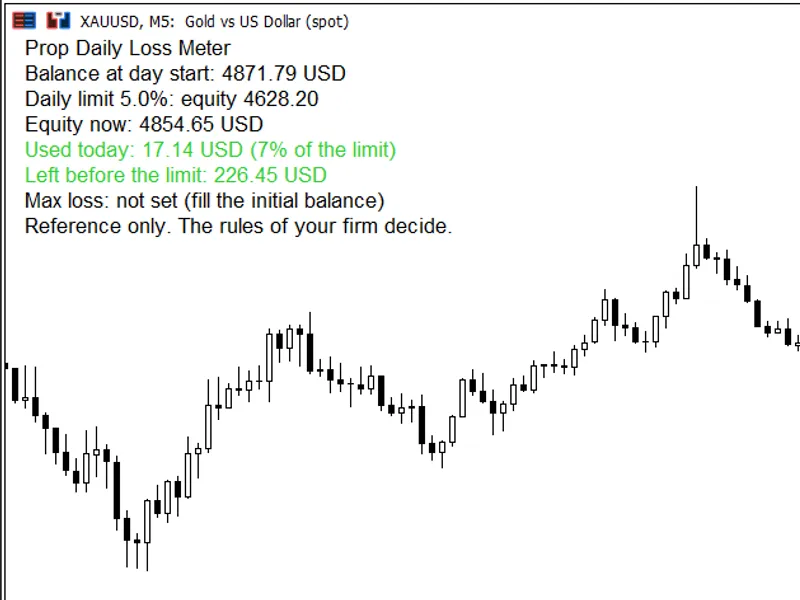
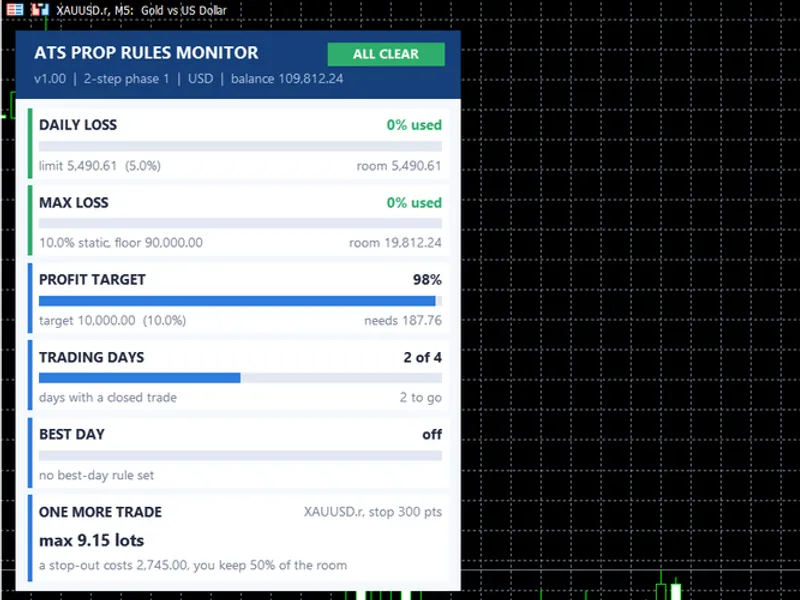
PropGuard Lite is a risk management tool designed for proprietary trading firm accounts (e.g., FTMO) and for any trader seeking a strict stop on unfavorable trading days. This tool operates on a live or demo chart and does not initiate trades itself. Functionality PropGuard Lite monitors account equity, including unrealized profits and losses. Upon reaching a predefined limit, it performs the following actions: Closes all open positions (or optionally, only positions with a specific magic number), starting with the oldest. Deletes pending orders. Continuously closes any subsequent trades that are opened. A daily trading halt remains active until the commencement of the next trading day. A maximum loss halt persists until manually reset. Key Features Daily Loss Limit: Set as a percentage of the initial capital (similar to FTMO's model) or as a percentage of the day's starting reference equity. Day-Start Reference: This can be the account balance at the beginning of the trading day, or the higher value between the balance and the floating equity at the start of the day. Maximum (Overall) Loss Limit: A percentage of the initial account capital. Safety Buffer: The tool activates slightly before the absolute limit is reached, providing a cushion for potential slippage. Day Reset Time: Configure the hour for resetting the daily loss calculation, factoring in the firm's time zone offset from the trading server. Restart-Safe Operation: The daily starting balance is recalculated from the trading history upon each check. This ensures that restarting the terminal, recompiling the indicator, or synchronizing with a VPS does not reset the daily loss reference. Halt states are preserved using terminal global variables. Chart Panel: Displays real-time information including the current equity reference, loss floors, remaining allowance, and counters for successful and failed trade closures. CSV Log: Records every halt, closure, and failure event with its corresponding return code in the MQL5/Files/PropGuard_log.csv file. Push Notifications: Optional alerts sent to the MT5 mobile application. Built-in Self-Test: Activated by setting InpRunSelfTest to true. This feature verifies the accuracy of day-boundary and limit calculations against known values and saves the results to PropGuard_selftest.txt. Input Parameters InpInitialCapital: The starting capital of the account (e.g., 100000). If set to 0, the tool automatically detects the initial deposit from the account history. Auto-detection is only applied if the current balance is within 0.5x to 2x of this initial value; otherwise, a warning is issued, and limits are not monitored until InpInitialCapital is manually set. InpUseDaily: Enables or disables the daily loss limit. InpDailyLossPct: The percentage defining the daily loss limit. InpDailyBase: Specifies whether the daily loss percentage is calculated from the initial capital or the day-start reference. InpDayRef: Determines the day-start reference value: account balance, or the higher of balance and floating equity. InpResetHour: The hour (0-23) at which the daily reset occurs, based on the firm's time zone. InpServerMinusResetTZ: The difference in hours between the trading server time and the firm's time zone (0 if they are the same). InpUseMaxLoss: Enables or disables the maximum overall loss limit. InpMaxLossPct: The maximum allowed loss as a percentage of the initial capital. InpClearMaxLossHalt: Set to true once to clear a previously saved maximum loss halt. Afterward, set this parameter back to false. InpBufferPct: The percentage of capital before the limit at which the guard should activate. InpScope: Determines whether to close all open positions or only those associated with a specific magic number when a halt occurs. InpMagic: The magic number to use when InpScope is set to 'magic'. Set to 0 for manual trades. InpDeletePending: If true, pending orders will be deleted when a halt occurs. InpDeviationPoints: The maximum allowed slippage in points when closing positions. InpPush: Enables or disables push notifications to the MT5 mobile app. InpShowPanel: Toggles the visibility of the status panel in the chart corner. InpRunSelfTest: If true, the self-test routine will execute upon the indicator's startup. InpTesterDemo: For Strategy Tester use only. This option opens simulated demo trades (approximately 10x notional value, one every 4 hours, alternating buy/sell) to allow observation of the guard's halting and closing actions. This setting has no effect on live or demo trading charts. Quick Setup Example (FTMO-style 100k account) InpInitialCapital = 100000 (Manually set to your prop account's initial capital) InpDailyLossPct = 5, InpDailyBase = % of initial capital InpDayRef = balance at day start (or 'higher of' if your firm uses that method) InpResetHour = 0, InpServerMinusResetTZ = server time minus your firm's time zone offset InpMaxLossPct = 10 InpBufferPct = 0.5 (Activation occurs approximately 500 units before the limit is reached for a 100k account) Strategy Tester Considerations Since the PropGuard Lite tool does not trade, the InpTesterDemo parameter must be enabled in the Strategy Tester to generate simulated trades for observation. The performance report in the tester will display these demo trades; they are not indicative of a trading strategy, and their results are not meaningful. Single Instance Operation Ensure Algo Trading is enabled in the MetaTrader terminal where the PropGuard Lite tool is actively running. If you migrate the tool to a Virtual Private Server (VPS), disable Algo Trading in your local terminal to prevent duplicate actions on the account. When Algo Trading is disabled on a local terminal, the status panel will indicate this, which is expected behavior when the tool is managed by a VPS. Accurate Limit Enforcement This tool cannot disable other Expert Advisors (EAs). When a halt condition is met, it will close any trades initiated by other EAs. Adjust InpServerMinusResetTZ if the server and the firm's time zone observe daylight saving time changes on different dates. The 'higher of balance/equity' reference requires the EA to be active at the precise reset moment. If it was not running, the panel will display the balance-based reference as 'estimated'. If the market is closed when a closure is triggered, the closure attempts may fail. These will be retried and logged. Always consult your prop firm's specific trading rules. This tool is designed to assist in adhering to those rules, but it does not substitute for understanding and compliance with them. Disclaimer: This tool was last updated in 2026.Also recommended: Prop Firm Guard: Daily Loss and Max Drawdown Protection - similar expert with strong performance on MetaTrader 5.
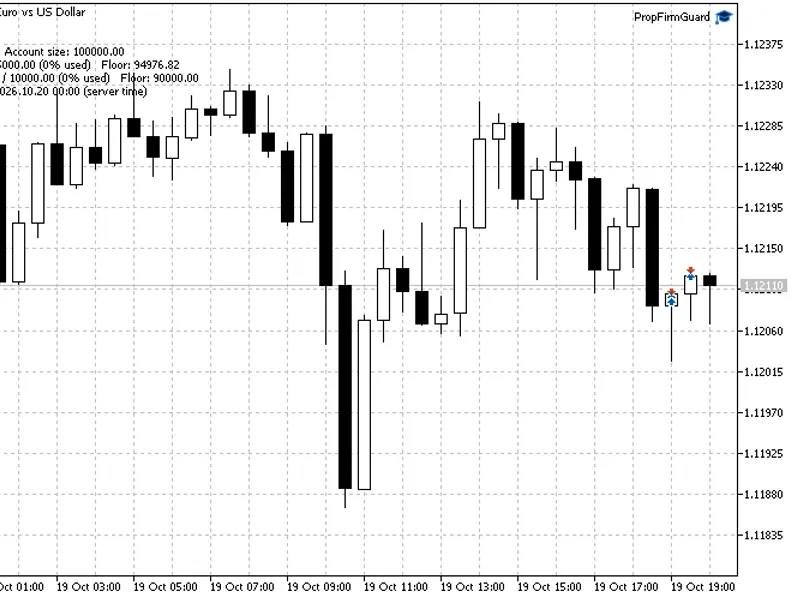
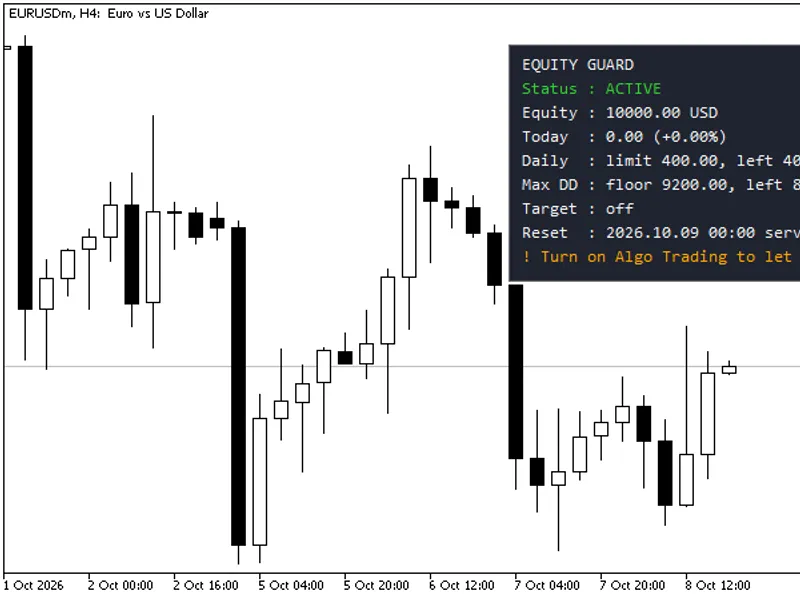
You may also like: Equity Guard: Daily Loss, Max Drawdown, and Profit Target Protection for MT5 - excellent alternative for expert users on MetaTrader 5.
Source Code
#property copyright "RobotFX"
#property link "https://robotfx.org"
#property version     "1.03"
#property description "This code is educational. Feel free to use, modify and upgrade as you wish. Visit ROBOTFX.ORG for professional trading tools"
#include <Trade\Trade.mqh>

enum ENUM_PG_DAILY_BASE
  {
   PG_BASE_CAPITAL = 0,
   PG_BASE_DAYREF  = 1
.......
⚠ Limitations & Risk Warning
- This tool is provided for educational and testing purposes only.
- Past performance does not guarantee future results.
- Trading involves substantial risk of loss. Use on a demo account first.
- Results may vary depending on market conditions, broker, and settings.
- We recommend thorough backtesting and forward testing before using with real funds.