



Account Recorder: Minute-by-Minute Performance Tracking to CSV
Info
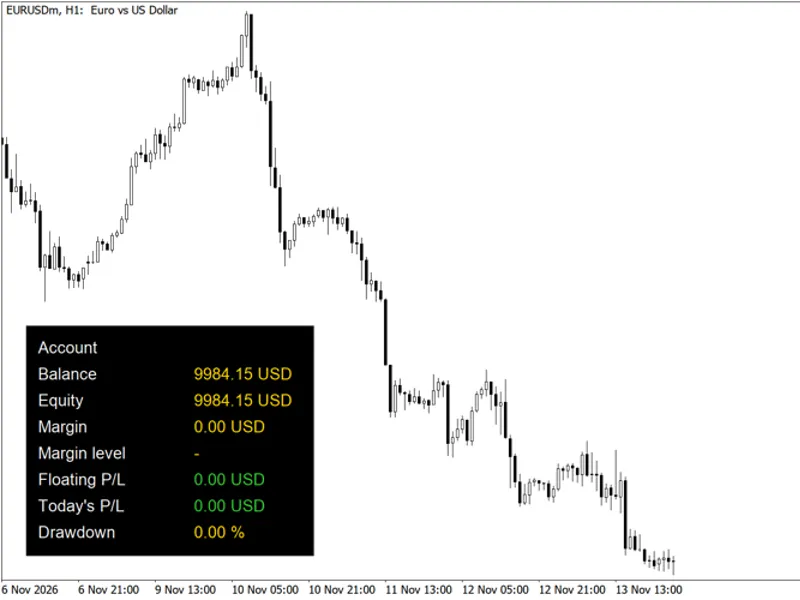
The Account Recorder: Minute-by-Minute Performance Tracking to CSV is a Expert Advisor for MetaTrader 5 that account recorder is a background service that operates without a chart, continuously logging data to a csv file at a set interval (defaulting to every minute). Each entry in the CSV file includes:- Server time- Local time- Balance- Equity- Floating profit/loss- Credit- Margin- Free margin- Margin level- Number of open positions- Number of pending orders- The account's balance at the start of the day- The highest equity recorded today- Drawdown from the day's peak, both in monetary value and percentageThis provides a detailed equity curve that accounts for open trades and tracks daily drawdown, which is particularly useful for adhering to prop trading firm rules.
Usage
This tool is typically used for automated trading on major forex pairs and gold.
Platform
This Expert Advisor works exclusively on MetaTrader 5 (both build 600+ and newer versions).
Setup
Place the downloaded file in MQL5/Experts folder via File ? Open Data Folder in MetaTrader 5.
How to Install and Use Account Recorder: Minute-by-Minute Performance Tracking to CSV
1. Installation: Open the "File" menu, select "Open Data Folder," navigate to MQL/Experts, paste your file, and restart the terminal.
2. Activation: Drag the EA from the Navigator onto a chart, ensure "Allow live trading" is checked in the Common tab, and verify the AutoTrading button is green.
3. Optimization: Right-click your chart, choose "Expert List," click "Properties" to adjust inputs, and save your preferred setup as a set file for future use.
4. Maintenance: Regularly check the "Experts" tab in the terminal window to monitor trade logs and potential execution errors.
Frequently Asked Questions
Q: Why is my EA not opening trades? A: Check the "AutoTrading" button, ensure "Allow live trading" is enabled, and verify your broker allows automated trading on your account type.
Q: Can I run multiple EAs on one chart? A: No, each chart can only host one active EA; however, you can open multiple charts for different currency pairs to run several EAs.
Q: What does the "smiley face" icon mean? A: A smiley face in the top-right corner of the chart indicates the EA is successfully running; a frowny face means it is disabled.
What this tool does
Account Recorder is a background service that operates without a chart, continuously logging data to a CSV file at a set interval (defaulting to every minute).
Typical Use Case
This Expert Advisor excels in automated trading and technical analysis on MetaTrader 5.
Compatible Platform & Setup
This Expert Advisor works on MetaTrader 5. Place the file in the MQL5/Experts folder and restart the terminal.
Description & Settings
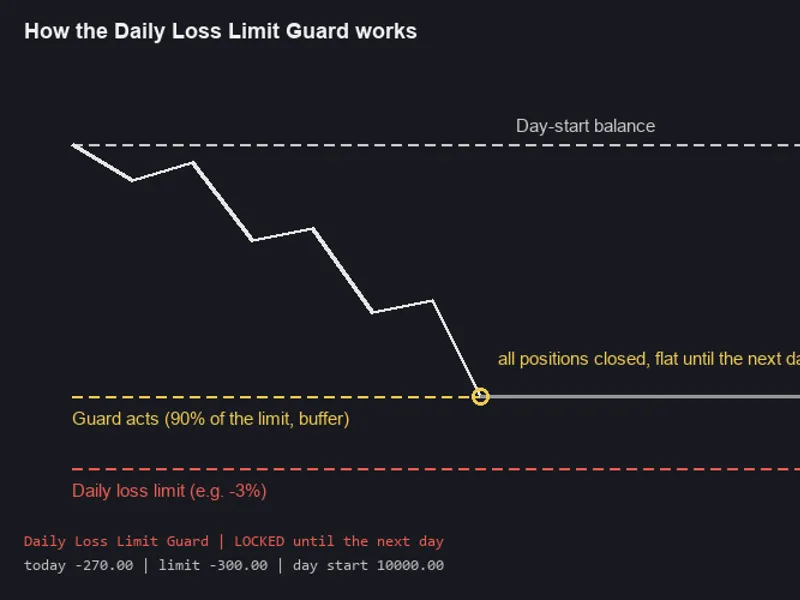
Related: Daily Loss Limit Guard - Enforce Daily Loss Limits and Maintain Flat Account - another powerful expert for MetaTrader 5 traders.
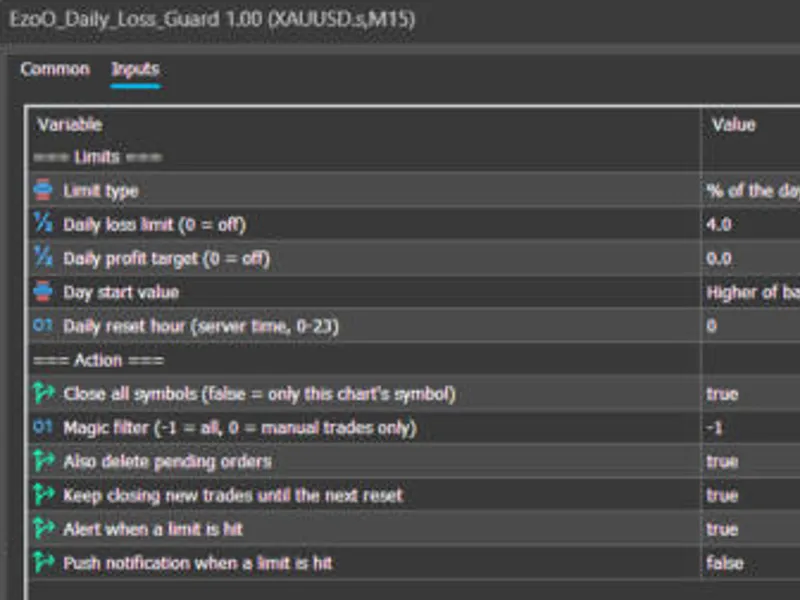
Account Recorder is a background service that operates without a chart, continuously logging data to a CSV file at a set interval (defaulting to every minute).Also recommended: Ezo O Daily Loss Guard - Account-Wide Daily Loss Limit and Profit Target - similar expert with strong performance on MetaTrader 5.
Each entry in the CSV file includes:
- Server time
- Local time
- Balance
- Equity
- Floating profit/loss
- Credit
- Margin
- Free margin
- Margin level
- Number of open positions
- Number of pending orders
- The account's balance at the start of the day
- The highest equity recorded today
- Drawdown from the day's peak, both in monetary value and percentage
This provides a detailed equity curve that accounts for open trades and tracks daily drawdown, which is particularly useful for adhering to prop trading firm rules.
Data is recorded for a demo account, with one row generated per minute.
Operation Details:
Entries are made at precise interval multiples (e.g., every minute on the dot). If the system clock adjusts (like during daylight saving time changes), the logging schedule will follow the adjusted time.
By default, a new CSV file is created for each server day and account combination (e.g., AccountRecorder_
The server name is included in the filename to prevent data from different brokers (even with the same account number) from being mixed.
The balance from the start of the day and the highest equity are stored in terminal global variables. This ensures that if the service or terminal is restarted on the same day, these figures are maintained.
The recorded peak equity represents the highest value the service has logged, meaning it might not capture fleeting spikes that occur between data logging intervals.
When the trading terminal is disconnected, no data is logged by default. This behavior can be adjusted.
If the CSV file is in use (e.g., open in spreadsheet software), new entries are temporarily held in memory and written once the file becomes available. A notification will appear in the Experts tab.
The service only reads account information and does not execute any trade operations.
Getting Started:
To launch the service: Navigate to Services in the Navigator panel, right-click 'Account Recorder', select 'Add Service', configure the inputs, and click OK.
To stop the service: Right-click the active service instance and choose 'Stop' or 'Remove'.
Service Inputs:
The available settings for the service include:
- Interval (in seconds, minimum 10)
- File name prefix
- File management: option to create a new file each server day or use a single file for all data.
- Save location: option to save in the common Files folder.
- Column separator: choose between comma, semicolon, or tab.
- Decimal separator: use a comma when using semicolon or tab as the column separator.
- Disconnect logging: set to true (default) to prevent logging when the terminal is disconnected.
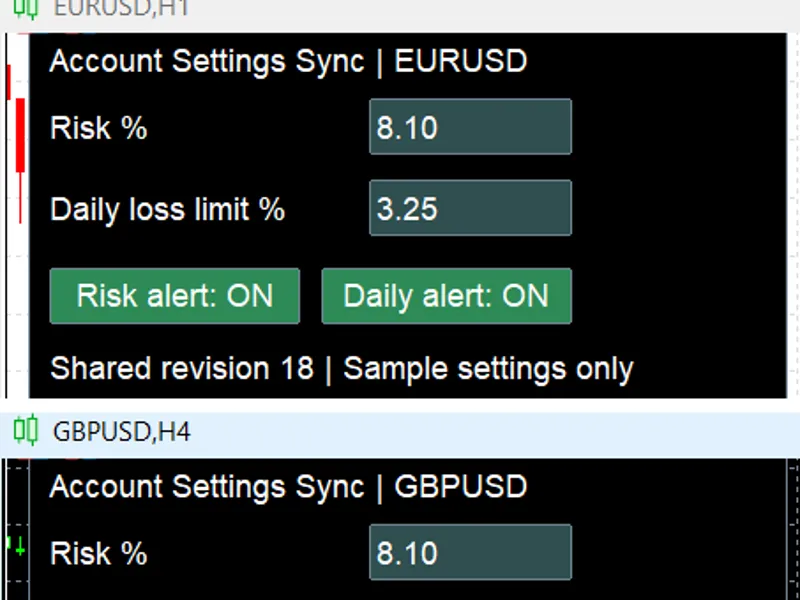
You may also like: Account Settings Sync: Bidirectional EA Settings Across Charts (2026) - excellent alternative for expert users on MetaTrader 5.
Source Code
#property copyright "RobotFX"
#property version     "1.00"
#property description "This code is educational. Feel free to use, modify and upgrade as you wish. Visit ROBOTFX.ORG for professional trading tools"
#property service
enum ENUM_SEPARATOR
  {
   SEPARATOR_COMMA=0,
   SEPARATOR_SEMICOLON=1,
   SEPARATOR_TAB=2
  };
.......
⚠ Limitations & Risk Warning
- This tool is provided for educational and testing purposes only.
- Past performance does not guarantee future results.
- Trading involves substantial risk of loss. Use on a demo account first.
- Results may vary depending on market conditions, broker, and settings.
- We recommend thorough backtesting and forward testing before using with real funds.