
Open Positions Indicator - Updated for MT4 Build 600
Info
The Open Positions Indicator - Updated for MT4 Build 600 is a Indicator for MetaTrader 4 that open positions v3a this indicator has been updated for metatrader 4 (mt4) build 600. IMPORTANT: Please remove all old instances of Open Positions v2 from your charts and delete all old files named 'open_position_v2' from your Experts\Indicators folder and any instances transferred to the MQL4\Indicators folder.
Usage
This tool is typically used for enhancing chart analysis and decision making.
Platform
This Indicator works exclusively on MetaTrader 4 (both build 600+ and newer versions).
Setup
Place the downloaded file in MQL4/Indicators folder via File ? Open Data Folder in MetaTrader 4.
How to Install and Use Open Positions Indicator - Updated for MT4 Build 600
1. Installation: Place your file in the MQL/Indicators folder via "Open Data Folder" and restart your terminal.
2. Loading: Find the indicator in the Navigator, drag it onto your chart, and configure the input parameters in the popup window.
3. Customization: Press Ctrl+I to open the indicator list, select your tool, and click "Properties" to change colors, levels, or visual styles.
4. Updating: Replace the old file in the Indicators folder with the new version and restart the platform to apply changes.
Frequently Asked Questions
Q: Why is my indicator not showing? A: Verify the file is in the MQL/Indicators folder, or try right-clicking the "Indicators" tree in the Navigator and clicking "Refresh."
Q: Do custom indicators slow down the platform? A: Too many complex indicators can impact performance; remove unused ones via the "Indicator List" (Ctrl+I).
Q: Can I use MT4 indicators on MT5? A: No, MQL4 and MQL5 are distinct languages; ensure the indicator is compiled specifically for your platform version.
What this tool does
Open Positions v3a This indicator has been updated for MetaTrader 4 (MT4) Build 600.
Typical Use Case
This Indicator excels in automated trading and technical analysis on MetaTrader 4.
Compatible Platform & Setup
This Indicator works on MetaTrader 4. Place the file in the MQL4/Indicators folder and restart the terminal.
Description & Settings
Related: trend manager open2: enhancing trading efficiency - another powerful indicator for MetaTrader 4 traders.
Open Positions v3aThis indicator has been updated for MetaTrader 4 (MT4) Build 600.
Also recommended: Session Open V-Line Indicator - similar indicator with strong performance on MetaTrader 4.
IMPORTANT: Please remove all old instances of Open Positions v2 from your charts and delete all old files named 'open_position_v2' from your Experts\Indicators folder and any instances transferred to the MQL4\Indicators folder.Install Open Positions v3a into the MQL4\Indicators folder.
This indicator is a modification of the MetaQuotes iExposure indicator.
By default, the indicator is locked to the top-right corner of a secondary window. It should open automatically as a secondary window below the main chart.
Alternatively, you can drag this indicator onto any existing secondary window (e.g., Stochastic, MACD).
If the indicator does not open as a secondary window and you wish for it to occupy its own dedicated secondary window, install the 'blank.mq4' indicator and then drag this indicator onto 'blank.mq4'.
The indicator is only visible when one or more positions are currently open.
Points vs. Pips: MT4 calculates values in points, not pips. Compare the chart's point numbers (under the 'Profit' heading in the terminal window) against the numbers displayed in the indicator.
Column Spacing: Use the `column_spacer` variable to adjust the distance between columns. Setting this too high may cause the indicator to move off the display area. For finer control, use decimal increments.
Font Boldness: To use bold fonts, set `fonts_bold` to `true`.
Terminal Value Discrepancy: If the numbers in your MT4 terminal differ from the indicator's display, follow these steps: Open the terminal (Ctrl+T), right-click the 'Profit' heading, hover over 'Profit', and select 'As Points'.
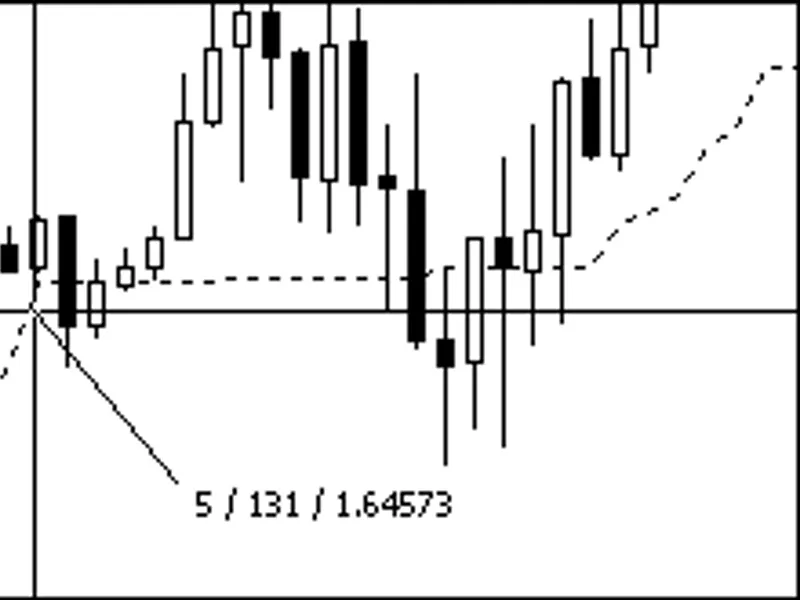
Calculating Price Displacement: To view price displacement, focus on your chart and activate the crosshairs (Ctrl+F) or click the mouse scroll wheel. Hold the left mouse button and drag a line at approximately a 45-degree angle. Below the chart image, you will see: 5 (bar displacement), 131 (price displacement in points), and 1.64573 (price).
Calculating Move Value: The point value can be quickly calculated. Using the example image: AUDUSD (117.12 / (10.43 x 18)) = (117.12 / 187.74) = 0.62384. This is approximately £0.62 per point for that trade. For greater accuracy, retain 5 decimal places. Therefore, an 18-point move at 10.43 lots resulting in 117.12 profit would mean a 180-point move (18 x 10) at 10.43 lots would yield 117.12 x 10 = 1,171.20. Proof using point value: 10.43 x 180 x 0.62384 = 1,171.20.
The included image illustrates trades used to verify the MT4 terminal values against the indicator for the following scenarios: - A buy profit - A buy loss - A sell profit - A sell loss
Tick Generator: Indicator updates may lag in fast markets, on slower computers, or with slow internet connections. A tick generator helps keep all indicators updated in real-time. A free version is available [here](link). While it mentions EAs, it also helps keep indicators updated.
You may also like: Open Positions Indicators for MetaTrader 4/5 - excellent alternative for indicator users on MetaTrader 4.
Source Code
#property copyright "robotfx"
#property link "https://robotfx.org"
#property indicator_separate_window
#property indicator_buffers 1
#property indicator_minimum 0.0
#property indicator_maximum 0.1
#define symbols_max 1024
#define deals          0
#define buy_lots       1
#define buy_price      2
.......
⚠ Limitations & Risk Warning
- This tool is provided for educational and testing purposes only.
- Past performance does not guarantee future results.
- Trading involves substantial risk of loss. Use on a demo account first.
- Results may vary depending on market conditions, broker, and settings.
- We recommend thorough backtesting and forward testing before using with real funds.