






Grid Pro Panel: Open-Source Grid Trading EA with On-Chart Control
Info
The Grid Pro Panel: Open-Source Grid Trading EA with On-Chart Control is a Expert Advisor for MetaTrader 5 that gridpro panel is an open-source grid trading expert advisor for metatrader 5, featuring a built-in on-chart control panel. The complete MQL5 source code is provided, ensuring full transparency of all trading logic, including entry, averaging, and exit rules.
Usage
This tool is typically used for automated trading on major forex pairs and gold.
Platform
This Expert Advisor works exclusively on MetaTrader 5 (both build 600+ and newer versions).
Setup
Place the downloaded file in MQL5/Experts folder via File ? Open Data Folder in MetaTrader 5.
How to Install and Use Grid Pro Panel: Open-Source Grid Trading EA with On-Chart Control
1. Installation: Open the "File" menu, select "Open Data Folder," navigate to MQL/Experts, paste your file, and restart the terminal.
2. Activation: Drag the EA from the Navigator onto a chart, ensure "Allow live trading" is checked in the Common tab, and verify the AutoTrading button is green.
3. Optimization: Right-click your chart, choose "Expert List," click "Properties" to adjust inputs, and save your preferred setup as a set file for future use.
4. Maintenance: Regularly check the "Experts" tab in the terminal window to monitor trade logs and potential execution errors.
Frequently Asked Questions
Q: Why is my EA not opening trades? A: Check the "AutoTrading" button, ensure "Allow live trading" is enabled, and verify your broker allows automated trading on your account type.
Q: Can I run multiple EAs on one chart? A: No, each chart can only host one active EA; however, you can open multiple charts for different currency pairs to run several EAs.
Q: What does the "smiley face" icon mean? A: A smiley face in the top-right corner of the chart indicates the EA is successfully running; a frowny face means it is disabled.
What this tool does
GridPro Panel is an open-source grid trading Expert Advisor for MetaTrader 5, featuring a built-in on-chart control panel.
Typical Use Case
This Expert Advisor excels in automated trading and technical analysis on MetaTrader 5.
Compatible Platform & Setup
This Expert Advisor works on MetaTrader 5. Place the file in the MQL5/Experts folder and restart the terminal.
Description & Settings
Related: Grid Capital Calculator - another powerful expert for MetaTrader 5 traders.
GridPro Panel is an open-source grid trading Expert Advisor for MetaTrader 5, featuring a built-in on-chart control panel. The complete MQL5 source code is provided, ensuring full transparency of all trading logic, including entry, averaging, and exit rules. This EA is designed as a clear and customizable grid framework with integrated hard risk limits.Also recommended: bg c grid ea - similar expert with strong performance on MetaTrader 5.
Requirements:
- MetaTrader 5, hedging account (the EA will not run on netting accounts).
- Any symbol; low-spread, liquid symbols are recommended.
Grid Engine:
- Direction: Supports both directions, buy-only, or sell-only, with each side managed independently as a separate basket.
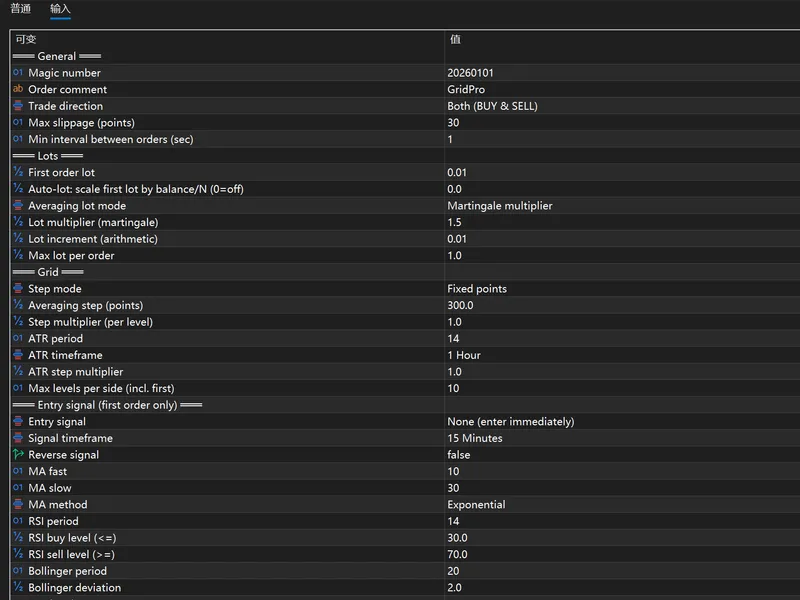
- First Order: Can enter immediately or be filtered by an optional signal such as MA cross, RSI oversold/overbought, Bollinger Bands return, or Stochastic cross. This signal applies only to the first order; subsequent levels are added based on the grid step.
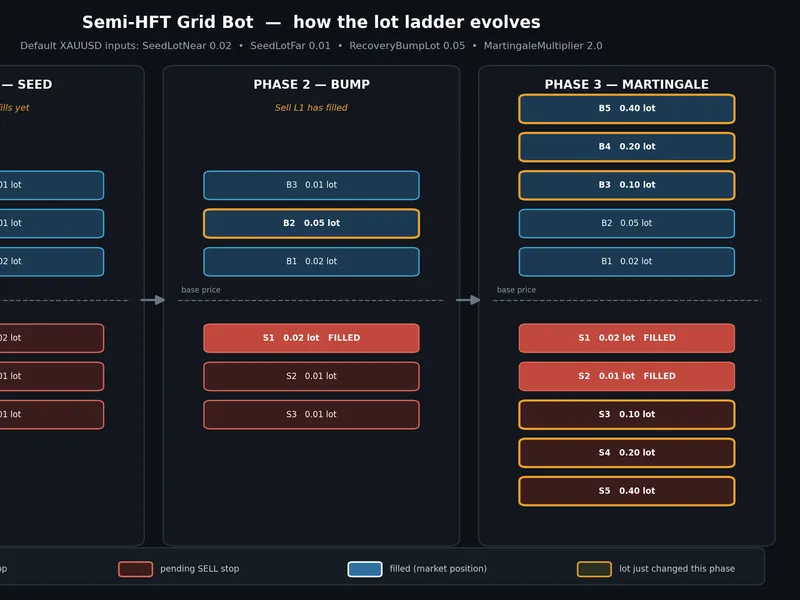
- Lot Averaging: Options include fixed lots, martingale multiplier (default x1.5), or arithmetic increment (+0.01 per level). Includes per-order lot capping and optional balance-based auto-scaling for the initial lot.
- Grid Step: Can be a fixed point value (default 300) or dynamically based on ATR (H1, ATR 14, adjustable multiplier). An optional per-level step expansion is available, where the step size increases with each subsequent level.
- Maximum Levels: Defaults to 10 levels per side.
Basket Exit (each side is closed as a single unit):
- Take Profit in Money: Closes the entire side when a specified profit in currency is reached (default +$10).
- Take Profit in Points: Closes the entire side based on a profit target measured in points from the average entry price.
- Trailing Take Profit: Activates at a set profit (e.g., +$8) and closes on a pullback (e.g., $3). This takes precedence over the fixed money TP when enabled.
- Optional Basket Stop-Loss: A stop-loss can be set for the entire basket in currency.
Risk Management (each limit can be enabled individually; account drawdown stops at 30% and minimum margin level at 300% are active by default):
- Account Drawdown Stop: Closes all open positions and halts the EA if account drawdown reaches a specified percentage.
- Daily Loss Limit and Daily Profit Target: Automatically resets at the start of each new day.
- Basket Stop-Loss: A stop-loss for the entire basket in currency.
- Maximum Total Lots Cap: Limits the total number of lots that can be open across all baskets.
- Minimum Margin Level: Prevents opening new positions if the margin level falls below a defined threshold.
- Maximum Spread Filter: Stops trading if the spread exceeds a specified limit.
- Trading Session Filter: Restricts the opening of the first order to specific trading sessions, including overnight sessions.
- Friday Scheduled Close-All: Closes all positions before the weekend.
- Minimum Interval Between Orders: Prevents rapid order placement to avoid issues with fast fills.
On-Chart Panel (dark theme, minimizable):
- Account Card: Displays balance, equity, floating profit/loss, drawdown percentage, spread, and daily profit/loss.
- Basket Card: Shows order count, total lots, and floating profit/loss for each basket. Dashed lines indicate average entry prices on the chart.
- Runtime Editable Parameters: Allows real-time adjustment of parameters such as initial lot size, grid step, step multiplier, lot multiplier, maximum levels, money take profit, point take profit, and drawdown stop. Changes are applied by typing a new value and pressing Enter, without needing to reload the EA.
- Control Buttons: Includes buttons to pause/resume trading, manually buy/sell, close buy positions, close sell positions, and close all positions.
- Status Line: Clearly indicates the reason whenever a risk management rule prevents trading.
Technical Notes:
- The rounded-corner panel is rendered using anti-aliased bitmap resources for a smooth appearance, as native MT5 chart objects do not support rounded rectangles. This code can serve as a reference for creating custom user interfaces in MQL5.
- Positions are managed using unique magic numbers, allowing multiple instances of the EA to run on the same account without conflicts.
Installation:
1. Open the .mq5 file in MetaEditor and compile (press F7).
2. Attach the EA to a chart and ensure Algo Trading is enabled.
3. Thoroughly test on a demo account, starting with the default 0.01 initial lot size.
Disclaimer: This EA is provided as a trading framework for educational and personal use. It does not guarantee profits. Martingale-style averaging strategies can increase exposure during sustained one-sided trends. It is crucial to understand every parameter and conduct comprehensive testing on a demo account before using it with live funds in 2026.
You may also like: xander grid ea for xauusd (mt5) - excellent alternative for expert users on MetaTrader 5.
Source Code
#property copyright "RobotFX"
#property link "https://robotfx.org"
#property version   "1.00"
#property description "This code is educational. Feel free to use, modify and upgrade as you wish. Visit ROBOTFX.ORG for professional trading tools"
#include <Trade/Trade.mqh>
enum ENUM_DIR      { DIR_BOTH=0,
                     DIR_BUY=1,
                     DIR_SELL=2 };
enum ENUM_SIG      { SIG_NONE=0,
                     SIG_MA=1,
.......
⚠ Limitations & Risk Warning
- This tool is provided for educational and testing purposes only.
- Past performance does not guarantee future results.
- Trading involves substantial risk of loss. Use on a demo account first.
- Results may vary depending on market conditions, broker, and settings.
- We recommend thorough backtesting and forward testing before using with real funds.