




ma cross alert once
Info
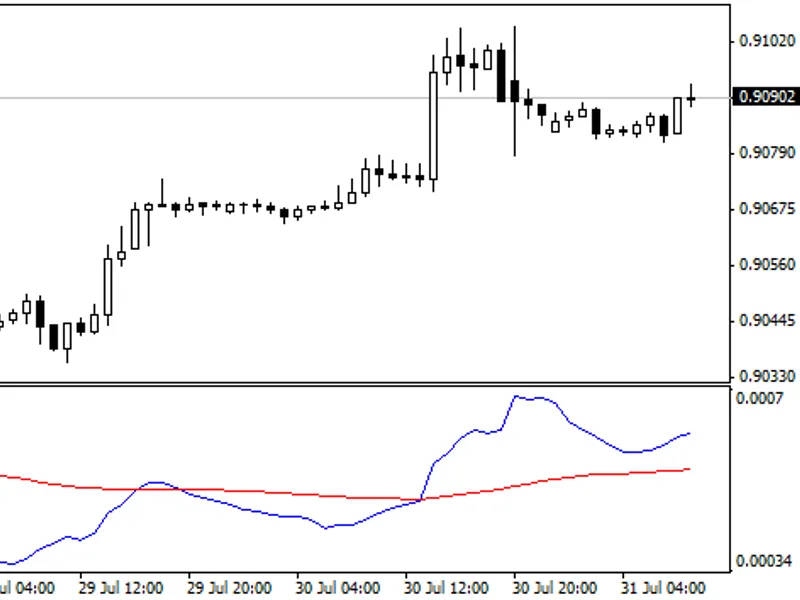
The ma cross alert once is a Indicator for MetaTrader 4 that when two moving averages cross the indicator will alert once per cross between crosses and mark the cross point with down or up arrow. ma_cross_alert_once_1a: numerical input for ma method and price.
Usage
This tool is typically used for enhancing chart analysis and decision making.
Platform
This Indicator works exclusively on MetaTrader 4 (both build 600+ and newer versions).
Setup
Place the downloaded file in MQL4/Indicators folder via File ? Open Data Folder in MetaTrader 4.
How to Install and Use ma cross alert once
1. Installation: Place your file in the MQL/Indicators folder via "Open Data Folder" and restart your terminal.
2. Loading: Find the indicator in the Navigator, drag it onto your chart, and configure the input parameters in the popup window.
3. Customization: Press Ctrl+I to open the indicator list, select your tool, and click "Properties" to change colors, levels, or visual styles.
4. Updating: Replace the old file in the Indicators folder with the new version and restart the platform to apply changes.
Frequently Asked Questions
Q: Why is my indicator not showing? A: Verify the file is in the MQL/Indicators folder, or try right-clicking the "Indicators" tree in the Navigator and clicking "Refresh."
Q: Do custom indicators slow down the platform? A: Too many complex indicators can impact performance; remove unused ones via the "Indicator List" (Ctrl+I).
Q: Can I use MT4 indicators on MT5? A: No, MQL4 and MQL5 are distinct languages; ensure the indicator is compiled specifically for your platform version.
What this tool does
when two moving averages cross the indicator will alert once per cross between crosses and mark the cross point with down or up arrow.
Typical Use Case
This Indicator excels in automated trading and technical analysis on MetaTrader 4.
Compatible Platform & Setup
This Indicator works on MetaTrader 4. Place the file in the MQL4/Indicators folder and restart the terminal.
Description & Settings
Related: control points at ma crossovers - another powerful indicator for MetaTrader 4 traders.
when two moving averages cross the indicator will alert once per cross between crosses and mark the cross point with down or up arrow.
Also recommended: cross indicator - similar indicator with strong performance on MetaTrader 4.
ma_cross_alert_once_1a: numerical input for ma method and price.
ma_cross_alert_once_1b: dropdown list selection for ma method and price.
the indicator will work on normal charts times, offline period converted charts (m2, m3, m7 etc)*, offline range charts, offline renko charts and should work with other non standard offline charts.
possible enhancement indicator: second-by-second candle count down timer, see here -
possible enhancement indicator: period converter indicator →
possible enhancement indicator: close ma cross, see here -
m1, m2, m3, m3, m4, m5, m6, m7, m8, m9, m10, m11, m12, m13, m14, m15, m20, m25, m30, m40, m50, h1, h2, h3, h4, h5, h6, h7, h8, h9, h10, h11, h12, d1, w1, mn
when the indicator is attached to the chart it may appear not to be working because no historical arrows are drawn. note: the first arrow will appear on the chart at the first cross up or down after the indicator is attached to the chart.
the default ma settings are set for fast testing on a m1 charts with a 7 sma, and in no way suggest optimum settings.
the fast ma is set period=1, method = 0(sma), shift=0, price=0(close). this equates to current price at close.
explanation:
the user should define preferred settings. various preferred settings can be saved and loaded via the inputs tab → save → load. alert options
popup alert
sound only
push notification
if sound only = true and popup alert = true, sound only will function and popup alert will be cancelled.
all alerts will correspond broker time and date.
note: if a candle count down timer is used with the indicator ensure that the computer time is synchronised with internet time. left click date and time in lower right corner → change date and time settings → internet time → change settings → ensure synchronise with internet time server is ticked → click the update now → ensure a successful update.
alerts will work with most renko and constant range (synthetic) candles. alert instructions push notification: (ios and android)
push notifications are fast, fail safe and easy to set up.
speed will depend on capability of internet connection and computer and mobile devices.
first install mt4 on mobile device.
locate metaquotes id., see - messages or messages in settings
enter metaquotes id in client terminal of mt4 on computer (tools → options → notifications).
note: the same metaquotes id can be used with multiple client terminals (different brokers).
click the test.
open up mt4 terminal (ctrl + t) and select the journal tab and check under messages if the the test was successful.
one a successful test is obtained push notification alerts can be set in the alerts new bar indicator.
important: ensure that your mobile device has sound for notifications turned on.
if further clarification is required, google and youtube "mt4 push notification." email
here is how to do it with stunnel.
first download the stunnel install file. if the following link is out of date or broken search the internet for a new stunnel download link.
install stunnel. note: during the the installation a black cmd screen opened requesting location information. i did not type in any information and merely pressed the enter key at every request untill the cmd screen closed. note: on this current test i filled in uk and the remainder blank.
after installation a stunnel icon should be on the desktop. click on the trunnel icon and open the stunnel configuration file. it should open in notepad. edit the stunnel.conf file in accordance with the above referenced forum instructions. a copy of my edited file (stunnel.conf), current at dec 2013, can be found in stunnel config.zip., see - download.
click the test.
open up mt4 terminal (ctrl + t) and select the journal tab and check under messages if the the test was successful.
note:
in the tests associated with the previous mentioned posting only 127.0.0.1:25 worked. with this test, different machines and windows os, both 127.0.01:25 as suggested by sangmane in the above referenced forum and smtp.gmail.com:25 worked.
recommendation
the below indicator ma crossover code is derived from the mql4 book documentation - usage of technical indicators.
mql4 book documentation - usage of technical indicators -
fig. 107. concurrence of the main and the signal lines of stochastic oscillator.
You may also like: camarilla alert with fibs - excellent alternative for indicator users on MetaTrader 4.
Source Code
#property copyright "robotfx"
#property link "https://robotfx.org"
#property version   "1.00"
#property strict
#property description "this code is educational. feel free to use, modify and upgrade as you wish. visit robotfx.org for professional trading tools"
#property indicator_chart_window
#property indicator_buffers 4
#property indicator_color1 lime
#property indicator_color2 red
input bool cross_alert = true;  // alert
.......
⚠ Limitations & Risk Warning
- This tool is provided for educational and testing purposes only.
- Past performance does not guarantee future results.
- Trading involves substantial risk of loss. Use on a demo account first.
- Results may vary depending on market conditions, broker, and settings.
- We recommend thorough backtesting and forward testing before using with real funds.