







Export Closed Trades to CSV with a summary per magic number
Info
The Export Closed Trades to CSV with a summary per magic number is a Script for MetaTrader 5 that the history tab in metatrader 5 lists deals and orders, not trades. This script rebuilds each closed trade from its deals and writes one row per trade to a CSV file you can open in Excel, LibreOffice or Google Sheets.
Usage
This tool is typically used for enhancing chart analysis and decision making.
Platform
This Script works exclusively on MetaTrader 5 (both build 600+ and newer versions).
Setup
Place the downloaded file in MQL5/Scripts folder via File ? Open Data Folder in MetaTrader 5.
How to Install and Use Export Closed Trades to CSV with a summary per magic number
1. Installation: Move your script file into the MQL/Scripts directory and restart the platform.
2. Execution: Drag the script onto a chart; it will perform a one-time action, such as closing all open orders or clearing chart objects.
3. Editing: Use MetaEditor (F4) to modify code, click "Compile," and verify no errors appear in the terminal before running.
4. Removing: Scripts stop automatically, but you can remove them manually by right-clicking the chart and choosing "Remove Script."
Frequently Asked Questions
Q: How are scripts different from EAs? A: Scripts execute a single action and then stop; EAs monitor the market and trade continuously.
Q: Can I assign a hotkey to a script? A: Yes, right-click the script in the Navigator, select "Set Hotkey," and define your preferred keyboard shortcut.
Q: Why did my script stop? A: Scripts are designed to stop immediately after finishing their programmed command; this is normal behavior.
What this tool does
The History tab in MetaTrader 5 lists deals and orders, not trades.
Typical Use Case
This Script excels in automated trading and technical analysis on MetaTrader 5.
Compatible Platform & Setup
This Script works on MetaTrader 5. Place the file in the MQL5/Scripts folder and restart the terminal.
Description & Settings
Related: Trade History Exporter: Detailed Closed Trade Analysis to CSV - another powerful script for MetaTrader 5 traders.
Also recommended: Export Trade History to CSV with Performance Summary - similar script with strong performance on MetaTrader 5.
The History tab in MetaTrader 5 lists deals and orders, not trades. This script rebuilds each closed trade from its deals and writes one row per trade to a CSV file you can open in Excel, LibreOffice or Google Sheets.
Inputs
Period: This month, Last month, This year, All history or Custom. A trade counts in the period by its close time.
Custom period: From and To. A To date with no time includes that whole day.
Symbol: one symbol or empty for all symbols.
Magic number: one magic number or -1 for all trades.
Column separator: comma, semicolon or tab.
File 1: ClosedTrades_<login>_<period>.csv
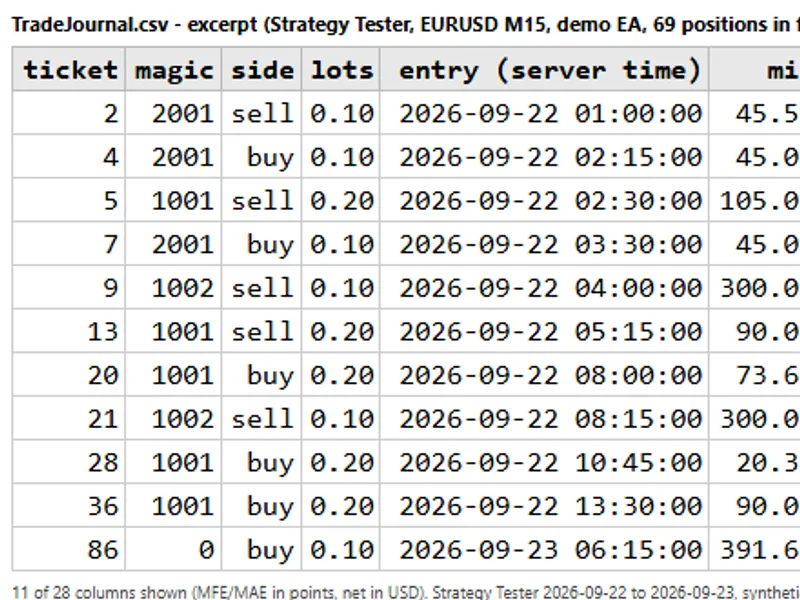
One row per closed trade: OpenTime, CloseTime, Symbol, Type, Volume, OpenPrice, ClosePrice, StopLoss, TakeProfit, Commission, Swap, Fee, Profit, NetProfit, Magic, Comment, CloseReason, PositionTicket.
File 2: ClosedTradesByMagic_<login>_<period>.csv
One row per magic number and one row for all trades: Magic, Trades, Wins, Losses, NetProfit, GrossProfit, GrossLoss, LargestLoss, LongestLosingStreak, WinRatePct.
How to use
Copy ExportClosedTrades.mq5 to the MQL5\Scripts folder and compile it in MetaEditor.
Drag the script onto any chart, set the inputs and press OK.
The Experts tab shows where both files were saved and how many rows each has. To find them, use File > Open Data Folder > MQL5\Files.
Notes
A trade closed in parts is one row. Its exit price is the average of the exits, weighted by volume.
Open positions are not exported.
Files are UTF-8 with a BOM. Prices and money use a decimal point.
The script only reads the account history. It doesn't place, change or close orders.
If the terminal isn't connected, the journal says so, because the history may be incomplete.
If a file is open in another program, the script can't overwrite it and writes the reason to the journal.
You may also like: Export Candlestick and Indicator Data to CSV - excellent alternative for script users on MetaTrader 5.
Source Code
#property version     "1.00"
#property description "This code is educational. Feel free to use, modify and upgrade as you wish. Visit ROBOTFX.ORG for professional trading tools"
#property script_show_inputs
enum ENUM_EXPORT_PERIOD
  {
   EXPORT_THIS_MONTH = 0,
   EXPORT_LAST_MONTH = 1,
   EXPORT_THIS_YEAR  = 2,
   EXPORT_ALL        = 3,
   EXPORT_CUSTOM     = 4
.......
⚠ Limitations & Risk Warning
- This tool is provided for educational and testing purposes only.
- Past performance does not guarantee future results.
- Trading involves substantial risk of loss. Use on a demo account first.
- Results may vary depending on market conditions, broker, and settings.
- We recommend thorough backtesting and forward testing before using with real funds.