
Portfolio Allocation Planner: Budget to Lots Dashboard and CSV Export
Info
The Portfolio Allocation Planner: Budget to Lots Dashboard and CSV Export is a Expert Advisor for MetaTrader 5 that portfolio allocation plannerbefore configuring a basket, determine which target weights are compatible with your broker's minimum lot size. This free, open-source tool converts an explicit hypothetical notional budget and specified percentages into a visual dashboard.
Usage
This tool is typically used for automated trading on major forex pairs and gold.
Platform
This Expert Advisor works exclusively on MetaTrader 5 (both build 600+ and newer versions).
Setup
Place the downloaded file in MQL5/Experts folder via File ? Open Data Folder in MetaTrader 5.
How to Install and Use Portfolio Allocation Planner: Budget to Lots Dashboard and CSV Export
1. Installation: Open the "File" menu, select "Open Data Folder," navigate to MQL/Experts, paste your file, and restart the terminal.
2. Activation: Drag the EA from the Navigator onto a chart, ensure "Allow live trading" is checked in the Common tab, and verify the AutoTrading button is green.
3. Optimization: Right-click your chart, choose "Expert List," click "Properties" to adjust inputs, and save your preferred setup as a set file for future use.
4. Maintenance: Regularly check the "Experts" tab in the terminal window to monitor trade logs and potential execution errors.
Frequently Asked Questions
Q: Why is my EA not opening trades? A: Check the "AutoTrading" button, ensure "Allow live trading" is enabled, and verify your broker allows automated trading on your account type.
Q: Can I run multiple EAs on one chart? A: No, each chart can only host one active EA; however, you can open multiple charts for different currency pairs to run several EAs.
Q: What does the "smiley face" icon mean? A: A smiley face in the top-right corner of the chart indicates the EA is successfully running; a frowny face means it is disabled.
What this tool does
Portfolio Allocation PlannerBefore configuring a basket, determine which target weights are compatible with your broker's minimum lot size.
Typical Use Case
This Expert Advisor excels in automated trading and technical analysis on MetaTrader 5.
Compatible Platform & Setup
This Expert Advisor works on MetaTrader 5. Place the file in the MQL5/Experts folder and restart the terminal.
Description & Settings
Related: Portfolio Weight Calculation: Risk Parity, HRP, Minimum Variance, and Maximum Diversification - another powerful expert for MetaTrader 5 traders.
Portfolio Allocation PlannerAlso recommended: Futures Portfolio Expiration Management - similar expert with strong performance on MetaTrader 5.
Before configuring a basket, determine which target weights are compatible with your broker's minimum lot size. This free, open-source tool converts an explicit hypothetical notional budget and specified percentages into a visual dashboard.
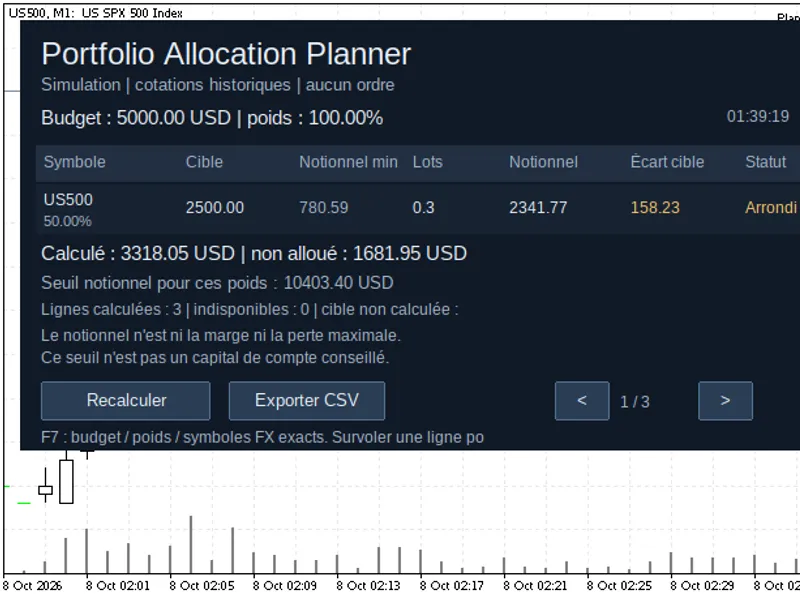
The dashboard displays the minimum lot notional value, lots rounded down, calculated allocation, target shortfall, and the status for each instrument.
Features include on-demand recalculation, hover-over details for more information, pagination for longer baskets, and the option to export the current view to CSV.
Example MT5 Snapshot: A hypothetical notional budget of 5,000 USD with weights of 50%/30%/20%, and a quote age limit of 0 (allowing historical quotes). Page 1/3: US500 is rounded down to 0.3 lots.
Installation and Usage
1. Copy the PortfolioAllocationPlanner.mq5 file to your MQL5/Experts directory and compile it using F7 in MetaEditor.
2. Select the desired broker symbols in Market Watch and ensure quotes are loaded.
3. Attach the utility to a separate chart that does not have a trading Expert Advisor (EA) active. This is an interface EA with no automated trading functions.
4. Configure the input parameters: InpBudget, InpBudgetCurrency, a comma-separated list of InpSymbols, and the corresponding InpWeightsPct. Use a decimal point for values. The total weights must be greater than zero and not exceed 100%. Weights are not automatically normalized.
5. If you leave the symbols field empty, the chart's current symbol will be used with a single weight.
6. Click 'Recalculate' to generate a new snapshot. Press F7 to access and modify the input parameters.
7. Select 'PAP_FR' or 'PAP_EN' for the desired panel language.
CSV Export is disabled by default. To enable it, set InpAllowCSVExport to true and click 'Export CSV'. This will create a uniquely named UTF-8 semicolon-separated file in your MQL5/Files directory.
The InpPanelMaxWidth parameter controls the maximum width of the panel (default is 1100 pixels, minimum 580 pixels). The panel also adjusts dynamically to the chart window size; longer portfolios will utilize pagination when vertical space is limited.
Understanding the Results
The long-side notional value is calculated as: Ask Price × Contract Size × Currency Conversion Rate.
The volume is rounded down according to the broker's lot step increments and is capped by the per-order maximum and a static directional limit.
Instruments with target allocations below the broker's minimum lot size will have a volume of zero.
The estimated minimum notional budget required is determined by the largest minimum-lot notional value divided by the target weight among all resolved positive rows. This is not a recommended account deposit amount. Unresolved rows indicate that the basket is incomplete, and this estimate does not guarantee exact weight matching or the acceptance of all orders.
The native notional currency is determined by the broker's profit currency.
To use a different budget currency, specify the exact direct or inverse Forex symbol names in InpFXSymbols. For quote (Q) to base (B) currency conversions, the tool uses the Ask price and a conversion rate; for base to quote (B/Q), it uses 1/Bid. The conversion path is verified using metadata for the base and profit currencies; symbol names and cross rates are never assumed.
Quotes older than InpMaxQuoteAgeSeconds (default 120 seconds) are considered unavailable. Setting this value to 0 explicitly permits the use of historical estimates.
Supported calculation modes include: Forex, Forex No Leverage, CFD, CFD Index, CFD Leverage, Exchange Stocks, and Exchange Stocks MOEX. Futures, bonds, options, and custom/synthetic symbols are not supported.
Notional value does not represent margin requirements or maximum potential loss. Factors such as existing exposure, market session availability, account funds, commissions, swaps, slippage, and liquidity are outside the scope of this tool. Static directional limits do not consider existing positions.
This tool does not send any orders and does not read account information such as balance, equity, or open positions. Only objects uniquely prefixed for this tool are drawn on the chart and subsequently removed. Chart settings, other chart objects, Market Watch selections, and terminal global variables remain unchanged.
Files are written only when CSV export is explicitly enabled via the input parameter and the 'Export CSV' button is clicked. No DLLs, WebRequests, or external libraries are used. The original utility was developed by Fabien Martino, and the MIT license is included in the source code.
Same snapshot, page 2/3: The target for USTEC is below the broker's minimum lot size, resulting in a calculated volume of zero.
You may also like: detecting the start of a new bar or candle - excellent alternative for expert users on MetaTrader 5.
Source Code
#property copyright "RobotFX"
#property version   "1.00"
#property description "This code is educational. Feel free to use, modify and upgrade as you wish. Visit ROBOTFX.ORG for professional trading tools"
#property strict
enum PAPLanguage { PAP_EN=0, PAP_FR=1 };
input PAPLanguage InpLanguage = PAP_FR;
input bool InpAllowCSVExport = false;
input uint InpPanelMaxWidth = 1100;
input double InpBudget = 5000.0;
input string InpBudgetCurrency = "USD";
.......
⚠ Limitations & Risk Warning
- This tool is provided for educational and testing purposes only.
- Past performance does not guarantee future results.
- Trading involves substantial risk of loss. Use on a demo account first.
- Results may vary depending on market conditions, broker, and settings.
- We recommend thorough backtesting and forward testing before using with real funds.