

Export Bars to CSV for Seamless Pandas Integration
Info
The Export Bars to CSV for Seamless Pandas Integration is a Script for MetaTrader 5 that exportbars is a script designed to write chart bars for any symbol and timeframe into a csv file, pre-formatted for direct analysis using pandas in external applications. This script ensures that the exported file can be loaded with a simple pandas.
Usage
This tool is typically used for enhancing chart analysis and decision making.
Platform
This Script works exclusively on MetaTrader 5 (both build 600+ and newer versions).
Setup
Place the downloaded file in MQL5/Scripts folder via File ? Open Data Folder in MetaTrader 5.
How to Install and Use Export Bars to CSV for Seamless Pandas Integration
1. Installation: Move your script file into the MQL/Scripts directory and restart the platform.
2. Execution: Drag the script onto a chart; it will perform a one-time action, such as closing all open orders or clearing chart objects.
3. Editing: Use MetaEditor (F4) to modify code, click "Compile," and verify no errors appear in the terminal before running.
4. Removing: Scripts stop automatically, but you can remove them manually by right-clicking the chart and choosing "Remove Script."
Frequently Asked Questions
Q: How are scripts different from EAs? A: Scripts execute a single action and then stop; EAs monitor the market and trade continuously.
Q: Can I assign a hotkey to a script? A: Yes, right-click the script in the Navigator, select "Set Hotkey," and define your preferred keyboard shortcut.
Q: Why did my script stop? A: Scripts are designed to stop immediately after finishing their programmed command; this is normal behavior.
What this tool does
ExportBars is a script designed to write chart bars for any symbol and timeframe into a CSV file, pre-formatted for direct analysis using pandas in external applications.
Typical Use Case
This Script excels in automated trading and technical analysis on MetaTrader 5.
Compatible Platform & Setup
This Script works on MetaTrader 5. Place the file in the MQL5/Scripts folder and restart the terminal.
Description & Settings
Related: Multi-TF Data Grabber Lite: Clean CSV Export for MT5 - another powerful script for MetaTrader 5 traders.
ExportBars is a script designed to write chart bars for any symbol and timeframe into a CSV file, pre-formatted for direct analysis using pandas in external applications. This script ensures that the exported file can be loaded with a simple pandas.read_csv() call without requiring arguments for encoding, separator, or date format. It addresses the common initial step in data analysis: accurately transferring quote data from the MetaTrader terminal into Python or spreadsheet software in its native format.Also recommended: Export Symbol Specifications to CSV (Volume Step, Fill Mode, Stops Level) - similar script with strong performance on MetaTrader 5.
This utility is particularly useful as standard MQL5 exports often present challenges for external parsing tools. For instance, default file encoding can be UTF-16, necessitating explicit encoding arguments in read_csv. Date formats generated by TimeToString, such as 2026.10.02 10:00, require custom format strings. Price data, if not handled carefully with symbol-specific digits, may exhibit inconsistent decimal places between rows.
ExportBars resolves these issues directly within the exported file. This standardization means the loading code remains a single, simple line, and the exported file can be shared without needing accompanying instructions. An option for a switchable separator is included to accommodate Excel configurations that use a comma as a decimal separator, preventing data from splitting into incorrect columns.
File Structure Details:
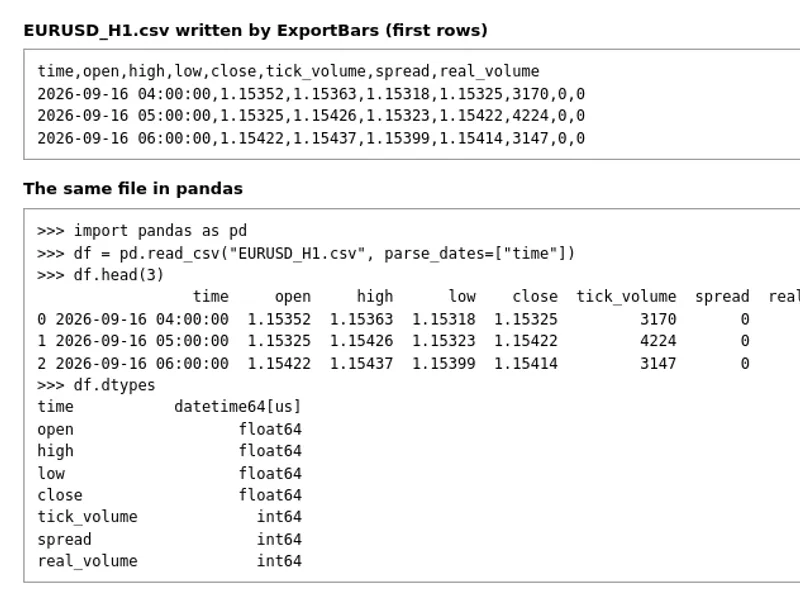
The CSV file includes a header row: time, open, high, low, close, tick_volume, spread, real_volume.
The 'time' column represents the bar's opening time in server time, formatted according to ISO 8601 standards (YYYY-MM-DD HH:MM:SS).
Prices are recorded with the exact number of digits specified by SYMBOL_DIGITS for the respective symbol, avoiding scientific notation.
Data rows are arranged chronologically, starting with the oldest bar, mirroring the order displayed on the chart.
The file is encoded using single-byte ANSI (FILE_ANSI) for broader compatibility, rather than UTF-16.
Input Parameters:
Symbol (InpSymbol): Specifies the symbol for export. If left empty, it defaults to the symbol of the currently active chart. The script will add the symbol to Market Watch if it is not already present.
Timeframe (InpTimeframe): Sets the timeframe for the bars to be exported. The default is the current chart's timeframe.
Export mode (InpMode): Determines the export method. Options include 'Last N bars' or 'Date range'.
Bars (InpBars): In 'Last N bars' mode, this defines the number of recent bars to export, counted backward from the current bar. The default is 5000. If fewer bars are available than requested, all available bars will be written, and a message will be logged.
From (InpFrom): In 'Date range' mode, this sets the starting date for the export. The default is 2025.01.01.
To (InpTo): In 'Date range' mode, this sets the ending date for the export. The default is 2026.01.01. This date must be later than the 'From' date.
Separator (InpSeparator): Allows selection of the delimiter for the CSV file. Options include Comma, semicolon, or tab. The default is Comma.
Write to the common folder of all terminals (InpCommonDir): A boolean flag. If set to 'false' (default), the file is saved in the MQL5\Files folder of the current terminal. If set to 'true', the file is saved in the Common\Files folder, which is shared across all MetaTrader terminals installed on the computer, facilitating access by other applications.
File name (InpFileName): Specifies the name of the output CSV file. If left empty, the default name will be Symbol_Timeframe.csv (e.g., EURUSD_H1.csv). A relative path within the Files folder can also be provided.
Loading the Exported File:
With the default comma separator, no additional arguments are needed for pandas.read_csv(). Due to the ISO 8601 formatted timestamps, including parse_dates=['time'] will correctly convert the 'time' column into datetime objects without requiring a specific format string. For files exported using a semicolon or tab separator, the corresponding 'sep' argument (e.g., sep=';' or sep='\t') should be passed to read_csv().
Example using pandas:
import pandas as pd
df = pd.read_csv("EURUSD_H1.csv", parse_dates=["time"])
Additional Notes:
The script logs the export details to the Experts log, including the symbol, timeframe, number of bars exported, and the timestamps of the first and last bars, along with the full file path.
If the requested historical data is not available, the script will report the relevant error code in the log and will not create a file.
Any pre-existing file with the same name will be overwritten.
In the 'Last N bars' export mode, the final row in the CSV file represents the current, forming bar. This bar's data will change until it is completed.
Volume and spread data are written as they are stored in the bar history. The 'real_volume' field will show 0 for symbols that do not have exchange volume data.
You may also like: Closed Trades Exporter: MAE & MFE Analysis - excellent alternative for script users on MetaTrader 5.
Source Code
#property copyright "RobotFX"
#property link "https://robotfx.org"
#property version   "1.10"
#property description "This code is educational. Feel free to use, modify and upgrade as you wish. Visit ROBOTFX.ORG for professional trading tools"
#property script_show_inputs
enum ENUM_EXPORT_MODE
  {
   EXPORT_LAST_N=0,
   EXPORT_RANGE=1
  };
.......
⚠ Limitations & Risk Warning
- This tool is provided for educational and testing purposes only.
- Past performance does not guarantee future results.
- Trading involves substantial risk of loss. Use on a demo account first.
- Results may vary depending on market conditions, broker, and settings.
- We recommend thorough backtesting and forward testing before using with real funds.