







Closed Trades Exporter: MAE & MFE Analysis
Info
The Closed Trades Exporter: MAE & MFE Analysis is a Script for MetaTrader 5 that closed trades exporter saves your closed trades to a csv file that opens in excel, google sheets or any spreadsheet program. Besides the usual trade details, it calculates two values that the terminal's history does not show: Maximum Adverse Excursion (MAE) and Maximum Favorable Excursion (MFE).
Usage
This tool is typically used for enhancing chart analysis and decision making.
Platform
This Script works exclusively on MetaTrader 5 (both build 600+ and newer versions).
Setup
Place the downloaded file in MQL5/Scripts folder via File ? Open Data Folder in MetaTrader 5.
How to Install and Use Closed Trades Exporter: MAE & MFE Analysis
1. Installation: Move your script file into the MQL/Scripts directory and restart the platform.
2. Execution: Drag the script onto a chart; it will perform a one-time action, such as closing all open orders or clearing chart objects.
3. Editing: Use MetaEditor (F4) to modify code, click "Compile," and verify no errors appear in the terminal before running.
4. Removing: Scripts stop automatically, but you can remove them manually by right-clicking the chart and choosing "Remove Script."
Frequently Asked Questions
Q: How are scripts different from EAs? A: Scripts execute a single action and then stop; EAs monitor the market and trade continuously.
Q: Can I assign a hotkey to a script? A: Yes, right-click the script in the Navigator, select "Set Hotkey," and define your preferred keyboard shortcut.
Q: Why did my script stop? A: Scripts are designed to stop immediately after finishing their programmed command; this is normal behavior.
What this tool does
Closed Trades Exporter saves your closed trades to a CSV file that opens in Excel, Google Sheets or any spreadsheet program.
Typical Use Case
This Script excels in automated trading and technical analysis on MetaTrader 5.
Compatible Platform & Setup
This Script works on MetaTrader 5. Place the file in the MQL5/Scripts folder and restart the terminal.
Description & Settings
Related: Trade Excursion Report: MFE and MAE for Closed Trades, Export to CSV - another powerful script for MetaTrader 5 traders.
Closed Trades Exporter saves your closed trades to a CSV file that opens in Excel, Google Sheets or any spreadsheet program.Also recommended: Trade Journal Exporter: Closed Positions to CSV - similar script with strong performance on MetaTrader 5.
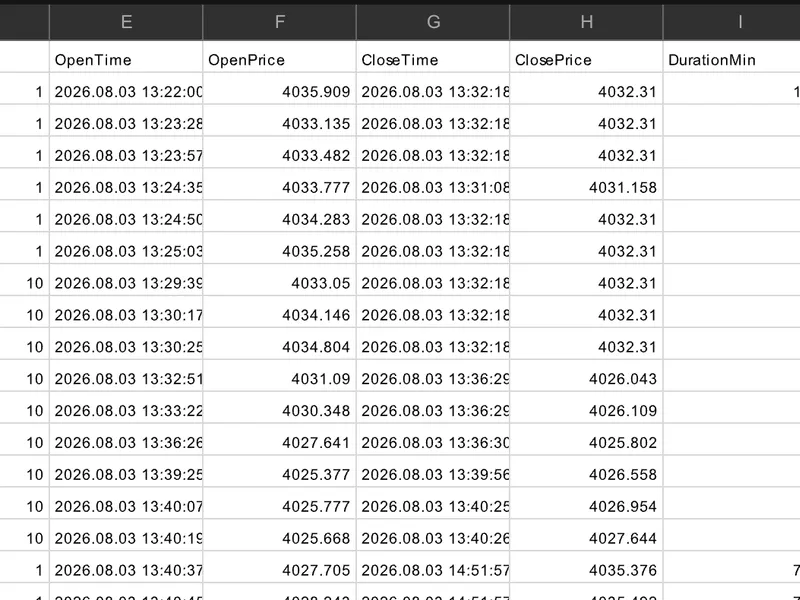
Besides the usual trade details, it calculates two values that the terminal's history does not show: Maximum Adverse Excursion (MAE) and Maximum Favorable Excursion (MFE). These are measured from M1 price history for the period each trade was open.MAE is the furthest the price moved against the trade before it was closed, and MFE is the furthest it moved in the trade's favor. Studying them across many trades shows whether stop losses are too tight or too wide, and whether take profits leave too much on the table.
The CapturedPct column shows how much of the MFE each trade actually kept.
The file contains one row per closed position with these columns: position ID, symbol, type, volume, open and close time, open and close price, duration in minutes, profit, commission, swap, net profit, result in points, MAE and MFE in points and in account currency, captured percentage, magic number and comment.
Input
Description
Days of history to export
Exports trades closed within this many days. Set 0 to export the full history. Default 90.
Only this symbol
Exports trades of one symbol only. Leave blank for all symbols.
Only this magic number
Exports trades of one Expert Advisor only. Set -1 for all trades, including manual ones.
Calculate MAE/MFE from M1 history
Turns the excursion calculation on or off. Turning it off makes the export faster.
File name
Name of the CSV file. Leave blank for an automatic name with the account number and date.
Column separator
Character between columns. Use a semicolon if your spreadsheet program expects it.
Save to the common Files folder
Saves the file to the folder shared by all terminals instead of this terminal's Files folder.
The file location is shown in a message when the export finishes. In the terminal, File, Open Data Folder opens the data folder, and the CSV is in MQL5\Files. MT5 rebuilds each position from its deals, so scaling in and partial closes appear as one row with average entry and exit prices.
Positions reversed on netting accounts, and positions opened before the selected period, are skipped.
MAE and MFE are based on Bid M1 bars, so for sell trades they do not include the spread. If the broker's server no longer has M1 history for an old trade, those columns are left blank and the count is shown in the final message.
Money values use the current tick value, so they are approximate for symbols whose profit currency differs from the account currency.
You may also like: print closed position - excellent alternative for script users on MetaTrader 5.
Source Code
#property copyright "RobotFX"
#property link "https://robotfx.org"
#property version     "1.00"
#property description "This code is educational. Feel free to use, modify and upgrade as you wish. Visit ROBOTFX.ORG for professional trading tools"
#property script_show_inputs
input int    InpDaysBack      = 90;
input string InpSymbolFilter  = "";
input long   InpMagicFilter   = -1;
input bool   InpCalcExcursion = true;
input string InpFileName      = "";
.......
⚠ Limitations & Risk Warning
- This tool is provided for educational and testing purposes only.
- Past performance does not guarantee future results.
- Trading involves substantial risk of loss. Use on a demo account first.
- Results may vary depending on market conditions, broker, and settings.
- We recommend thorough backtesting and forward testing before using with real funds.