



Smart Loss Exit: Proactive Exit for Losing Trades
Info
The Smart Loss Exit: Proactive Exit for Losing Trades is a Expert Advisor for MetaTrader 5 that smart loss exit is an auxiliary tool, not a trading strategy. It does not open positions.
Usage
This tool is typically used for automated trading on major forex pairs and gold.
Platform
This Expert Advisor works exclusively on MetaTrader 5 (both build 600+ and newer versions).
Setup
Place the downloaded file in MQL5/Experts folder via File ? Open Data Folder in MetaTrader 5.
How to Install and Use Smart Loss Exit: Proactive Exit for Losing Trades
1. Installation: Open the "File" menu, select "Open Data Folder," navigate to MQL/Experts, paste your file, and restart the terminal.
2. Activation: Drag the EA from the Navigator onto a chart, ensure "Allow live trading" is checked in the Common tab, and verify the AutoTrading button is green.
3. Optimization: Right-click your chart, choose "Expert List," click "Properties" to adjust inputs, and save your preferred setup as a set file for future use.
4. Maintenance: Regularly check the "Experts" tab in the terminal window to monitor trade logs and potential execution errors.
Frequently Asked Questions
Q: Why is my EA not opening trades? A: Check the "AutoTrading" button, ensure "Allow live trading" is enabled, and verify your broker allows automated trading on your account type.
Q: Can I run multiple EAs on one chart? A: No, each chart can only host one active EA; however, you can open multiple charts for different currency pairs to run several EAs.
Q: What does the "smiley face" icon mean? A: A smiley face in the top-right corner of the chart indicates the EA is successfully running; a frowny face means it is disabled.
What this tool does
Smart Loss Exit is an auxiliary tool, not a trading strategy.
Typical Use Case
This Expert Advisor excels in automated trading and technical analysis on MetaTrader 5.
Compatible Platform & Setup
This Expert Advisor works on MetaTrader 5. Place the file in the MQL5/Experts folder and restart the terminal.
Description & Settings
Related: Prop Guard Lite: Daily and Max Loss Protection for Prop Firm Accounts - another powerful expert for MetaTrader 5 traders.
Smart Loss Exit is an auxiliary tool, not a trading strategy. It does not open positions. When attached to a chart, it monitors open trades (manual or automated, filterable by symbol and magic number) and closes those in loss if any of five predefined rules are met. Trades in profit remain unaffected.Also recommended: Prop Firm Guard: Daily Loss and Max Drawdown Protection - similar expert with strong performance on MetaTrader 5.
This tool addresses a common backtesting observation: a high win rate with a suboptimal profit factor due to a few large losing trades. The objective is to identify and exit trades destined for a stop-loss, while allowing those with potential for recovery to remain open. Each rule is configurable, includes a grace period, and all exits are logged to a journal for analysis, helping to distinguish between trades that would have hit the stop-loss and those that recovered.
Grace Period: No rule is evaluated until a trade has been open for a specified duration (default 5 minutes) to avoid closing normal entry drawdowns.
Observe-Only Mode: Allows testing the rules without closing trades. The tool will journal which trades would have been closed and why. This mode is recommended for initial setup before enabling active closing.
Exit Rules:
- Rule 1: ATR Adverse Excursion. Closes a trade if the price moves against the entry by a specified multiple of the Average True Range (ATR) (default 1.5 x ATR(14) on the selected timeframe).
- Rule 2: Time in Trade. Closes a trade if it remains in loss for longer than a specified duration (default 240 minutes).
- Rule 3: EMA Trend Invalidation. Closes a trade if, on the last closed bar, the fast Exponential Moving Average (EMA) is below the slow EMA for a buy trade, or above it for a sell trade (default 20/50 EMA).
- Rule 4: RSI Momentum. Closes a trade if, on the last closed bar, the Relative Strength Index (RSI) is below a specified level for a losing buy, or above a specified level for a losing sell (default off, levels 35/65).
- Rule 5: Money Cap. Closes a trade if the floating loss, including swap and commission, exceeds a fixed amount (default off).
Rules 1 and 2 are evaluated on every tick. Rules 3 and 4 are evaluated on the close of each bar and do not repaint. Rules are checked sequentially, and the first rule triggered results in the trade closure and logging.
Journal: Every exit event appends a line to the file MQL5\Files\SmartLossExit_journal.csv. The log includes: timestamp, symbol, ticket, trade type, volume, open and close prices, profit, trade age in minutes, maximum adverse excursion in pips and ATR units, and the rule that triggered the exit. Analyzing this journal in a spreadsheet can reveal patterns, such as trades that reached a certain ATR threshold consistently hitting the stop-loss, informing rule configuration.
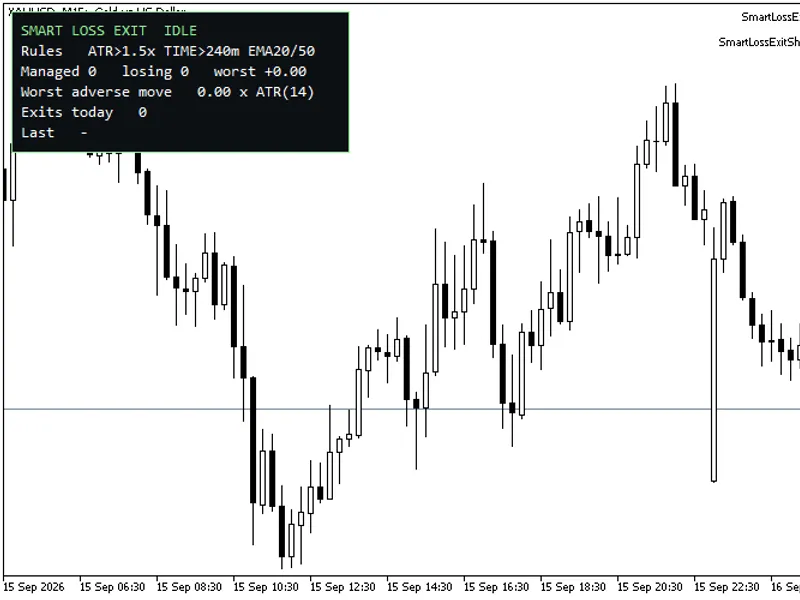
Panel: A visual display on the chart shows active rules, managed positions, the number of losing trades, the worst-performing trade, the maximum adverse move in ATR units, and recent exit statistics.
All exits are recorded in the Experts log and can optionally trigger a terminal alert.
Inputs:
Scope: Manage trades on the current chart's symbol only (true/false) · Magic number filter (0 for all, -1 for manual only) · Indicator timeframe for ATR/EMA/RSI (default M15) · Grace period in minutes (default 5) · Observe only mode (default false)
Rule 1 — ATR Settings: Enable (true/false) · ATR period (default 14) · ATR Multiple (default 1.5)
Rule 2 — Time Settings: Enable (true/false) · Maximum trade duration in minutes (default 240)
Rule 3 — EMA Settings: Enable (true/false) · Fast EMA period (default 20) · Slow EMA period (default 50)
Rule 4 — RSI Settings: Enable (true/false) · RSI period (default 14) · Buy exit level (default 35) · Sell exit level (default 65)
Rule 5 — Money Settings: Enable (true/false) · Maximum loss in account currency (default 50)
Journal and Display Settings: Write CSV journal (true/false) · Journal file name (default SmartLossExit_journal.csv) · Pop-up alert on exit (true/false) · Show panel (true/false) · Panel position (e.g., left-upper) · Panel font size (default 10)
Note on Pips: A pip is defined as 10 points for 3- and 5-digit quotes, and 1 point otherwise.
Recommendation: Attach the indicator to the chart corresponding to the trades you wish to manage. The M15 indicator timeframe is suitable for intraday systems, particularly on XAUUSD and major forex pairs. Compatible with both hedging and netting account types.
Verified Test Results (2026):
Strategy Tester, EURUSD M1, MetaQuotes-Demo, 10,000 USD, hedging account, grace period 0:
Test Case 1: ATR rule only (0.05 x ATR), 1.00 lot buy. Result: Trade closed by ATR rule.
Test Case 2: Money rule only (cap 3), 1.00 lot buy. Result: Trade closed by Money rule.
Test Case 3: Time rule only (2 min), buy + sell. Result: Trades closed by Time rule.
All test cases confirm that no losing positions were left open and profitable trades were unaffected. The journal generated contained the correct header and entries for each closed trade.
Self-Test Summary: 8 passed, 0 failed.
Journal Excerpt from Test Run:
time,symbol,ticket,type,volume,open,close,profit,age_min,mae_pips,mae_atr,reason
2026.06.02 00:00:00,EURUSD,2,BUY,1.00,1.16317,1.16313,-4.00,0,0.4,0.11,ATR 0.11x > 0.05x
2026.06.02 00:03:00,EURUSD,4,BUY,1.00,1.16336,1.16311,-25.00,0,2.5,0.79,MONEY 25.00 > 3.00
2026.06.02 00:08:00,EURUSD,7,SELL,0.10,1.16304,1.16329,-2.50,2,3.0,0.95,TIME 2 min >= 2
2026.06.02 00:08:00,EURUSD,6,BUY,0.10,1.16329,1.16304,-2.50,2,3.4,1.07,TIME 2 min >= 2
Compilation successful with 0 errors, 0 warnings (build 6198).
Additional Notes:
- Integration with Risk Guard (by the same author): Risk Guard manages entry risk, while Smart Loss Exit manages exit risk for losing trades.
- Account-Wide Management: With 'Only manage this chart's symbol' set to false and magic number set to 0, the tool manages all account positions from a single chart. Indicator handles are created per symbol as needed.
- Shared Journal Access: The journal file is opened in shared mode, allowing real-time access from spreadsheet applications while the EA is active.
- Tuning Recommendation: Utilize the 'Observe only' mode for a period (e.g., one week). This logs potential exits without closing trades. Analyze the journal to identify which rules accurately flagged trades that would have hit the stop-loss. Adjust rule parameters to capture necessary exits while avoiding premature closure of potentially recovering trades. Then, disable 'Observe only' mode to activate trade management.
You may also like: Smart Money Concept Expert Advisor: Market Structure, FVG, and Pullback Trading - excellent alternative for expert users on MetaTrader 5.
Source Code
#property copyright "RobotFX"
#property link "https://robotfx.org"
#property version   "1.00"
#property description "This code is educational. Feel free to use, modify and upgrade as you wish. Visit ROBOTFX.ORG for professional trading tools"
#property strict
#include <Trade\Trade.mqh>
#include <Trade\PositionInfo.mqh>
input group "Scope"
input bool             InpThisSymbolOnly =true;
input long             InpMagic          =0;
.......
⚠ Limitations & Risk Warning
- This tool is provided for educational and testing purposes only.
- Past performance does not guarantee future results.
- Trading involves substantial risk of loss. Use on a demo account first.
- Results may vary depending on market conditions, broker, and settings.
- We recommend thorough backtesting and forward testing before using with real funds.