







EA Auditor: Uncovering Expert Advisor Trading Behavior from Deal History
Info
The EA Auditor: Uncovering Expert Advisor Trading Behavior from Deal History is a Script for MetaTrader 5 that every expert advisor comes with a description, often written by the seller. This description might claim the EA avoids martingale or grid strategies, or that it places a stop on every trade.
Usage
This tool is typically used for enhancing chart analysis and decision making.
Platform
This Script works exclusively on MetaTrader 5 (both build 600+ and newer versions).
Setup
Place the downloaded file in MQL5/Scripts folder via File ? Open Data Folder in MetaTrader 5.
How to Install and Use EA Auditor: Uncovering Expert Advisor Trading Behavior from Deal History
1. Installation: Move your script file into the MQL/Scripts directory and restart the platform.
2. Execution: Drag the script onto a chart; it will perform a one-time action, such as closing all open orders or clearing chart objects.
3. Editing: Use MetaEditor (F4) to modify code, click "Compile," and verify no errors appear in the terminal before running.
4. Removing: Scripts stop automatically, but you can remove them manually by right-clicking the chart and choosing "Remove Script."
Frequently Asked Questions
Q: How are scripts different from EAs? A: Scripts execute a single action and then stop; EAs monitor the market and trade continuously.
Q: Can I assign a hotkey to a script? A: Yes, right-click the script in the Navigator, select "Set Hotkey," and define your preferred keyboard shortcut.
Q: Why did my script stop? A: Scripts are designed to stop immediately after finishing their programmed command; this is normal behavior.
What this tool does
Every Expert Advisor comes with a description, often written by the seller.
Typical Use Case
This Script excels in automated trading and technical analysis on MetaTrader 5.
Compatible Platform & Setup
This Script works on MetaTrader 5. Place the file in the MQL5/Scripts folder and restart the terminal.
Description & Settings
Related: After-Exit Analyzer: Uncovering Missed Opportunities and Potential Pitfalls Post-Trade - another powerful script for MetaTrader 5 traders.
Every Expert Advisor comes with a description, often written by the seller. This description might claim the EA avoids martingale or grid strategies, or that it places a stop on every trade. However, nothing within the terminal actively verifies these claims. The deal history, on the other hand, provides an undeniable record of the EA's actions. If the lot size doubles after each loss, the history will reflect this. Similarly, if new trades are opened against existing positions, the history will show this activity.Also recommended: Neural Loss-Pattern Auditor: Analyze Trade History for Behavioral Patterns - similar script with strong performance on MetaTrader 5.
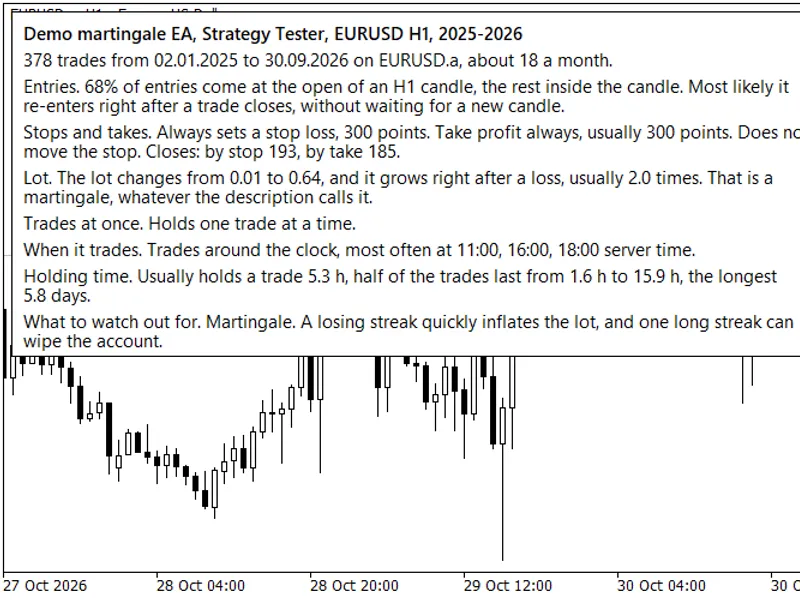
EA Auditor analyzes your account's deal history and generates a concise, plain-language summary of the trading methodology employed. It examines key aspects such as trade entry timing, the presence and management of stop-loss and take-profit levels, lot size progression, the maximum number of simultaneous open trades, typical trading hours, and trade duration. The report concludes with specific points to be aware of. This summary is displayed in the Experts tab, directly on the chart, and saved to a text file, available in English or Russian.
What EA Auditor Looks For
Martingale patterns are identified by monitoring lot size. The auditor compares the lot size of each trade with the preceding one. If, following a loss, the subsequent trade's lot size is consistently at least 1.5 times larger, and significantly larger than after a winning trade, the auditor labels it a martingale, irrespective of the EA's description.
Averaging, or adding to a losing position, is detected by analyzing trade prices. When an EA opens a new trade in the same direction as an existing open trade but at a less favorable price, this is classified as averaging. While one or two such instances might be coincidental, the auditor issues a warning only when this occurs at least three times across at least five percent of the trades. Multiple trades opened within the same second are treated differently; these are typically indicative of a single position divided into parts with varying take-profit levels, and the auditor notes this rather than classifying it as a grid.
A stop-loss that closes a trade in profit suggests the stop was moved. The auditor reports this as a trailing stop or a break-even adjustment. Trades opened without an initial stop-loss, which later receive one, are flagged as unprotected until the stop is applied. When the stop-loss is set significantly farther from the entry price than the take-profit level, the auditor calculates and reports the required win rate for the EA to simply break even, as a high win rate in such a scenario proves little.
Illustrative Examples
The following examples were generated using the Strategy Tester on EURUSD H1, covering the period from January 2026 to October 2026. The first scenario involves a small demo EA that doubles its lot size after every loss. EA Auditor identifies this martingale behavior solely from the trade history, without examining the EA's code.
The second example uses the standard MACD Sample EA included with the terminal. This EA appears innocuous and is not a martingale. However, a critical observation is that all 109 of its trades were initially opened without a stop-loss. Fifteen of these trades later had a stop-loss applied via trailing, but the remainder never had one, meaning losing trades had no defined limit until the EA manually closed them.
How to Use EA Auditor
Place the EA_Auditor.mq5 script and the EAAudit.mqh include file into the MQL5\Scripts folder. Compile the script and then attach it to any chart. By default, it analyzes the entire account history. You can refine the analysis to a specific symbol, a particular magic number, or a defined time period, which is particularly useful if your account includes manual trades or other EAs. The generated report is saved as MQL5\Files\EA_Audit_ followed by your account number. Enabling the CSV switch also saves the detailed deal data alongside the report.
A straightforward method to evaluate an EA before committing real funds is to run it on a demo account for several weeks and then apply the EA Auditor script. To audit your own EA within the Strategy Tester, include the EAAudit.mqh file in your EA's code and call the EAAuditTester() function from OnDeinit. Upon completion of the test, the analysis report will be saved in the terminal's common folder, named EA_Audit_ followed by the EA's name.
#include "EAAudit.mqh"
void OnDeinit(const int reason)
{
EAAuditTester(AUDIT_EN);
}
What EA Auditor Does Not Do
This tool does not assess profitability and makes no claims regarding profit generation. A clean report indicates that the EA trades without employing risk patterns commonly associated with account blowouts, but it does not guarantee profitability. Conclusions drawn from analyses with fewer than twenty to thirty trades should be considered weak; therefore, a history of at least one hundred trades is recommended for more reliable insights. Trades opened prior to the selected analysis period are excluded, and the trading hours reported are based on the broker's server time.
The script functions solely by reading historical data and displaying an information panel on the chart. It does not place, modify, or close any orders.
You may also like: programming patterns - observer - excellent alternative for script users on MetaTrader 5.
Source Code
#property copyright "RobotFX"
#property link "https://robotfx.org"
#property version     "1.00"
#property description "This code is educational. Feel free to use, modify and upgrade as you wish. Visit ROBOTFX.ORG for professional trading tools"
#property script_show_inputs
#include "EAAudit.mqh"
input string          InpSymbol="";
input long            InpMagic=-1;
input datetime        InpFrom=0;
input datetime        InpTo=0;
.......
⚠ Limitations & Risk Warning
- This tool is provided for educational and testing purposes only.
- Past performance does not guarantee future results.
- Trading involves substantial risk of loss. Use on a demo account first.
- Results may vary depending on market conditions, broker, and settings.
- We recommend thorough backtesting and forward testing before using with real funds.