



Symbol Trading Hours: Broker Sessions, Countdown, and Off-Hours Bars
Info
The Symbol Trading Hours: Broker Sessions, Countdown, and Off-Hours Bars is a Indicator for MetaTrader 5 that this indicator displays the weekly trading session schedule for each symbol as defined by your broker. It shows a status line on your chart indicating whether the current trading session is OPEN or CLOSED, along with a countdown to the next session opening or closing.
Usage
This tool is typically used for enhancing chart analysis and decision making.
Platform
This Indicator works exclusively on MetaTrader 5 (both build 600+ and newer versions).
Setup
Place the downloaded file in MQL5/Indicators folder via File ? Open Data Folder in MetaTrader 5.
How to Install and Use Symbol Trading Hours: Broker Sessions, Countdown, and Off-Hours Bars
1. Installation: Place your file in the MQL/Indicators folder via "Open Data Folder" and restart your terminal.
2. Loading: Find the indicator in the Navigator, drag it onto your chart, and configure the input parameters in the popup window.
3. Customization: Press Ctrl+I to open the indicator list, select your tool, and click "Properties" to change colors, levels, or visual styles.
4. Updating: Replace the old file in the Indicators folder with the new version and restart the platform to apply changes.
Frequently Asked Questions
Q: Why is my indicator not showing? A: Verify the file is in the MQL/Indicators folder, or try right-clicking the "Indicators" tree in the Navigator and clicking "Refresh."
Q: Do custom indicators slow down the platform? A: Too many complex indicators can impact performance; remove unused ones via the "Indicator List" (Ctrl+I).
Q: Can I use MT4 indicators on MT5? A: No, MQL4 and MQL5 are distinct languages; ensure the indicator is compiled specifically for your platform version.
What this tool does
This indicator displays the weekly trading session schedule for each symbol as defined by your broker.
Typical Use Case
This Indicator excels in automated trading and technical analysis on MetaTrader 5.
Compatible Platform & Setup
This Indicator works on MetaTrader 5. Place the file in the MQL5/Indicators folder and restart the terminal.
Description & Settings
Related: Key Trading Levels Indicator: PDH/PDL, Weekly, Monthly, Midnight Open, Asian Range, and Sweeps - another powerful indicator for MetaTrader 5 traders.
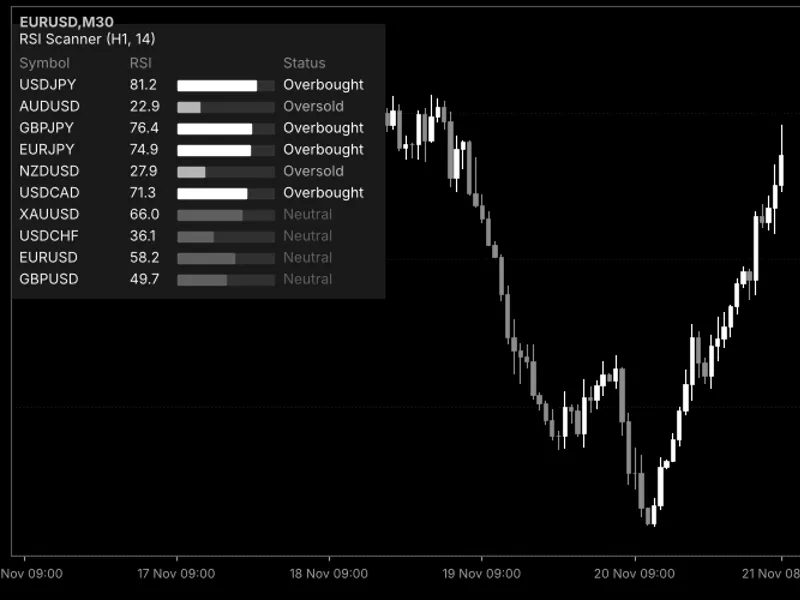
This indicator displays the weekly trading session schedule for each symbol as defined by your broker.Also recommended: Market Watch Mini Scanner: RSI Overbought/Oversold Across Symbols - similar indicator with strong performance on MetaTrader 5.
It shows a status line on your chart indicating whether the current trading session is OPEN or CLOSED, along with a countdown to the next session opening or closing.
For symbols that trade continuously throughout the week, the indicator will show "no scheduled close".
All times displayed are in the broker's server time, which is the same time used for the chart's bars, eliminating the need for manual time zone adjustments.
Additionally, the indicator marks bars with a small dot if their entire period falls outside the defined trading sessions. This is useful for identifying pre-market or after-hours quotes on symbols like stocks when the broker's schedule indicates trading is closed.
How the Schedule is Interpreted
The indicator processes all trading sessions for each weekday, allowing for multiple sessions within a single day.
During a scheduled break between sessions, the status line will show CLOSED, and the countdown will indicate the time until the next session begins.
A session that ends before it starts is interpreted as ending on the following day.
Consecutive sessions, including the transition from Saturday to Sunday, are merged.
For example, a Forex symbol trading Monday through Friday without breaks will show a countdown to the end of the week, such as "closes Sat 00:00" if the last session concludes on Friday at 24:00.
A bar is considered within a trading session if any part of its time period overlaps with a scheduled session. For instance, a Daily (D1) bar opening at 00:00 is counted as within a session if the session starts at 00:05.
Usage in an Expert Advisor
Buffer 0 (named "Outside trade session") stores the low price of bars that occur outside of trading sessions; these are the dots displayed on the chart. Otherwise, this buffer is empty.
Buffer 1 (named "In trade session") is set to 1 if the bar overlaps with a trading session, and 0 otherwise.
You can access these buffers using iCustom(_Symbol, _Period, "SymbolTradingHours") and CopyBuffer(handle, 1, ...).
The value for each bar is determined solely by its open time, the chart's timeframe, and the broker's schedule, ensuring that the data does not change after it has been written.
Inputs
InpCorner: Specifies the chart corner where the status line will be displayed. Default: lower left.
InpTextColor: Sets the color of the status line. Default: Silver.
InpFontSize: Determines the font size of the status line. Values below 6 are automatically adjusted to 6. Default: 9.
The color and visibility of the indicator dots can be configured using the standard Colors and Visualization tabs within the indicator's settings.
Behavioral Notes
The status line is updated every second using a timer synchronized with the trade server time. This ensures the countdown remains accurate even during weekends or for symbols with no current trading activity.
Immediately after a terminal starts, the symbol schedule might not be immediately available. The indicator will attempt to re-read the schedule every second until it is successfully retrieved, after which it will recalculate all bars.
If your broker has disabled trading for a specific symbol, the status line will display "trading disabled by broker".
If the broker has not defined any trading sessions for a symbol, the indicator will state this, and the message will be logged once in the Experts journal.
Using multiple instances of this indicator on the same chart will result in each displaying its own unique label.
Removing the indicator or changing the chart's timeframe will not leave any residual labels behind.
Known Limitations
MetaTrader 5 provides a weekly template for trading sessions. This template does not account for holidays or early market closures. Consequently, the indicator might show a session as OPEN on a public holiday.
Older bars are evaluated based on the current day's schedule. If the broker has altered trading hours in the past, such as during a daylight saving time change, the historical dots may not accurately reflect those past periods.
For Weekly (W1) and Monthly (MN1) timeframes, every bar is considered within a trading session if the schedule includes any trading activity for that week or month.
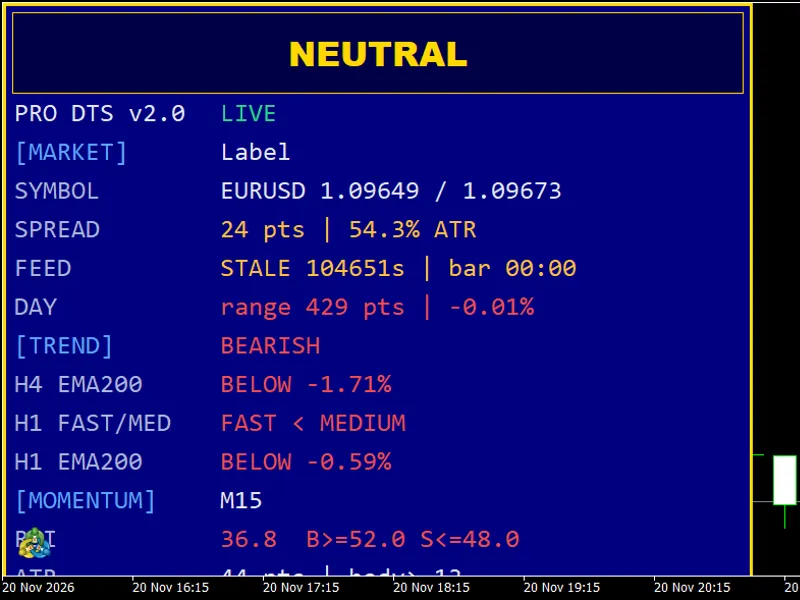
You may also like: PRO Day Trading Signals for MT5 - excellent alternative for indicator users on MetaTrader 5.
Source Code
#property copyright "RobotFX"
#property link "https://robotfx.org"
#property version     "1.00"
#property description "This code is educational. Feel free to use, modify and upgrade as you wish. Visit ROBOTFX.ORG for professional trading tools"
#property indicator_chart_window
#property indicator_buffers 2
#property indicator_plots   2
#property indicator_label1  "Outside trade session"
#property indicator_type1   DRAW_ARROW
#property indicator_color1  clrOrangeRed
.......
⚠ Limitations & Risk Warning
- This tool is provided for educational and testing purposes only.
- Past performance does not guarantee future results.
- Trading involves substantial risk of loss. Use on a demo account first.
- Results may vary depending on market conditions, broker, and settings.
- We recommend thorough backtesting and forward testing before using with real funds.