
Trade Pad: Streamlined Manual Trading Control
Info
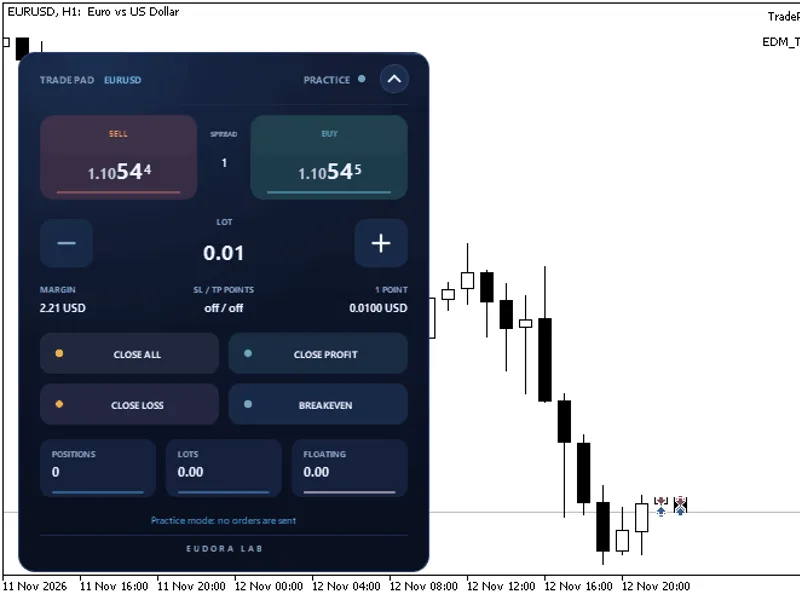
The Trade Pad: Streamlined Manual Trading Control is a Expert Advisor for MetaTrader 5 that trade pad consolidates your manual order entries into a single, intuitive panel for buying, selling, lot management, and trade management. Each button provides visual feedback with light and animation, and all actions are confirmed verbally on the panel and in the journal.
Usage
This tool is typically used for automated trading on major forex pairs and gold.
Platform
This Expert Advisor works exclusively on MetaTrader 5 (both build 600+ and newer versions).
Setup
Place the downloaded file in MQL5/Experts folder via File ? Open Data Folder in MetaTrader 5.
How to Install and Use Trade Pad: Streamlined Manual Trading Control
1. Installation: Open the "File" menu, select "Open Data Folder," navigate to MQL/Experts, paste your file, and restart the terminal.
2. Activation: Drag the EA from the Navigator onto a chart, ensure "Allow live trading" is checked in the Common tab, and verify the AutoTrading button is green.
3. Optimization: Right-click your chart, choose "Expert List," click "Properties" to adjust inputs, and save your preferred setup as a set file for future use.
4. Maintenance: Regularly check the "Experts" tab in the terminal window to monitor trade logs and potential execution errors.
Frequently Asked Questions
Q: Why is my EA not opening trades? A: Check the "AutoTrading" button, ensure "Allow live trading" is enabled, and verify your broker allows automated trading on your account type.
Q: Can I run multiple EAs on one chart? A: No, each chart can only host one active EA; however, you can open multiple charts for different currency pairs to run several EAs.
Q: What does the "smiley face" icon mean? A: A smiley face in the top-right corner of the chart indicates the EA is successfully running; a frowny face means it is disabled.
What this tool does
Trade Pad consolidates your manual order entries into a single, intuitive panel for buying, selling, lot management, and trade management.
Typical Use Case
This Expert Advisor excels in automated trading and technical analysis on MetaTrader 5.
Compatible Platform & Setup
This Expert Advisor works on MetaTrader 5. Place the file in the MQL5/Experts folder and restart the terminal.
Description & Settings
Related: Smart Break-Even and Partial Close - R-based Trade Manager - another powerful expert for MetaTrader 5 traders.
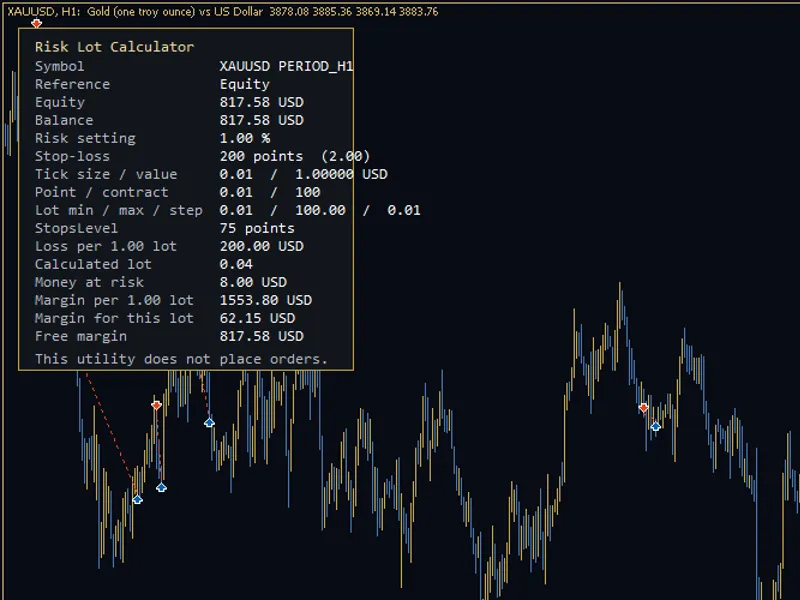
Trade Pad consolidates your manual order entries into a single, intuitive panel for buying, selling, lot management, and trade management. Each button provides visual feedback with light and animation, and all actions are confirmed verbally on the panel and in the journal.Also recommended: Risk Lot Calculator for MetaTrader 5 - similar expert with strong performance on MetaTrader 5.
The panel is rendered using antialiased graphics and smooth transitions, adapting to the chart's symbol and supporting both hedging and netting account types. A header button allows the panel to collapse into a compact bar displaying floating results, and it can be repositioned anywhere on the chart via its header. The tool is contained within a single file and relies solely on the standard Trade and Canvas libraries.
Panel Features:
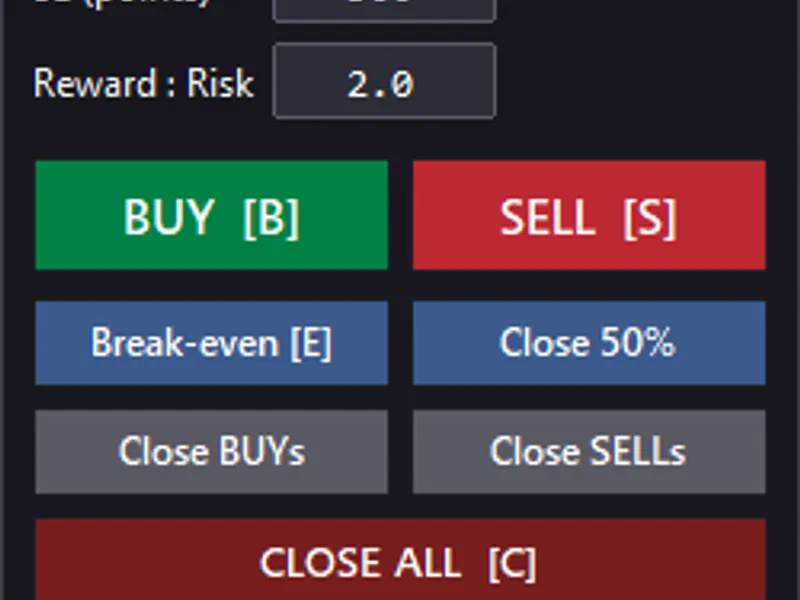
- BUY / SELL: Executes market orders at the specified lot size, displaying live bid and ask prices along with the spread directly on the buttons.
- Lot Management: Use the plus and minus buttons to adjust the lot size by one increment, respecting the symbol's minimum and maximum lot restrictions. Below the lot controls, the required margin and the value of one point for the current lot size are displayed.
- CLOSE ALL: Closes all positions managed by the panel. Requires a secondary confirmation click, where the button transforms into a "CONFIRM" button for three seconds.
- CLOSE PROFIT: Closes only positions currently in profit.
- CLOSE LOSS: Closes only positions currently at a loss, also requiring a secondary confirmation click.
- BREAKEVEN: Adjusts the stop loss to the entry price for all positions currently in profit.
Safety Features:
Orders are executed only through explicit clicks on the visible panel. A double-click initiates an order, and a double-click on "CLOSE ALL" activates the confirmation prompt.
Buttons obscured by other program windows or positioned outside the chart area are disabled, with a corresponding notification.
By default, the pad manages manually placed trades and trades initiated by the pad itself. Positions opened by other Expert Advisors on the same symbol are unaffected unless explicitly configured otherwise.
If a stop loss or take profit value is set closer than permitted by the broker, the order will be rejected with a message indicating the minimum allowable distance.
The panel header indicates "DEMO" or "REAL" account status. Buttons appear visually disabled when trading is suspended in the terminal.
Practice Mode: Allows full interaction with all buttons and visual feedback without executing any orders, providing a safe environment to familiarize yourself with the panel's functionality.
Inputs:
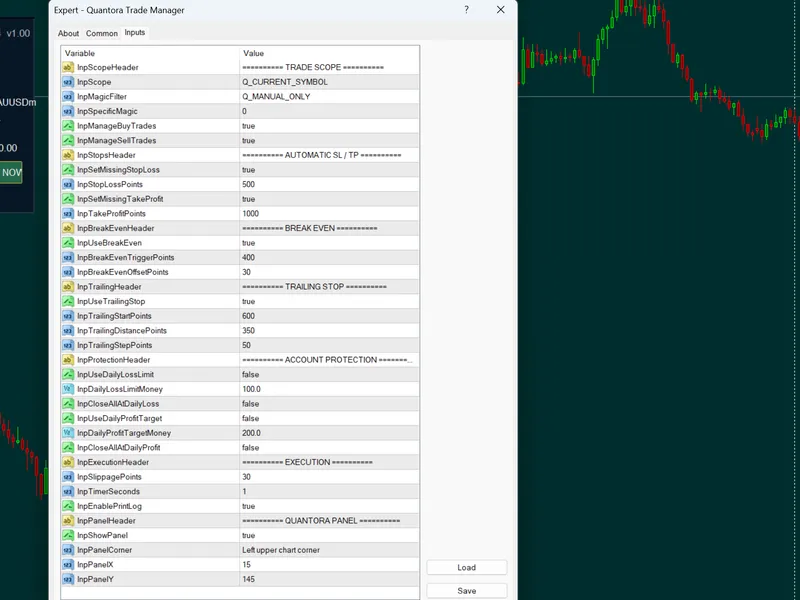
- Horizontal and Vertical Offset: Sets the initial position of the panel from the chart edges in pixels. The panel retains its position across charts after being manually dragged.
- Panel Size (percent) and Accent Color: Customizes the visual appearance of the panel.
- Starting Lot: Setting to 0 uses the symbol's minimum lot size. The pad remembers the last used lot size.
- Stop Loss (points) and Take Profit (points): Set to 0 to disable.
- Maximum Slippage (points) and Magic Number.
- Positions to Manage: Choose to manage manual trades and trades opened by this pad (default), only trades opened by this pad, or all open positions on the symbol.
- Practice Mode (no orders sent): Enables or disables the practice mode.
- Allow Other Programs to Press Buttons: Disabled by default. When enabled, a signed custom chart event can trigger button presses. The specific format is detailed in the source file.
To use Trade Pad, attach it to a chart like any Expert Advisor and enable algorithmic trading. It is recommended to test it first on a demo account or in practice mode.
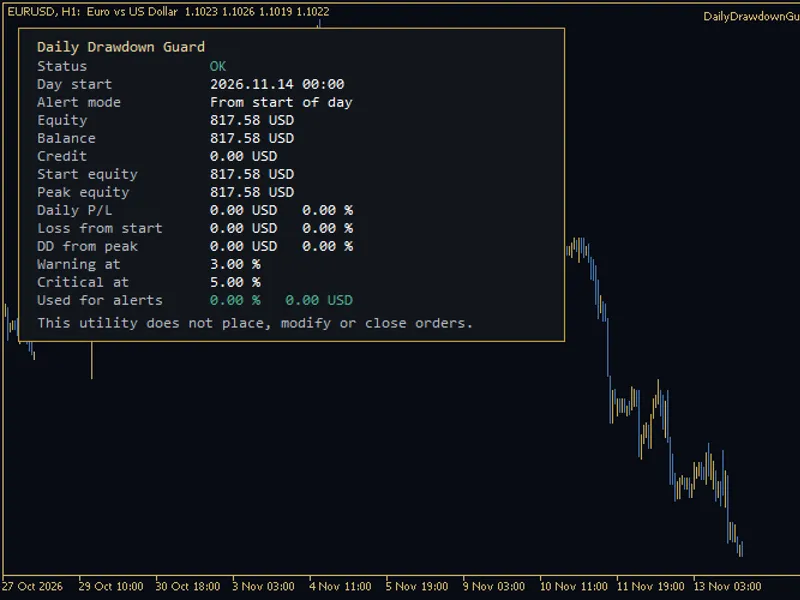
You may also like: Daily Drawdown Guard for MetaTrader 5 - excellent alternative for expert users on MetaTrader 5.
Source Code
#property copyright "RobotFX"
#property link "https://robotfx.org"
#property version   "1.00"
#property description "This code is educational. Feel free to use, modify and upgrade as you wish. Visit ROBOTFX.ORG for professional trading tools"
#include <Canvas\Canvas.mqh>
#include <Trade\Trade.mqh>
enum ENUM_PAD_SCOPE
  {
   SCOPE_MANUAL_AND_PAD = 0,
   SCOPE_PAD_ONLY       = 1,
.......
⚠ Limitations & Risk Warning
- This tool is provided for educational and testing purposes only.
- Past performance does not guarantee future results.
- Trading involves substantial risk of loss. Use on a demo account first.
- Results may vary depending on market conditions, broker, and settings.
- We recommend thorough backtesting and forward testing before using with real funds.