
Swing Trading Dashboard
Info
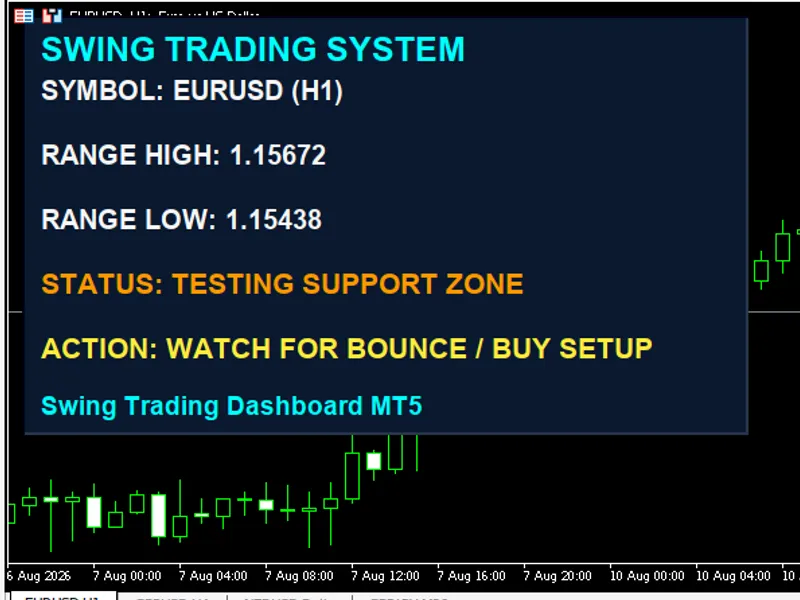
The Swing Trading Dashboard is a Indicator for MetaTrader 5 that how the logic works:the indicator analyzes the last specified number of closed bars, excluding the current incomplete bar, to determine a trading range. It identifies the highest High (Range High) and the lowest Low (Range Low) within this lookback period.
Usage
This tool is typically used for enhancing chart analysis and decision making.
Platform
This Indicator works exclusively on MetaTrader 5 (both build 600+ and newer versions).
Setup
Place the downloaded file in MQL5/Indicators folder via File ? Open Data Folder in MetaTrader 5.
How to Install and Use Swing Trading Dashboard
1. Installation: Place your file in the MQL/Indicators folder via "Open Data Folder" and restart your terminal.
2. Loading: Find the indicator in the Navigator, drag it onto your chart, and configure the input parameters in the popup window.
3. Customization: Press Ctrl+I to open the indicator list, select your tool, and click "Properties" to change colors, levels, or visual styles.
4. Updating: Replace the old file in the Indicators folder with the new version and restart the platform to apply changes.
Frequently Asked Questions
Q: Why is my indicator not showing? A: Verify the file is in the MQL/Indicators folder, or try right-clicking the "Indicators" tree in the Navigator and clicking "Refresh."
Q: Do custom indicators slow down the platform? A: Too many complex indicators can impact performance; remove unused ones via the "Indicator List" (Ctrl+I).
Q: Can I use MT4 indicators on MT5? A: No, MQL4 and MQL5 are distinct languages; ensure the indicator is compiled specifically for your platform version.
What this tool does
How the logic works:The indicator analyzes the last specified number of closed bars, excluding the current incomplete bar, to determine a trading range.
Typical Use Case
This Indicator excels in automated trading and technical analysis on MetaTrader 5.
Compatible Platform & Setup
This Indicator works on MetaTrader 5. Place the file in the MQL5/Indicators folder and restart the terminal.
Description & Settings
Related: Trading Session Boxes Indicator for MT4/MT5 - another powerful indicator for MetaTrader 5 traders.
How the logic works:The indicator analyzes the last specified number of closed bars, excluding the current incomplete bar, to determine a trading range.
Also recommended: Market Structure BOS and CHoCH Indicator: Swing Points, No Repaint, Alerts - similar indicator with strong performance on MetaTrader 5.
It identifies the highest High (Range High) and the lowest Low (Range Low) within this lookback period.
A buffer zone is calculated around these boundaries, creating resistance and support zones.
The current closing price is then compared to these levels to display one of the following statuses:
BULLISH BREAKOUT – The price has moved above the calculated range high.
BEARISH BREAKDOWN – The price has moved below the calculated range low.
TESTING RESISTANCE ZONE – The price is within the upper buffer zone, nearing the range high.
TESTING SUPPORT ZONE – The price is within the lower buffer zone, nearing the range low.
MID-RANGE OSCILLATION – The price is trading within the middle of the range, with no clear directional signal.
The dashboard refreshes at a set interval (specified in seconds) using the OnTimer function, rather than on every price tick.
How to use in trading:
This tool serves as a context indicator, not a standalone signal generator. It can assist traders by:
Quickly identifying the current trading range without manual drawing of support and resistance lines.
Filtering trade entries by avoiding trades in the middle of the range, where whipsaw risk is higher, and waiting for price to approach the defined zones.
Confirming breakouts by combining the BULLISH BREAKOUT or BEARISH BREAKDOWN status with other indicators like volume for trade entry confirmation.
Monitoring multiple symbols simultaneously due to its lightweight nature, allowing for a quick scan of markets nearing range breaks.
This indicator does not inherently consider overall market trend, volume, or volatility (ATR). Therefore, it is most effective when used in conjunction with other technical analysis tools, or with fundamental analysis such as news events or trading session context.
Input Parameters:
Swing Settings:
InpLookbackBars: Defines the number of historical bars used for calculating the range high and low. A smaller value results in a more reactive range but may be noisier. A larger value leads to a more stable range but reacts slower.
InpZonePercent: Sets the width of the resistance and support zones as a percentage of the total range span. A larger percentage creates wider zones, causing the 'testing' status to trigger earlier.
InpTimerSeconds: Determines the refresh rate of the panel in seconds.
UI Position & Scaling:
InpShowPanel: Toggles the visibility of the dashboard panel.
InpPanelX, InpPanelY: Specifies the offset of the panel from the chart's top-left corner in pixels.
InpBaseFontSize: Sets the base font size, from which all other UI elements (titles, text, panel dimensions) are auto-scaled.
Colors:
InpColorBackground: Selects the background color theme for the panel from predefined options.
InpColorTitle: Sets the color for the title and footer text.
InpColorText: Sets the color for standard text elements, such as the symbol name and range values.
InpColorNeutral: Sets the color for statuses that are neither breakout, breakdown, nor zone testing (typically yellow).
InpColorBorder: Sets the color of the panel's border.
(Note: Colors for breakout, breakdown, and testing statuses are hardcoded and not configurable via inputs.)
Trading Methods:
Breakout + Retest: Wait for a BULLISH BREAKOUT or BEARISH BREAKDOWN status. Then, anticipate a price pullback to retest the former range boundary (which now acts as support or resistance) before entering a trade to mitigate false breakout risks.
Range Fading (Mean Reversion): When the status is TESTING RESISTANCE ZONE, look for sell signals, assuming the range will hold. Apply the opposite logic for TESTING SUPPORT ZONE with buy signals. This method is most effective in non-trending markets.
Multi-Timeframe Trend Confirmation: Utilize the indicator on higher timeframes (e.g., H4, D1) to establish the broader market context and range. Then, execute entries on lower timeframes (e.g., M15, H1) only in the direction indicated by the higher timeframe status.
'Do Not Trade' Filter: If the status is MID-RANGE OSCILLATION, refrain from entering trades. Only consider entries once the price has reached one of the defined zones.
It is important to remember that this indicator does not manage trading risk, stop-losses, or position sizing. All trading methods should incorporate your individual risk management strategies.
You may also like: Trading Session Ranges: Asian, London, and New York - excellent alternative for indicator users on MetaTrader 5.
Source Code
#property copyright "RobotFX"
#property link "https://robotfx.org"
#property version   "9.00"
#property strict
#property indicator_chart_window
#property indicator_plots 0
#property description "This code is educational. Feel free to use, modify and upgrade as you wish. Visit ROBOTFX.ORG for professional trading tools"
enum ENUM_BG_COLOR
{
    BG_DARK_BLUE   = C'8,23,38',
.......
⚠ Limitations & Risk Warning
- This tool is provided for educational and testing purposes only.
- Past performance does not guarantee future results.
- Trading involves substantial risk of loss. Use on a demo account first.
- Results may vary depending on market conditions, broker, and settings.
- We recommend thorough backtesting and forward testing before using with real funds.