


FX Dashboard: Comprehensive Trading Analysis Tool
Info
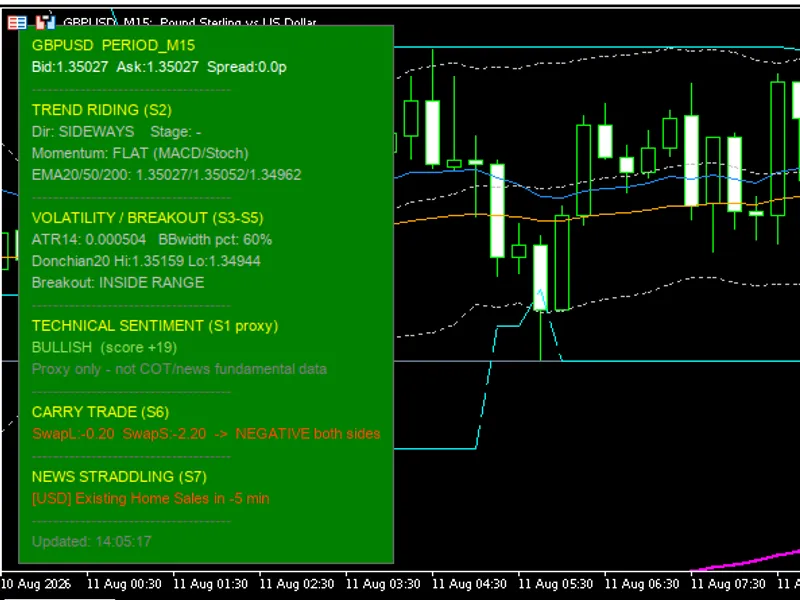
The FX Dashboard: Comprehensive Trading Analysis Tool is a Indicator for MetaTrader 5 that fx dashboard overviewthe fx dashboard provides a consolidated view of key trading metrics, including:technical sentiment (proxy) – a bullish/bearish score derived from ema, macd, and stochastic indicators. Trend Riding – Assesses trend direction (UPTREND, DOWNTREND, SIDEWAYS), stage (nascent, established, aging, reversal risk), and momentum.
Usage
This tool is typically used for enhancing chart analysis and decision making.
Platform
This Indicator works exclusively on MetaTrader 5 (both build 600+ and newer versions).
Setup
Place the downloaded file in MQL5/Indicators folder via File ? Open Data Folder in MetaTrader 5.
How to Install and Use FX Dashboard: Comprehensive Trading Analysis Tool
1. Installation: Place your file in the MQL/Indicators folder via "Open Data Folder" and restart your terminal.
2. Loading: Find the indicator in the Navigator, drag it onto your chart, and configure the input parameters in the popup window.
3. Customization: Press Ctrl+I to open the indicator list, select your tool, and click "Properties" to change colors, levels, or visual styles.
4. Updating: Replace the old file in the Indicators folder with the new version and restart the platform to apply changes.
Frequently Asked Questions
Q: Why is my indicator not showing? A: Verify the file is in the MQL/Indicators folder, or try right-clicking the "Indicators" tree in the Navigator and clicking "Refresh."
Q: Do custom indicators slow down the platform? A: Too many complex indicators can impact performance; remove unused ones via the "Indicator List" (Ctrl+I).
Q: Can I use MT4 indicators on MT5? A: No, MQL4 and MQL5 are distinct languages; ensure the indicator is compiled specifically for your platform version.
What this tool does
FX Dashboard OverviewThe FX Dashboard provides a consolidated view of key trading metrics, including:Technical Sentiment (Proxy) – A bullish/bearish score derived from EMA, MACD, and Stochastic indicators.
Typical Use Case
This Indicator excels in automated trading and technical analysis on MetaTrader 5.
Compatible Platform & Setup
This Indicator works on MetaTrader 5. Place the file in the MQL5/Indicators folder and restart the terminal.
Description & Settings
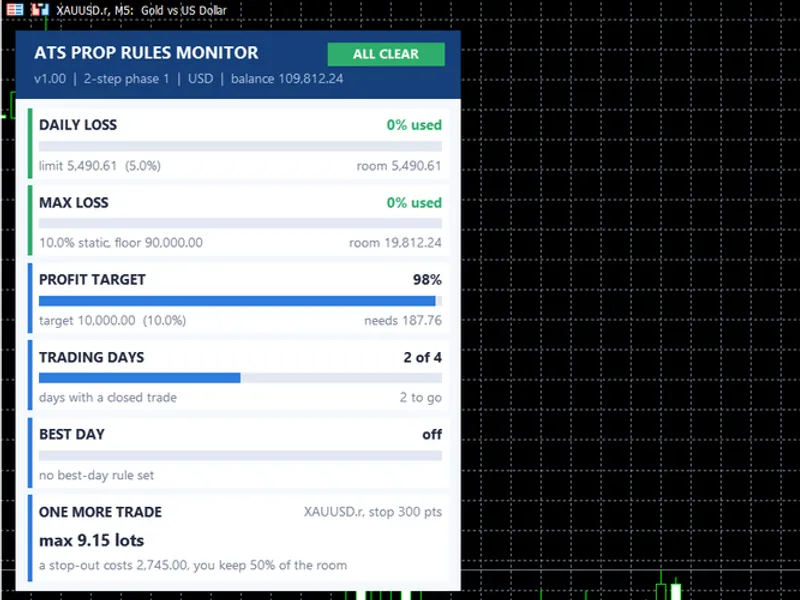
Related: ATS Prop Rules Monitor: Comprehensive Prop Firm Challenge Scoreboard - another powerful indicator for MetaTrader 5 traders.
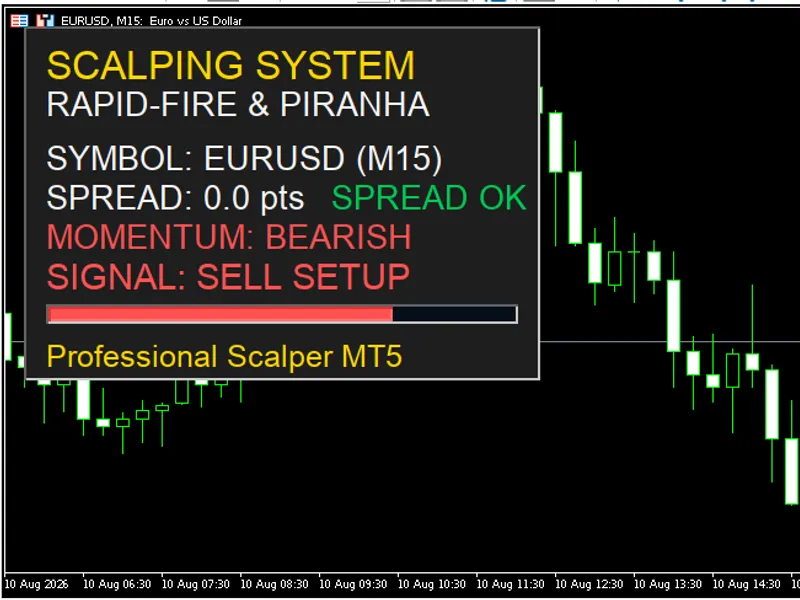
FX Dashboard OverviewAlso recommended: Scalping Dashboard: Real-Time Trading Decision Support - similar indicator with strong performance on MetaTrader 5.
The FX Dashboard provides a consolidated view of key trading metrics, including:
Technical Sentiment (Proxy)
– A bullish/bearish score derived from EMA, MACD, and Stochastic indicators.
Trend Riding
– Assesses trend direction (UPTREND, DOWNTREND, SIDEWAYS), stage (nascent, established, aging, reversal risk), and momentum.
Volatility & Breakout
– Monitors ATR, Bollinger Band squeezes, Donchian channels, and breakout status (confirmed, false, testing).
Carry Trade
– Indicates overnight swap for long/short positions, showing interest paid or received.
News Straddling
– Highlights upcoming significant economic events for currency pairs.
Chart Indicators
– The panel can overlay EMA (Fast, Mid, Slow), Bollinger Bands, and Donchian Channels on your chart.
Benefits for Live Trading
Time Efficiency
– Consolidates information from multiple indicator windows into a single, easy-to-read panel, showing trend, volatility, and news at a glance.
Contextual Filtering
– Enables traders to assess the market context before entry, checking for clear trends, Bollinger Band squeezes, breakout validity, and proximity of news events.
Reduced Impulsive Entries
– Provides clear labels like “FALSE BREAK – FADE”, “REVERSAL RISK”, and “SIDEWAYS” to help traders avoid range-bound markets and false breakouts.
News Timing
– Offers a countdown to high-impact economic events, allowing traders to avoid or strategically trade volatile periods.
Carry Trade Bias
– On H4/D1 timeframes, traders can prioritize positions in the direction of positive overnight swap.
Important Limitations
Sentiment indicators are technical proxies and do not reflect fundamental data or Commitment of Traders (COT) reports.
The dashboard does not provide automatic entry or exit signals; trading decisions remain the responsibility of the user.
The economic calendar's accuracy depends on the broker's server time.
This tool is for educational and contextual purposes only and does not constitute financial advice.
Input Group Explanations
PANEL IDENTITY
Setting: Unique Panel ID
What it does: Assign a unique ID if multiple instances of the panel are used on the same chart to prevent object conflicts.
PANEL POSITION
Setting: Panel Corner
What it does: Selects the corner of the chart where the panel will be anchored.
Setting: Offset X / Y
What it does: Adjusts the pixel distance of the panel from the selected corner.
PANEL & TEXT COLORS
Setting: Panel Background
What it does: Sets the background color of the panel.
Setting: Border / Separator
What it does: Defines the color for borders and separator lines.
Setting: Header / Accent
What it does: Sets the color for section titles (e.g., TREND RIDING, NEWS).
Setting: Neutral / Base Text
What it does: Sets the color for standard text elements.
Setting: Bullish Color
What it does: Color for positive signals and uptrends.
Setting: Bearish Color
What it does: Color for negative signals and downtrends.
Setting: Warning Color
What it does: Color for signals like fade, reversal risk, and approaching news.
Setting: Neutral Color
What it does: Color for sideways markets and prices within a range.
Setting: Info Color
What it does: Color for information like squeezes and nascent trends.
Setting: Aging Color
What it does: Color for aging trends.
Setting: Gray Note Color
What it does: Color for secondary notes and disclaimers.
TEXT SIZE & SCALING
Setting: Font
What it does: Selects the font family for the panel text (default Arial).
Setting: Base Text Size
What it does: Sets the base font size in points.
Setting: Auto-fit Panel
What it does: Enables automatic adjustment of panel width and height to fit the text content.
Setting: Manual Scale
What it does: Applies a scaling multiplier for HiDPI screens (range 0.5–3.0).
Setting: Line Spacing
What it does: Adjusts the vertical space between text rows.
UPDATE
Setting: Panel Refresh Interval
What it does: Determines how frequently the panel updates its displayed information (default 1 second).
CHART OVERLAYS
Setting: Draw EMA / BB / Donchian
What it does: Toggles the display of EMA, Bollinger Bands, and Donchian Channels on the chart.
Setting: EMA/BB/Donchian Colors + Width
What it does: Customizes the color and width of the overlaid indicator lines.
STRATEGY 2 – TREND RIDING
Setting: EMA Fast / Mid / Slow
What it does: Configures the periods for the Exponential Moving Averages (default 20, 50, 200). Their alignment indicates trend direction.
Setting: MACD Fast / Slow / Signal
What it does: Sets the parameters for the MACD indicator, used for histogram and momentum confirmation.
Setting: Stochastic %K / %D / Slowing
What it does: Configures the Stochastic oscillator parameters, used for confirmation or divergence signals.
STRATEGIES 3/4/5 – VOLATILITY & BREAKOUT
Setting: ATR Period
What it does: Sets the period for the Average True Range (ATR) indicator to measure current volatility.
Setting: BB Period / Deviation
What it does: Configures the period and standard deviation for Bollinger Bands, used for squeeze detection.
Setting: BB Squeeze Lookback
What it does: Defines the number of bars used to calculate the Bollinger Band width percentile for squeeze identification.
Setting: Squeeze Threshold %
What it does: Sets the percentile threshold below which the [SQUEEZE] label is displayed.
Setting: Donchian Period
What it does: Sets the lookback period for the Donchian channel, used for breakout and fade analysis.
Setting: Fade Lookback Bars
What it does: Specifies how many bars a breakout is allowed to fail and revert inside the channel before being considered a fade setup.
Setting: Breakout ATR Mult
What it does: Defines how far (in ATR multiples) the price must close beyond the Donchian channel for a breakout to be confirmed.
STRATEGIES 1 / 6 / 7
Setting: Show Sentiment
What it does: Enables or disables the display of the technical bullish/bearish sentiment score.
Setting: Show Carry
What it does: Toggles the display of long/short swap information.
Setting: Show News
What it does: Enables or disables the display of upcoming calendar events.
Setting: News Look-ahead (min)
What it does: Sets the search window in minutes for upcoming news events (default 180 minutes).
Setting: News Filter
What it does: Filters news events by impact level (High only, Medium+High, All).
Practical Live Trading Methods
1. Trend Riding (H1/H4)
Wait for an UPTREND or DOWNTREND with an established stage (Stage 2) and confirming momentum. Ensure sentiment is BULLISH (or BEARISH for shorts). Enter on pullbacks to the Fast or Mid EMA, placing stops beyond the Mid/Slow EMA or the opposite Donchian edge. Avoid entries if the stage is REVERSAL RISK (Stage 4) or momentum is DIVERGING. Stay out of the market 30–60 minutes before high-impact news events.
2. Breakout from Squeeze (S5 → S4)
Identify the [SQUEEZE] label indicating low Bollinger Band width. Wait for a CONFIRMED UP BREAKOUT or CONFIRMED DOWN BREAKOUT, not just a TESTING state. Enter in the direction of the confirmed breakout, placing stops inside the channel or below/mid the Bollinger Band.
If FALSE...BREAK – FADE appears, do not chase the breakout; this indicates a fade setup (see method 3).
3. Fade on False Breakout (S3)
The panel will display FALSE UP BREAK – FADE or FALSE DOWN BREAK – FADE. This occurs when price moves outside the Donchian channel and then returns inside. Enter against the direction of the failed breakout (e.g., short after a false upward breakout), with a stop placed slightly beyond the breakout extremes. Target the middle of the range or the opposite Bollinger Band. This strategy is most effective in SIDEWAYS markets with no immediate news.
4. News Straddle / Avoidance (S7)
When the News section indicates an event within 30 minutes (indicated by warning color), consider staying flat. Alternatively, experienced traders may choose to straddle the expected volatility by placing buy stop and sell stop orders above and below the pre-news price range, canceling the opposite order once a breakout occurs. Avoid combining news straddling with Trend Riding on the same setup.
5. Carry Bias on D1 (S6)
For currency pairs with a notable positive swap on one side (e.g., positive for LONG positions), prioritize trades in that direction if the trend (S2) aligns. Hold overnight positions only if the swap is favorable and the trend stage is not REVERSAL RISK.
6. Simple Multi-Timeframe Filter
On H4, look for an ESTABLISHED trend with clear sentiment. On M15/H1, wait for a pullback to the Fast/Mid EMA or a confirmed breakout from a micro-range. Avoid entering on H1 if the H4 trend is SIDEWAYS or in REVERSAL RISK.
Golden Rule in Live Trading:
The panel provides context, not trade orders. Enter only when direction, stage, momentum, and the absence of immediate news events align. If the panel indicates a SIDEWAYS market with no squeeze and price inside a range, it is generally best to remain on the sidelines.
Last updated 2026.
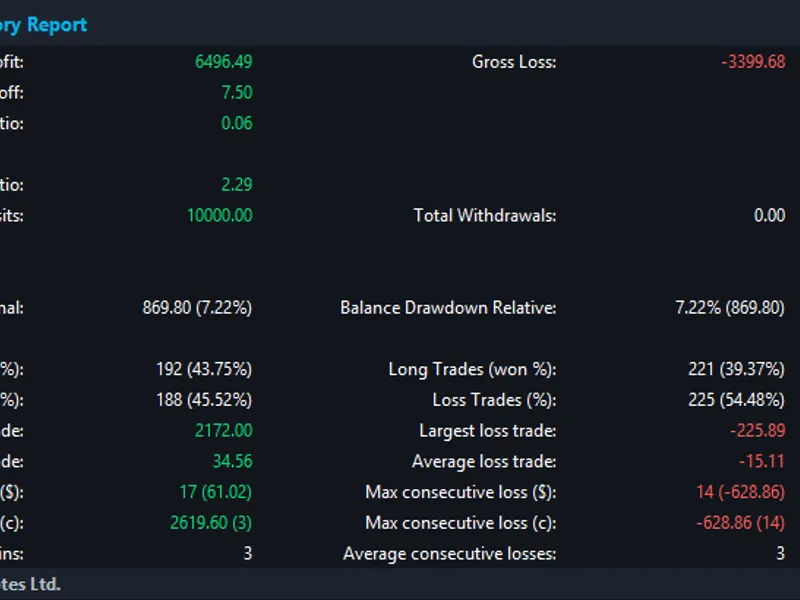
You may also like: MT5 Trade Report Table: Comprehensive Account Statistics - excellent alternative for indicator users on MetaTrader 5.
Source Code
#property copyright "RobotFX"
#property version   "1.10"
#property indicator_chart_window
#property indicator_plots   8
#property indicator_buffers 8
#property indicator_label1  "EMA Fast"
#property indicator_type1   DRAW_LINE
#property indicator_color1  clrDodgerBlue
#property indicator_style1  STYLE_SOLID
#property indicator_width1  1
.......
⚠ Limitations & Risk Warning
- This tool is provided for educational and testing purposes only.
- Past performance does not guarantee future results.
- Trading involves substantial risk of loss. Use on a demo account first.
- Results may vary depending on market conditions, broker, and settings.
- We recommend thorough backtesting and forward testing before using with real funds.