
Scalping Dashboard: Real-Time Trading Decision Support
Info
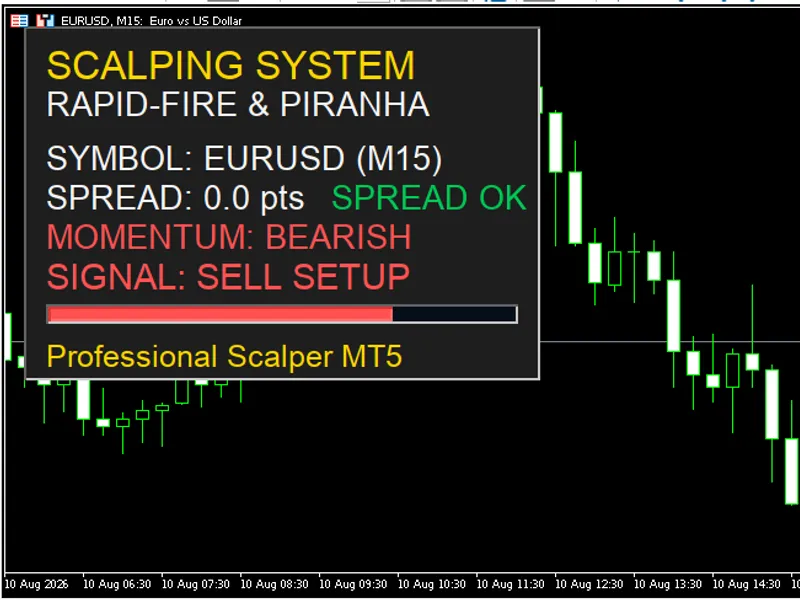
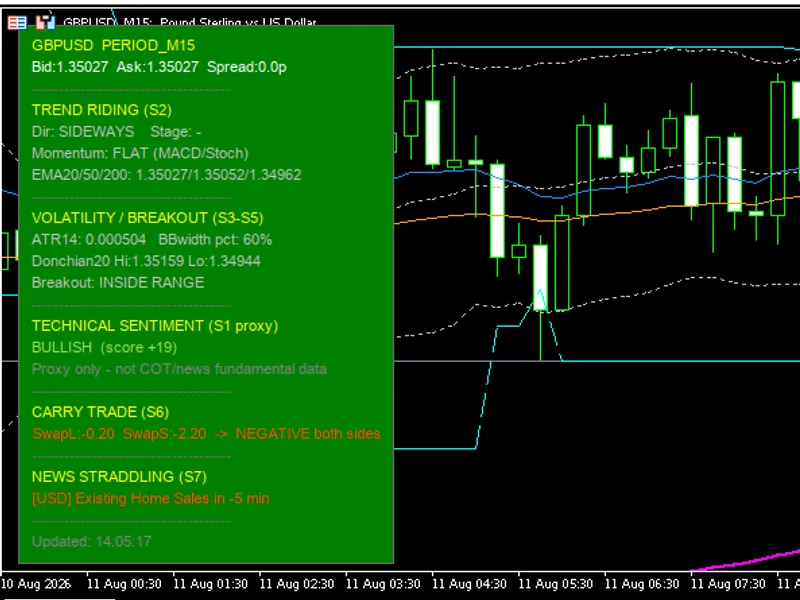
The Scalping Dashboard: Real-Time Trading Decision Support is a Indicator for MetaTrader 5 that scalping dashboard: real-time trading decision supportthis tool assists traders by eliminating hesitation and manual calculations, providing instant visual feedback for scalping decisions. Key Benefits:- Eliminates Hesitation and Manual Math: Instantly view if the current broker spread is acceptable for scalping through clear green/red color alerts.
Usage
This tool is typically used for scalping on lower timeframes (M1-M15).
Platform
This Indicator works exclusively on MetaTrader 5 (both build 600+ and newer versions).
Setup
Place the downloaded file in MQL5/Indicators folder via File ? Open Data Folder in MetaTrader 5.
How to Install and Use Scalping Dashboard: Real-Time Trading Decision Support
1. Installation: Place your file in the MQL/Indicators folder via "Open Data Folder" and restart your terminal.
2. Loading: Find the indicator in the Navigator, drag it onto your chart, and configure the input parameters in the popup window.
3. Customization: Press Ctrl+I to open the indicator list, select your tool, and click "Properties" to change colors, levels, or visual styles.
4. Updating: Replace the old file in the Indicators folder with the new version and restart the platform to apply changes.
Frequently Asked Questions
Q: Why is my indicator not showing? A: Verify the file is in the MQL/Indicators folder, or try right-clicking the "Indicators" tree in the Navigator and clicking "Refresh."
Q: Do custom indicators slow down the platform? A: Too many complex indicators can impact performance; remove unused ones via the "Indicator List" (Ctrl+I).
Q: Can I use MT4 indicators on MT5? A: No, MQL4 and MQL5 are distinct languages; ensure the indicator is compiled specifically for your platform version.
What this tool does
Scalping Dashboard: Real-Time Trading Decision SupportThis tool assists traders by eliminating hesitation and manual calculations, providing instant visual feedback for scalping decisions.
Typical Use Case
This Indicator excels in automated trading and technical analysis on MetaTrader 5.
Compatible Platform & Setup
This Indicator works on MetaTrader 5. Place the file in the MQL5/Indicators folder and restart the terminal.
Description & Settings
Related: Market Session Indicator Lines for Scalping - another powerful indicator for MetaTrader 5 traders.
Scalping Dashboard: Real-Time Trading Decision SupportAlso recommended: FX Dashboard: Comprehensive Trading Analysis Tool - similar indicator with strong performance on MetaTrader 5.
This tool assists traders by eliminating hesitation and manual calculations, providing instant visual feedback for scalping decisions.
Key Benefits:
- Eliminates Hesitation and Manual Math: Instantly view if the current broker spread is acceptable for scalping through clear green/red color alerts.
- Short-Term Trend Monitoring: Utilizes fast and slow EMAs to display momentum direction (Bullish, Bearish, or Flat), helping traders avoid trading against the main timeframe trend.
- Clean Visual Management: The dashboard updates every second and removes all graphical objects cleanly when uninstalled, leaving no trace on the chart.
Input Parameters Explained
SCALPING SETTINGS
InpFastEMA (Default: 5): Fast Exponential Moving Average period. Detects rapid price shifts.
InpSlowEMA (Default: 20): Slow Exponential Moving Average period. Confirms baseline trend direction.
InpMaxSpread (Default: 12.0): Maximum allowed spread threshold in points. Warns of high spreads to prevent costly trades.
InpTimerSeconds (Default: 1): Refresh frequency in seconds for market ticks and indicator data.
UI POSITION & SCALING
InpShowPanel (Default: true): Toggles panel visibility.
InpPanelX (Default: 15): Horizontal distance in pixels from the top-left chart corner.
InpPanelY (Default: 15): Vertical distance in pixels from the top-left chart corner.
InpBaseFontSize (Default: 10): Base font size for the layout.
COLOR THEME (DROPDOWN)
InpColorBackground: Panel background color.
InpColorGold: Secondary accent and title color.
InpColorWhite: Main text color.
InpColorGray: Neutral state color (Flat).
InpColorGreen / InpColorRed: Profit/Buy or Loss/Sell/High Spread alert colors.
InpColorBorder / InpColorDarkBox: Border and inner box colors for visual elements.
Recommended Trading Methods
- Rapid-Fire Momentum Following: Enter trades in the direction indicated by the Momentum row (BULLISH or BEARISH) only when the spread status is green (SPREAD OK). Use the BUY SETUP or SELL SETUP prompt as an instant entry cue.
- Maximum Spread Filtering: Adjust InpMaxSpread based on the traded currency pair. Avoid opening positions when the panel warns of high spreads to protect profit margins from high broker transaction costs.
You may also like: Session Scalping Zones Indicator - excellent alternative for indicator users on MetaTrader 5.
Source Code
#property copyright "RobotFX"
#property link "https://robotfx.org"
#property version   "1.70"
#property strict
#property indicator_chart_window
#property indicator_plots 0
#property description "This code is educational. Feel free to use, modify and upgrade as you wish. Visit ROBOTFX.ORG for professional trading tools"
enum ENUM_CUSTOM_COLOR
{
    CLR_DARK_BLUE   = C'8,23,38',
.......
⚠ Limitations & Risk Warning
- This tool is provided for educational and testing purposes only.
- Past performance does not guarantee future results.
- Trading involves substantial risk of loss. Use on a demo account first.
- Results may vary depending on market conditions, broker, and settings.
- We recommend thorough backtesting and forward testing before using with real funds.