



Pending Panel MT5: One-Click Pending Orders with OCO Functionality
Info
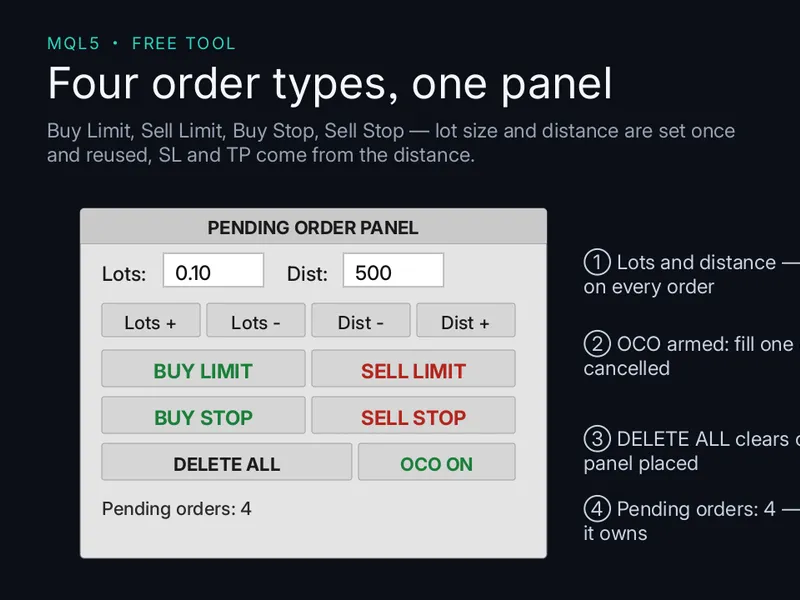
The Pending Panel MT5: One-Click Pending Orders with OCO Functionality is a Expert Advisor for MetaTrader 5 that pending panel is a chart-based execution tool for metatrader 5 that allows users to place pending orders (buy limit, sell limit, buy stop, and sell stop) with a single click. Key Features- Place all four pending order types with one click.
Usage
This tool is typically used for automated trading on major forex pairs and gold.
Platform
This Expert Advisor works exclusively on MetaTrader 5 (both build 600+ and newer versions).
Setup
Place the downloaded file in MQL5/Experts folder via File ? Open Data Folder in MetaTrader 5.
How to Install and Use Pending Panel MT5: One-Click Pending Orders with OCO Functionality
1. Installation: Open the "File" menu, select "Open Data Folder," navigate to MQL/Experts, paste your file, and restart the terminal.
2. Activation: Drag the EA from the Navigator onto a chart, ensure "Allow live trading" is checked in the Common tab, and verify the AutoTrading button is green.
3. Optimization: Right-click your chart, choose "Expert List," click "Properties" to adjust inputs, and save your preferred setup as a set file for future use.
4. Maintenance: Regularly check the "Experts" tab in the terminal window to monitor trade logs and potential execution errors.
Frequently Asked Questions
Q: Why is my EA not opening trades? A: Check the "AutoTrading" button, ensure "Allow live trading" is enabled, and verify your broker allows automated trading on your account type.
Q: Can I run multiple EAs on one chart? A: No, each chart can only host one active EA; however, you can open multiple charts for different currency pairs to run several EAs.
Q: What does the "smiley face" icon mean? A: A smiley face in the top-right corner of the chart indicates the EA is successfully running; a frowny face means it is disabled.
What this tool does
Pending Panel is a chart-based execution tool for MetaTrader 5 that allows users to place pending orders (Buy Limit, Sell Limit, Buy Stop, and Sell Stop) with a single click.
Typical Use Case
This Expert Advisor excels in automated trading and technical analysis on MetaTrader 5.
Compatible Platform & Setup
This Expert Advisor works on MetaTrader 5. Place the file in the MQL5/Experts folder and restart the terminal.
Description & Settings
Related: Supertrend Scalper with Breakeven Win Rate Panel - another powerful expert for MetaTrader 5 traders.
Pending Panel is a chart-based execution tool for MetaTrader 5 that allows users to place pending orders (Buy Limit, Sell Limit, Buy Stop, and Sell Stop) with a single click.Also recommended: Tick Scalper Helper: Tick Chart and One-Click Trading Panel for MT5 - similar expert with strong performance on MetaTrader 5.
Key Features
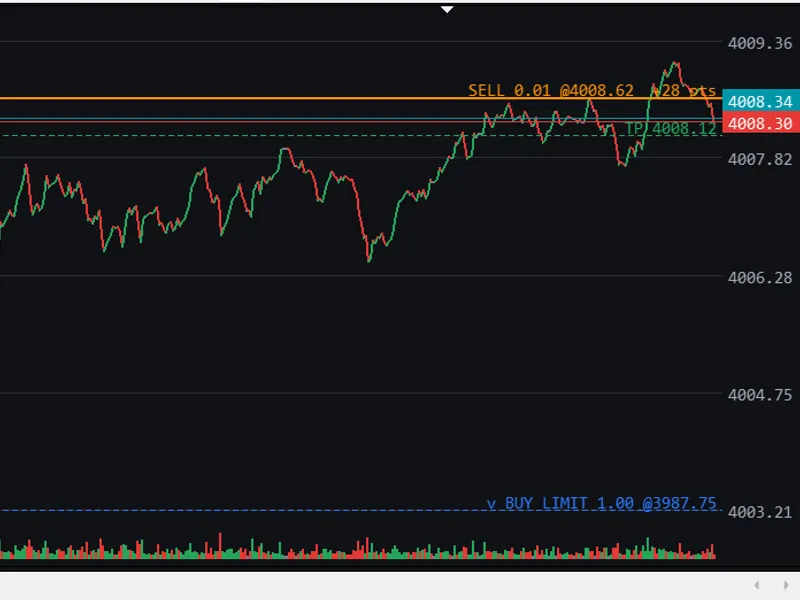
- Place all four pending order types with one click.
- Adjust volume and distance directly on the panel without recompiling.
- Option to attach Stop Loss (SL) and Take Profit (TP) to each pending order.
- OCO functionality: When one order in a pair is triggered, the other is automatically canceled.
- Bulk delete all pending orders placed by this Expert Advisor (EA).
- Automatic detection of broker's STOPS_LEVEL and filling mode.
- Live list displaying pending orders with details on type, volume, price, and SL/TP.
- Clean, dependency-free source code using only the standard library.
How to Use
1. Place the PendingPanel.mq5 file into the MQL5\Experts\ directory and compile it in MetaEditor (press F7).
2. Attach the EA to any chart and ensure "Allow Algo Trading" is enabled.
3. Adjust the desired volume and distance using the +/- buttons on the panel.
4. Click one of the four order buttons to place a pending order.
5. Use the "DELETE ALL" button to remove all pending orders initiated by this EA.
6. Toggle the OCO setting to enable or disable the one-cancels-the-other pairing.
Important Notes
- This is an execution tool only; it does not perform market analysis or generate trading signals.
- Pending orders can be triggered by market gaps or news spikes, potentially resulting in execution prices significantly different from the requested price. Always attach SL/TP and monitor your trading exposure.
- The EA exclusively manages orders associated with its unique magic number. It will not interfere with manually placed orders or orders placed by other EAs.
- Broker restrictions, such as STOPS_LEVEL, FREEZE_LEVEL, and filling modes, can vary. The EA is designed to detect and adapt to these settings, but it is recommended to verify functionality on a demo account first.
- No trading results are guaranteed.
- Last updated 2026.
You may also like: Fx Craft Example EA: Range Breakout with Pending Orders - excellent alternative for expert users on MetaTrader 5.
Source Code
#property copyright "RobotFX"
#property version   "1.00"
#property description "This code is educational. Feel free to use, modify and upgrade as you wish. Visit ROBOTFX.ORG for professional trading tools"
#include <Trade/Trade.mqh>
input group "=== Trade Settings ==="
input double InpLots          = 0.10;
input int    InpDistPoints    = 300;
input int    InpSLPoints      = 0;
input int    InpTPPoints      = 0;
input ulong  InpMagic         = 20260101;
.......
⚠ Limitations & Risk Warning
- This tool is provided for educational and testing purposes only.
- Past performance does not guarantee future results.
- Trading involves substantial risk of loss. Use on a demo account first.
- Results may vary depending on market conditions, broker, and settings.
- We recommend thorough backtesting and forward testing before using with real funds.