



Order Guard: Restart-Safe Order Sending for Expert Advisors (No Duplicate Trades)
Info
The Order Guard: Restart-Safe Order Sending for Expert Advisors (No Duplicate Trades) is a Expert Advisor for MetaTrader 5 that orderguard is an include file designed for developers of custom expert advisors (eas) for metatrader 5. Its primary function is to enhance the safety and reliability of order submission within EAs.
Usage
This tool is typically used for automated trading on major forex pairs and gold.
Platform
This Expert Advisor works exclusively on MetaTrader 5 (both build 600+ and newer versions).
Setup
Place the downloaded file in MQL5/Experts folder via File ? Open Data Folder in MetaTrader 5.
How to Install and Use Order Guard: Restart-Safe Order Sending for Expert Advisors (No Duplicate Trades)
1. Installation: Open the "File" menu, select "Open Data Folder," navigate to MQL/Experts, paste your file, and restart the terminal.
2. Activation: Drag the EA from the Navigator onto a chart, ensure "Allow live trading" is checked in the Common tab, and verify the AutoTrading button is green.
3. Optimization: Right-click your chart, choose "Expert List," click "Properties" to adjust inputs, and save your preferred setup as a set file for future use.
4. Maintenance: Regularly check the "Experts" tab in the terminal window to monitor trade logs and potential execution errors.
Frequently Asked Questions
Q: Why is my EA not opening trades? A: Check the "AutoTrading" button, ensure "Allow live trading" is enabled, and verify your broker allows automated trading on your account type.
Q: Can I run multiple EAs on one chart? A: No, each chart can only host one active EA; however, you can open multiple charts for different currency pairs to run several EAs.
Q: What does the "smiley face" icon mean? A: A smiley face in the top-right corner of the chart indicates the EA is successfully running; a frowny face means it is disabled.
What this tool does
OrderGuard is an include file designed for developers of custom Expert Advisors (EAs) for MetaTrader 5.
Typical Use Case
This Expert Advisor excels in automated trading and technical analysis on MetaTrader 5.
Compatible Platform & Setup
This Expert Advisor works on MetaTrader 5. Place the file in the MQL5/Experts folder and restart the terminal.
Description & Settings
Related: Account Recorder: Minute-by-Minute Performance Tracking to CSV - another powerful expert for MetaTrader 5 traders.
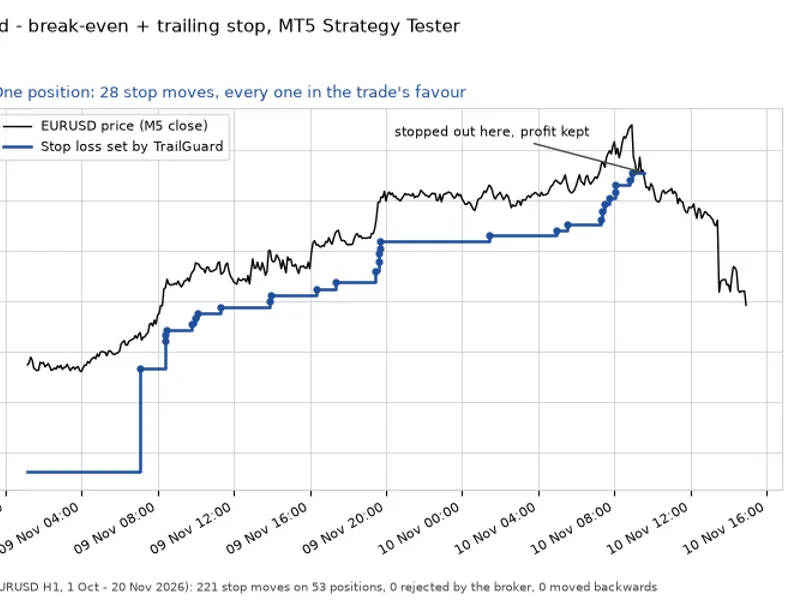
OrderGuard is an include file designed for developers of custom Expert Advisors (EAs) for MetaTrader 5. Its primary function is to enhance the safety and reliability of order submission within EAs. OrderGuard is not an automated trading robot and does not contain any trading strategies. It is provided with a simple example EA to demonstrate its usage, focusing on sending market buy and sell orders.Also recommended: Trail Guard: Automated Break-Even and Trailing Stop Management for MetaTrader 5 - similar expert with strong performance on MetaTrader 5.
Key features of OrderGuard include:
- Prevention of duplicate trades: Ensures that the same trading signal is never executed more than once, even after an EA restart, connection interruption, or retry.
- Accurate open trade count: Maintains an accurate count of open trades based on broker information, overcoming limitations that occur when an EA restarts.
- Connection-aware order submission: Prevents orders from being sent while the trading terminal is disconnected, logging connection outages once instead of on every tick.
- Proper handling of stops and targets: Automatically adjusts stops and targets that are too close to the current price to meet the broker's minimum distance requirements, with correct rounding.
Additional pre-order checks performed by OrderGuard:
- Lot size validation: Ensures lot sizes comply with symbol specifications and are never rounded up.
- Margin and market status checks: Refuses orders if insufficient free margin is available, the market is closed, or the symbol does not permit trading.
- Order fill method selection: Chooses an order fill method compatible with the trading symbol.
- Graceful handling of broker rejections: Implements a progressive waiting period (up to 15 minutes) before retrying a rejected signal, logging the skipped signal only once.
Integration instructions: Place the OrderGuard.mqh file in the MQL5\Include\OrderGuard\ directory. In your EA, include the file using `#include
The trading logic in the example EA (a moving average crossover) serves solely to demonstrate OrderGuard's functionality and does not represent a profitable trading strategy. OrderGuard operates independently of the trading symbol or timeframe used by the host EA. It is freely available for use and modification.
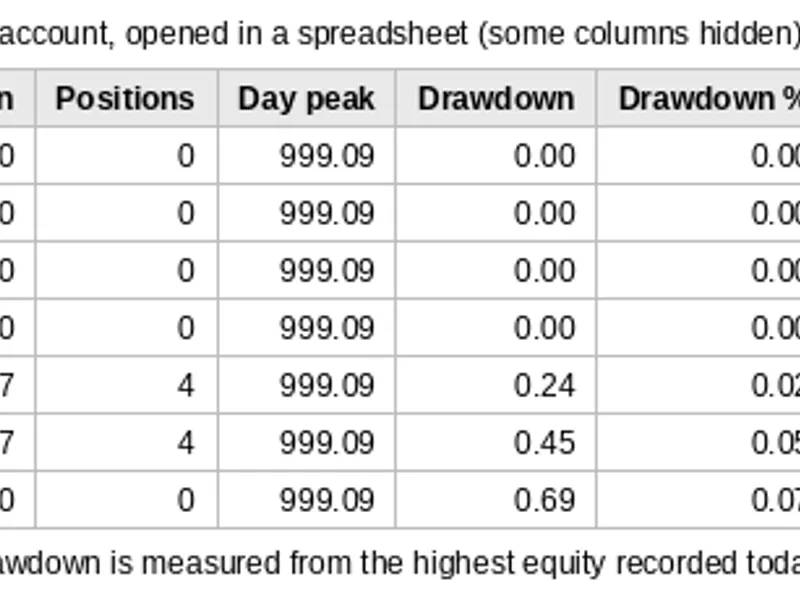
Testing details: Conducted in the Strategy Tester from September 1 to November 20, 2026, on an H1 timeframe, using a hedging account. Results for EURUSD showed 13 orders sent and 13 filled; USDJPY, 32 sent and 32 filled; US30, 34 sent and 34 filled; and GER30, 21 sent and 21 filled. Across all symbols, no signal was traded twice, and no orders were refused by the broker. Even with its signal history memory disabled, 13 trades were executed without duplication. An order requesting 500 lots was correctly rejected. The accompanying illustration presents these results in a table format, alongside three journal log entries.
Limitations of testing: Live terminal restarts, connection losses (Strategy Tester maintains a constant connection), netting accounts, gold trading, and other brokers were not tested. Real-money trading was also not performed.
Example EA inputs (default values):
- Magic number: 240117
- Lots: 0.01
- Fast MA period: 20
- Slow MA period: 50
- Stop distance, points: 300
- Target distance, points: 600
- Max open positions for this EA (broker-counted): 1
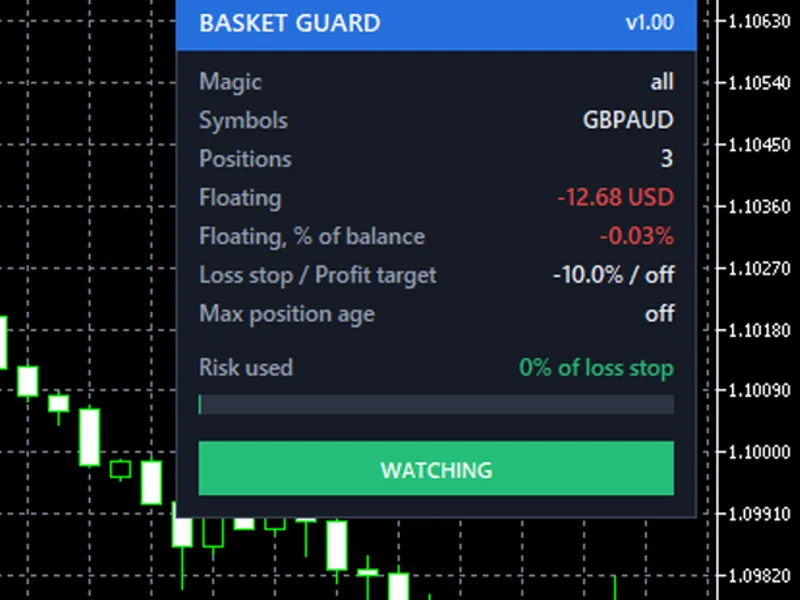
You may also like: Basket Guard: Basket Position Management for MT4/MT5 - excellent alternative for expert users on MetaTrader 5.
Source Code
#property strict
#property description "This code is educational. Feel free to use, modify and upgrade as you wish. Visit ROBOTFX.ORG for professional trading tools"
#include <OrderGuard\OrderGuard.mqh>
input ulong  InpMagic        = 240117;
input double InpLots         = 0.01;
input int    InpFast         = 20;
input int    InpSlow         = 50;
input int    InpStopPoints   = 300;
input int    InpTargetPoints = 600;
input int    InpMaxPositions = 1;
.......
⚠ Limitations & Risk Warning
- This tool is provided for educational and testing purposes only.
- Past performance does not guarantee future results.
- Trading involves substantial risk of loss. Use on a demo account first.
- Results may vary depending on market conditions, broker, and settings.
- We recommend thorough backtesting and forward testing before using with real funds.